
DARKROCK MH200
ຄູ່ມືຜູ້ໃຊ້ເຄສຄອມພິວເຕີ DARKROCK MH200
ຮຸ່ນ: MH200
1. ບົດແນະນຳ
Welcome to the user manual for the DARKROCK MH200 White PC Computer Case. This compact mid-tower case is designed for both office and gaming setups, featuring high-airflow mesh panels and versatile component support. This manual provides detailed information on the case's features, specifications, installation, operation, and maintenance to ensure optimal performance and longevity.
2. ຄຸນນະສົມບັດທີ່ສໍາຄັນ
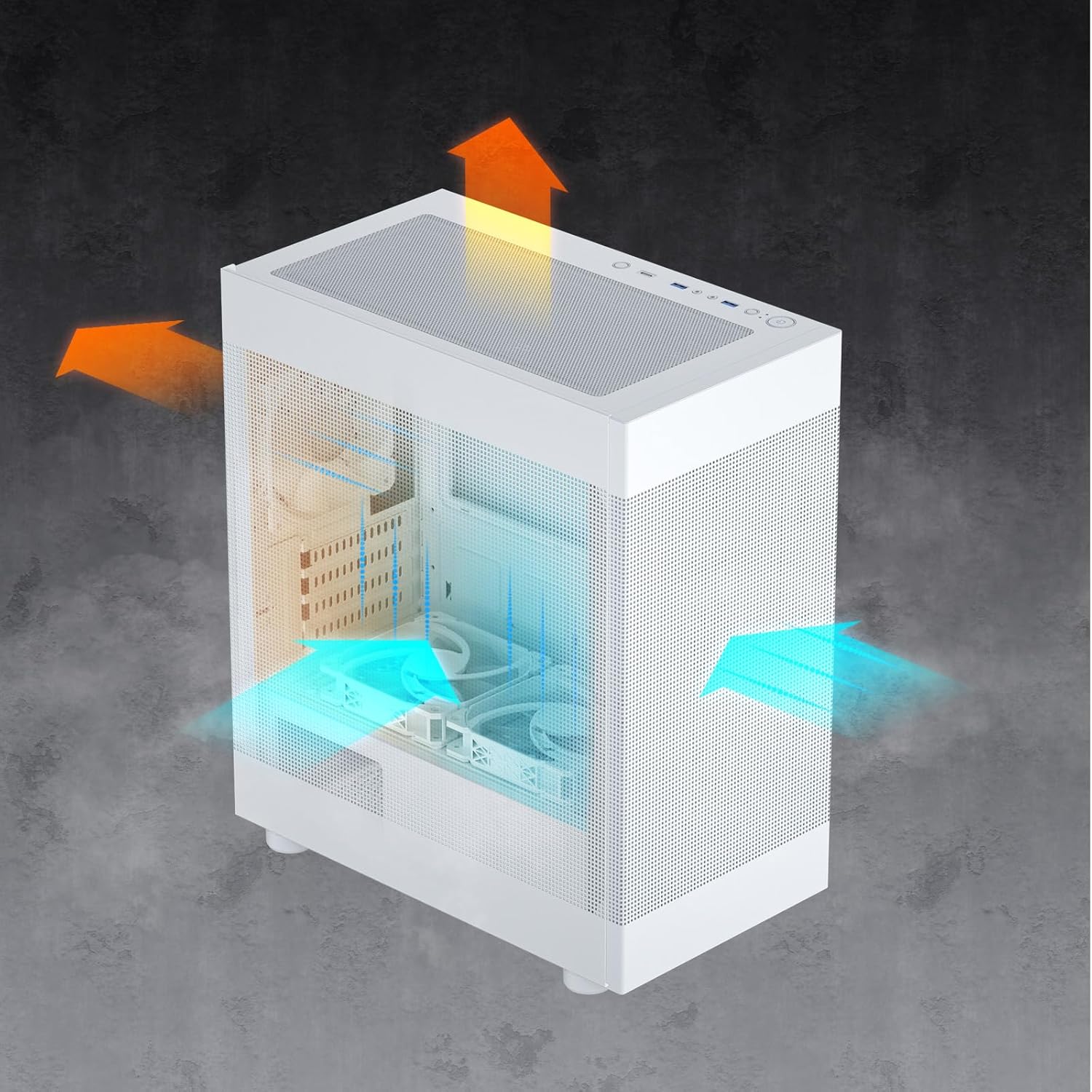
- Premium Cooling Performance: Equipped with front and side mesh panels for enhanced airflow. Top and bottom panels feature magnetic mesh dust filters for easy cleaning and improved thermal management.
- Ready for Upgrade: Spacious interior accommodates CPU coolers up to 165mm in height and graphics cards up to 330mm in length, supporting most NVIDIA GeForce RTX 40 Series GPUs.
- ແຜງ I/O ທີ່ມີປະສິດທິພາບ: Conveniently located top panel with a Type-C port, two USB 3.0 ports, and audio jacks for easy connectivity of peripherals and storage devices.
- ການອອກແບບ Sleek & ທັນສະໄຫມ: Available in white, supporting Micro ATX and Mini-ITX motherboards. Includes a pre-installed ARGB 120mm fan in the rear for vibrant lighting effects.
- Various Cooling Options: Supports up to eight fans and a 280mm radiator on the top, ensuring excellent airflow and cooling for your PC components.


3. ຂໍ້ມູນຈໍາເພາະ
| ຄຸນລັກສະນະ | ລາຍລະອຽດ |
|---|---|
| ຍີ່ຫໍ້ | ດາກຣັອກ |
| ຊື່ຕົວແບບ | MH200 |
| ປະເພດກໍລະນີ | ຫໍກາງ |
| ສີ | ສີຂາວ |
| ວັດສະດຸ | ໂລຫະ |
| ຄວາມເຂົ້າກັນໄດ້ຂອງເມນບອດ | Micro ATX, Mini ITX |
| ຂະໜາດລາຍການ (LxWxH) | 14.17 x 8.35 x 16.53 ນິ້ວ |
| ນ້ໍາຫນັກລາຍການ | 8.4 ປອນ |
| ຄວາມສູງຂອງ CPU Cooler ສູງສຸດ | 165ມມ |
| ຄວາມຍາວສູງສຸດຂອງ GPU | 330ມມ |
| ປະເພດການຕິດຕັ້ງການສະຫນອງພະລັງງານ | ພູລຸ່ມ |
| ຜອດ I/O | 1x Type-C, 2x USB 3.0, Audio Jacks |
| ພັດລົມທີ່ຕິດຕັ້ງໄວ້ລ່ວງໜ້າ | 1x 120mm ARGB fan (rear) |
| ສະຫນັບສະຫນູນພັດລົມ | ສູງສຸດ 8 ແຟນ |
| ສະຫນັບສະຫນູນ radiator | Up to 280mm (top) |


4. ເນື້ອໃນຊຸດ
ກະລຸນາກວດເບິ່ງເນື້ອໃນຂອງແພັກເກັດໃນເວລາທີ່ unboxing ເພື່ອຮັບປະກັນວ່າລາຍການທັງຫມົດແມ່ນມີຢູ່:
- DARKROCK MH200 PC Computer Case (White)
- 1x 120mm ARGB Fan (pre-installed in rear)
- ກ່ອງອຸປະກອນເສີມ (ສະກູ, ສາຍຮັດຊິບ, ຕົວຮອງ, ແລະອື່ນໆ)
- ຄູ່ມືຜູ້ໃຊ້ (ເອກະສານນີ້)

5. ການຕິດຕັ້ງແລະການຕິດຕັ້ງ
Follow these steps to install your components into the DARKROCK MH200 case. For detailed visual instructions, please refer to the official ຄູ່ມືການຕິດຕັ້ງ (PDF).
- ກະກຽມກໍລະນີ: Carefully remove the side panels and front panel by gently pulling them away from the chassis. The mesh panels are designed for easy removal.
- ຕິດຕັ້ງເມນບອດ: Secure your Micro ATX or Mini ITX motherboard onto the pre-installed standoffs using the appropriate screws from the accessory box.
- ຕິດຕັ້ງ Power Supply (PSU): Mount your power supply unit in the bottom rear compartment of the case. Ensure proper orientation for cable management.
- ຕິດຕັ້ງ Drives Storage: Install 2.5" SSDs behind the motherboard tray and 3.5" HDDs in the removable drive cage located at the bottom front.
- ຕິດຕັ້ງບັດກາຟິກ (GPU): Insert your graphics card into the appropriate PCIe slot on your motherboard. Ensure it is securely fastened. The case supports GPUs up to 330mm in length.
- ຕິດຕັ້ງ CPU Cooler: Mount your CPU cooler. The case supports coolers up to 165mm in height.
- Install Additional Fans/Radiators: Install any additional cooling fans or liquid radiators as desired. Refer to the specifications section for supported sizes and locations.
- ການຄຸ້ມຄອງສາຍໄຟ: Route all necessary cables through the cutouts and tie-down points behind the motherboard tray for a clean build and improved airflow.
- Reattach Panels: Once all components are installed and cables are managed, carefully reattach the front and side mesh panels.
6. ການດໍາເນີນງານ
The DARKROCK MH200 case features a convenient top I/O panel for easy access to essential ports and controls.

- ປຸ່ມເປີດປິດ: Press to turn your computer on or off.
- ປຸ່ມຣີເຊັດ: Press to restart your computer.
- ພອດ USB 3.0: Connect high-speed USB devices such as external hard drives, flash drives, or peripherals.
- Type-C Port: Connect modern USB Type-C devices for fast data transfer.
- ສຽງ Jacks: Connect headphones, microphones, or speakers.
- ປຸ່ມ LED: Control the lighting effects of the pre-installed ARGB fan and any other compatible ARGB components connected to the case's controller (if applicable).
7. ບໍາລຸງຮັກສາ
ການບຳລຸງຮັກສາເປັນປະຈຳຊ່ວຍຮັບປະກັນປະສິດທິພາບທີ່ດີທີ່ສຸດ ແລະ ຍືດອາຍຸການໃຊ້ງານຂອງອຸປະກອນຄອມພິວເຕີຂອງທ່ານ.
- ການເຮັດຄວາມສະອາດກອງຂີ້ຝຸ່ນ: The top and bottom panels are equipped with magnetic dust filters. Gently remove them and clean with water or a soft brush. Ensure they are completely dry before reattaching.
- ການອະນາໄມກໍລະນີ: ໃຊ້ອ່ອນ, ງamp cloth to wipe down the exterior of the case. Avoid abrasive cleaners or solvents.
- ການກຳຈັດຝຸ່ນພາຍໃນ: ໃຊ້ອາກາດອັດເປັນໄລຍະເພື່ອກຳຈັດຝຸ່ນອອກຈາກອົງປະກອບພາຍໃນ ແລະ ພັດລົມ. ໃຫ້ແນ່ໃຈວ່າລະບົບຖືກປິດ ແລະ ຖອດປລັກອອກກ່ອນທີ່ຈະເຮັດຄວາມສະອາດພາຍໃນ.
8. ການແກ້ໄຂບັນຫາ
If you encounter issues with your DARKROCK MH200 case, refer to the common problems and solutions below:
- ບໍ່ມີພະລັງງານ:
ການແກ້ໄຂ: Ensure the power supply is properly connected to the wall outlet and the motherboard. Check all front panel header connections (Power SW, Reset SW) to the motherboard.
- ພັດລົມບໍ່ໝຸນ / ARGB ບໍ່ສະຫວ່າງ:
ການແກ້ໄຂ: Verify that the fan power cables are securely connected to the motherboard or fan controller. Check ARGB connections to the motherboard's ARGB header or dedicated controller. Ensure the LED button on the I/O panel is functioning.
- ພອດ USB ບໍ່ເຮັດວຽກ:
ການແກ້ໄຂ: Confirm that the USB 3.0 and Type-C headers from the case are correctly plugged into the corresponding ports on your motherboard.
- ຊ່ອງສຽບສຽງບໍ່ເຮັດວຽກ:
ການແກ້ໄຂ: Ensure the HD Audio cable from the case is properly connected to the audio header on your motherboard.
- ການສະສົມຂອງຝຸ່ນຫຼາຍເກີນໄປ:
ການແກ້ໄຂ: Regularly clean the magnetic dust filters on the top and bottom panels. Consider increasing fan airflow or adjusting fan curves if temperatures are high due to dust.
9. ການຮັບປະກັນແລະການສະຫນັບສະຫນູນ
DARKROCK products are manufactured to high quality standards. For warranty information, technical support, or to contact customer service, please visit the official DARKROCK store on Amazon or their official webເວັບໄຊ.
Official DARKROCK Store: https://www.amazon.com/stores/DARKROCK/page/05A96EC3-7BC6-4877-926F-CDD98356ADCA
Ask a question about this manual
Ask about setup, troubleshooting, compatibility, parts, safety, or missing instructions. Manuals+ will review the question and use this page’s manual context to help answer it.