
1. ບົດແນະນຳ
This manual provides detailed instructions for the setup, operation, maintenance, and troubleshooting of your Cosmic Byte ARES Wired Controller for PC. Designed for an enhanced gaming experience, this controller features Hall Effect joysticks and triggers, dual vibration, and customizable Turbo functions.
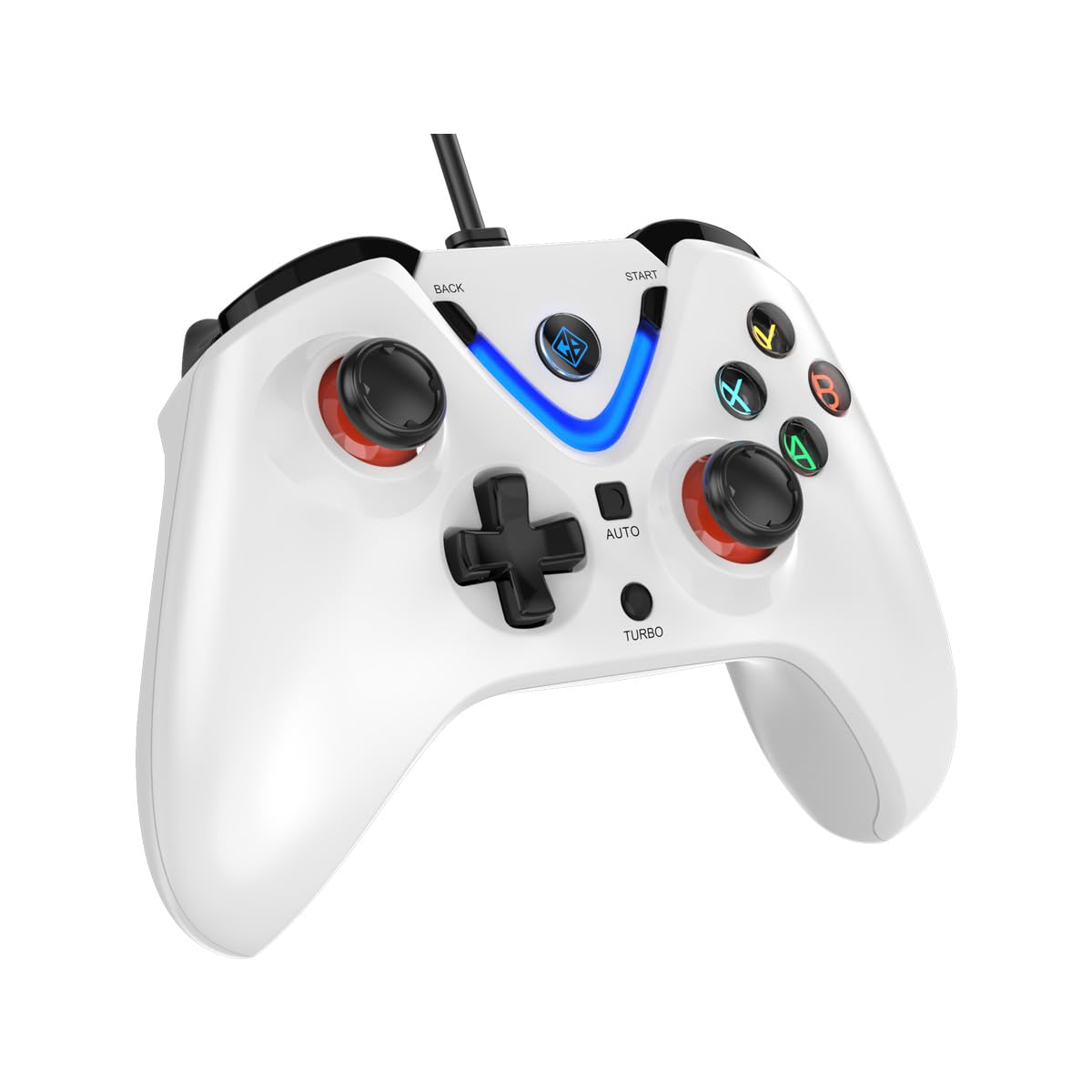
Image 1: The Cosmic Byte ARES Wired Controller in white, showcasing ການອອກແບບ ergonomic ຂອງມັນ.
2. ຄໍາແນະນໍາການຕິດຕັ້ງ
2.1 ການເຊື່ອມຕໍ່ກັບ PC
- ໃຫ້ແນ່ໃຈວ່າ PC ຂອງທ່ານເປີດຢູ່.
- ຊອກຫາຊ່ອງສຽບ USB ທີ່ມີຢູ່ໃນຄອມພິວເຕີຂອງທ່ານ.
- Plug the USB connector of the Cosmic Byte ARES Wired Controller into the USB port.
- ລະບົບປະຕິບັດການຈະກວດພົບແລະຕິດຕັ້ງໄດເວີທີ່ຈໍາເປັນໂດຍອັດຕະໂນມັດ. ຂະບວນການນີ້ອາດຈະໃຊ້ເວລາເລັກນ້ອຍ.
- Once installation is complete, the controller is ready for use.

Image 2: The controller connected via its wired USB connection, ensuring fast response.
3. ຄໍາແນະນໍາການດໍາເນີນງານ
3.1 ການຄວບຄຸມພື້ນຖານ
The Cosmic Byte ARES controller features standard gamepad layouts, including:
- Left and Right Analog Joysticks: ສໍາລັບການເຄື່ອນໄຫວທີ່ຊັດເຈນແລະການຄວບຄຸມກ້ອງຖ່າຍຮູບ.
- D-Pad: ສຳລັບການປ້ອນຂໍ້ມູນທິດທາງ, ມັກໃຊ້ໃນເມນູ ຫຼື ສຳລັບການກະທຳຂອງເກມສະເພາະ.
- ປຸ່ມປະຕິບັດ (A, B, X, Y): For primary game interactions.
- ປຸ່ມບ່າໄຫລ່ (L1, R1) ແລະ ຕົວກະຕຸ້ນ (L2, R2): For various in-game functions like shooting, aiming, or accelerating.
- ປຸ່ມເລີ່ມຕົ້ນ ແລະ ປຸ່ມກັບຄືນ: For pausing games, accessing menus, or specific in-game commands.
- ປຸ່ມ Turbo: ສຳລັບເປີດໃຊ້ໜ້າທີ່ຍິງໄວ.
- ປຸ່ມອັດຕະໂນມັດ: For activating automatic rapid-fire functions.
3.2 Hall Effect Joysticks ແລະ Triggers
The controller is equipped with Hall Effect joysticks and triggers, which use magnetic sensors instead of physical contacts. This technology provides:
- ຄວາມຊັດເຈນທີ່ປັບປຸງ: More accurate and responsive input.
- ຄວາມທົນທານເພີ່ມຂຶ້ນ: Reduces wear and tear, preventing stick drift over time.
- ການດໍາເນີນງານກ້ຽງ: Consistent and linear response for triggers, allowing for nuanced control in games.

ຮູບພາບ 3: ມີການລະເບີດ view illustrating the Hall Effect joystick mechanism and the Hall Effect triggers.
3.3 Dual Vibration Feedback
The controller features dual vibration motors that provide tactile feedback during gameplay, enhancing immersion by simulating in-game events such as impacts, explosions, or engine rumbling.
3.4 Backlit LED Buttons
The action buttons (A, B, X, Y) and the central V-shaped indicator feature LED backlighting, providing visibility in low-light conditions and adding to the controller's aesthetic.

Image 4: The controller with its LED buttons illuminated and visual representation of vibration effects.
3.5 Turbo and Auto Turbo Functions
The Turbo and Auto Turbo functions allow for rapid, repeated input of a button press without continuously pressing the button.
- ການເປີດໃຊ້ Turbo: Press and hold the desired action button (e.g., A) and then press the ເທີໂບ button. The button will now rapidly repeat its input as long as you hold it down.
- Activating Auto Turbo: Press and hold the desired action button (e.g., A) and then press the ອັດຕະໂນມັດ button. The button will now rapidly repeat its input automatically without needing to be held down.
- Deactivating Turbo/Auto Turbo: To deactivate, repeat the activation steps for the specific button, or press the ຈະແຈ້ງ button (if available) or disconnect and reconnect the controller.

Image 5: Close-up of the controller showing the Turbo and Auto function buttons.
4. ບໍາລຸງຮັກສາ
- ທໍາຄວາມສະອາດ: ໃຊ້ຜ້າອ່ອນໆ, ແຫ້ງເພື່ອເຮັດຄວາມສະອາດເຄື່ອງຄວບຄຸມ. ສໍາລັບຝຸ່ນ stubborn, a ເລັກນ້ອຍ damp cloth can be used, ensuring no liquid enters the controller. Avoid harsh chemicals or abrasive cleaners.
- ການເກັບຮັກສາ: ເກັບຮັກສາເຄື່ອງຄວບຄຸມໄວ້ໃນບ່ອນທີ່ເຢັນ, ແຫ້ງ, ຫ່າງຈາກແສງແດດໂດຍກົງແລະອຸນຫະພູມທີ່ສຸດ. ຫຼີກເວັ້ນການວາງວັດຖຸຫນັກໃສ່ເຄື່ອງຄວບຄຸມ.
- ການດູແລສາຍໄຟ: Do not sharply bend or pull the USB cable. Always grasp the plug when disconnecting from the PC.
5. ການແກ້ໄຂບັນຫາ
- ຕົວຄວບຄຸມບໍ່ຮັບຮູ້:
- Ensure the USB cable is securely connected to both the controller and the PC.
- ລອງສຽບຕົວຄວບຄຸມເຂົ້າກັບພອດ USB ອື່ນ.
- ປິດເປີດຄອມພິວເຕີຂອງທ່ານຄືນໃໝ່.
- Check Device Manager on Windows to see if the controller is listed and if there are any driver issues.
- ປຸ່ມ / Joysticks ບໍ່ຕອບສະໜອງ:
- Verify the controller is recognized by your PC (see above).
- Test the controller in a different game or a controller testing utility to rule out game-specific issues.
- ໃຫ້ແນ່ໃຈວ່າບໍ່ມີອຸປະກອນປ້ອນຂໍ້ມູນອື່ນໆລົບກວນ.
- ການສັ່ນສະເທືອນບໍ່ເຮັດວຽກ:
- ກວດເບິ່ງການຕັ້ງຄ່າໃນເກມເພື່ອຮັບປະກັນການຕອບສະໜອງການສັ່ນສະເທືອນ.
- Some games may not support vibration or may have limited vibration effects.
6. ຂໍ້ມູນຈໍາເພາະ
| ຄຸນສົມບັດ | ລາຍລະອຽດ |
|---|---|
| ຍີ່ຫໍ້ | Cosmic Byte |
| ຊື່ຕົວແບບ | ອາເຣສ |
| ອຸປະກອນທີ່ເຂົ້າກັນໄດ້ | PC |
| ປະເພດການຄວບຄຸມ | ແຜ່ນເກມ |
| ເຕັກໂນໂລຊີການເຊື່ອມຕໍ່ | USB |
| ຄຸນສົມບັດຜະລິດຕະພັນ | Ergonomic |
| ປະລິມານປຸ່ມ | 16 |
| ເວທີຮາດແວ | PC |
| ປະເພດແຫຼ່ງພະລັງງານ | ໄຟຟ້າມີສາຍ, ສາຍ USB |
| ນ້ໍາຫນັກລາຍການ | 220 ກຣາມ |
| ຂະໜາດລາຍການ | 6 x 10 x 4 ຊັງຕີແມັດ |
| ສີ | ສີຂາວ |
| ປະເທດຕົ້ນກໍາເນີດ | ຈີນ |

Image 6: A comparison table highlighting features of different ARES controller models.
7. ການຮັບປະກັນແລະການສະຫນັບສະຫນູນ
7.1 ຂໍ້ມູນການຮັບປະກັນ
The Cosmic Byte ARES Wired Controller comes with a ການຮັບປະກັນ 1 ປີຕໍ່ກັບຄວາມບົກຜ່ອງດ້ານການຜະລິດ ຈາກວັນທີ່ຊື້. ກະລຸນາຮັກສາຫຼັກຖານການຊື້ຂອງທ່ານສໍາລັບການຮຽກຮ້ອງການຮັບປະກັນ.
7.2 ຂໍ້ມູນຕິດຕໍ່ຜູ້ຜະລິດ
For support, service, or warranty inquiries, please contact:
Cosmic BytePrakash Warehousing, S. No.163, Hissa No 1-2-3-4-5A-5B/2/1,
Phursungi, Pune 412308, Maharashtra, India
For further assistance, please visit the official Cosmic Byte webເວັບໄຊ ຫຼືຕິດຕໍ່ບໍລິການລູກຄ້າຂອງເຂົາເຈົ້າ.