
Alarm.com V724X
Alarm.com ADC-V724X Outdoor Wi-Fi Camera User Manual
ຮຸ່ນ: V724X
ແນະນຳ
The Alarm.com ADC-V724X is an advanced outdoor Wi-Fi camera designed to enhance the security of your property. It features High Dynamic Range (HDR) for clear imaging, two-way audio for communication, 1080p resolution, and a wide 117-degree field of view. Equipped with Video Analytics and IR Night Vision, it provides intelligent detection and monitoring capabilities. The camera also includes a MicroSD card slot for local storage and boasts an IP66 ingress protection rating, ensuring durability in various outdoor conditions.
ຂໍ້ມູນຄວາມປອດໄພ
- Ensure the camera is installed by a qualified professional or with proper safety precautions.
- Use only the specified 12VDC power supply.
- ຢ່າໃຫ້ກ້ອງຖ່າຍຮູບຖືກອຸນຫະພູມສູງເກີນໄປນອກເໜືອຈາກຂອບເຂດການເຮັດວຽກຂອງມັນ.
- ຫຼີກລ່ຽງການສຳຜັດກັບແຫຼ່ງແສງສະຫວ່າງທີ່ແຮງໂດຍກົງຂອງເລນເປັນເວລາດົນ.
- ຕັດການເຊື່ອມຕໍ່ໄຟຟ້າກ່ອນທີ່ຈະດໍາເນີນການບໍາລຸງຮັກສາຫຼືທໍາຄວາມສະອາດ.
- ຮັກສາໃຫ້ໄກຈາກເດັກນ້ອຍ.
ເນື້ອໃນຊຸດ
ກວດສອບວ່າລາຍການທັງຫມົດແມ່ນມີຢູ່ໃນຊຸດ:
- Alarm.com ADC-V724X Outdoor Wi-Fi Camera
- ຮາດແວຕິດຕັ້ງ (ສະກູ, ສະມໍ)
- ຄູ່ມືການຕິດຕັ້ງ
- Power Adapter (12VDC)
ຕັ້ງຄ່າ
1. ການຕິດຕັ້ງທາງດ້ານຮ່າງກາຍ
The ADC-V724X camera is designed for outdoor wall mounting. Choose a location that provides the desired field of view ແລະ ຢູ່ພາຍໃນຂອບເຂດຂອງເຄືອຂ່າຍ Wi-Fi ຂອງທ່ານ.
- ການກະກຽມດ້ານການຕິດຕັ້ງ: Use the included mounting template (if provided) or the camera base to mark drill holes.
- ຮູເຈາະ: Drill pilot holes for the mounting screws. Insert wall anchors if mounting into drywall or masonry.
- ຮັບປະກັນ Mount ໄດ້: Attach the camera's mounting base securely to the surface using the provided screws.
- ຕິດກ້ອງ: Connect the camera body to the mounted base. Adjust the camera angle for optimal coverage.

ຮູບ 1: ດ້ານຫນ້າ view of the ADC-V724X camera, highlighting its compact design and lens.
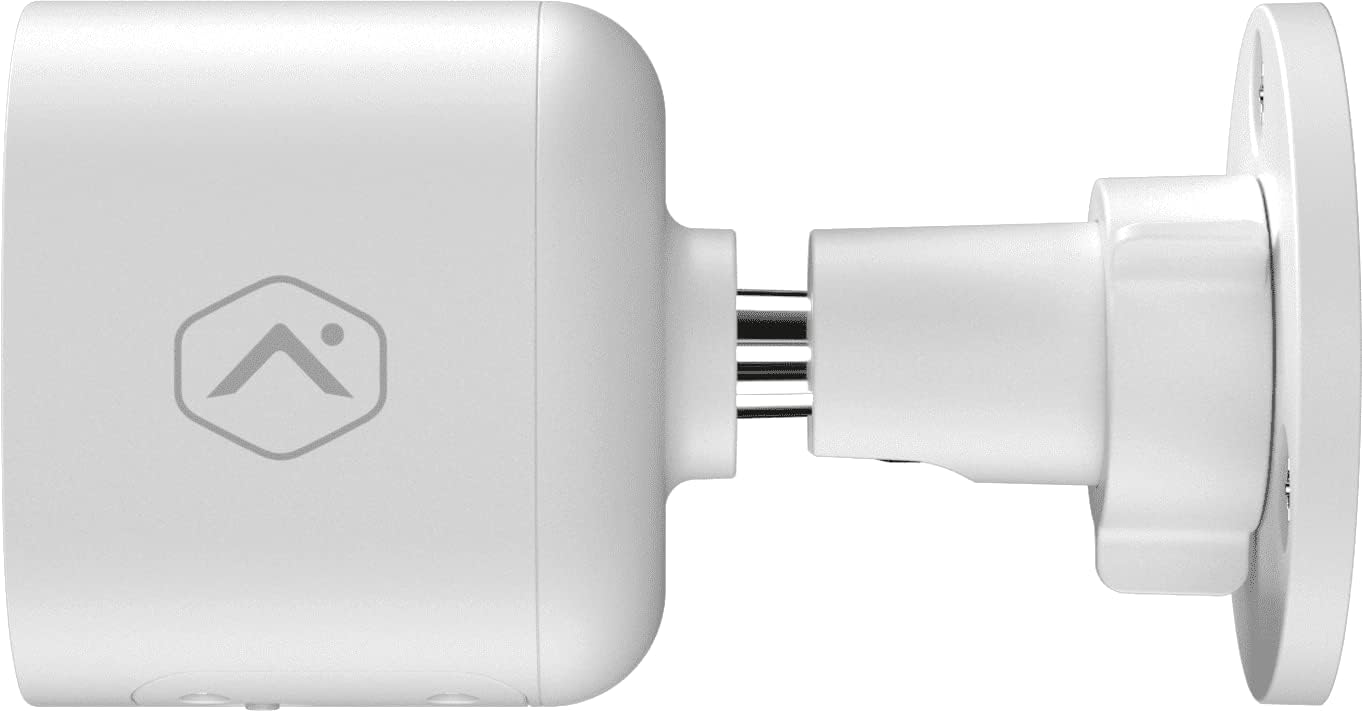
ຮູບ 2: Side profile of the camera, illustrating how it connects to the wall mount.

ຮູບທີ 3: ມຸມ view of the camera, demonstrating its adjustable mounting capabilities.
2. ການເຊື່ອມຕໍ່ພະລັງງານ
Connect the provided 12VDC power adapter to the camera's power input. Ensure the connection is secure and protected from weather elements if applicable.
3. ການເຊື່ອມຕໍ່ເຄືອຂ່າຍ (Wi-Fi)
The ADC-V724X connects to your network via Wi-Fi (2.4 or 5 GHz). Integration with your Alarm.com system typically requires activation through your Alarm.com service provider.
- ເປີດ: Plug in the camera. The LED indicator will show its status (refer to LED status guide in your Alarm.com app or provider's documentation).
- Add to System: Contact your Alarm.com service provider to add the camera to your existing security system. They will guide you through the process, which often involves scanning a QR code on the camera or entering its MAC address.
- ຕັ້ງຄ່າ Wi-Fi: Your service provider will assist in connecting the camera to your home Wi-Fi network through the Alarm.com app or webເວັບໄຊ.

ຮູບ 4: ກັບຄືນໄປບ່ອນ view of the camera, displaying the QR code and product information essential for system integration.
ປະຕິບັດການກ້ອງຖ່າຍຮູບ
Once installed and connected, the ADC-V724X camera operates primarily through the Alarm.com Customer Webເວັບໄຊ ແລະແອັບຯມືຖື.
ດໍາລົງຊີວິດ View ແລະການບັນທຶກ
- ເຂົ້າເຖິງຟີດສົດ: Open the Alarm.com app or website, navigate to the camera section, and select the ADC-V724X to view ລາຍການສົດຂອງມັນ.
- Onboard Recording (Smart View): The camera supports local recording to a MicroSD card (sold separately, up to 512 GB). This allows for continuous, encrypted recordings that can be viewed from anywhere via the Alarm.com platform.
- ການບັນທຶກຄລາວ: Depending on your Alarm.com service plan, video clips triggered by events (e.g., motion) will be uploaded to the cloud for secure storage and access.
ສຽງສອງທາງ
ກ້ອງຖ່າຍຮູບມີໄມໂຄຣໂຟນ ແລະ ລຳໂພງໃນຕົວເຊິ່ງເຮັດໃຫ້ສາມາດສື່ສານສອງທາງໄດ້.
- ເລີ່ມຕົ້ນການສື່ສານ: ຈາກການຖ່າຍທອດສົດ view in the Alarm.com app, tap the microphone icon to speak through the camera's speaker. Release the icon to listen.
- Audio in Recorded Clips: Audio is included in recorded video clips, providing additional context for events.
Video Analytics and Alerts
Configure Video Analytics rules through your Alarm.com account to receive smarter, more relevant alerts.
- ເຂດກວດຫາ: ກຳນົດພື້ນທີ່ສະເພາະພາຍໃນຂອບເຂດຂອງກ້ອງຖ່າຍຮູບ view ສໍາລັບການກວດສອບການເຄື່ອນໄຫວ.
- Object Classification: The camera can differentiate between people, animals, and vehicles, reducing false alerts.
- ການຕັ້ງຄ່າການແຈ້ງເຕືອນ: Customize notifications (e.g., push notifications, email) for specific events detected by Video Analytics.
ວິໄສທັດກາງຄືນ (IR)
The camera automatically switches to infrared (IR) night vision in low-light conditions, providing clear black-and-white video.
- ການເປີດໃຊ້ໂດຍອັດຕະໂນມັດ: The camera's built-in light sensor detects ambient light levels and activates IR LEDs as needed.
- ປະສິດທິພາບທີ່ດີທີ່ສຸດ: Ensure no obstructions are blocking the IR illuminators on the camera's front.
ບໍາລຸງຮັກສາ
ການທໍາຄວາມສະອາດກ້ອງຖ່າຍຮູບ
- ເລນ: Gently wipe the camera lens with a soft, clean, lint-free cloth. If necessary, use a small amount of lens cleaning solution. Avoid abrasive cleaners.
- ຮ່າງກາຍ: ເຊັດຕົວກ້ອງຖ່າຍຮູບດ້ວຍການໂຄສະນາamp ຜ້າ. ຢ່າໃຊ້ສານເຄມີທີ່ຮຸນແຮງຫຼືສານລະລາຍ.
- ຄວາມຖີ່: Clean the camera periodically, especially if installed in dusty or high-traffic areas, to ensure optimal image quality.
ການຄຸ້ມຄອງບັດ MicroSD
The camera supports a MicroSD card for local storage. The slot is located on the bottom of the camera, protected by a cover.
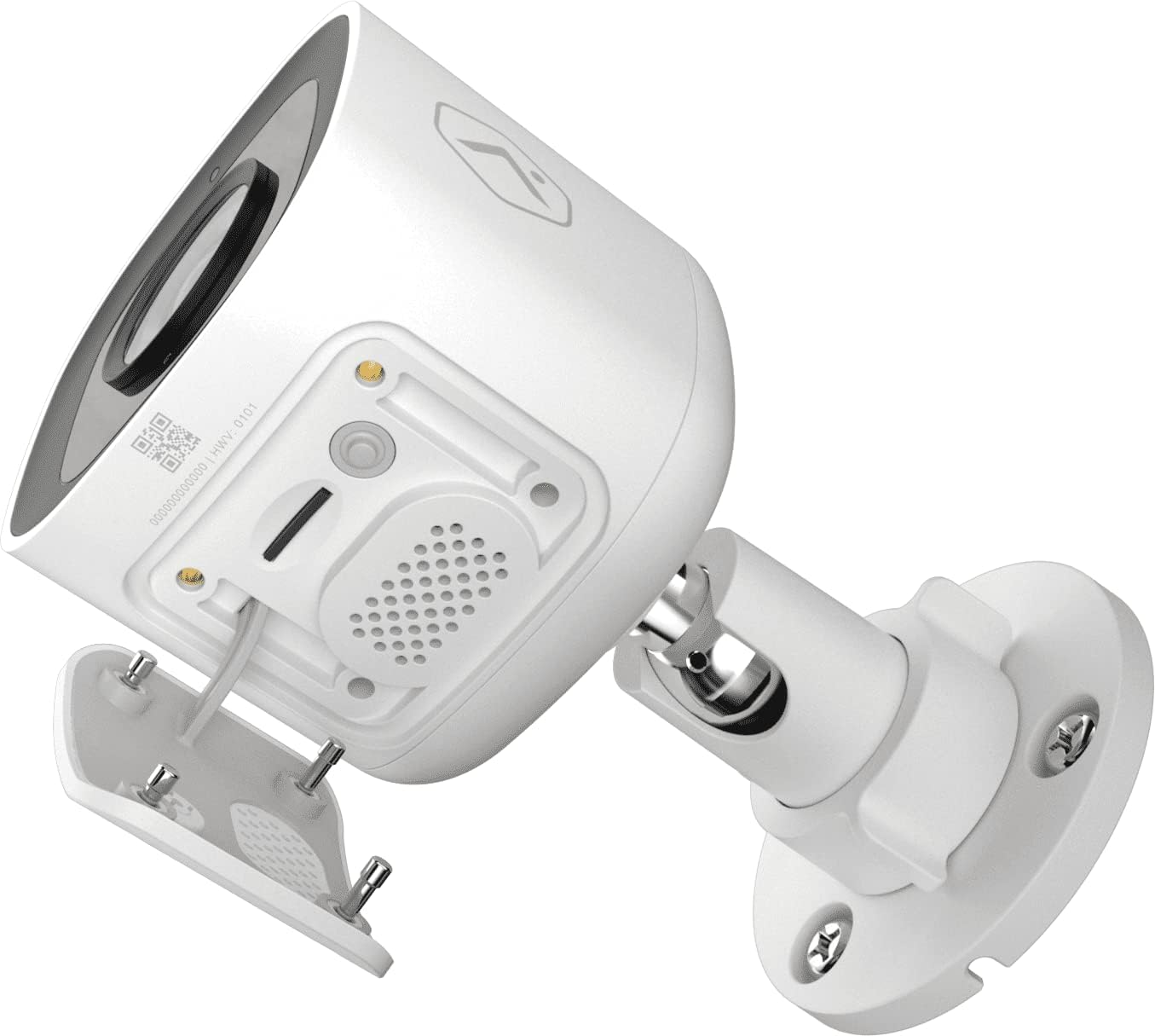
ຮູບທີ 5: ດ້ານລຸ່ມ view of the camera showing the access panel for the MicroSD card slot.
- ການຕິດຕັ້ງ: Carefully insert a compatible MicroSD card (up to 512 GB) into the slot until it clicks into place. Ensure the camera is powered off before insertion or removal.
- ການຈັດຮູບແບບ: The Alarm.com system may prompt you to format the card upon first use.
- ການທົດແທນ: If the card becomes full or corrupted, replace it with a new one. Data on the card can be managed through the Alarm.com platform.
ການແກ້ໄຂບັນຫາ
| ບັນຫາ | ສາເຫດທີ່ເປັນໄປໄດ້ | ການແກ້ໄຂ |
|---|---|---|
| ກ້ອງຖ່າຍຮູບບໍ່ເປີດ | ບໍ່ມີໄຟ, ອະແດບເຕີມີບັນຫາ, ການເຊື່ອມຕໍ່ວ່າງ. | Check power outlet, ensure adapter is securely connected to camera and power source. |
| ບໍ່ສາມາດເຊື່ອມຕໍ່ກັບ Wi-Fi ໄດ້ | ລະຫັດຜ່ານ Wi-Fi ບໍ່ຖືກຕ້ອງ, ກ້ອງຖ່າຍຮູບຢູ່ໄກຈາກເຣົາເຕີເກີນໄປ, ການລົບກວນເຄືອຂ່າຍ. | Verify Wi-Fi password. Move camera closer to router or use a Wi-Fi extender. Reduce interference from other devices. Contact your Alarm.com provider for assistance with network setup. |
| ຄຸນນະພາບຮູບພາບບໍ່ດີ | Dirty lens, low light, network bandwidth issues. | Clean the camera lens. Ensure adequate lighting or check night vision settings. Verify stable internet connection. |
| ສຽງສອງທາງບໍ່ເຮັດວຽກ | Microphone/speaker blocked, volume too low, app settings. | Ensure nothing is obstructing the microphone or speaker. Check volume settings in the Alarm.com app. |
| No local recording | No MicroSD card, incompatible card, card full/corrupted. | Insert a compatible MicroSD card. Format the card via the Alarm.com app. Replace the card if corrupted. |
For further assistance, please contact your Alarm.com service provider.
ຂໍ້ມູນຈໍາເພາະ
| ຄຸນສົມບັດ | ລາຍລະອຽດ |
|---|---|
| ໝາຍເລກຕົວແບບ | V724X |
| Effective Camera Resolution | 2MP |
| ຄວາມລະອຽດວິດີໂອສູງສຸດ | 1920 x 1080 (1080p Full HD) |
| ພາກສະຫນາມຂອງ View (FOV) | 117 ອົງສາ |
| ສຽງ | 2-Way Audio (Microphone and Speaker) |
| ປະເພດວິໄສທັດກາງຄືນ | IR (ອິນຟາເຣດ) |
| ການເຊື່ອມຕໍ່ | Wi-Fi (2.4 or 5 GHz) |
| ການເກັບຮັກສາທ້ອງຖິ່ນ | MicroSD Card Slot (up to 512 GB, sold separately) |
| ການຈັດອັນດັບການປົກປ້ອງຂາເຂົ້າ | IP66 |
| ການສະຫນອງພະລັງງານ | 12VDC |
| ຂະໜາດ (L x W x H) | 2.5 x 2.5 x 4.5 ນິ້ວ |
| ນ້ຳໜັກ | 1.46 ປອນ (0.66 ກິໂລກຣາມ) |
| ຄຸນນະສົມບັດພິເສດ | HDR, Video Analytics, Motion Sensor |
ການຮັບປະກັນແລະການສະຫນັບສະຫນູນ
For warranty information and technical support, please refer to the documentation provided by your Alarm.com service provider or visit the official Alarm.com website. Support for the ADC-V724X camera is typically handled through your authorized Alarm.com dealer or installer.
ຊັບພະຍາກອນອອນໄລນ໌:
Ask a question about this manual
Ask about setup, troubleshooting, compatibility, parts, safety, or missing instructions. Manuals+ will review the question and use this page’s manual context to help answer it.