
1. ບົດແນະນຳ
This manual provides instructions for the installation, operation, and maintenance of your NETGEAR GS305P 5-Port PoE Gigabit Ethernet Unmanaged Switch. This device is designed to expand your network connectivity with both standard Gigabit Ethernet and Power over Ethernet (PoE+) capabilities, ideal for small office or home network environments.
2. ເນື້ອໃນຊຸດ
ກວດສອບວ່າຊຸດຂອງທ່ານມີລາຍການດັ່ງຕໍ່ໄປນີ້:
- NETGEAR GS305P 5-Port PoE Gigabit Ethernet Unmanaged Switch (GS305Pv3)
- ອະແດັບເຕີພະລັງງານ
- ຊຸດ Wallmount
- ຄູ່ມືການຕິດຕັ້ງດ່ວນ

Image: The NETGEAR GS305P switch, power adapter, and power cord as typically found in the package.
3. ຜະລິດຕະພັນເກີນview
The NETGEAR GS305P is an unmanaged switch featuring 5 Gigabit Ethernet ports, with 4 of these ports supporting PoE+ (Power over Ethernet Plus). It provides a total power budget of 63W for connected PoE devices. The switch is designed for plug-and-play operation, requiring no software installation or configuration.
ວິດີໂອ: ຫຼາຍກວ່າview of the NETGEAR 5-Port PoE Switch, demonstrating its features and ease of use.
ແຜງໜ້າ

Image: Front panel of the GS305P switch, highlighting the 5 Gigabit Ethernet ports and LED indicators for power, PoE Max, link/activity, and PoE fault.
- ໄຟ LED: ສະແດງສະຖານະພະລັງງານ.
- LED PoE Max: Illuminates when PoE power consumption is near maximum capacity.
- Link/Activity LEDs (Ports 1-5): Green for 1000Mbps link, Yellow for 10/100Mbps link. Blinks to indicate activity.
- PoE Status LEDs (Ports 1-4): Green for PoE powered, Yellow for PoE fault.
- ຜອດອີເທີເນັດ (1-5): RJ-45 ports for network connections. Ports 1-4 support PoE+.
4. ການຕິດຕັ້ງແລະການຕິດຕັ້ງ
The NETGEAR GS305P switch is designed for simple plug-and-play installation. No software configuration is required.
4.1 ການເຊື່ອມຕໍ່ສະວິດ
- Connect the power adapter to the switch's power input and then plug the power adapter into an electrical outlet. The Power LED on the switch will illuminate.
- Connect your router or modem to any of the 5 Gigabit Ethernet ports on the switch using an Ethernet cable.
- Connect your network devices (computers, printers, network storage) to the remaining Gigabit Ethernet ports. For PoE-powered devices (e.g., IP cameras, wireless access points), connect them to ports 1-4.

Image: A diagram illustrating the plug-and-play nature of the unmanaged switch, connecting various devices like WiFi Access Points, IP Cameras, Computers, and NAS.
4.2 ຕົວເລືອກການຕິດຕັ້ງ
The GS305P switch can be placed on a desktop or mounted on a wall. A wallmount kit is included for secure installation.
- ການຈັດວາງ Desktop: Ensure the switch is placed on a flat, stable surface with adequate ventilation.
- ຕົວຍຶດຕິດWallາ: Use the provided wallmount kit to secure the switch to a wall. Refer to the quick installation guide for detailed steps on wall mounting.
5. ການດໍາເນີນງານຂອງ Switch
Once connected, the switch operates automatically. The LEDs provide visual feedback on the network status.
- ເປີດ: The Power LED will be green when the switch is receiving power.
- Network Activity: The Link/Activity LEDs will light up when a device is connected and blink to indicate data transmission.
- ພະລັງງານ PoE: For PoE-powered devices, the PoE Status LED will be green when power is being supplied. If a PoE fault occurs, the LED will turn yellow.
- ການດໍາເນີນງານງຽບ: The fanless design ensures quiet operation, making it suitable for noise-sensitive environments.
6. ບໍາລຸງຮັກສາ
To ensure optimal performance and longevity of your switch, follow these maintenance guidelines:
- ທໍາຄວາມສະອາດ: ໃຊ້ຜ້າປຽກແຫ້ງເພື່ອເຮັດຄວາມສະອາດດ້ານນອກຂອງສະວິດ. ຫ້າມໃຊ້ນໍ້າສະອາດ ຫຼື ແອໂຣໂຊລ.
- ການລະບາຍອາກາດ: ໃຫ້ແນ່ໃຈວ່າບໍ່ປິດຊ່ອງລະບາຍອາກາດເພື່ອປ້ອງກັນຄວາມຮ້ອນເກີນໄປ.
- ສະພາບແວດລ້ອມ: Operate the switch within its specified temperature and humidity ranges. Avoid direct sunlight or extreme temperatures.
- ການຄຸ້ມຄອງສາຍໄຟ: Keep network cables organized to prevent strain on ports and improve airflow.
7. ການແກ້ໄຂບັນຫາ
If you encounter issues with your NETGEAR GS305P switch, refer to the following common troubleshooting steps:
- ບໍ່ມີພະລັງງານ: Ensure the power adapter is securely connected to the switch and a working electrical outlet. Check the Power LED.
- ບໍ່ມີການເຊື່ອມຕໍ່ / ກິດຈະກໍາ: Verify that Ethernet cables are properly connected to both the switch and the connected device. Try a different cable or port. Check the Link/Activity LED.
- ອຸປະກອນ PoE ບໍ່ເປີດ: Ensure the device is PoE-compatible and connected to one of the PoE+ ports (1-4). Check the PoE Status LED for the port; a yellow light indicates a fault. Verify the total power budget (63W) is not exceeded by all connected PoE devices.
- ຄວາມໄວເຄືອຂ່າຍຊ້າ: Ensure all connected devices and cables support Gigabit Ethernet for optimal performance. Check for excessive network traffic.
8. ຂໍ້ມູນຈໍາເພາະ
Key technical specifications for the NETGEAR GS305P switch:
| ຄຸນສົມບັດ | ລາຍລະອຽດ |
|---|---|
| ຕົວແບບ | GS305P (GS305Pv3) |
| ຈໍານວນພອດ | 5 Gigabit Ethernet ພອດ |
| PoE+ ພອດ | 4 (ພອດ 1-4) |
| ງົບປະມານພະລັງງານທັງໝົດຂອງ PoE | 63W |
| ອັດຕາການໂອນຂໍ້ມູນ | 1000 Mbps (ກິກະບິດ) |
| ປະເພດສະຫຼັບ | ບໍ່ມີການຈັດການ |
| ວັດສະດຸກໍລະນີ | ໂລຫະ |
| ຂະໜາດ (L x W x H) | 9.5" x 6.7" x 3.4" (approximate, from product data) |
| ສະບັບtage | 240 Volts (Power adapter input) |
| ສະພາບແວດລ້ອມການດໍາເນີນງານ | Designed for indoor use in U.S. & CA. |
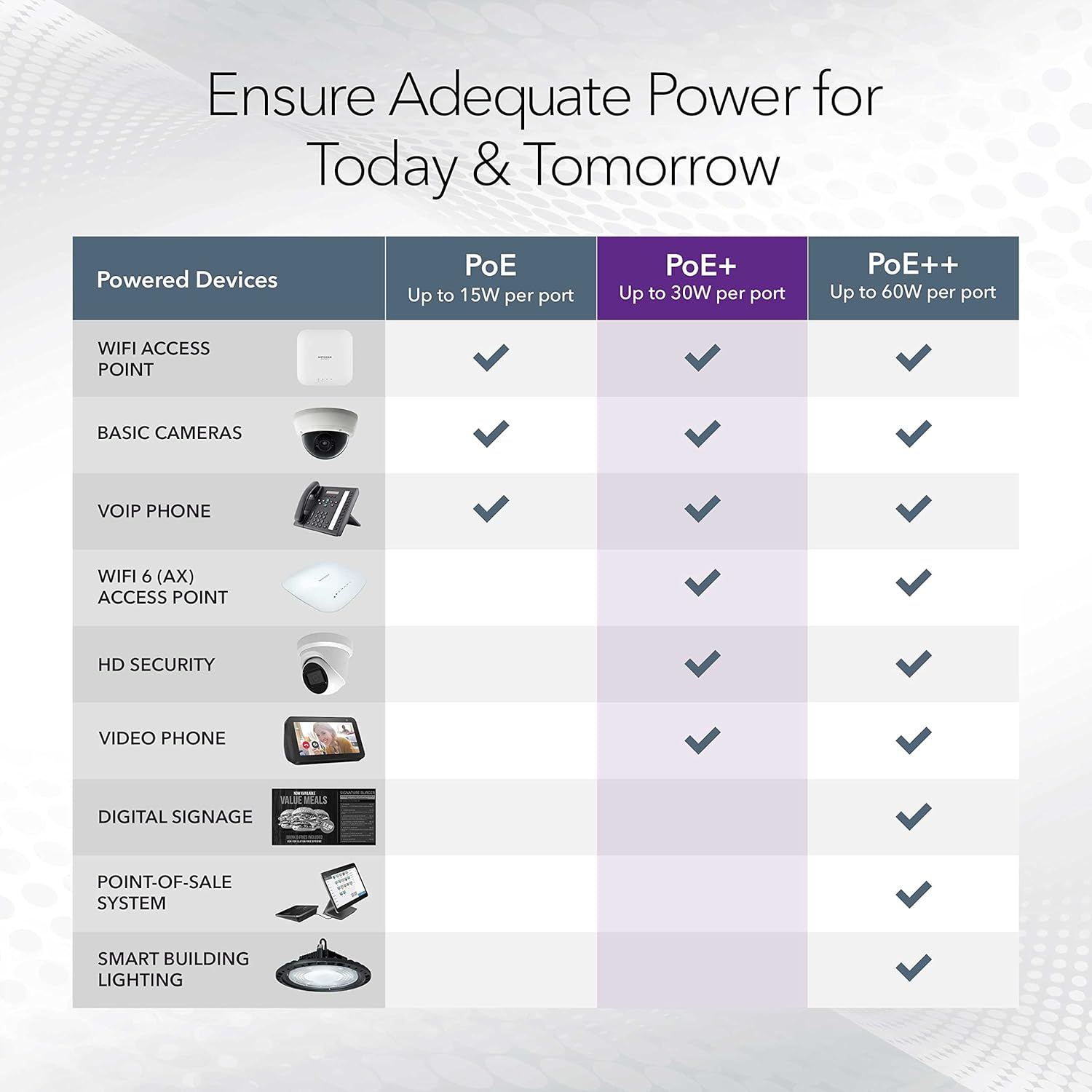
Image: A table illustrating the power capabilities of PoE, PoE+, and PoE++ for different powered devices.
9. ການຮັບປະກັນແລະການສະຫນັບສະຫນູນ
9.1 ຂໍ້ມູນການຮັບປະກັນ
The NETGEAR GS305P switch comes with an industry-leading ການຮັບປະກັນຮາດແວຈໍາກັດ 3 ປີ. Please retain your proof of purchase for warranty claims. For full warranty terms and conditions, refer to the official NETGEAR webເວັບໄຊ ຫຼືເອກະສານປະກອບກັບຜະລິດຕະພັນຂອງທ່ານ.
9.2 ສະຫນັບສະຫນູນດ້ານວິຊາການ
For technical assistance, product registration, or to access additional resources, visit the official NETGEAR support website. You can find FAQs, firmware updates, and community forums there.
ສະຫນັບສະຫນູນ NETGEAR Webເວັບໄຊ: www.netgear.com/Support