
1. ຜະລິດຕະພັນເກີນview
The GIGABYTE G24F 2 is a 23.8-inch gaming monitor designed for an immersive visual experience. It features a Super Speed IPS panel, Full HD (1920 x 1080) resolution, and a high refresh rate for smooth gameplay.

ຮູບ 1.1: ດ້ານຫນ້າ view of the GIGABYTE G24F 2 gaming monitor.
ຄຸນນະສົມບັດທີ່ສໍາຄັນ:
- ຂະໜາດແຜງ: 23.8-inch SS IPS display
- ຄວາມລະອຽດ: 1920 x 1080 (FHD)
- ເວລາຕອບສະໜອງ: 1ms MPRT
- ອັດຕາການໂຫຼດຂໍ້ມູນຄືນໃໝ່: 165Hz (overclockable ເປັນ 180Hz)
- ການອີ່ມຕົວສີ: 95% DCI-P3, 125% sRGB
- ຄວາມສະຫວ່າງ: 300 ຊີຊີ / ມ 2 (TYP)
- ອັດຕາສ່ວນກົງກັນຂ້າມ: 1100:1
- ການເຊື່ອມຕໍ່: 2 x HDMI 2.0, 1 x DisplayPort 1.2 (HDR capable), 2 x USB 3.2 Gen 1 Downstream, 1 x USB 3.2 Gen 1 Upstream, 1 x Earphone Jack
- ຄຸນນະສົມບັດພິເສດ: OSD Sidekick, Aim Stabilizer, Black Equalizer, Dashboard, Crosshair, Timer, Counter, Auto-Update, Smart OD, HDR Ready, Flicker-free, Kensington lock
2. ຂໍ້ມູນຄວາມປອດໄພ
ກະລຸນາອ່ານຄໍາແນະນໍາທັງໝົດຢ່າງລະອຽດກ່ອນທີ່ຈະໃຊ້ຈໍພາບ. ຮັກສາຄູ່ມືນີ້ໄວ້ສໍາລັບການອ້າງອີງໃນອະນາຄົດ.
- ຫ້າມບໍ່ໃຫ້ຈໍພາບຖືກຝົນ ຫຼື ຄວາມຊຸ່ມຊື້ນ ເພື່ອຫຼີກລ່ຽງອັນຕະລາຍຈາກໄຟໄໝ້ ຫຼື ຊັອດ.
- ຫ້າມເປີດຈໍພາບ casing. ບໍ່ມີສ່ວນທີ່ຜູ້ໃຊ້ບໍລິການພາຍໃນ. ອ້າງອີງການບໍລິການທັງໝົດໃຫ້ກັບບຸກຄະລາກອນທີ່ມີຄຸນວຸດທິ.
- ວາງຈໍພາບຢູ່ເທິງພື້ນຜິວຮາບພຽງທີ່ໝັ້ນຄົງເພື່ອປ້ອງກັນບໍ່ໃຫ້ມັນຕົກ.
- ຮັບປະກັນການລະບາຍອາກາດທີ່ເຫມາະສົມຮອບຈໍ. ຫ້າມປິດຊ່ອງລະບາຍອາກາດ.
- ໃຊ້ພຽງແຕ່ອະແດບເຕີສາຍໄຟ ແລະສາຍທີ່ສະໜອງໃຫ້ໂດຍຜູ້ຜະລິດ.
- ຖອດປລັກຈໍພາບອອກຈາກປລັກສຽບໄຟໃນເວລາມີພາຍຸຟ້າຜ່າ ຫຼືເມື່ອບໍ່ໄດ້ໃຊ້ເປັນເວລາດົນນານ.
- Clean the screen with a soft, lint-free cloth. Avoid using liquid cleaners directly on the screen.
3. ເນື້ອໃນຊຸດ
ກວດສອບວ່າລາຍການທັງຫມົດແມ່ນມີຢູ່ໃນຊຸດຂອງທ່ານ:
- GIGABYTE G24F 2 Monitor
- Monitor Stand (ຖານ ແລະ ຄໍ)
- ສາຍໄຟ
- ສາຍ HDMI
- USB Cable (Upstream)
- ຄູ່ມືເລີ່ມຕົ້ນດ່ວນ (QSG)
- ບັດຮັບປະກັນ

ຮູບ 3.1: ດ້ານຫລັງ view of the monitor, illustrating the stand attachment area.
4. ຕັ້ງຄ່າ
4.1 ການປະກອບຂາຕັ້ງ
- ລະມັດລະວັງຖອດຈໍແລະອົງປະກອບຢືນອອກຈາກການຫຸ້ມຫໍ່.
- ແນບຄໍຂາຕັ້ງໃສ່ກັບແຜງຈໍພາບ. ໃຫ້ແນ່ໃຈວ່າມັນກົດຢ່າງປອດໄພເຂົ້າໄປໃນສະຖານທີ່ຫຼືໄດ້ຖືກ fastened ດ້ວຍ screws ຖ້າຫາກວ່າໄດ້ສະຫນອງໃຫ້.
- ຕິດຖານຂາຕັ້ງເຂົ້າກັບຄໍຂາຕັ້ງ. ຂັນສະກູນິ້ວໂປ້ ຫຼື ສະກູທີ່ຢູ່ດ້ານລຸ່ມຂອງຖານໃຫ້ແໜ້ນ.
- ວາງຈໍສະແດງຜົນທີ່ປະກອບໃສ່ໃນພື້ນທີ່ຮາບພຽງທີ່ຫມັ້ນຄົງ.
4.2 ການເຊື່ອມຕໍ່ Monitor
Connect the monitor to your computer and other devices using the appropriate cables.

ຮູບທີ 4.1: ພອດເຊື່ອມຕໍ່ຂອງຈໍພາບ.
- ການເຊື່ອມຕໍ່ພະລັງງານ: ເຊື່ອມຕໍ່ສາຍໄຟກັບອິນພຸດໄຟຂອງຈໍພາບ ແລະຈາກນັ້ນໄປຫາປລັກສຽບໄຟ.
- ການເຊື່ອມຕໍ່ວິດີໂອ:
- For optimal performance, use the DisplayPort 1.2 cable to connect to your computer's graphics card.
- Alternatively, use one of the two HDMI 2.0 ports.
- ການເຊື່ອມຕໍ່ USB Upstream: Connect the provided USB 3.2 Gen 1 Upstream cable from your computer to the monitor's upstream USB port to enable the monitor's downstream USB ports.
- USB Downstream Connections: Connect USB devices (e.g., keyboard, mouse) to the monitor's two USB 3.2 Gen 1 Downstream ports.
- ສຽງອອກ: Connect headphones or external speakers to the Earphone Jack.
5. ການດໍາເນີນງານຂອງ Monitor
5.1 ເປີດ/ປິດ
Press the power button, usually located on the bottom or rear of the monitor, to turn the monitor on or off. The power indicator light will show the monitor's status.
5.2 ເມນູການສະແດງເທິງໜ້າຈໍ (OSD).
The OSD menu allows you to adjust various monitor settings. Navigate the OSD using the joystick or buttons typically found on the rear of the monitor.

Figure 5.1: OSD Sidekick software for convenient monitor control.
For advanced control, install the OSD Sidekick software on your PC. This utility allows you to adjust monitor settings directly from your desktop.
5.3 ຄຸນສົມບັດການຫຼິ້ນເກມ
The GIGABYTE G24F 2 includes several features to enhance your gaming experience:
- Aim Stabilizer: Reduces motion blur and improves visual clarity in fast-paced games.
- Black Equalizer: Enhances visibility in dark areas of the game without overexposing bright areas.

Figure 5.2: Black Equalizer in action.
- ແຜງໜ້າປັດ: Displays real-time hardware information (e.g., CPU/GPU temperature, usage) directly on the screen.

Figure 5.3: Dashboard displaying system metrics.
- ຜົມຂ້າມ: Provides a customizable on-screen crosshair to assist with aiming.

Figure 5.4: On-screen Crosshair.
- Timer/Counter: On-screen timers and counters for in-game tracking.
- Smart OD: Optimizes overdrive settings for the best response time.
- ອັບເດດອັດຕະໂນມັດ: Ensures the monitor's firmware and OSD Sidekick software are up-to-date.
5.4 ການຕັ້ງຄ່າການສະແດງ
- ອັດຕາການໂຫຼດຂໍ້ມູນຄືນໃໝ່: The monitor supports up to 165Hz, with an overclock option to 180Hz, for fluid motion.
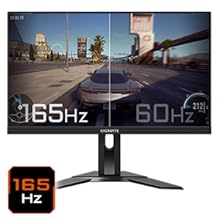
Figure 5.5: Visual comparison of 165Hz vs. 60Hz refresh rate.
- ເວລາຕອບສະໜອງ: Enjoy a 1ms MPRT (Moving Picture Response Time) for minimal ghosting.
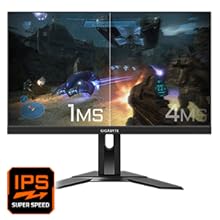
Figure 5.6: Visual comparison of 1ms vs. 4ms response time.
- ສີ Gamut: The monitor covers 95% DCI-P3 and 125% sRGB for vibrant and accurate colors.
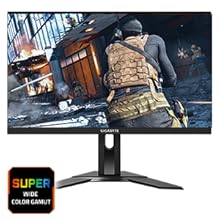
Figure 5.7: Wide color gamut for rich visuals.
- ແສງສີຟ້າຕ່ຳ: Reduces blue light emissions to protect your eyes during extended use.
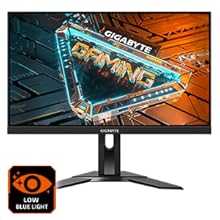
Figure 5.8: Low Blue Light feature for reduced eye strain.
- Flicker-Free: ລົບລ້າງການກະພິບໜ້າຈໍເພື່ອຄວາມສະດວກສະບາຍຫຼາຍຂຶ້ນ viewປະສົບການ.

Figure 5.9: Flicker-Free technology for comfortable viewing.
5.5 Product Feature Video
ວິດີໂອທີ 5.1: ຈົບແລ້ວview of the GIGABYTE G24F 2 monitor's features and specifications.
6. ບໍາລຸງຮັກສາ
ການບຳລຸງຮັກສາທີ່ເໝາະສົມຮັບປະກັນອາຍຸການໃຊ້ງານຂອງຈໍພາບຂອງທ່ານ.
- ທໍາຄວາມສະອາດຫນ້າຈໍ: ເຊັດໜ້າຈໍຄ່ອຍໆດ້ວຍຜ້າອ່ອນ, ແຫ້ງ, ບໍ່ມີສານຂັດ. ສໍາລັບຮອຍແຂງ, ເບົາບາງ dampໃສ່ຜ້າດ້ວຍນ້ໍາຫຼືເຄື່ອງເຮັດຄວາມສະອາດຫນ້າຈໍພິເສດ (ໃຊ້ກັບຜ້າ, ບໍ່ແມ່ນໂດຍກົງກັບຫນ້າຈໍ).
- ທໍາຄວາມສະອາດ Casing: ໃຊ້ຜ້າອ່ອນໆເຊັດຈໍສະແດງຜົນ casing. ຫຼີກລ້ຽງການເຮັດຄວາມສະອາດຂັດ.
- ການລະບາຍອາກາດ: Ensure the ventilation openings on the monitor are clear of dust and obstructions.
- ປິດພະລັງງານ: Turn off and unplug the monitor when not in use for extended periods.
7. ການແກ້ໄຂບັນຫາ
ຖ້າທ່ານພົບບັນຫາກັບຈໍພາບຂອງທ່ານ, ໃຫ້ອ້າງອີງເຖິງຕາຕະລາງຕໍ່ໄປນີ້ສຳລັບບັນຫາ ແລະ ວິທີແກ້ໄຂທົ່ວໄປ.
| ບັນຫາ | ສາເຫດທີ່ເປັນໄປໄດ້ | ການແກ້ໄຂ |
|---|---|---|
| ບໍ່ມີຮູບພາບໃນ ໜ້າ ຈໍ | Power cable not connected; Video cable not connected; Incorrect input source selected | ກວດສອບການເຊື່ອມຕໍ່ສາຍໄຟ ແລະ ສາຍວິດີໂອ; ເລືອກແຫຼ່ງປ້ອນຂໍ້ມູນທີ່ຖືກຕ້ອງຜ່ານ OSD. |
| ຮູບພາບມົວຫຼືບິດເບືອນ | ຄວາມລະອຽດບໍ່ຖືກຕ້ອງ; ສາຍວິດີໂອວ່າງ | ຕັ້ງຄວາມລະອຽດຂອງຈໍສະແດງຜົນເປັນ 1920x1080; ໃຫ້ແນ່ໃຈວ່າສາຍວິດີໂອໄດ້ເຊື່ອມຕໍ່ຢ່າງປອດໄພແລ້ວ. |
| ບໍ່ມີສຽງຈາກຫູຟັງ/ລຳໂພງ | Audio cable not connected; Volume too low; Incorrect audio output selected on PC | Check audio cable connection; Adjust volume; Select monitor as audio output on PC. |
| ພອດ USB ບໍ່ເຮັດວຽກ | ສາຍ USB upstream ບໍ່ເຊື່ອມຕໍ່ | Connect the USB 3.2 Gen 1 Upstream cable from the monitor to your PC. |
| ໜ້າຈໍກະພິບ | Refresh rate issue; Faulty cable | Ensure refresh rate is set correctly; Try a different video cable. |
8. ຂໍ້ມູນຈໍາເພາະ
Detailed technical specifications for the GIGABYTE G24F 2 monitor.

ຮູບ 8.1: ຂະໜາດຈໍພາບ.
| ຄຸນສົມບັດ | ລາຍລະອຽດ |
|---|---|
| ຍີ່ຫໍ້ | GIGABYTE |
| ຊື່ຕົວແບບ | G24F 2 |
| ໝາຍເລກຕົວແບບ | 9DG24F2-00-1ABIN |
| ຂະໜາດໜ້າຈໍ | 23.8 ນິ້ວ |
| ຄວາມລະອຽດ | 1920 x 1080 ພິກເຊລ (FHD 1080p) |
| ອັດຕາສ່ວນ | 16:9 |
| ປະເພດການສະແດງ | LCD (SS IPS Panel) |
| ອັດຕາການໂຫຼດຂໍ້ມູນຄືນໃໝ່ | 165 Hz (180Hz OC) |
| ເວລາຕອບສະຫນອງ | 1 Milliseconds (MPRT) |
| ຄວາມສະຫວ່າງ | 300 candela_per_square_meter (TYP) |
| ອັດຕາສ່ວນກົງກັນຂ້າມ | 1100:1 |
| ການອີ່ມຕົວຂອງສີ | 95% DCI-P3, 125% sRGB |
| Viewໃນມຸມ | 178 ອົງສາ |
| ການເຊື່ອມຕໍ່ | 2 x HDMI 2.0, 1 x DisplayPort 1.2, 2 x USB 3.2 Gen 1 Downstream, 1 x USB 3.2 Gen 1 Upstream, 1 x Earphone Jack |
| Adaptive Sync | FreeSync Premium |
| ການບໍລິໂພກພະລັງງານ | 17.5 ວັດ |
| ນ້ໍາຫນັກລາຍການ | 3.2 ກິໂລກຣາມ |
| ຂະໜາດລາຍການ (D x W x H) | 5.3D x 54.1W x 32.6H ຊມ |
| ປະເພດການຕິດຕັ້ງ | ຕິດຝາ |
| ຄຸນສົມບັດຜະລິດຕະພັນ | Flicker-Free, Height Adjustment, High Dynamic Range, Tilt Adjustment |
9. ການຮັບປະກັນແລະການສະຫນັບສະຫນູນ
The GIGABYTE G24F 2 monitor comes with a ຮັບປະກັນ 3 ປີ ຈາກຜູ້ຜະລິດ.
For technical support, warranty claims, or further inquiries, please contact GIGABYTE customer service:
- ຜູ້ຜະລິດ: GIGABYTE Technology (India) Pvt Ltd
- ທີ່ຢູ່: B-808, Naman Midtown, Elphinstone Road, Mumbai – 400013 – INDIA
- ໂທລະສັບ: +91-22-40633222
ກະລຸນາຮັກສາຫຼັກຖານການຊື້ຂອງທ່ານໄວ້ສໍາລັບການບໍລິການຮັບປະກັນ.