
1. ບົດແນະນຳ
The SIIG Thunderbolt 4 Docking Station (Model: JU-DK0U11-S1) is designed to expand the connectivity of your laptop, providing a comprehensive workstation solution. This docking station offers 15 ports, enabling connections for multiple displays, peripherals, network, and power through a single Thunderbolt 4 cable. It supports high-speed data transfer and versatile display configurations for both Mac and Windows systems.

Image 1.1: SIIG Thunderbolt 4 Docking Station (JU-DK0U11-S1) overview.
2. ເນື້ອໃນຊຸດ
ກວດສອບວ່າລາຍການທັງຫມົດແມ່ນມີຢູ່ໃນຊຸດຂອງທ່ານ:
- SIIG Thunderbolt 4 Docking Station (JU-DK0U11-S1)
- ຜູ້ດັດແປງພະລັງງານ 150W
- ສາຍ Thunderbolt 4
- ຄູ່ມືຜູ້ໃຊ້

Image 2.1: Contents included in the SIIG Thunderbolt 4 Docking Station package.
3. ຜະລິດຕະພັນເກີນview
3.1 ພອດແຜງດ້ານໜ້າ
- 3.5mm Stereo Out: ສໍາລັບຫູຟັງຫຼືລໍາໂພງພາຍນອກ.
- SD 3.0 Card Slot: Supports SD 3.0 UHS-1 memory cards up to 2TB.
- USB-A 3.2 Gen 1 (5Gbps) Ports (x2): For connecting USB-A peripherals, supporting 5V/0.9A charging.
- Thunderbolt 4 Port: For connecting Thunderbolt 4 devices or displays.
- ປຸ່ມເປີດປິດ: To turn the docking station on or off.

ຮູບພາບ 3.1: ລາຍລະອຽດ view of the front panel ports.
3.2 ພອດແຜງດ້ານຫຼັງ
- DC Power Jack (20V/7.5A): ເຊື່ອມຕໍ່ກັບອະແດບເຕີໄຟ 150W ທີ່ລວມຢູ່.
- Thunderbolt 4 Port (Host PD 60W): Connects to your laptop via the Thunderbolt 4 cable, providing up to 60W power delivery.
- 3.5mm Mic In: ສໍາລັບການເຊື່ອມຕໍ່ໄມໂຄໂຟນພາຍນອກ.
- Micro SD (TF) 3.0 Card Slot: Supports Micro SD (TF) 3.0 UHS-1 memory cards up to 2TB.
- USB-A 2.0 (480Mbps) Ports (x2): For connecting USB-A peripherals, supporting 5V/1.5A charging.
- Gigabit Ethernet Port: ສໍາລັບການເຊື່ອມຕໍ່ເຄືອຂ່າຍມີສາຍ.
- DisplayPort ອອກ: ສໍາລັບການເຊື່ອມຕໍ່ຈໍສະແດງຜົນພາຍນອກ.
- HDMI ອອກ: ສໍາລັບການເຊື່ອມຕໍ່ຈໍສະແດງຜົນພາຍນອກ.
- Thunderbolt 4 Ports (x2): For connecting additional Thunderbolt 4 devices or displays, providing 45W power delivery.

ຮູບພາບ 3.2: ລາຍລະອຽດ view of the rear panel ports.
4. ຄໍາແນະນໍາການຕິດຕັ້ງ
- ເຊື່ອມຕໍ່ພະລັງງານ: Plug the included 150W power adapter into the DC Power Jack on the rear of the docking station, then connect it to a power outlet.
- ເຊື່ອມຕໍ່ຫາໂຮສແລັບທັອບ: Use the provided Thunderbolt 4 cable to connect the Thunderbolt 4 Host port (60W PD) on the rear of the docking station to your laptop's Thunderbolt 4 or USB-C port.
- ເປີດ: Press the power button on the front panel of the docking station. The power indicator LED should illuminate.
- ເຊື່ອມຕໍ່ຈໍສະແດງຜົນ: Connect your monitors to the available DisplayPort, HDMI, and Thunderbolt 4 output ports on the docking station. Refer to the 'Display Configuration' section for supported setups.
- ເຊື່ອມຕໍ່ອຸປະກອນຕໍ່ພ່ວງ: Connect your USB devices, Ethernet cable, and audio devices to the corresponding ports on the docking station.
5. ຄໍາແນະນໍາການດໍາເນີນງານ
5.1 ການຕັ້ງຄ່າການສະແດງ
The docking station supports various display setups, including single 8K or quad 4K displays, utilizing Thunderbolt 4 and DisplayLink technology. Ensure DisplayLink drivers are installed for optimal performance, especially for additional displays beyond native Thunderbolt outputs.
- Single Display Output: Supports up to 8K resolution.
- Dual Display Output: Supports up to 2x 4K resolution via two Thunderbolt 4 ports.
- Quad Display Output: Achieved by combining two Thunderbolt 4 ports with the DisplayPort and HDMI ports, enabling four 4K displays.

ຮູບພາບ 5.1: ຕົວຢ່າງample of a quad display setup using the docking station.

Image 5.2: Display compatibility and resolution matrix for Windows and Mac M1/M2 systems.
5.2 ການສົ່ງພະລັງງານ
The docking station provides power to your connected devices:
- ການສາກແລັບທັອບ: Up to 60W Power Delivery (PD) to the host laptop via the Thunderbolt 4 host port.
- Thunderbolt 4 Ports: Each of the three downstream Thunderbolt 4 ports provides up to 45W of power.
- USB-A Fast Charging: Two USB-A 5Gbps ports support 5V/0.9A charging, and two USB-A 2.0 ports support 5V/1.5A charging.

Image 5.3: Power delivery capabilities of the docking station.
5.3 ການໂອນຂໍ້ມູນ
Experience high-speed data transfer for efficient workflow:
- Thunderbolt 4: Up to 40Gbps data transfer speed, 8 times faster than USB 3.0.
- USB-A 3.2 Gen 1: Up to 5Gbps data transfer speed.
- Memory Card Reader: Supports SD 3.0 UHS-1 and Micro SD (TF) 3.0 UHS-1 with data transfer rates up to 104MB/s.
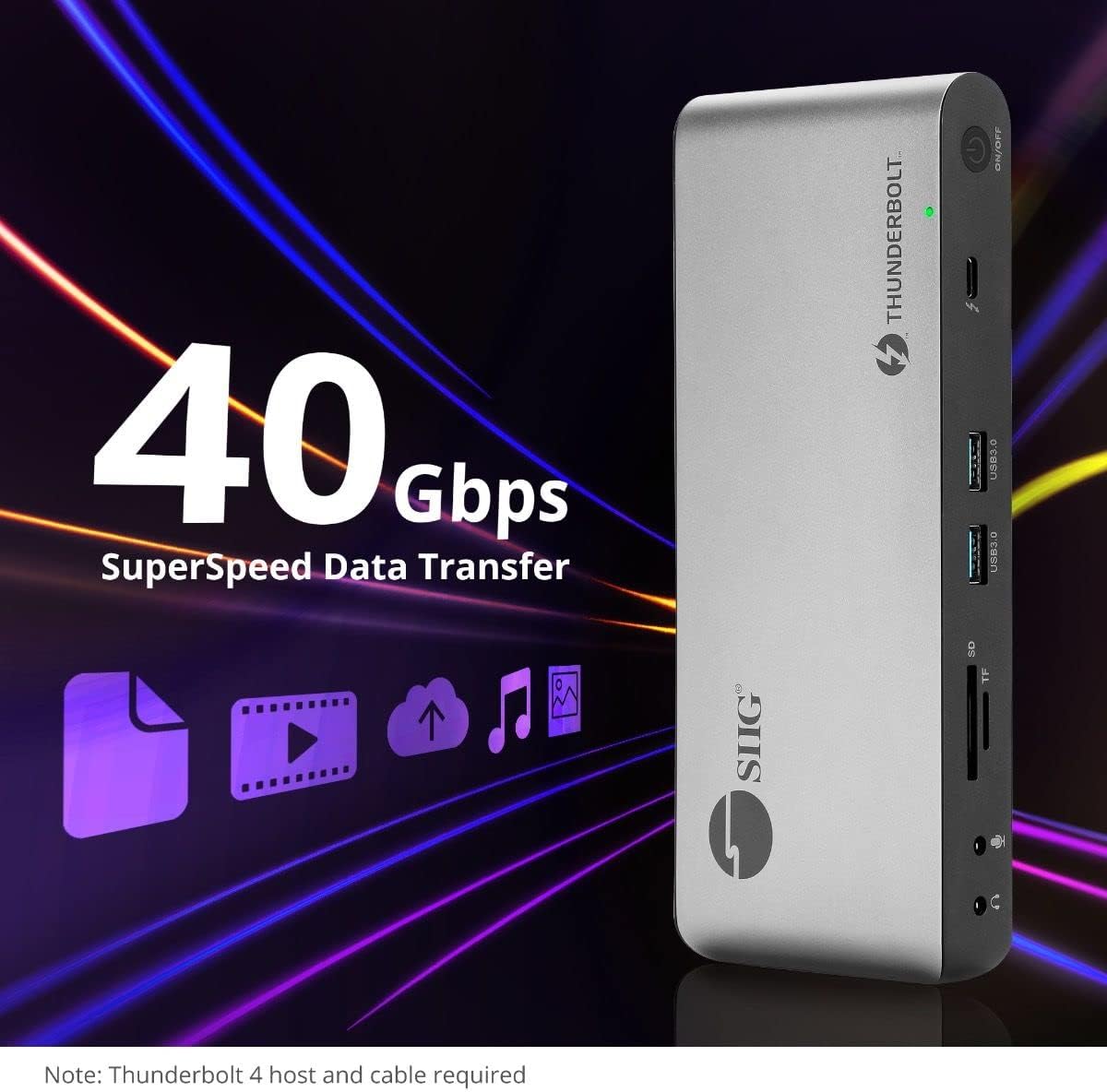
Image 5.4: High-speed data transfer capabilities.
6. ຄວາມເຂົ້າກັນໄດ້
The SIIG Thunderbolt 4 Docking Station is broadly compatible with various systems:
- ລະບົບປະຕິບັດການ: Mac M1/M2/M3 Pro & Max, Intel chip Macs, Windows PCs (Intel/AMD/Snapdragon), and Chromebooks.
- ຄວາມເຂົ້າກັນໄດ້ກັບຫຼັງ: Fully compatible with Thunderbolt 3, USB4, and USB-C equipped computers.
7. ບໍາລຸງຮັກສາ
ເພື່ອຮັບປະກັນອາຍຸຍືນ ແລະປະສິດທິພາບທີ່ດີທີ່ສຸດຂອງສະຖານີຈອດຂອງທ່ານ, ປະຕິບັດຕາມຄໍາແນະນໍາການບໍາລຸງຮັກເຫຼົ່ານີ້:
- ທໍາຄວາມສະອາດ: ໃຊ້ຜ້າອ່ອນແລະແຫ້ງເພື່ອທຳຄວາມສະອາດດ້ານນອກຂອງອຸປະກອນ. ຫຼີກລ່ຽງນ້ຳຢາທຳຄວາມສະອາດທີ່ເປັນຂອງແຫຼວ ຫຼື ຕົວລະລາຍ.
- ການລະບາຍອາກາດ: ໃຫ້ແນ່ໃຈວ່າສະຖານີເຊື່ອມຕໍ່ຖືກວາງໄວ້ໃນບໍລິເວນທີ່ມີລະບາຍອາກາດດີເພື່ອປ້ອງກັນຄວາມຮ້ອນເກີນໄປ. ຢ່າອຸດຕັນຊ່ອງລະບາຍອາກາດໃດໆ.
- ການເກັບຮັກສາ: ເກັບຮັກສາອຸປະກອນໄວ້ໃນບ່ອນທີ່ເຢັນ, ແຫ້ງ, ຫ່າງຈາກແສງແດດໂດຍກົງ ແລະອຸນຫະພູມທີ່ຮ້າຍກາດ.
- ການຈັດການ: ຫຼີກລ້ຽງການຫຼຸດລົງຫຼືການອຸປະກອນທີ່ມີຜົນກະທົບທີ່ເຂັ້ມແຂງ.
8. ການແກ້ໄຂບັນຫາ
If you encounter issues with your SIIG Thunderbolt 4 Docking Station, refer to the following common problems and solutions:
- ບໍ່ມີພະລັງງານ:
- Ensure the power adapter is securely connected to both the docking station and a working power outlet.
- Verify the power button on the docking station is pressed and the power indicator LED is on.
- ການສະແດງບັນຫາ (ບໍ່ມີສັນຍານ / ການແກ້ໄຂບໍ່ຖືກຕ້ອງ):
- Check all display cables (HDMI, DisplayPort, Thunderbolt) are securely connected to both the docking station and the monitors.
- Ensure your laptop's display settings are configured correctly to detect and extend/mirror displays.
- For multi-display setups, especially beyond two monitors, ensure DisplayLink drivers are installed and up to date on your operating system.
- Verify your monitors support the selected resolution and refresh rate.
- ບໍ່ກວດພົບອຸປະກອນຕໍ່ພ່ວງ:
- Ensure USB devices are properly connected to the docking station's USB ports.
- ລອງເຊື່ອມຕໍ່ອຸປະກອນເສີມໂດຍກົງກັບແລັບທັອບຂອງທ່ານເພື່ອຢືນຢັນວ່າມັນໃຊ້ງານໄດ້.
- Restart the docking station and your laptop.
- ຄວາມຮ້ອນເກີນ:
- Ensure the docking station is placed in an area with adequate airflow and not covered.
- Reduce the number of high-power devices connected if possible, or consider using a cooling pad if persistent.
- ການໂອນຂໍ້ມູນຊ້າ:
- Ensure you are using Thunderbolt 4 certified cables for Thunderbolt connections.
- Verify the connected device supports the expected transfer speeds.
9. ຂໍ້ມູນຈໍາເພາະ
| ຄຸນສົມບັດ | ລາຍລະອຽດ |
|---|---|
| ໝາຍເລກຕົວແບບ | JU-DK0U11-S1 |
| ຂະໜາດສິນຄ້າ | 3.27 x 7.8 x 1.14 ນິ້ວ |
| ນ້ໍາຫນັກລາຍການ | 15.4 ອອນສ໌ (0.96 ປອນ) |
| ທ່າເຮືອທັງໝົດ | 15 (including 7 USB ports) |
| ການເຊື່ອມຕໍ່ເຈົ້າພາບ | Thunderbolt 4 (USB-C) |
| ຜົນຜະລິດວິດີໂອ | 1x HDMI, 1x DisplayPort, 3x Thunderbolt 4 (USB-C) |
| Max Display Resolution | Single 8K@30Hz, Quad 4K@60Hz |
| ການຈັດສົ່ງພະລັງງານ (ເຈົ້າພາບ) | ສູງເຖິງ 60W |
| Power Delivery (Downstream TB4) | ເຖິງ 45W ຕໍ່ພອດ |
| ຄວາມໄວການຖ່າຍໂອນຂໍ້ມູນ | Thunderbolt 4: 40Gbps, USB-A 5Gbps: 5Gbps |
| ອີເທີເນັດ | Gigabit Ethernet |
| ເຄື່ອງອ່ານບັດ | SD 3.0 UHS-1, Micro SD (TF) 3.0 UHS-1 (up to 2TB) |
| ພອດສຽງ | 3.5mm Stereo Out, 3.5mm Mic In |
| OS ທີ່ເຂົ້າກັນໄດ້ | Mac M1/M2/M3 Pro & Max, Intel Macs, Windows, Chromebooks |
| ສີ | ດຳ |
| UPC | 662774045689 |
10. ການຮັບປະກັນແລະການສະຫນັບສະຫນູນ
SIIG products are designed for reliability and performance. For warranty information and technical support, please refer to the documentation included with your product or visit the official SIIG webເວັບໄຊ. ຮັກສາໃບຮັບເງິນການຊື້ຂອງທ່ານສໍາລັບການຮ້ອງຂໍການຮັບປະກັນ.