
1. ຜະລິດຕະພັນເກີນview
The havit GK59 Gaming Microphone is designed for clear audio capture during gaming, streaming, and voice communication. It features a condenser microphone for high-quality sound and a versatile design for ease of use.

ຮູບ 1.1: ດ້ານຫນ້າ view of the havit GK59 Gaming Microphone, showcasing its main body, stand, and control buttons.
ຄຸນນະສົມບັດທີ່ສໍາຄັນ:
- ງ່າຍທີ່ຈະນໍາໃຊ້: ຟັງຊັນ plug-and-play ງ່າຍໆ.
- Good Performance: Delivers clear and consistent audio.
- Good Quality: Durable construction for reliable use.
- ການອອກແບບແບບພົກພາ: ກະທັດຮັດແລະງ່າຍຕໍ່ການຂົນສົ່ງ.
- ຂາຕັ້ງສາມາດປັບໄດ້: Allows for flexible positioning.
2. ຄໍາແນະນໍາການຕິດຕັ້ງ
2.1 ເນື້ອໃນຊຸດ
ກະລຸນາກວດເບິ່ງຊຸດສຳລັບລາຍການຕໍ່ໄປນີ້:
- havit GK59 Gaming Microphone
- ສາຍເຊື່ອມຕໍ່ USB
- ຄູ່ມືຜູ້ໃຊ້ (ເອກະສານນີ້)
2.2 ການເຊື່ອມຕໍ່ໄມໂຄຣໂຟນ
The GK59 microphone offers versatile connectivity options for various devices.
- ການເຊື່ອມຕໍ່ USB: Connect the provided USB cable to the USB-C port on the back of the microphone and the other end to an available USB port on your computer or gaming console. The microphone is plug-and-play and should be automatically recognized by most operating systems.
- ການເຊື່ອມຕໍ່ Jack 3.5mm: For devices supporting a 3.5mm auxiliary input, connect a 3.5mm audio cable (not included) to the 3.5mm jack on the back of the microphone and to your device's audio input.
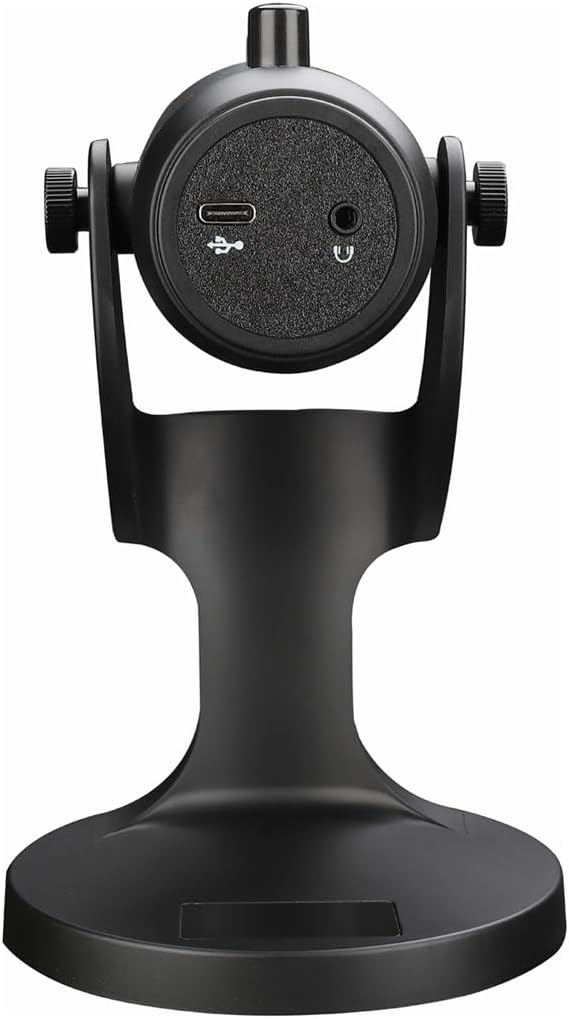
ຮູບ 2.1: ດ້ານຫລັງ view of the havit GK59 Gaming Microphone, highlighting the USB-C port for data and power, and the 3.5mm headphone jack for monitoring.
After connecting, ensure the microphone is selected as the default input device in your system's sound settings or your gaming/streaming software.
3. ຄໍາແນະນໍາການດໍາເນີນງານ
3.1 ການຄວບຄຸມພື້ນຖານ
The havit GK59 features intuitive controls located on the front of the microphone body:
- ປິດສຽງ: Press to mute or unmute the microphone. An indicator light will typically show the mute status.
- ປຸ່ມ MIC +/-: Adjust the microphone input sensitivity (gain). Press '+' to increase, '-' to decrease.
- ປຸ່ມ VOL +/-: Adjust the headphone output volume for monitoring. Press '+' to increase, '-' to decrease.
- ປຸ່ມ ECHO +/-: Adjust the echo effect level. Press '+' to increase, '-' to decrease.
ຮູບທີ 3.1: ລາຍລະອຽດ view of the microphone's control panel, including the mute button, microphone gain, volume, and echo adjustment buttons.
3.2 Adjusting Microphone Position
The microphone is equipped with an adjustable stand, allowing you to optimize its position for best sound capture and comfort.
- Gently hold the microphone body and the base of the stand.
- Tilt the microphone forward or backward to achieve the desired angle. The stand's design helps reduce vibration and abnormal sounds during use.
- Position the microphone approximately 6-12 inches (15-30 cm) from your mouth for optimal voice clarity.

Figure 3.2: The havit GK59 microphone demonstrating its adjustable tilt feature on the stand, designed for anti-vibration.
4. ບໍາລຸງຮັກສາ
4.1 ການທໍາຄວາມສະອາດ
To maintain the microphone's performance and appearance:
- Disconnect the microphone from its power source before cleaning.
- ໃຊ້ຜ້າປຽກອ່ອນໆເຊັດພື້ນຜິວພາຍນອກ.
- ຢ່າໃຊ້ນໍ້າຢາທໍາຄວາມສະອາດທີ່ເປັນຂອງແຫຼວ, ນໍ້າຢາສະເປຣ ຫຼື ຕົວລະລາຍ ເພາະວ່າສິ່ງເຫຼົ່ານີ້ອາດຈະທໍາລາຍສີ ຫຼື ອົງປະກອບພາຍໃນໄດ້.
4.2 ການເກັບຮັກສາ
When not in use, store the microphone in a cool, dry place away from direct sunlight and extreme temperatures. Protect it from dust and moisture.
5. ການແກ້ໄຂບັນຫາ
If you encounter issues with your havit GK59 Gaming Microphone, please refer to the following table for common problems and solutions:
| ບັນຫາ | ສາເຫດທີ່ເປັນໄປໄດ້ | ການແກ້ໄຂ |
|---|---|---|
| No sound input from microphone | ໄມໂຄຣໂຟນຖືກເຊື່ອມຕໍ່ຢ່າງຖືກຕ້ອງ ເລືອກອຸປະກອນປ້ອນຂໍ້ມູນບໍ່ຖືກຕ້ອງ ປິດສຽງໄມໂຄຣໂຟນແລ້ວ | ໃຫ້ແນ່ໃຈວ່າສາຍ USB ໄດ້ເຊື່ອມຕໍ່ຢ່າງປອດໄພແລ້ວ. Check system sound settings and select GK59 as input. Press the Mute button on the microphone to unmute. |
| ປະລິມານໄມໂຄຣໂຟນຕໍ່າ | Microphone gain too low System input volume too low | Press the 'MIC +' button on the microphone. Adjust input volume in your system's sound settings. |
| ສຽງບິດເບືອນ ຫຼື ບໍ່ຊັດເຈນ | Microphone gain too high ໄມໂຄຣໂຟນໃກ້ປາກເກີນໄປ ສິ່ງລົບກວນສິ່ງແວດລ້ອມ | Press the 'MIC -' button on the microphone. ປັບຕຳແໜ່ງໄມໂຄຣໂຟນ (6-12 ນິ້ວຈາກປາກ). ຫຼຸດຜ່ອນສຽງລົບກວນພື້ນຫຼັງໃນສະພາບແວດລ້ອມຂອງທ່ານ. |
| No headphone monitoring sound | ບໍ່ໄດ້ເຊື່ອມຕໍ່ຫູຟັງ Headphone volume too low | Ensure headphones are plugged into the 3.5mm jack. Press the 'VOL +' button on the microphone. |
6. ຂໍ້ກໍານົດດ້ານວິຊາການ
Below are the technical specifications for the havit GK59 Gaming Microphone:
| ຄຸນສົມບັດ | ຂໍ້ມູນຈໍາເພາະ |
|---|---|
| ຍີ່ຫໍ້ | ມີປະໂຫຍດ |
| ໝາຍເລກຕົວແບບ | GK59 |
| ເຕັກໂນໂລຊີການເຊື່ອມຕໍ່ | USB, 3.5 mm Jack (Auxiliary) |
| ການນໍາໃຊ້ທີ່ແນະນໍາ | ເກມ |
| ຮູບແບບຂົ້ວໂລກ | Unidirectional |
| ຕົວປະກອບແບບຟອມໄມໂຄຣໂຟນ | Handheld (with desktop stand) |
| ນ້ໍາຫນັກລາຍການ | 429 ກຣາມ |
| impedance | 250 ໂອມ |
| ອັດຕາສ່ວນສັນຍານເຖິງສຽງດັງ | 18 dB |
| ສຽງດັງ | 18 Decibels |
| ແຫຼ່ງພະລັງງານ | ໄຟຟ້າສາຍ (ຜ່ານ USB) |
| ອຸປະກອນທີ່ເຂົ້າກັນໄດ້ | Gaming Consoles, PCs |
| ຂະໜາດລາຍການ (LxWxH) | 5.59 x 4.92 x 9.06 ນິ້ວ |
| ສີ | ດຳ |
7. ການຮັບປະກັນແລະການສະຫນັບສະຫນູນ
7.1 ຂໍ້ມູນການຮັບປະກັນ
The havit GK59 Gaming Microphone comes with a standard manufacturer's warranty. Please refer to the warranty card included in your product packaging or visit the official havit webເວັບໄຊສໍາລັບເງື່ອນໄຂການຮັບປະກັນລາຍລະອຽດ.
7.2 ສະຫນັບສະຫນູນລູກຄ້າ
For technical assistance, troubleshooting not covered in this manual, or warranty claims, please contact havit customer support through their official channels. You can find more information and contact details on the ຮ້ານຄ້າ havit ໃນ Amazon ຫຼືທາງການຂອງເຂົາເຈົ້າ webເວັບໄຊ.