
1. ບົດແນະນຳ
This manual provides essential information for the proper installation, configuration, and operation of your Teltonika RUT951 4G LTE Router. The RUT951 is a robust industrial cellular router designed for professional applications, offering reliable internet connectivity via 4G LTE, Wi-Fi, and Ethernet. It features dual-SIM support for network redundancy and is powered by RutOS, providing advanced customization and security features.
2. ຜະລິດຕະພັນເກີນview
2.1 ລັກສະນະທີ່ສໍາຄັນ
- Dual-SIM 4G LTE cellular connectivity for reliable network access.
- Integrated Wi-Fi (802.11b/g/n) for local wireless networking.
- Four Ethernet interfaces (3x LAN, 1x WAN) for wired connections.
- Powered by RutOS for advanced customization, automation, and security.
- Robust design suitable for various IoT and industrial scenarios.
2.2 ເນື້ອໃນຊຸດ
The standard package for the Teltonika RUT951 router typically includes:
- Teltonika RUT951 Router Unit
- Power Adapter
- 2 x Mobile Antennas (SMA)
- 2 x Wi-Fi Antennas (RP-SMA)
- ສາຍອີເທີເນັດ
- ຄູ່ມືເລີ່ມຕົ້ນດ່ວນ
2.3 Router Layout
Familiarize yourself with the router's ports, indicators, and slots.
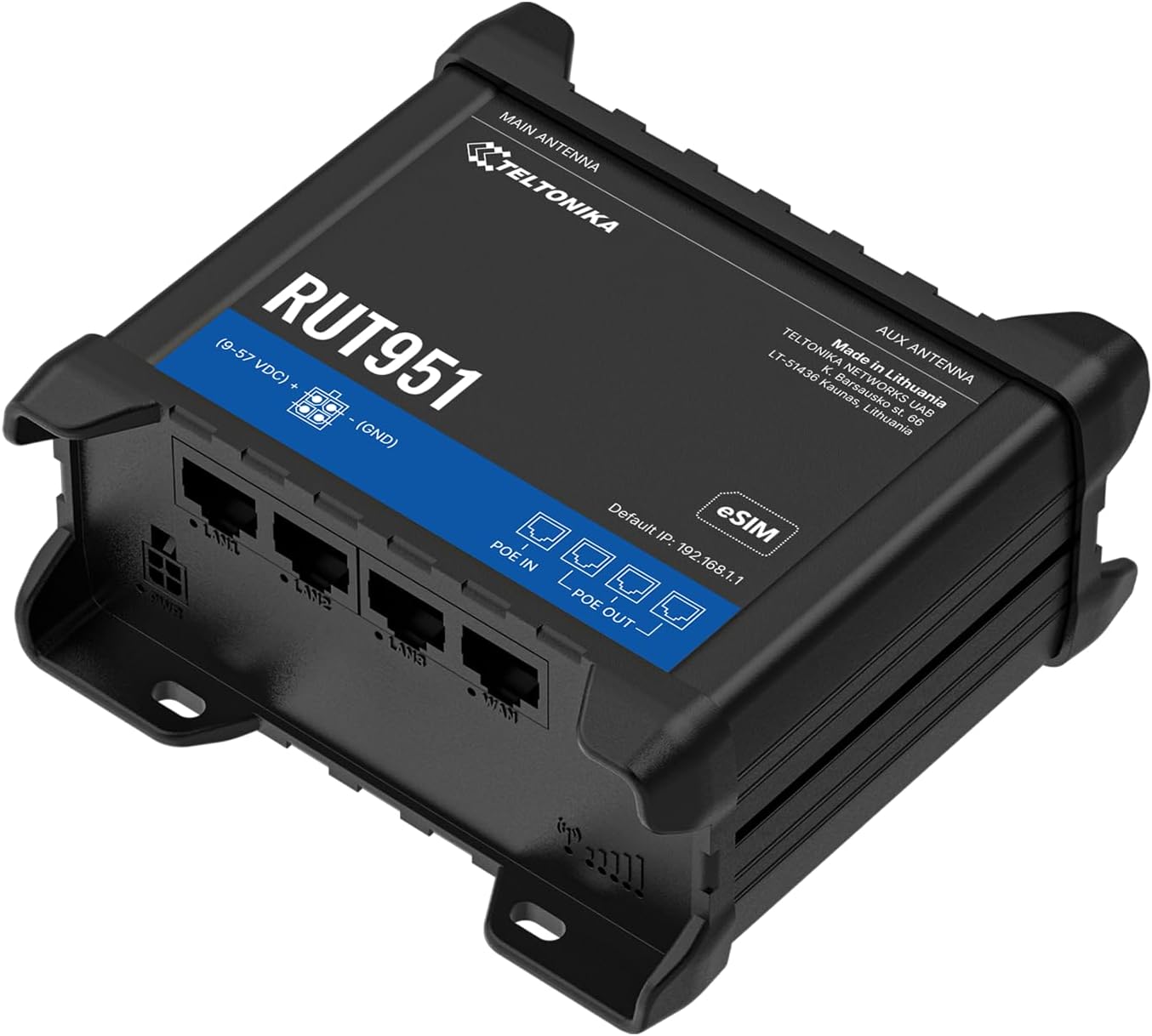
ຮູບທີ 1: ດ້ານໜ້າ view of the Teltonika RUT951 router, showing the model name and general design.

ຮູບທີ 2: Detailed diagram illustrating the various ports and indicators on the Teltonika RUT951 router, including mobile and Wi-Fi antenna connectors, SIM slots, Ethernet ports, power socket, and LED indicators.
- Mobile AUX Antenna Connector (SMA female): For secondary mobile antenna.
- Mobile MAIN Antenna Connector (SMA female): For primary mobile antenna.
- SIM1 / SIM2 Slots: ສຳລັບການໃສ່ຊິມກາດໂທລະສັບມືຖື.
- ປຸ່ມຣີເຊັດ: To restore factory settings or reboot.
- Wi-Fi Antenna Connectors (RP-SMA female): For Wi-Fi antennas.
- ເຕົ້າຮັບພະລັງງານ: ສໍາລັບການເຊື່ອມຕໍ່ອະແດບເຕີພະລັງງານ.
- LAN Ethernet Ports: ສຳລັບການເຊື່ອມຕໍ່ອຸປະກອນເຄືອຂ່າຍທ້ອງຖິ່ນ.
- WAN Ethernet Port: For connecting to an external network (e.g., fiber modem).
- ໄຟ LED ຄວາມແຮງຂອງສັນຍານມືຖື: ຊີ້ບອກຄວາມແຮງຂອງສັນຍານຂອງເຊວ.
- ໄຟ LED ສະຖານະການເຊື່ອມຕໍ່ມືຖື: Indicates cellular connection status.
- LAN LEDs: Indicate activity on LAN ports.
- WAN LED: Indicates activity on the WAN port.
3. ຄໍາແນະນໍາການຕິດຕັ້ງ
3.1 ການຕິດຕັ້ງ SIM card
- Locate the SIM card slots (SIM1 and SIM2) on the top panel of the router.
- Using a SIM ejector tool or a paperclip, gently press the small button next to the SIM slot to open it.
- Insert your activated Mini-SIM card(s) into the slot(s) with the gold contacts facing down and the notched corner oriented correctly.
- Push the SIM tray back into the router until it clicks into place.

ຮູບທີ 3: ເທິງ view of the RUT951, highlighting the SIM card slots and antenna connectors.
3.2 ການເຊື່ອມຕໍ່ເສົາອາກາດ
- Screw the two mobile antennas onto the SMA connectors labeled 'MOBILE' (MAIN and AUX) on the top panel.
- Screw the two Wi-Fi antennas onto the RP-SMA connectors labeled 'WIFI' on the top panel.
- Ensure all antennas are securely tightened for optimal signal reception.
3.3 ການເຊື່ອມຕໍ່ພະລັງງານ
- Connect the provided power adapter to the power socket on the router.
- ສຽບປາຍອື່ນຂອງອະແດບເຕີໄຟເຂົ້າໄປໃນປລັກສຽບໄຟທີ່ເຫມາະສົມ.
- The router will power on automatically. Observe the power LED indicator.

ຮູບທີ 4: ລຸ່ມ view of the RUT951, showing the Ethernet ports and power input.
3.4 ການເຊື່ອມຕໍ່ Ethernet
To connect a device directly to the router:
- Connect one end of an Ethernet cable to any of the LAN ports (LAN1, LAN2, LAN3) on the router.
- Connect the other end of the Ethernet cable to your computer or network device.
- If you are using the router as a WAN gateway, connect your external modem (e.g., fiber modem) to the WAN port.
4. ຄໍາແນະນໍາການດໍາເນີນງານ
4.1 Initial Access to WebUI
- Ensure your computer is connected to the router via Ethernet or Wi-Fi. The default Wi-Fi SSID and password can be found on the router's label.
- ເປີດ ກ web browser ແລະໃສ່ທີ່ຢູ່ IP ເລີ່ມຕົ້ນ: 192.168.1.1
- ທ່ານຈະຖືກຖາມໃຫ້ໃສ່ຂໍ້ມູນປະຈຳຕົວເຂົ້າສູ່ລະບົບ. ຊື່ຜູ້ໃຊ້ເລີ່ມຕົ້ນແມ່ນ admin. The default password is also admin (or as specified on the router's label).
- Upon first login, you will be guided through a setup wizard to change the default password and configure basic settings.
4.2 ການຕັ້ງຄ່າເຄືອຂ່າຍ
After initial login, you can configure various network settings through the WebUI:
- ການຕັ້ງຄ່າ WAN: Configure your cellular (4G LTE) connection, including APN settings, or set up the Ethernet WAN port.
- ການຕັ້ງຄ່າ LAN: Manage the local network IP address range and DHCP server.
- ການຕັ້ງຄ່າ Wi-Fi: Change Wi-Fi SSID, password, security protocols, and channel settings.
- ຊິມສອງ: Configure failover or load balancing between the two SIM cards for continuous connectivity.
- VPN: Set up various VPN protocols for secure remote access.
5. ບໍາລຸງຮັກສາ
5.1 ການອັບເດດເຟີມແວ
Regularly updating the router's firmware is crucial for security, performance, and new features. Firmware updates can be performed via the WebUI under the 'System' or 'Firmware' section. Always download firmware from the official Teltonika Networks webເວັບໄຊ.
5.2 ຣີເຊັດເປັນຄ່າໂຮງງານ
ຖ້າທ່ານພົບບັນຫາທີ່ຍັງຄົງຄ້າງຢູ່ ຫຼື ລືມຂໍ້ມູນປະຈຳຕົວເຂົ້າສູ່ລະບົບຂອງທ່ານ, ທ່ານສາມາດຕັ້ງຄ່າໂຮງງານຄືນໃໝ່ໄດ້:
- With the router powered on, locate the RESET button (refer to Figure 2).
- Press and hold the RESET button for approximately 10 seconds until all LEDs flash.
- ປ່ອຍປຸ່ມ. ເຣົາເຕີຈະຣີບູດດ້ວຍການຕັ້ງຄ່າເລີ່ມຕົ້ນຈາກໂຮງງານ.
6. ການແກ້ໄຂບັນຫາ
- ບໍ່ມີການເຊື່ອມຕໍ່ອິນເຕີເນັດ:
- Check SIM card insertion and activation.
- ກວດສອບການຕັ້ງຄ່າ APN ໃນ WebUI
- Ensure mobile antennas are securely connected.
- ກວດສອບໄຟ LED ຄວາມແຮງຂອງສັນຍານໂທລະສັບມືຖື.
- Wi-Fi ບໍ່ເຮັດວຽກ:
- ໃຫ້ແນ່ໃຈວ່າ Wi-Fi ຖືກເປີດໃຊ້ງານຢູ່ໃນ WebUI
- Check Wi-Fi antenna connections.
- ຢືນຢັນ SSID ແລະລະຫັດຜ່ານຂອງ Wi-Fi.
- ບໍ່ສາມາດເຂົ້າເຖິງໄດ້ WebUI:
- Ensure your device is connected to the router (Ethernet or Wi-Fi).
- ກວດສອບການຕັ້ງຄ່າ IP ຂອງຄອມພິວເຕີຂອງທ່ານ (ຄວນຕັ້ງຄ່າໃຫ້ຮັບ IP ໂດຍອັດຕະໂນມັດ).
- ລອງລຶບ cache ຂອງຕົວທ່ອງເວັບຂອງທ່ານ ຫຼືໃຊ້ຕົວທ່ອງເວັບອື່ນ.
- Perform a factory reset if you suspect incorrect IP configuration or forgotten password.
7. ຂໍ້ມູນຈໍາເພາະ
| ຄຸນສົມບັດ | ຂໍ້ມູນຈໍາເພາະ |
|---|---|
| ຍີ່ຫໍ້ | Teltonica |
| ຊື່ຕົວແບບ | RUT951 |
| ເຕັກໂນໂລຊີການເຊື່ອມຕໍ່ | Wi-Fi, 4G LTE, 3G, 2G |
| ມາດຕະຖານການສື່ສານໄຮ້ສາຍ | 802.11b, 802.11g, 802.11n |
| ຫ້ອງຮຽນແຖບຄວາມຖີ່ | Dual-Band |
| ຈໍານວນພອດ | 4 (3x LAN, 1x WAN) |
| LAN Port Bandwidth | 100 Mbps |
| ອັດຕາການໂອນຂໍ້ມູນ | 150 Megabits Per Second (Max Upstream) |
| ລະບົບປະຕິບັດການ | RutOS |
| ນ້ໍາຫນັກລາຍການ | 287 ກຣາມ |
| ສະບັບtage | 30 ໂວນ |
| ອະນຸສັນຍາດ້ານຄວາມປອດໄພ | WPS (and others via RutOS) |
| ການຄຸ້ມຄອງ | Dual SIM network redundancy |
8. ຂໍ້ມູນຄວາມປອດໄພ
- ໃຊ້ພຽງແຕ່ອະແດັບເຕີໄຟທີ່ໃຫ້ມາກັບອຸປະກອນ.
- ຢ່າປ່ອຍໃຫ້ອຸປະກອນຖືກນໍ້າ, ຄວາມຊຸ່ມຊື່ນ, ຫຼືອຸນຫະພູມທີ່ຮຸນແຮງ.
- ຫຼີກເວັ້ນການວາງອຸປະກອນຢູ່ໃກ້ກັບແຫຼ່ງຄວາມຮ້ອນ ຫຼືຢູ່ໃນແສງແດດໂດຍກົງ.
- ຮັບປະກັນການລະບາຍອາກາດທີ່ເຫມາະສົມເພື່ອປ້ອງກັນຄວາມຮ້ອນເກີນ.
- ຢ່າພະຍາຍາມເປີດ ຫຼື ດັດແປງອຸປະກອນ. ນີ້ຈະເຮັດໃຫ້ການຮັບປະກັນເປັນໂມຄະ.
- Dispose of the device and its accessories responsibly according to local regulations.
9. ການຮັບປະກັນແລະການສະຫນັບສະຫນູນ
The Teltonika RUT951 router comes with a standard manufacturer's warranty. For detailed warranty terms and conditions, please refer to the documentation included with your product or visit the official Teltonika Networks website. For technical support, firmware downloads, and additional resources, please visit the Teltonika Networks support portal or contact your vendor.