
1. ບົດແນະນຳ
This manual provides detailed instructions for the setup, operation, maintenance, and troubleshooting of your HP KE203 300 DPI Direct Thermal Shipping Label Printer. This printer is designed for efficient and high-quality label printing for various applications, including shipping, barcodes, and product labels. It utilizes direct thermal technology, eliminating the need for ink or toner cartridges.

The HP KE203 printer features a 5 inches per second (ips) printing speed and 300 dots per inch (dpi) resolution for clear, fast label output.
2. ສິ່ງທີ່ຢູ່ໃນກ່ອງ
ກວດສອບວ່າທຸກລາຍການມີຢູ່ໃນການຫຸ້ມຫໍ່ກ່ອນທີ່ຈະດໍາເນີນການຕິດຕັ້ງ:
- HP KE203 Label Printer
- ສາຍໄຟ
- ອະແດບເຕີ AC
- ສາຍ USB
- ຄູ່ມືເລີ່ມຕົ້ນດ່ວນ
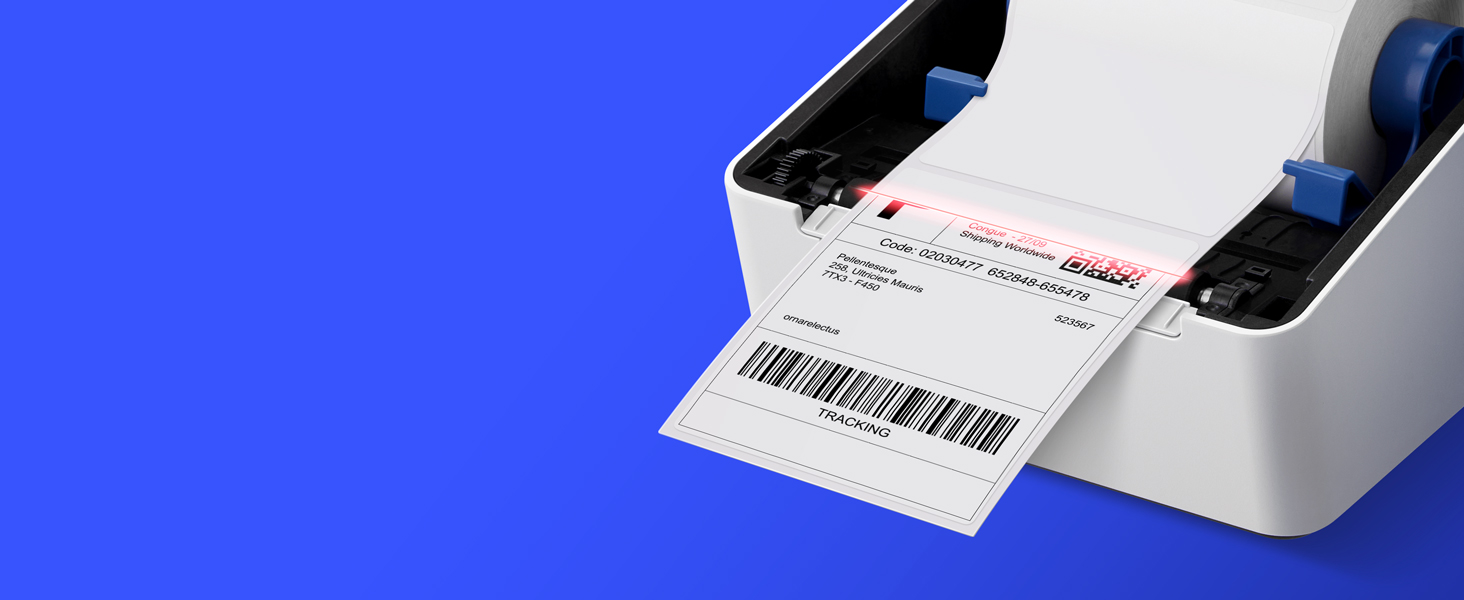
Image showing the HP KE203 printer and its included accessories: power cord, AC adapter, USB cable, and quick start guide.
3. ຕັ້ງຄ່າ
Follow these steps to set up your HP KE203 label printer:
- ເຊື່ອມຕໍ່ພະລັງງານ: Connect the AC adapter to the printer and then plug the power cord into a power outlet.
- ເຊື່ອມຕໍ່ກັບຄອມພິວເຕີ: ເຊື່ອມຕໍ່ສາຍ USB ຈາກເຄື່ອງພິມກັບຄອມພິວເຕີຂອງທ່ານ.
- ໂຫຼດປ້າຍກຳກັບ: Open the printer cover and position the label roll properly within the adjustable media holder guides. Ensure the labels feed smoothly.
- ຕິດຕັ້ງໄດເວີ: Download the appropriate drivers for your operating system (Windows or Mac) from the official HP Work Solutions website. Follow the on-screen instructions to complete the driver installation. The printer should be automatically detected if connected via USB.
- ທົດສອບການພິມ: After driver installation, go to your computer's printer settings, select the HP KE203, and perform a test print to ensure proper functionality.

Ensure all power components are securely connected.

ເຊື່ອມຕໍ່ເຄື່ອງພິມກັບຄອມພິວເຕີຂອງທ່ານໂດຍໃຊ້ສາຍ USB ທີ່ໃຫ້ມາ.

Properly load the label roll and adjust the guides to prevent jams.

Download and install the printer drivers from the official HP webເວັບໄຊ.
ຕັ້ງຄ່າວິດີໂອຄູ່ມື
This video provides a visual guide on how to set up your HP Label Printer, including connecting cables, loading labels, and installing drivers.
4. ຄໍາແນະນໍາການດໍາເນີນງານ
The HP KE203 printer is designed for ease of use. Once set up, you can print labels directly from your computer using various applications and platforms.
ການພິມປ້າຍ
- ກວດໃຫ້ແນ່ໃຈວ່າເຄື່ອງພິມເປີດຢູ່ ແລະເຊື່ອມຕໍ່ກັບຄອມພິວເຕີຂອງທ່ານ.
- Open the document or application from which you wish to print (e.g., shipping software, word processor).
- Select the print option and choose the HP KE203 printer from the list of available printers.
- Adjust print settings as needed, such as label size (e.g., 4x6 inches) and orientation.
- ເລີ່ມວຽກພິມ.

The printer seamlessly integrates with your computer for direct label printing.
Compatible Platforms and Label Types
This printer is compatible with various shipping platforms and can print different types of labels up to 4 inches in width.
- ປ້າຍກຳກັບການຂົນສົ່ງ: Ideal for major carriers like Amazon, UPS, FedEx, USPS, DHL, and platforms such as Shopify, Etsy, eBay, and ShipStation.
- Barcode Labels: Print clear and scannable barcodes.
- ປ້າຍກຳກັບສິນຄ້າ: Create custom labels for products.
- ປ້າຍຊື່ທີ່ຢູ່: Generate address stickers for mail.

The HP KE203 is compatible with all major shipping platforms.
5. ບໍາລຸງຮັກສາ
ການບໍາລຸງຮັກສາເປັນປົກກະຕິຮັບປະກັນປະສິດທິພາບທີ່ດີທີ່ສຸດແລະອາຍຸຍືນຂອງເຄື່ອງພິມຂອງທ່ານ.
ເຮັດຄວາມສະອາດຫົວພິມ
- ປິດ ແລະ ຖອດປລັກເຄື່ອງພິມກ່ອນທຳຄວາມສະອາດ.
- ເປີດຝາປິດເຄື່ອງພິມ.
- ເຊັດຫົວພິມຢ່າງອ່ອນໂຍນດ້ວຍຜ້າທີ່ບໍ່ມີເສັ້ນດ່າງ dampປະກອບດ້ວຍເຫຼົ້າ isopropyl.
- ປະໄວ້ໃຫ້ຫົວພິມແຫ້ງສະນິດກ່ອນທີ່ຈະປິດຝາປິດ ແລະ ເປີດເຄື່ອງພິມ.
ການດູແລທົ່ວໄປ
- ຮັກສາເຄື່ອງພິມຢູ່ໃນສະພາບແວດລ້ອມທີ່ສະອາດ, ບໍ່ມີຝຸ່ນ.
- ໃຊ້ພຽງແຕ່ປ້າຍຄວາມຮ້ອນທີ່ມີຄຸນນະພາບສູງເພື່ອປ້ອງກັນຄວາມເສຍຫາຍຂອງຫົວພິມ.
- Avoid exposing the printer to extreme temperatures or direct sunlight.
6. ການແກ້ໄຂບັນຫາ
ອ້າງອີງເຖິງບັນຫາທົ່ວໄປຕໍ່ໄປນີ້ ແລະວິທີແກ້ໄຂບັນຫາຂອງເຂົາເຈົ້າ:
| ສະບັບ | ສາເຫດທີ່ເປັນໄປໄດ້ | ການແກ້ໄຂ |
|---|---|---|
| ເຄື່ອງພິມບໍ່ຕອບສະໜອງ | ການເຊື່ອມຕໍ່ສາຍໄຟວ່າງ, ເຄື່ອງພິມປິດ, ບັນຫາຄົນຂັບ. | Check power and USB connections. Ensure printer is on. Reinstall drivers if necessary. |
| ຄຸນນະພາບການພິມບໍ່ດີ | Dirty print head, incorrect label type, print settings. | Clean the print head. Use recommended thermal labels. Adjust print density or turn off dithering in printer settings. |
| ປ້າຍກຳກັບບໍ່ຖືກຕ້ອງ | Improper label loading, media guides not adjusted. | Ensure labels are loaded correctly and media guides are snug against the roll. |
| Printer not detected by computer | ບັນຫາສາຍ USB, ໄດຣເວີບໍ່ໄດ້ຖືກຕິດຕັ້ງ ຫຼື ເສຍຫາຍ. | ລອງໃຊ້ພອດ USB ຫຼືສາຍອື່ນ. ຕິດຕັ້ງໄດຣເວີເຄື່ອງພິມຄືນໃໝ່. |
7. ຂໍ້ມູນຈໍາເພາະ
| ຄຸນສົມບັດ | ລາຍລະອຽດ |
|---|---|
| ຍີ່ຫໍ້ | HP |
| ໝາຍເລກຕົວແບບ | HPKE203 |
| ເຕັກໂນໂລຊີການເຊື່ອມຕໍ່ | USB |
| ເຕັກໂນໂລຊີການພິມ | ຄວາມຮ້ອນໂດຍກົງ |
| ຜົນຜະລິດເຄື່ອງພິມ | ໂມໂນໂຄມ |
| ຄວາມໄວການພິມສູງສຸດ (ໂມໂນໂຄມ) | 5 ips (50 ppm) |
| ຄວາມລະອຽດ | ຂະ ໜາດ 300 x 300 DPI |
| ຂະໜາດມີເດຍສູງສຸດ | 4 x 6 ນິ້ວ |
| ຂະໜາດລາຍການ (D x W x H) | 8.2"D x 7.29"W x 6.63"H |
| ນ້ໍາຫນັກລາຍການ | 1340 ກຣາມ |
| ການບໍລິໂພກພະລັງງານ | 60 ວັດ |
| ອຸປະກອນທີ່ເຂົ້າກັນໄດ້ | PC (Windows), Mac |
8. ການຮັບປະກັນແລະການສະຫນັບສະຫນູນ
The HP KE203 Direct Thermal Shipping Label Printer comes with a 2-year limited warranty. For technical support, driver downloads, and further assistance, please visit the official HP Work Solutions webເວັບໄຊ ຫຼືຕິດຕໍ່ບໍລິການລູກຄ້າຂອງ HP.
For the most up-to-date support information, please refer to the Quick Start Guide included with your product or visit the HP support portal online.