
1. ບົດແນະນຳ
Welcome to the Nokia T10 Wi-Fi Tablet user manual. This guide provides essential information to help you set up, operate, maintain, and troubleshoot your new device. The Nokia T10 is an 8-inch HD Android 12 tablet designed for everyday use, offering a balance of performance and portability.
Please read this manual carefully to ensure proper use and to maximize the lifespan of your tablet.
2. ສິ່ງທີ່ຢູ່ໃນກ່ອງ
Upon unboxing your Nokia T10 tablet, please verify that all the following items are included:
- Nokia T10 Tablet Device
- ສາຍ USB Type-C
- ເຄື່ອງສາກ
- ຄູ່ມືເລີ່ມຕົ້ນດ່ວນ (QSG)
- ປຶ້ມຄວາມປອດໄພ
- User Guide Band
- Plastic Bag (packaging material)
If any items are missing or damaged, please contact your retailer or Nokia customer support immediately.
3. ຕັ້ງຄ່າ
3.1 ການສາກແທັບເລັດ
Before first use, fully charge your Nokia T10 tablet. Connect the provided Type-C USB cable to the tablet's charging port and the other end to the charger. Plug the charger into a power outlet. The battery indicator on the screen will show the charging status.
3.2 ການເປີດ/ປິດ
- ເພື່ອເປີດເຄື່ອງ: ກົດປຸ່ມເປີດ/ປິດຄ້າງໄວ້ຈົນກວ່າໂລໂກ້ Nokia ຈະປາກົດ.
- ປິດເຄື່ອງ: Press and hold the Power button until the power options appear on the screen. Select "Power off" and confirm.
- ເພື່ອເລີ່ມຕົ້ນໃໝ່: ກົດປຸ່ມເປີດ/ປິດຄ້າງໄວ້ຈົນກວ່າຕົວເລືອກພະລັງງານຈະປາກົດຂຶ້ນ. ເລືອກ "ເລີ່ມຕົ້ນໃໝ່" ແລະຢືນຢັນ.
3.3 ການຕິດຕັ້ງເບື້ອງຕົ້ນ
When you power on your tablet for the first time, you will be guided through an initial setup process:
- ການເລືອກພາສາ: ເລືອກພາສາທີ່ເຈົ້າມັກ.
- ການເຊື່ອມຕໍ່ Wi-Fi: Connect to a Wi-Fi network to access the internet. This is crucial for downloading updates and setting up your Google account.
- ບັນຊີ Google: Sign in with your existing Google account or create a new one. This is necessary for accessing the Google Play Store, Gmail, and other Google services.
- ວັນທີ ແລະເວລາ: ຕັ້ງວັນທີ ແລະ ເວລາທີ່ຖືກຕ້ອງ ຫຼື ອະນຸຍາດໃຫ້ເຄືອຂ່າຍຕັ້ງຄ່າມັນໂດຍອັດຕະໂນມັດ.
- ຄວາມປອດໄພ: Set up a screen lock (PIN, pattern, password) and consider enabling AI Face Unlock for convenient access.
3.4 ການໃສ່ບັດ MicroSD
The Nokia T10 supports expandable storage via a MicroSD card. Locate the SIM/SD card tray on the side of the tablet. Use the provided SIM ejector tool to open the tray. Carefully place the MicroSD card into the designated slot with the gold contacts facing down, then reinsert the tray firmly.
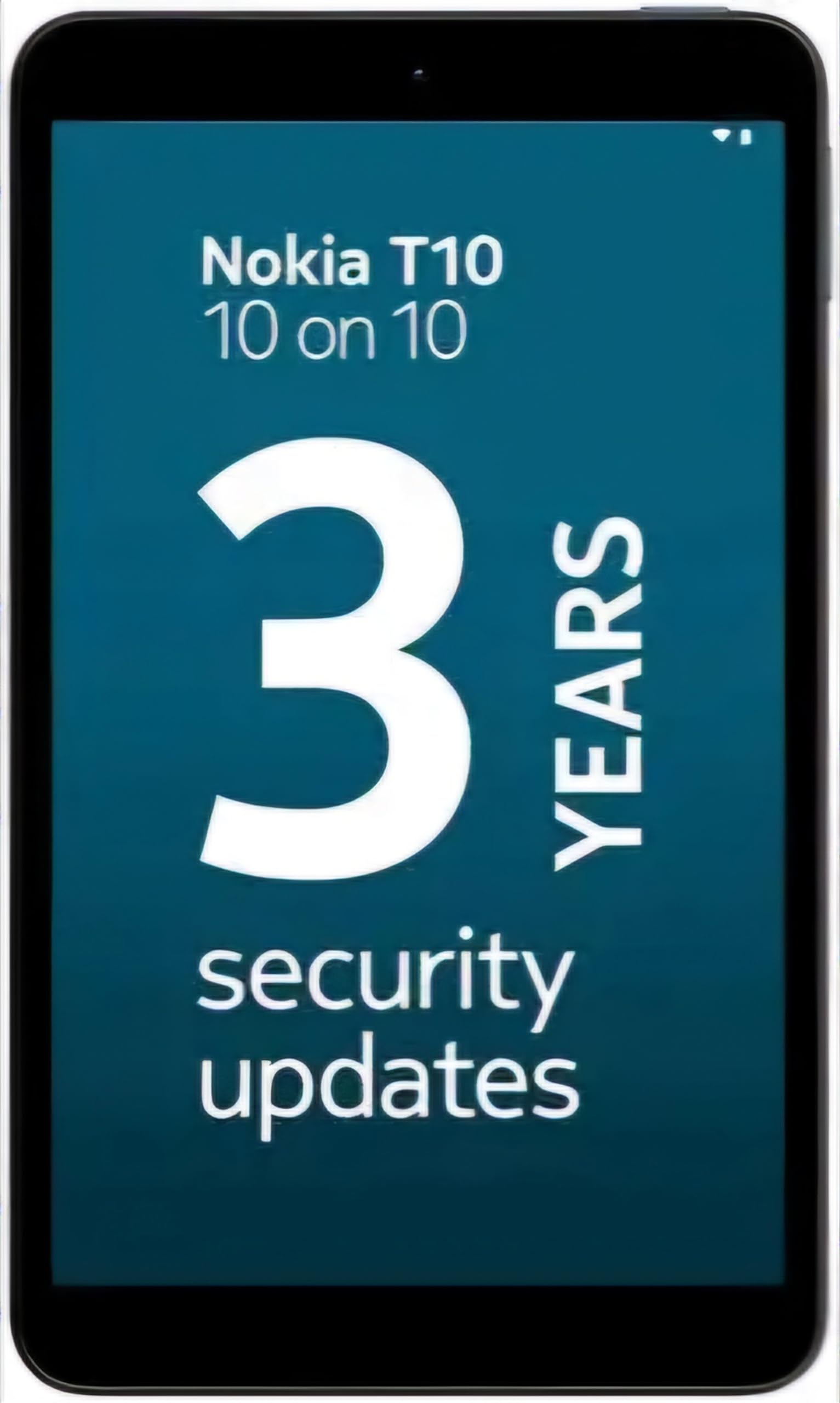
Image: Nokia T10 tablet, showcasing its sleek design and the rear camera module.
4. ຄໍາແນະນໍາການດໍາເນີນງານ
4.1 ການສະແດງແລະການນໍາທາງ
The Nokia T10 features an 8-inch HD display (1280x800 pixels). Navigate the interface using touch gestures:
- ແຕະ: ເລືອກລາຍການ ຫຼືເປີດແອັບ.
- ປັດ: ເລື່ອນຜ່ານໜ້າຈໍ, ລາຍຊື່ ຫຼືເນື້ອຫາ.
- Pinch-to-Zoom: ຊູມເຂົ້າ ຫຼືອອກໃນຮູບ ແລະ web ໜ້າ.
- ຂ່າວຍາວ: ເຂົ້າເຖິງເມນູບໍລິບົດ ຫຼືຍ້າຍໄອຄອນແອັບ.
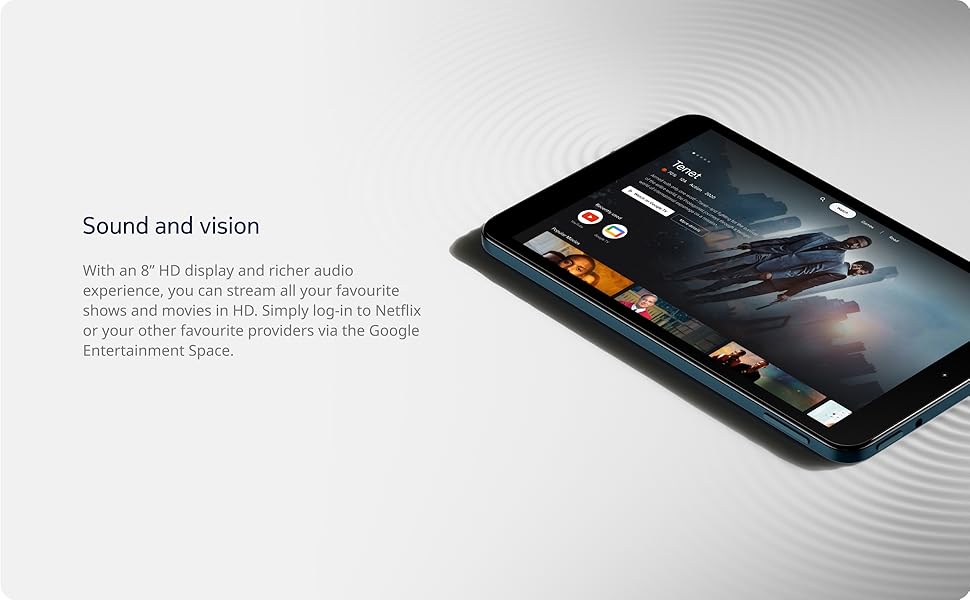
Image: The Nokia T10 tablet showcasing its 8-inch HD display with streaming video content.
4.2 ການທໍາງານຂອງກ້ອງຖ່າຍຮູບ
Your tablet is equipped with an 8MP rear camera with autofocus and flash, and a 2MP front camera.
- ຖ່າຍຮູບ: ເປີດແອັບກ້ອງຖ່າຍຮູບ, ກອບຮູບຂອງເຈົ້າ, ແລະແຕະປຸ່ມຊັດເຕີ.
- ບັນທຶກວິດີໂອ: Switch to video mode in the Camera app and tap the record button to start/stop. The tablet supports FHD 1080p video capture.
- ກ້ອງໜ້າ: Tap the camera switch icon to use the front camera for selfies or video calls.

Image: A Nokia T10 tablet displaying a video call, highlighting its front camera functionality.
4.3 ການຄຸ້ມຄອງຫມໍ້ໄຟ
The Nokia T10 has a 5250 mAh battery designed for all-day use. To optimize battery life:
- ຫຼຸດຄວາມສະຫວ່າງໜ້າຈໍ.
- ປິດ Wi-Fi ແລະ Bluetooth ເມື່ອບໍ່ໄດ້ໃຊ້ງານ.
- ປິດແອັບພື້ນຫຼັງ.
- Enable battery saver mode in Settings.
4.4 ການເຊື່ອມຕໍ່
- Wi-Fi: Connect to wireless networks via Settings > Network & internet > Wi-Fi. The tablet supports 802.11a/b/g/n/ac standards.
- Bluetooth: Pair with Bluetooth devices (headphones, speakers) via Settings > Connected devices > Bluetooth. The tablet features Bluetooth 5.0.
- USB Type-C: ໃຊ້ພອດ USB-C ສຳລັບການສາກໄຟ ແລະ ການໂອນຂໍ້ມູນ.
4.5 AI Face Unlock
For quick and secure access, set up AI Face Unlock:
- Go to Settings > Security > Face unlock.
- ປະຕິບັດຕາມຄໍາແນະນໍາໃນຫນ້າຈໍເພື່ອລົງທະບຽນໃບຫນ້າຂອງທ່ານ.
- Ensure you are in a well-lit environment during setup and use.
4.6 ຊອບແວ ແລະການປັບປຸງ
The Nokia T10 runs on Android 12. Nokia provides 2 years of OS updates and 3 years of monthly security updates to keep your device secure and up-to-date. You will receive notifications when updates are available. It is recommended to install updates over a Wi-Fi connection.
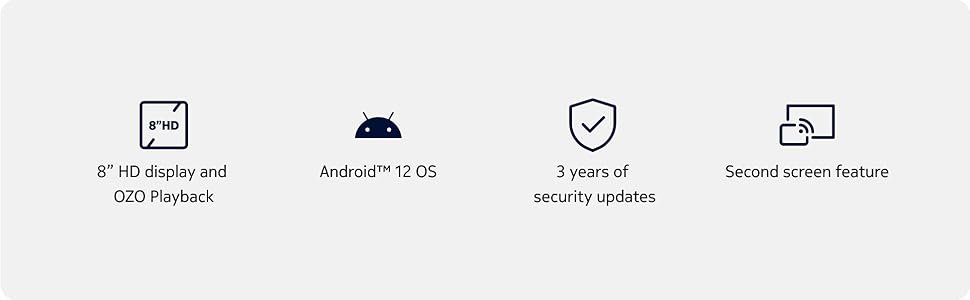
Image: Visual representation of Nokia T10 features including Android 12 OS and 3 years of security updates.
5. ບໍາລຸງຮັກສາ
5.1 ການເຮັດຄວາມສະອາດແທັບເລັດຂອງທ່ານ
- ໃຊ້ຜ້າທີ່ອ່ອນໆ, ບໍ່ມີສານດ່າງເພື່ອເຮັດຄວາມສະອາດຫນ້າຈໍແລະຮ່າງກາຍ.
- ຫຼີກລ່ຽງການໃຊ້ສານເຄມີທີ່ຮຸນແຮງ, ເຄື່ອງຂັດຂັດ, ຫຼືສີດ aerosol.
- Do not expose the tablet to excessive moisture.
5.2 ການປັບປຸງຊອບແວ
ກວດສອບ ແລະຕິດຕັ້ງການອັບເດດຊອບແວເປັນປະຈຳເພື່ອຮັບປະກັນປະສິດທິພາບ ແລະຄວາມປອດໄພທີ່ດີທີ່ສຸດ. ໄປທີ່ Settings > System > System update.
5.3 ການຄຸ້ມຄອງການເກັບຮັກສາ
To maintain performance, periodically manage your tablet's storage:
- ລຶບແອັບຯທີ່ບໍ່ຈໍາເປັນແລະ files.
- ຍ້າຍຂະຫນາດໃຫຍ່ files (photos, videos) to a MicroSD card or cloud storage.
- Clear app cache regularly via Settings > Apps > [App Name] > Storage & cache.
6. ການແກ້ໄຂບັນຫາ
If you encounter issues with your Nokia T10 tablet, try the following solutions:
| ບັນຫາ | ການແກ້ໄຂ |
|---|---|
| ແທັບເລັດບໍ່ເປີດ | ໃຫ້ແນ່ໃຈວ່າໄດ້ສາກໄຟແລ້ວ. ເຊື່ອມຕໍ່ສາຍສາກແລ້ວລໍຖ້າສອງສາມນາທີກ່ອນທີ່ຈະພະຍາຍາມເປີດເຄື່ອງອີກຄັ້ງ. |
| ບັນຫາການເຊື່ອມຕໍ່ Wi-Fi | Restart your Wi-Fi router. Go to Settings > Network & internet > Wi-Fi, turn Wi-Fi off and then on again. Forget the network and reconnect. |
| ການປະຕິບັດຊ້າ | Close unused apps. Clear app caches. Restart the tablet. Check for available software updates. |
| ແອັບຂັດຂ້ອງ ຫຼືຄ້າງ | Force stop the app (Settings > Apps > [App Name] > Force stop). Clear the app's cache and data. Reinstall the app. |
| ແບັດເຕີຣີໝົດໄວ | Reduce screen brightness. Disable unnecessary features like GPS, Bluetooth, and Wi-Fi when not in use. Check battery usage in Settings to identify power-hungry apps. |
If the problem persists after trying these steps, please contact Nokia customer support.
7. ຂໍ້ມູນຈໍາເພາະ
Below are the key technical specifications for the Nokia T10 Wi-Fi Tablet:
- ຊື່ຕົວແບບ: Nokia T10 TA-1472 WIFI 3/32
- ລະບົບປະຕິບັດການ: Android 12
- ໜ່ວຍປະມວນຜົນ: Unisoc T606 (Octa-core, 1.6 GHz)
- Graphics Coprocessor: ມາລີ-G57
- RAM: 3 GB
- ການເກັບຮັກສາພາຍໃນ: 32 GB
- ການເກັບຮັກສາທີ່ຂະຫຍາຍໄດ້: Yes, via MicroSD card (up to 512GB, sold separately)
- ຈໍສະແດງຜົນ: 8-inch HD (1280 x 800 pixels) TFT, 16:10 aspect ratio
- ກ້ອງຫຼັງ: 8 MP with AF and Flash
- ກ້ອງໜ້າ: 2 MP
- ຄວາມລະອຽດການຖ່າຍວິດີໂອ: FHD 1080p at 30 fps
- ແບັດເຕີຣີ: 5250 mAh Lithium Polymer
- ການເຊື່ອມຕໍ່: Wi-Fi (802.11a/b/g/n/ac), Bluetooth 5.0, USB Type-C, 3.5mm Audio Jack
- ຄຸນນະສົມບັດຄວາມປອດໄພ: ລະບົບປົດລAIອກ AI Face
- ສຽງ: Stereo Speakers, OZO Playback
- Dimensions (L x W x Thickness): 20.8L x 12.3W x 0.9Th ຊັງຕີແມັດ
- ນ້ຳໜັກ: 375 ກຣາມ
- ສີ: ສີຟ້າ
8. ຂໍ້ມູນການຮັບປະກັນ
The Nokia T10 tablet comes with a ການຮັບປະກັນຜູ້ຜະລິດ 1 ປີ for the device and battery from the date of purchase. In-box accessories are covered by a ການຮັບປະກັນຜູ້ຜະລິດ 6 ເດືອນ from the date of purchase. Please retain your proof of purchase for warranty claims. For detailed terms and conditions, refer to the warranty card included in your product packaging or visit the official Nokia support webເວັບໄຊ.
9. ສະຫນັບສະຫນູນ
For further assistance, technical support, or to find service centers, please visit the official Nokia support website or contact their customer service. You can typically find support contact information on the Nokia website or in the safety booklet provided with your tablet.
ສະຫນັບສະຫນູນອອນໄລນ໌: ຮອງຮັບ Nokia Webເວັບໄຊ