
1. ບົດແນະນຳ
This manual provides essential information for setting up, operating, maintaining, and troubleshooting your Alienware X17 R2 Gaming Laptop. Please read this guide thoroughly to ensure optimal performance and longevity of your device.
The Alienware X17 R2 is designed for high-performance gaming and demanding tasks, featuring advanced cooling technologies, powerful processors, and dedicated graphics.
2. ຜະລິດຕະພັນເກີນview
The Alienware X17 R2 is engineered to deliver an immersive gaming experience in a thin 17-inch form factor. Key features include:
- Powerful Intel CPUs: Experience high-performance action across all your favorite games with 12th Gen Intel Core processors.
- Next-Gen GPUs: Game unrestrained with NVIDIA GeForce RTX 3070Ti graphics, Dynamic Boost 2.0, and Deep Learning Super Sampເຕັກໂນໂລຊີ.
- Patented Quad Cooling: An industry-first design uses four intelligently controlled and programmable fans to dissipate heat.
- ຂະຫຍາຍເວລາຫຼິ້ນ: Improve battery life with Advanced Optimus technology from NVIDIA—now available on all display options.
- Legend 2.0 Industrial Design: A fresh evolution in design with a high-endurance finish and customizable AlienFX lighting.

ຮູບ 2.1: ດ້ານຫນ້າ view of the Alienware X17 R2 Gaming Laptop displaying a game.
3. ຕັ້ງຄ່າ
3.1 Unboxing ແລະ Initial Inspection
- ເອົາແລັບທັອບ ແລະອຸປະກອນເສີມທັງໝົດອອກຈາກເຄື່ອງຫຸ້ມຫໍ່ຢ່າງລະມັດລະວັງ.
- ກວດສອບວ່າລາຍການທັງໝົດທີ່ລະບຸໄວ້ໃນພາກ "ສິ່ງທີ່ຢູ່ໃນກ່ອງ" ແມ່ນມີຢູ່ແລ້ວ.
- ກວດເບິ່ງແລັບທັອບສໍາລັບຄວາມເສຍຫາຍທາງຮ່າງກາຍ. ຖ້າພົບເຫັນຄວາມເສຍຫາຍ, ໃຫ້ຕິດຕໍ່ຜູ້ຂາຍຍ່ອຍຂອງທ່ານທັນທີ.
3.2 ການເຊື່ອມຕໍ່ພະລັງງານ
- Connect the power adapter to the charging port located at the rear of the laptop.
- ສຽບສາຍໄຟໃສ່ປລັກສຽບໃສ່ຝາ.
- The power indicator light will illuminate, indicating the laptop is receiving power.
3.3 ການບູດທຳອິດ ແລະ ການຕິດຕັ້ງລະບົບປະຕິບັດການ
- Press the Alienware head power button to turn on the laptop.
- ປະຕິບັດຕາມຄໍາແນະນໍາໃນຫນ້າຈໍເພື່ອເຮັດສໍາເລັດຂະບວນການຕິດຕັ້ງ Windows 11 Home. ນີ້ລວມມີການເລືອກພາກພື້ນຂອງທ່ານ, ການເຊື່ອມຕໍ່ກັບເຄືອຂ່າຍ Wi-Fi, ແລະການສ້າງບັນຊີຜູ້ໃຊ້.
- ອະນຸຍາດໃຫ້ລະບົບດາວໂຫຼດ ແລະຕິດຕັ້ງການອັບເດດທີ່ຈໍາເປັນ.
4. ການປະຕິບັດ Laptop ຂອງທ່ານ
4.1 ແປ້ນພິມ ແລະ ແຜ່ນສໍາຜັດ
The Alienware X17 R2 features a backlit keyboard and a responsive touchpad. The AlienFX lighting allows for customizable colors and effects across the keyboard and other zones.

ຮູບທີ 4.1: ລາຍລະອຽດ view ຂອງແປ້ນພິມ backlit ແລະ touchpad.
4.2 ຈໍສະແດງຜົນ ແລະກາຟິກ
Enjoy stunning visuals on the 17.3-inch FHD display with a 480Hz refresh rate and 3ms response time. The NVIDIA GeForce RTX 3070Ti graphics card ensures smooth gameplay and high-fidelity rendering. The laptop supports Dolby Vision for optimized color profiles.
4.3 ສຽງ
Experience immersive 3D sound via Dolby Atmos, designed to deliver audio as studios intended.
4.4 ພອດ ແລະການເຊື່ອມຕໍ່
The laptop offers a variety of ports for peripherals and external displays:

ຮູບ 4.2: ດ້ານຫລັງ view illustrating the various connectivity ports.
- ພອດ USB 3.0: 3 ports for connecting various USB devices.
- ພອດ USB-C: For versatile connectivity, including Thunderbolt 4.
- HDMI2.1: Supports up to 4K/120Hz output for external displays.
- ອີເທີເນັດ: Killer E3100 RJ45 Ethernet for stable wired network connections.
- ໄຮ້ສາຍ: Killer Wi-Fi 6 (802.11ax) and Bluetooth for wireless connectivity.
5. ບໍາລຸງຮັກສາ
5.1 ການທໍາຄວາມສະອາດ
- ໃຊ້ຜ້າແພທີ່ອ່ອນນຸ່ມ, ບໍ່ມີສານດ່າງເພື່ອເຮັດຄວາມສະອາດຫນ້າຈໍແລະດ້ານນອກ.
- ຫຼີກເວັ້ນການນໍາໃຊ້ສານເຄມີທີ່ຮຸນແຮງຫຼືວັດສະດຸຂັດ.
- ທຳຄວາມສະອາດຊ່ອງລະບາຍຄວາມຮ້ອນເປັນປະຈຳເພື່ອປ້ອງກັນການສະສົມຂອງຝຸ່ນເຊິ່ງສາມາດສົ່ງຜົນກະທົບຕໍ່ປະສິດທິພາບ.
5.2 ການປັບປຸງຊອບແວ
Ensure your operating system and drivers are kept up-to-date. Windows Update will handle OS updates, and Alienware Command Center can assist with driver and firmware updates.
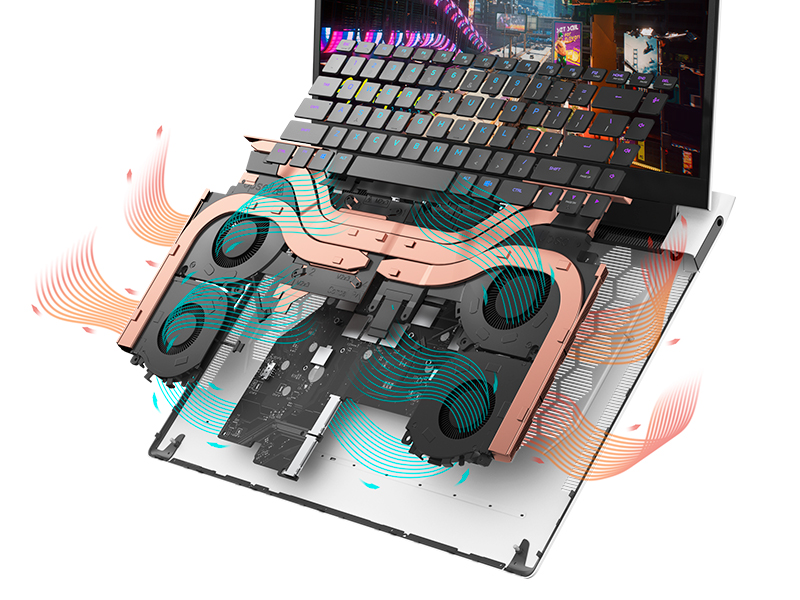
Figure 5.1: Alienware Command Center for system management.
6. ການແກ້ໄຂບັນຫາ
If you encounter issues with your Alienware X17 R2, consider the following basic troubleshooting steps:
- ບໍ່ມີພະລັງງານ: ໃຫ້ແນ່ໃຈວ່າອະແດັບເຕີໄຟເຊື່ອມຕໍ່ຢ່າງປອດໄພກັບແລັບທັອບ ແລະປລັກສຽບໄຟທີ່ເຮັດວຽກໄດ້. ກວດເບິ່ງໄຟຕົວຊີ້ວັດພະລັງງານ.
- ສະແດງບັນຫາ: If the screen is black, try connecting an external monitor to verify if the issue is with the laptop's display or the graphics card. Update graphics drivers.
- ຄວາມຮ້ອນເກີນ: Ensure cooling vents are clear of obstructions. Use Alienware Command Center to monitor temperatures and adjust fan profiles.
- ປະສິດທິພາບຊ້າລົງ: ປິດແອັບພລິເຄຊັນທີ່ບໍ່ຈຳເປັນ. ກວດສອບຂະບວນການພື້ນຫຼັງທີ່ໃຊ້ CPU ຫຼື RAM ສູງ. ຮັບປະກັນພື້ນທີ່ຫວ່າງພຽງພໍໃນ SSD.
- ບັນຫາຊອບແວ: Restart the laptop. If issues persist, consider performing a system restore or reinstalling the problematic software.
7. ຂໍ້ມູນຈໍາເພາະ
| ຄຸນສົມບັດ | ຂໍ້ມູນຈໍາເພາະ |
|---|---|
| ຂະໜາດໜ້າຈໍ | 17.3 ນິ້ວ |
| ຄວາມລະອຽດໜ້າຈໍ | 1920 x 1080 ພິກເຊລ (FHD) |
| ໂຮງງານຜະລິດ | Intel Core i9-12900H (3.8 GHz, 14 Cores) |
| RAM | 16 GB DDR5 (4800 MHz) |
| ຮາດດິດ | SSD 1 TB (ລະບົບ Solid State) |
| Graphics Coprocessor | NVIDIA GeForce RTX 3070 Ti (8 GB GDDR6) |
| ລະບົບປະຕິບັດການ | ໜ້າຫຼັກ Windows 11 |
| ປະເພດໄຮ້ສາຍ | 802.11ax (Killer Wi-Fi 6), Bluetooth |
| ພອດ USB 3.0 | 3 |
| ນ້ໍາຫນັກລາຍການ | 6.82 ປອນ |
| ຂະໜາດສິນຄ້າ | 11.79 x 15.72 x 0.58 ນິ້ວ |
8. ສິ່ງທີ່ຢູ່ໃນກ່ອງ
- ແລັບທັອບ Gaming Alienware X17 R2
- Power Adapter
- ສາຍໄຟ
- ເອກະສານ
9. ວິດີໂອຜະລິດຕະພັນຢ່າງເປັນທາງການ
Alienware X17 R2 Gaming Laptop Overview
ວິດີໂອທີ 9.1: ຢ່າງເປັນທາງການview of the Alienware X17 R2 Gaming Laptop, highlighting its design, cooling, and performance features.
About Alienware X17 R2 Gaming Laptop
Video 9.2: A detailed look at the Alienware X17 R2 Gaming Laptop, showcasing its features and design elements.
10. ການຮັບປະກັນແລະການສະຫນັບສະຫນູນ
Your Alienware X17 R2 Gaming Laptop comes with a standard manufacturer's warranty. For detailed warranty information, please refer to the documentation included with your product or visit the official Alienware support webເວັບໄຊ.
For technical support, driver downloads, and service requests, please visit the Alienware support portal. You can also find FAQs and community forums for additional assistance.