
ແນະນຳ
The Keychron C2 is a full-size (104-key) wired mechanical keyboard designed for both Mac and Windows operating systems. It features durable Red mechanical switches and retro-colored ABS keycaps, providing a comfortable and responsive typing experience. This manual provides essential information for setting up, operating, maintaining, and troubleshooting your Keychron C2 keyboard.

Image: The Keychron C2 Full Size Wired Mechanical Keyboard connected to a computer setup.
ເນື້ອໃນຊຸດ
ໃຫ້ແນ່ໃຈວ່າທຸກລາຍການຢູ່ໃນຊຸດ:
- Keychron C2 Full Size Wired Mechanical Keyboard
- ສາຍ USB-C ຫາ USB-A
- ຕົວດຶງກະແຈ
- Extra Keycaps for Mac and Windows operating systems
ຕັ້ງຄ່າ
- ເຊື່ອມຕໍ່ແປ້ນພິມ: Plug the USB-C end of the provided cable into the keyboard's USB-C port and the USB-A end into an available USB port on your computer. The keyboard is a wired-only device and does not require batteries.
- ເລືອກໂໝດລະບົບປະຕິບັດການ: Locate the operating system switch on the back or side of the keyboard. Slide the switch to the appropriate position for your computer (Mac or Windows). This ensures correct function key mapping.
- ປັບມຸມແປ້ນພິມ: The keyboard features 2-level adjustable feet. Flip out the feet on the underside of the keyboard to achieve your preferred typing angle for ergonomic comfort.
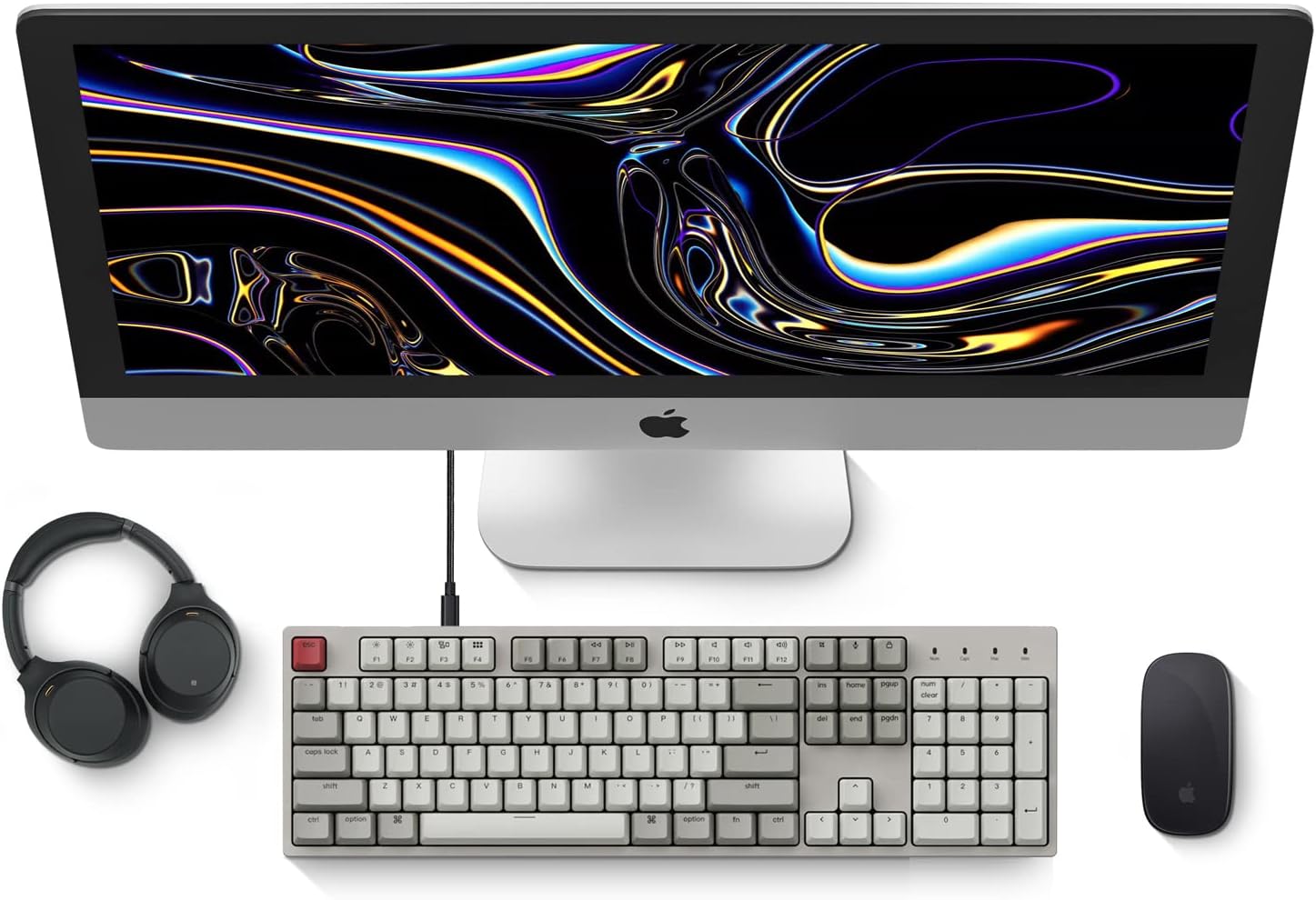
Image: Diagram showing compatibility with Mac and Windows operating systems.

ຮູບພາບ: ຂ້າງ view of the Keychron C2 keyboard illustrating the adjustable feet for angle customization.
ຄໍາແນະນໍາການດໍາເນີນງານ
ຟັງຊັນພື້ນຖານ
- ພິມ: The keyboard features a standard 104-key full-size layout.
- ປຸ່ມມັນຕິມີເດຍ: The top row of function keys (F1-F12) includes multimedia controls. These functions are optimized for Mac but are also compatible with Windows.
- Siri/Cortana Key: A dedicated key is provided for activating Siri (on Mac) or Cortana (on Windows).
ການປ່ຽນຝາປິດປຸ່ມກົດ
The Keychron C2 comes with extra keycaps for both Mac and Windows layouts. To replace keycaps:
- Use the provided keycap puller to gently remove the desired keycap by hooking it onto the keycap and pulling upwards.
- ຈັດຝາປິດປຸ່ມກົດໃໝ່ໃຫ້ກົງກັບກ້ານສະວິດ ແລະ ກົດລົງໃຫ້ແໜ້ນຈົນກວ່າມັນຈະຄລິກເຂົ້າທີ່.

ຮູບພາບ: ໃກ້ຊິດ view of the Keychron Red mechanical switches beneath removed keycaps.
ບໍາລຸງຮັກສາ
- ທໍາຄວາມສະອາດ: ເຮັດຄວາມສະອາດແປ້ນພິມຂອງທ່ານຢ່າງເປັນປົກກະຕິເພື່ອປ້ອງກັນການເກີດຂີ້ຝຸ່ນ ແລະສິ່ງເສດເຫຼືອ. ໃຊ້ແປງອ່ອນ ຫຼືອາກາດບີບອັດເພື່ອເອົາອະນຸພາກລະຫວ່າງປຸ່ມກົດອອກ. ສໍາລັບການທໍາຄວາມສະອາດຫນ້າດິນ, ໃຊ້ເລັກນ້ອຍ damp, lint-free cloth. Avoid harsh chemicals.
- ການດູແລ Keycap: While durable, avoid excessive force when removing or installing keycaps to prevent damage to the keycap stems or switches.
- ການຄຸ້ມຄອງສາຍໄຟ: Ensure the USB-C cable is not bent sharply or placed under heavy objects to prolong its lifespan.

Image: Close-up of the ABS keycaps on the Keychron C2 keyboard.
ການແກ້ໄຂບັນຫາ
- ແປ້ນພິມບໍ່ຕອບສະໜອງ:
- Check the USB-C cable connection at both the keyboard and the computer. Ensure it is securely plugged in.
- ລອງເຊື່ອມຕໍ່ແປ້ນພິມກັບພອດ USB ອື່ນໃນຄອມພິວເຕີຂອງທ່ານ.
- Verify that the operating system switch on the keyboard is set correctly (Mac/Windows).
- ປິດເປີດຄອມພິວເຕີຂອງທ່ານຄືນໃໝ່.
- ກະແຈສະເພາະບໍ່ເຮັດວຽກ:
- Carefully remove the non-functional keycap using the keycap puller. Inspect the mechanical switch for any visible damage or debris.
- Clean around the switch with compressed air.
- Re-seat the keycap firmly.
- Incorrect Key Output:
- Ensure the operating system switch is set to the correct mode for your computer.
- Check your computer's keyboard settings to ensure the correct layout is selected.
ຂໍ້ມູນຈໍາເພາະ
| ຄຸນສົມບັດ | ລາຍລະອຽດ |
|---|---|
| ຍີ່ຫໍ້ | ຄີໂຄຣນ |
| ຊື່ຕົວແບບ | Keychron C2 |
| ໝາຍເລກຕົວແບບ | HS-C2K1Z |
| ເຕັກໂນໂລຊີການເຊື່ອມຕໍ່ | USB-C (ມີສາຍ) |
| ອຸປະກອນທີ່ເຂົ້າກັນໄດ້ | ແລັບທັອບ, PC |
| ລະບົບປະຕິບັດການທີ່ເຂົ້າກັນໄດ້ຄອບຄົວ | MacOS, Windows |
| ຈໍານວນກະແຈ | 104 |
| ປະເພດສະຫຼັບ | ເສັ້ນຊື່ (ສະວິດສີແດງ) |
| Keycap ວັດສະດຸ | ABS (Acrylonitrile Butadiene Styrene) |
| ຮູບແບບແປ້ນພິມ | QWERTY |
| ຄຸນນະສົມບັດພິເສດ | Backlit (Single Color) |
| ນ້ໍາຫນັກລາຍການ | 5390 ກຣາມ |
| ແຫຼ່ງພະລັງງານ | ໄຟຟ້າສາຍ |
ການຮັບປະກັນແລະການສະຫນັບສະຫນູນ
For warranty information, technical support, or further assistance, please visit the official Keychron website or contact Keychron customer service. Details regarding product registration and specific warranty terms can be found through official Keychron channels.