
ແນະນຳ
This manual provides essential instructions for setting up, operating, and maintaining your Epson EcoTank L121 A4 Ink Tank Printer. Please read this guide thoroughly before using the printer to ensure correct operation and to maximize its lifespan.

ຮູບພາບ: ທາງຫນ້າ view of the Epson EcoTank L121 A4 Ink Tank Printer. This image shows the compact design and the front paper output tray.
1. ຕັ້ງຄ່າ
1.1 ການຫຸ້ມຫໍ່
Carefully remove the printer from its packaging. Ensure all protective tapes and materials are removed from the exterior and interior of the printer. Keep the packaging materials for future transport if needed.
1.2 ການຕື່ມຖັງນໍ້າມຶກ
The EcoTank L121 uses refillable ink tanks. Use only genuine Epson 664 series ink bottles (6641 Black, 6642 Cyan, 6643 Magenta, 6644 Yellow) for optimal performance and to prevent damage.
- ເປີດຝາປິດຖັງໝຶກທີ່ຢູ່ດ້ານຂ້າງຂອງເຄື່ອງພິມ.
- Open the cap for the corresponding color ink tank you wish to fill.
- Carefully uncap the ink bottle and insert it into the filling port. The ink will automatically start to fill the tank. Do not squeeze the bottle.
- Once the tank is full, remove the ink bottle and securely close the ink tank cap.
- ເຮັດເລື້ມຄືນສໍາລັບສີອື່ນໆທັງຫມົດ.
- ປິດຝາປິດຖັງໝຶກ.
After filling, press and hold the ບໍາລຸງຮັກສາ button (often depicted as a droplet or triangle with a lightning bolt) for 3 seconds to initiate ink charging. This process takes approximately 20 minutes. Do not turn off the printer during ink charging.
1.3 ເຊື່ອມຕໍ່ກັບຄອມພິວເຕີ້
The Epson EcoTank L121 connects via USB 2.0.
- Ensure the printer is powered on and ink charging is complete.
- ເຊື່ອມຕໍ່ປາຍໜຶ່ງຂອງສາຍ USB ກັບພອດ USB ຂອງເຄື່ອງພິມ.
- ເຊື່ອມຕໍ່ສົ້ນອື່ນຂອງສາຍ USB ກັບພອດ USB ທີ່ມີຢູ່ໃນຄອມພິວເຕີຂອງທ່ານ.
1.4 ການຕິດຕັ້ງຊອບແວ
Insert the provided software CD into your computer's CD-ROM drive. If the installer does not start automatically, browse the CD and run the setup file. Follow the on-screen instructions to install the printer drivers and utility software. If you do not have a CD drive, download the latest drivers from the official Epson support webເວັບໄຊ.
2. ການເຮັດວຽກຂອງເຄື່ອງພິມ
2.1 ການໂຫຼດເຈ້ຍ
The printer supports A4 paper size.
- Open the paper support and pull it up.
- ເລື່ອນຂອບຄູ່ມືໃຫ້ໄດ້ຕາມຄວາມກວ້າງຂອງເຈ້ຍຂອງທ່ານ.
- Load paper print-side up into the rear paper feeder. Ensure the stack is even and does not exceed the maximum load line.
- ປັບຂອບຕາມດ້ານຂ້າງຂອງເຈ້ຍ.
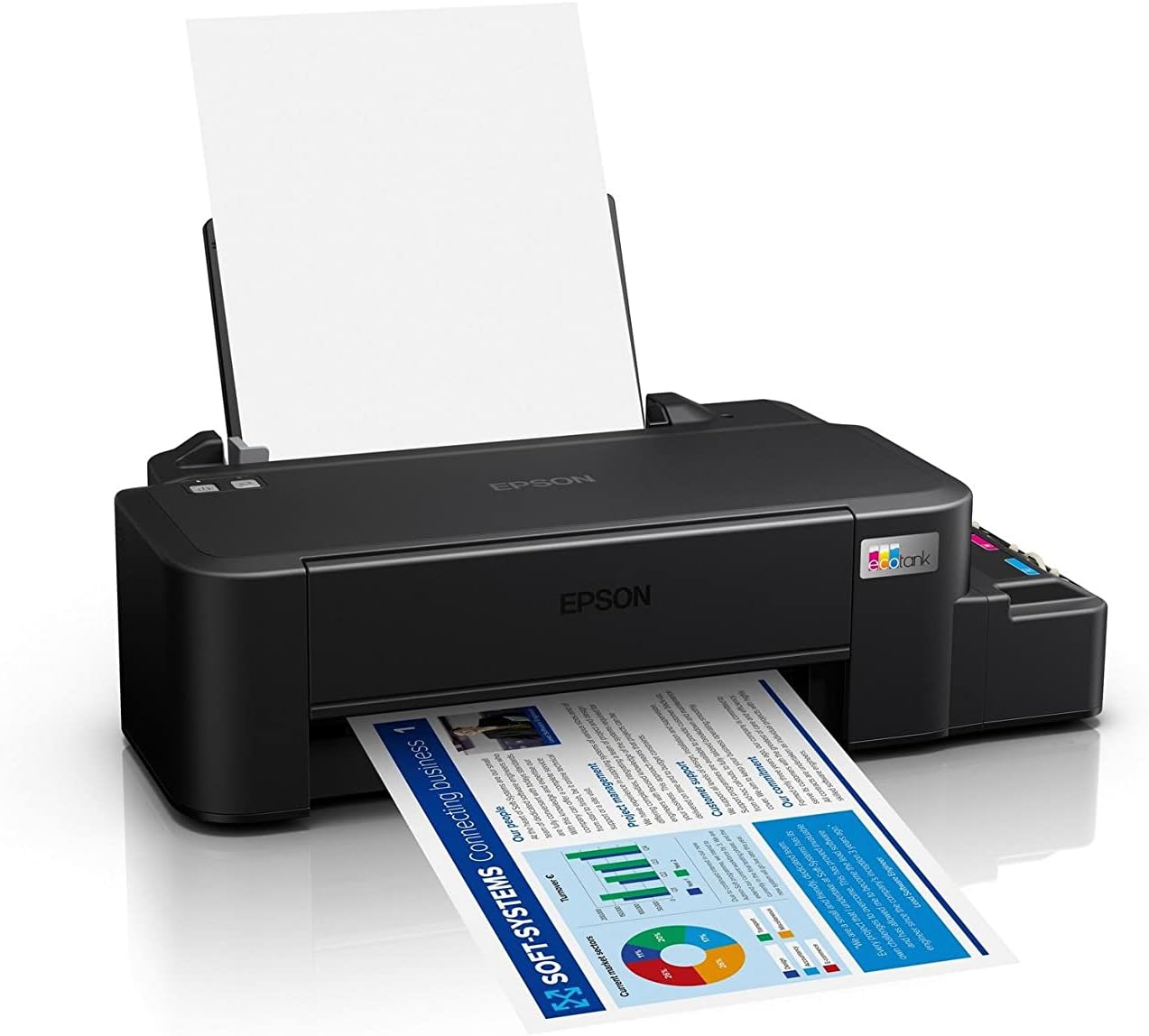
Image: The Epson EcoTank L121 printer actively printing a document. This illustrates paper being fed from the rear tray and exiting the front output tray.
2.2 ການພິມພື້ນຖານ
To print a document or image from your computer:
- ເປີດເອກະສານ ຫຼືຮູບພາບທີ່ທ່ານຕ້ອງການພິມ.
- ເລືອກ ພິມ ຈາກເມນູຂອງແອັບພລິເຄຊັນ (ເຊັ່ນ: File > ພິມ).
- Choose your Epson EcoTank L121 printer from the list of available printers.
- ປັບການຕັ້ງຄ່າການພິມເຊັ່ນ: ຂະໜາດເຈ້ຍ, ຄຸນນະພາບການພິມ ແລະ ຈຳນວນສຳເນົາຕາມຄວາມຕ້ອງການ.
- ກົດ ພິມ.
3. ບໍາລຸງຮັກສາ
3.1 ການກວດສອບລະດັບນໍ້າມຶກ
Visually inspect the ink tanks on the side of the printer. The transparent tanks allow you to monitor ink levels. Refill ink when levels approach the lower line to prevent air from entering the system, which can affect print quality.

ຮູບພາບ: ມຸມ view of the Epson EcoTank L121 printer, highlighting the external ink tanks. This view clearly shows the four color ink reservoirs.
3.2 ການເຮັດຄວາມສະອາດຫົວພິມ
If print quality declines (e.g., missing lines, incorrect colors), perform a print head cleaning. This can be done through the printer utility software on your computer:
- Open the Epson printer utility on your computer.
- ທ່ອງໄປຫາ ບໍາລຸງຮັກສາ or ປະໂຫຍດ ແຖບ.
- ເລືອກ ທໍາຄວາມສະອາດຫົວ ແລະປະຕິບັດຕາມຄໍາແນະນໍາໃນຫນ້າຈໍ.
Alternatively, you can perform a head cleaning by holding down the ບໍາລຸງຮັກສາ button on the printer for 3 seconds until the power light starts flashing. Release the button and wait for the cleaning cycle to complete.
3.3 ການກວດສອບຫົວສີດ
After a head cleaning, or if you suspect print quality issues, perform a nozzle check to verify if all nozzles are firing correctly. This can also be done via the printer utility software or by holding the ບໍາລຸງຮັກສາ button for a shorter duration (e.g., 1 second) to print a nozzle check pattern.
4. ການແກ້ໄຂບັນຫາ
ພາກນີ້ແກ້ໄຂບັນຫາທົ່ວໄປທີ່ທ່ານອາດຈະພົບກັບເຄື່ອງພິມ Epson EcoTank L121 ຂອງທ່ານ.
- ເຄື່ອງພິມບໍ່ຕອບສະໜອງ:
- Ensure the printer is powered on and connected securely via USB.
- Check if the printer drivers are correctly installed on your computer.
- ຣີສະຕາດທັງເຄື່ອງພິມ ແລະຄອມພິວເຕີຂອງທ່ານ.
- ຄຸນນະພາບການພິມບໍ່ດີ:
- ກວດສອບຫົວສີດເພື່ອກວດຫາຫົວສີດທີ່ອຸດຕັນ.
- Run a print head cleaning cycle if nozzles are clogged.
- ກວດເບິ່ງລະດັບຫມຶກແລະຕື່ມເງິນຖ້າຈໍາເປັນ.
- ໃຫ້ແນ່ໃຈວ່າທ່ານໃຊ້ໝຶກ Epson ແທ້.
- ເຈ້ຍຕິດ:
- ປິດເຄື່ອງພິມ ແລະເອົາເຈ້ຍຕິດອອກຈາກຖາດປ້ອນຂໍ້ມູນ, ຖາດປ້ອນຂໍ້ມູນ ຫຼືພາຍໃນເຄື່ອງພິມຢ່າງລະມັດລະວັງ.
- ໃຫ້ແນ່ໃຈວ່າເຈ້ຍຖືກໃສ່ຢ່າງຖືກຕ້ອງ ແລະ ບໍ່ມີຮອຍຍັບ ຫຼື ຮອຍແຕກurled.
- ຢ່າໃສ່ຖາດເຈ້ຍຫຼາຍເກີນໄປ.
- Ink Light Flashing:
- This usually indicates low ink. Check the ink tanks and refill any low colors.
- After refilling, press the ບໍາລຸງຮັກສາ button to reset the ink level indicator.
ສຳລັບການແກ້ໄຂບັນຫາລະອຽດເພີ່ມເຕີມ, ໃຫ້ອ້າງອີງເຖິງຝ່າຍຊ່ວຍເຫຼືອ Epson webເວັບໄຊທ໌ ຫຼື ຄູ່ມືເອເລັກໂຕຣນິກສະບັບເຕັມ.
5. ຂໍ້ມູນຈໍາເພາະ
| ຄຸນສົມບັດ | ລາຍລະອຽດ |
|---|---|
| ຍີ່ຫໍ້ | Epson |
| ຊື່ຕົວແບບ | ຖັງອີໂຄ L121 |
| ເຕັກໂນໂລຊີການພິມ | Inkjet |
| ເຕັກໂນໂລຊີການເຊື່ອມຕໍ່ | USB 2.0 |
| ຜົນຜະລິດເຄື່ອງພິມ | ສີ |
| ຄວາມລະອຽດການພິມສູງສຸດ (ສີ) | 720 x 720 dpi |
| ຄວາມໄວການພິມສູງສຸດ (ສີດໍາ) | 9 ppm (ISO) |
| ຄວາມໄວການພິມສູງສຸດ (ສີ) | 4.8 ppm (ISO) |
| ຄຸນນະສົມບັດພິເສດ | ຖັງໝຶກທີ່ສາມາດຕື່ມໄດ້ |
| ນ້ໍາຫນັກລາຍການ | 2.4 ກິໂລກຣາມ |
| ຂະໜາດລາຍການ (D x W x H) | 21.5D x 46.1W x 13H ຊມ |
| ຂະໜາດມີເດຍສູງສຸດ | A4 |
| ຫມຶກເຂົ້າກັນໄດ້ | Epson 664 series (6641/6642/6643/6644) |
| ການພິມສອງຊັ້ນ | ຄູ່ມື |
6. ຂໍ້ມູນການຮັບປະກັນ
The Epson EcoTank L121 printer comes with a warranty of 2-years or 20,000 pages, whichever comes first. Please retain your proof of purchase for warranty claims. For full terms and conditions, refer to the official Epson warranty documentation included with your product or visit the Epson support webເວັບໄຊ.
7. ສະຫນັບສະຫນູນ
For further assistance, driver downloads, FAQs, and additional support resources, please visit the official Epson support webເວັບໄຊ:
When contacting support, please have your printer model (L121) and serial number ready.