ແນະນຳ
Thank you for choosing the EUG Auto Focus Smart Projector. This manual provides essential information for setting up, operating, and maintaining your projector to ensure optimal performance and longevity. Please read this manual thoroughly before using the product and retain it for future reference.
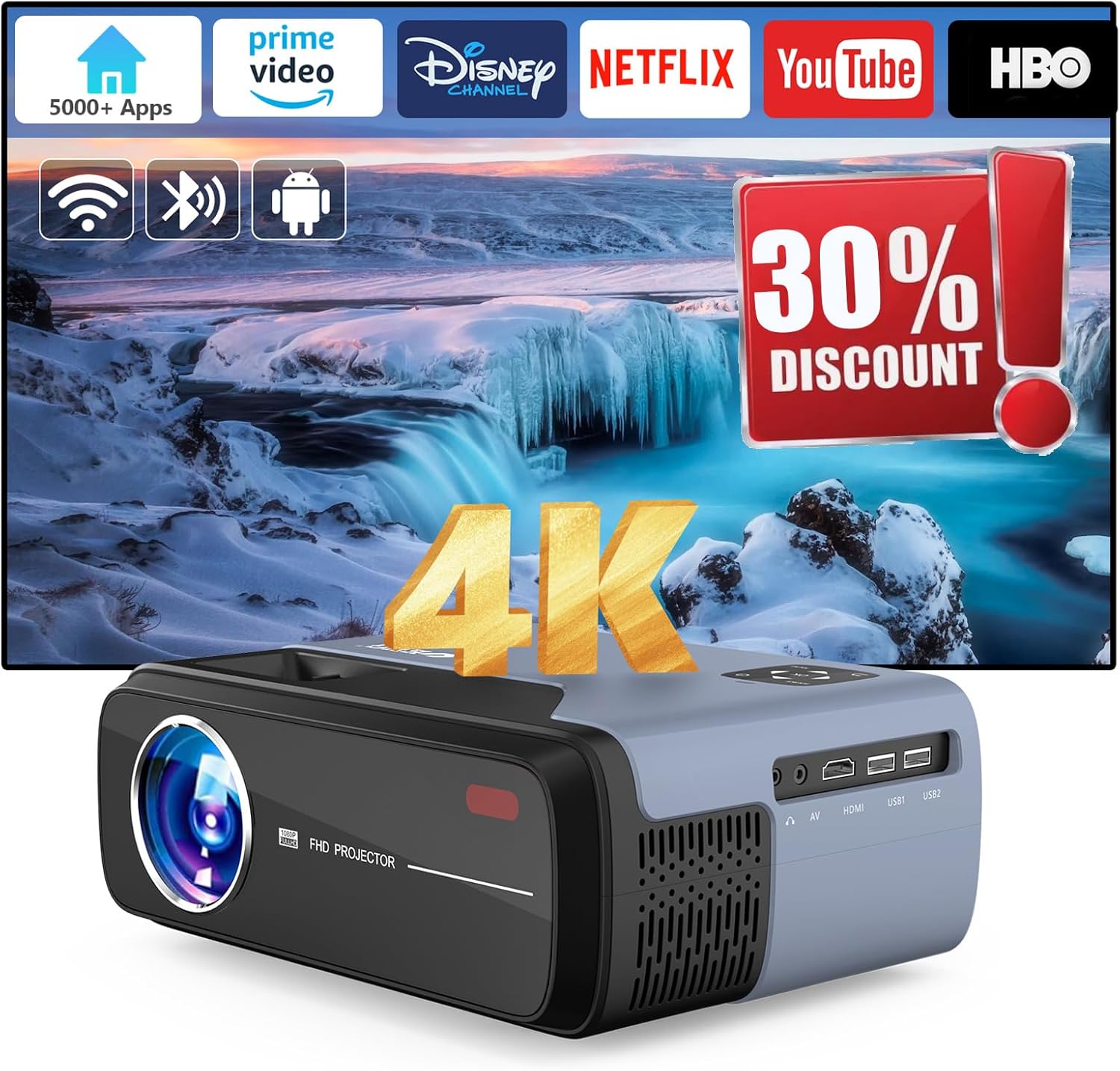
Image: The EUG Auto Focus Smart Projector, showcasing its sleek design and connectivity ports.
ຂໍ້ມູນຄວາມປອດໄພ
To prevent fire or electric shock, do not expose this appliance to rain or moisture. Do not open the cabinet. Refer servicing to qualified personnel only.
- ຮັບປະກັນການລະບາຍອາກາດທີ່ເຫມາະສົມຮອບໂປເຈັກເຕີ.
- ຫ້າມກີດຂວາງການເປີດລະບາຍອາກາດ.
- ໃຊ້ພຽງແຕ່ສາຍໄຟທີ່ໃຫ້ມາກັບໂປເຈັກເຕີ.
- ຫຼີກເວັ້ນການສໍາຜັດກັບຕາໂດຍກົງກັບເລນໂປເຈັກເຕີໃນເວລາທີ່ lamp ແມ່ນຢູ່.
- Keep the projector away from water and high humidity environments.
ແມ່ນຫຍັງຢູ່ໃນກ່ອງ
ກວດສອບວ່າລາຍການທັງຫມົດແມ່ນມີຢູ່ໃນການ unboxing:
- EUG Auto Focus Smart Projector
- ສາຍ HDMI
- ສາຍໄຟ
- ຄູ່ມືຜູ້ໃຊ້ (ເອກະສານນີ້)
- ການຄວບຄຸມໄລຍະໄກ
ສິນຄ້າເກີນview
ອົງປະກອບແລະພອດ
ເຮັດຄວາມຄຸ້ນເຄີຍກັບພາກສ່ວນຕ່າງໆຂອງໂປເຈັກເຕີຂອງທ່ານ:

ຮູບພາບ: ດ້ານຫລັງ view of the projector highlighting various input/output ports including HDMI, USB, AV, and audio out.
- ເລນ: ໂປຣເຈັກຮູບພາບໃສ່ໜ້າຈໍ.
- ເຊັນເຊີໂຟກັສ: ໃຊ້ສຳລັບການປັບໂຟກັສອັດຕະໂນມັດ.
- ການເປີດລະບາຍອາກາດ: ເປັນສິ່ງຈໍາເປັນສໍາລັບການກະຈາຍຄວາມຮ້ອນ. ບໍ່ຕັນ.
- ກະດານຄວບຄຸມ: Manual buttons for basic operations.
- ຜອດ HDMI: Connect to devices like laptops, gaming consoles, or TV sticks.
- ພອດ USB: Connect USB drives for media playback or firmware updates.
- ພອດ AV: ເຊື່ອມຕໍ່ກັບອຸປະກອນເກົ່າໂດຍໃຊ້ສາຍ AV.
- ສຽງອອກ (ແຈັກ 3.5 ມມ): ເຊື່ອມຕໍ່ລຳໂພງ ຫຼືຫູຟັງພາຍນອກ.
- ການປ້ອນຂໍ້ມູນພະລັງງານ: ເຊື່ອມຕໍ່ສາຍໄຟ.
ຕັ້ງຄ່າ
1. ບັນຈຸເຂົ້າຮຽນ
Position the projector on a stable, flat surface or mount it to the ceiling. Ensure the lens is perpendicular to the projection surface for the best image quality. The projection distance affects the screen size.

Image: Diagram illustrating recommended projection distances for various screen sizes, from 35 inches at 3.8 feet to 200 inches at 13 feet.
2. ການເຊື່ອມຕໍ່ພະລັງງານ
ເຊື່ອມຕໍ່ສາຍໄຟທີ່ສະໜອງໃຫ້ເຂົ້າກັບຊ່ອງສຽບໄຟຂອງໂປເຈັກເຕີ ແລະ ຈາກນັ້ນເຂົ້າກັບປລັກໄຟ.
3. Initial Power On and Auto-Correction
Press the power button on the projector or remote control. The projector will automatically perform auto-focus and 6D keystone correction to provide a clear, rectangular image within approximately 3 seconds. This feature automatically detects environmental changes and adjusts the image.

Image: Visual representation of auto keystone correction, 4P keystone, and horizontal/vertical keystone adjustments, along with the zoom function.
4. Network Connection (Wi-Fi 6)
Navigate to the settings menu on the projector's interface. Select 'Network' or 'Wi-Fi' and choose your desired network. Enter the password if prompted. The projector supports both 2.4GHz and 5GHz Wi-Fi 6 for stable and fast transmission.
5. ການເຊື່ອມຕໍ່ບູທູດ
To connect external Bluetooth devices like speakers or headphones, go to the Bluetooth settings. Enable Bluetooth and select your device from the list to pair. The projector features upgraded Bluetooth 5.3 for efficient audio transmission.
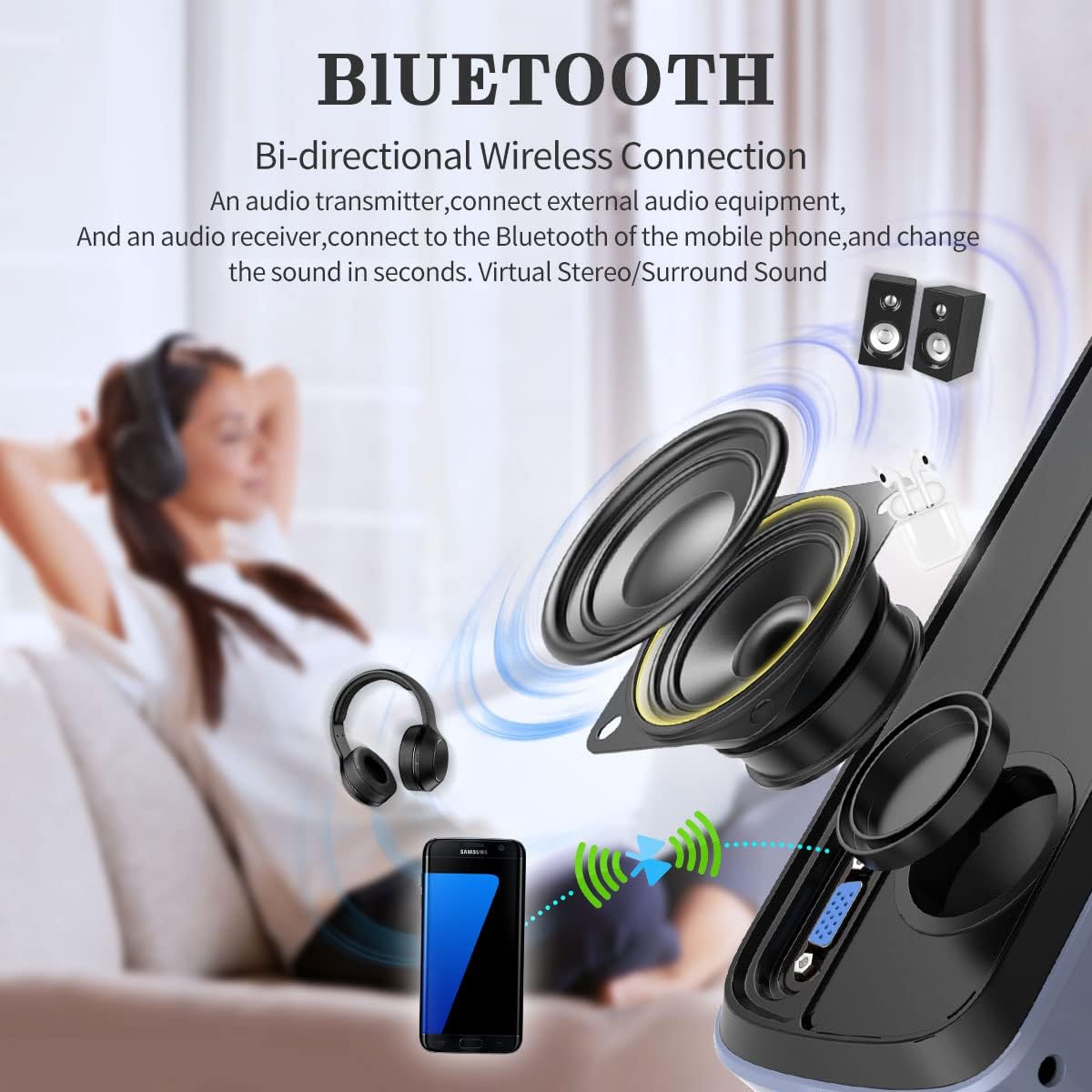
Image: Diagram illustrating the bi-directional Bluetooth connection, showing the projector connecting to headphones and external speakers, and also functioning as a Bluetooth speaker for a phone.
ຄໍາແນະນໍາການດໍາເນີນງານ
1. Navigation and Smart Features
The projector runs on Android 11 with integrated Google TV, providing access to officially licensed apps like Netflix, YouTube, and Prime Video. Use the remote control to navigate the interface. Google Voice Control is also available for hands-free operation.

Image: A visual representation of the Android TV OS interface, displaying various streaming and entertainment app icons, powered by a MediaTek chip.
2. ການເຊື່ອມຕໍ່ອຸປະກອນພາຍນອກ
The projector is equipped with VGA, AV, USB, and HDMI ports for versatile connectivity. Use the appropriate cable to connect your device (e.g., laptop, game console, TV stick, phone) to the projector. Select the correct input source from the projector's menu.
Image: A diagram showing various devices that can be connected to the projector, including TV Box, Fire Stick, Game Console, Camera, DVD, Speaker/Headset, Phone/Tablet, and Laptop/PC.
3. ການສະທ້ອນຫນ້າຈໍ
The projector supports Airplay and Miracast for mirroring content from your Android or iOS devices. Ensure both the projector and your device are connected to the same Wi-Fi network. Select the screen mirroring option on the projector and follow the instructions on your device.

Image: Illustration of multi-screen sharing capabilities, including Airplay, Miracast, and DLNA, demonstrating how a smartphone can be turned into a large screen display.
4. ປັບການຕັ້ງຄ່າ
- ຟັງຊັນຊູມ: Adjust the image size from 50% to 100% without moving the projector. Access this feature through the settings menu.
- ການຕັ້ງຄ່າຮູບ: Adjust brightness, contrast, color, and sharpness to optimize your viewປະສົບການ.
- ການຕັ້ງຄ່າສຽງ: Control volume, audio output, and sound modes. The projector has built-in 30W HiFi dual speakers with Dolby Audio & DTS-HD support.
ບໍາລຸງຮັກສາ
1. ທໍາຄວາມສະອາດ
- ເລນ: ໃຊ້ຜ້າທີ່ອ່ອນນຸ່ມ, ບໍ່ມີເສັ້ນດ່າງທີ່ອອກແບບມາໂດຍສະເພາະສໍາລັບເລນ optical. ຢ່າໃຊ້ເຄື່ອງເຮັດຄວາມສະອາດຂັດ.
- ພາຍນອກ: ເຊັດດ້ານນອກຂອງໂປເຈັກເຕີດ້ວຍຜ້າອ່ອນໆແລະແຫ້ງ. ສຳລັບຮອຍທີ່ຝັງແໜ້ນ, ໃຫ້ເຊັດອອກເລັກນ້ອຍampen ຜ້າທີ່ມີນ້ໍາ.
- ການລະບາຍອາກາດ: Periodically check and gently clean the ventilation openings to ensure proper airflow and heat dissipation.
2. ການເກັບຮັກສາ
When not in use for extended periods, store the projector in a cool, dry place, away from direct sunlight and excessive dust. Use the original packaging or a protective case if available.
ການແກ້ໄຂບັນຫາ
| ບັນຫາ | ການແກ້ໄຂ |
|---|---|
| ບໍ່ມີຮູບທີ່ຄາດໄວ້ | Ensure the power cord is securely connected. Check if the correct input source is selected. Verify the lens cap is removed. |
| ຮູບພາບມົວ | Allow the auto-focus to complete. If still blurry, manually adjust focus if an option is available, or ensure the projector is within optimal projection distance. |
| ຮູບພາບຖືກບິດເບືອນ ( trapezoid) | Ensure the projector is placed perpendicular to the screen. The 6D keystone correction should automatically adjust; if not, check keystone settings in the menu. |
| ບໍ່ມີສຽງ | Check the volume level on the projector and the connected source. Ensure external speakers are properly connected and powered on if used. Verify audio output settings. |
| ການຄວບຄຸມໄລຍະໄກບໍ່ເຮັດວຽກ | ກວດເບິ່ງແບດເຕີຣີໃນການຄວບຄຸມໄລຍະໄກ. ໃຫ້ແນ່ໃຈວ່າບໍ່ມີສິ່ງກີດຂວາງລະຫວ່າງທາງໄກ ແລະເຄື່ອງຮັບ IR ຂອງໂປເຈັກເຕີ. |
| ບັນຫາການເຊື່ອມຕໍ່ Wi-Fi | Ensure the Wi-Fi password is correct. Restart the projector and your router. Try connecting to a different Wi-Fi band (2.4GHz or 5GHz). |
ຂໍ້ມູນຈໍາເພາະ
| ຄຸນສົມບັດ | ລາຍລະອຽດ |
|---|---|
| ຍີ່ຫໍ້ | EUG |
| ໝາຍເລກຕົວແບບ | FBA-US1-700D+AB-M |
| ຄວາມລະອຽດການສະແດງ | 3840 x 2160 (ຮອງຮັບ 4K) |
| ຄວາມລະອຽດເດີມ | 1080p |
| ຄວາມສະຫວ່າງ | 950 ANSI Lumens |
| ອັດຕາສ່ວນກົງກັນຂ້າມ | 9000:1 |
| ລະບົບປະຕິບັດການ | Android 11 with Google TV |
| ການເກັບຮັກສາພາຍໃນ | 32GB |
| ການເຊື່ອມຕໍ່ | Wi-Fi 6 (2.4GHz/5GHz), Bluetooth 5.3, HDMI (x2), USB (x2), AV, 3.5mm Audio Jack |
| ຄຸນນະສົມບັດພິເສດ | Auto Focus, 6D Keystone Correction, Auto Obstacle Avoidance, Auto Screen Alignment, Google Voice Control, Game Mode (60Hz refresh rate, 20ms latency) |
| ລໍາໂພງ | 30W HiFi Dual Speakers (Dolby Audio & DTS-HD support) |
| ເບິ່ງເຫັນເສັ້ນຂວາງຂອງໜ້າຈໍ | ເຖິງ 200 ນິ້ວ / 508 ຊຕມ |
| ນ້ໍາຫນັກລາຍການ | 4.4 ປອນ |
| ສີ | ສີຟ້າ |
ການຮັບປະກັນແລະການສະຫນັບສະຫນູນ
For warranty information and technical support, please refer to the warranty card included with your product or visit the official EUG webເວັບໄຊ. ຮັກສາໃບຮັບເງິນການຊື້ຂອງທ່ານໄວ້ເປັນຫຼັກຖານການຊື້ສໍາລັບການຮ້ອງຂໍການຮັບປະກັນ.
For further assistance, you may contact EUG customer service through their official channels.