
Nasuque B09XQL2NJY
ຄູ່ມືຜູ້ໃຊ້ແປ້ນພິມ Bluetooth Nasuque
Model: B09XQL2NJY
Brand: Nasuque
ແນະນຳ
Thank you for choosing the Nasuque Bluetooth Keyboard. This wireless, rechargeable, and ultra-slim keyboard is designed for seamless compatibility with Mac OS and iOS devices, including MacBook Pro/Air, iMac, iPhone, and iPad Pro/Air/Mini. Featuring a full-size layout with a numeric keypad and a stable scissor mechanism beneath each key, it offers a comfortable and precise typing experience. Its multi-device capability allows you to connect and switch between up to three devices effortlessly.

Image: The Nasuque Bluetooth Keyboard in silver, showcasinຮູບແບບເຕັມຮູບແບບ ແລະ slim pro ຂອງມັນfile.
ເນື້ອໃນຊຸດ
ກະລຸນາກວດສອບໃຫ້ແນ່ໃຈວ່າສິນຄ້າທັງໝົດຢູ່ໃນຊຸດຂອງທ່ານ:
- Nasuque Bluetooth Keyboard
- ສາຍສາກ USB
- Dust Cover (Silicone protector)
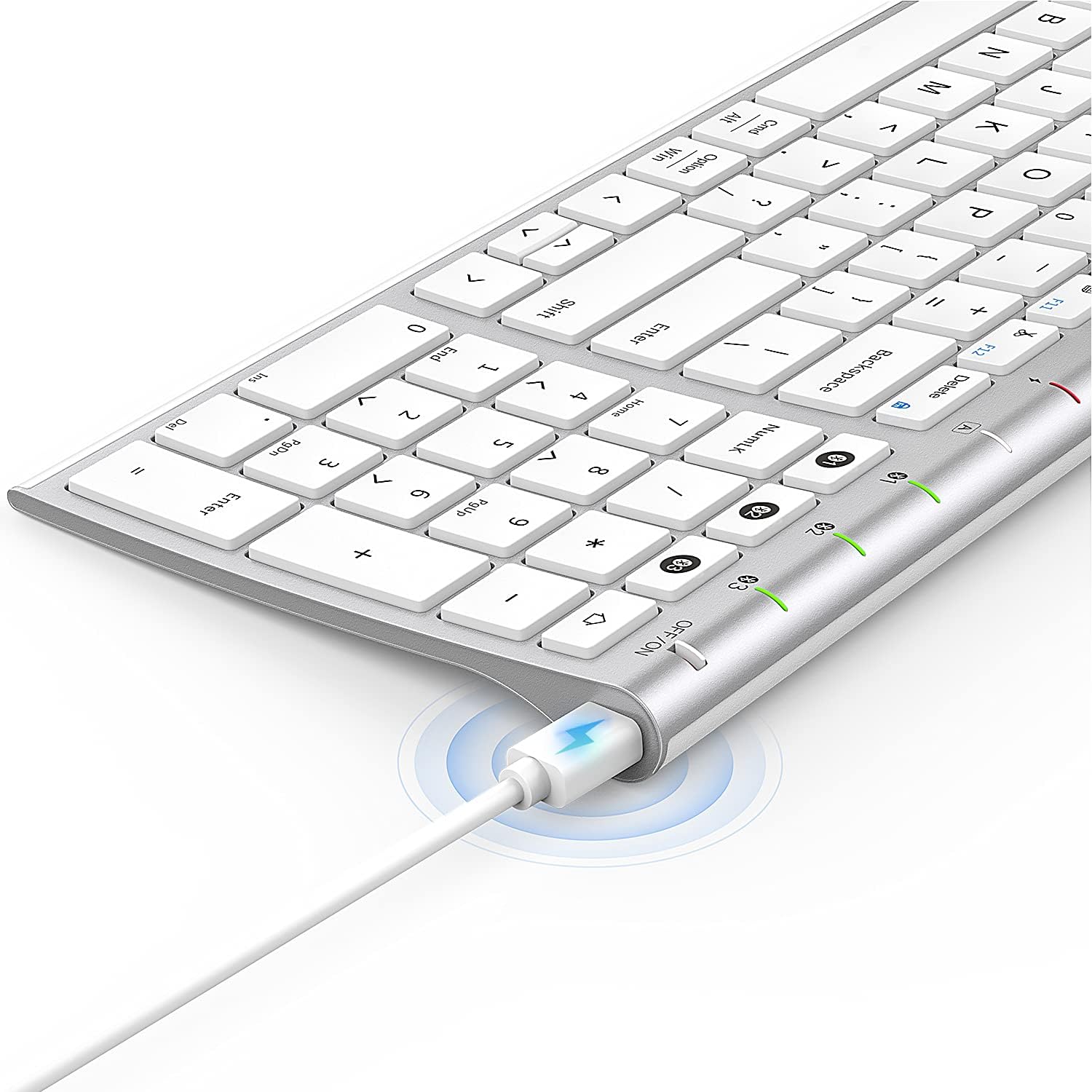
Image: The included USB charging cable, used to recharge the keyboard's built-in battery.
ການຕັ້ງຄ່າແລະການຈັບຄູ່
ເປີດ/ປິດ
Locate the ON/OFF switch on the top right side of the keyboard. Slide the switch to the "ON" position to power on the keyboard. Slide it to "OFF" when not in use to conserve battery.
ກຳລັງສາກແປ້ນພິມ
The keyboard features a built-in rechargeable lithium battery. Connect the included USB charging cable to the charging port on the keyboard and the other end to a USB power source (e.g., computer USB port, USB wall adapter). The charging indicator light will illuminate during charging and turn off when fully charged.
Multi-Device Bluetooth Pairing
This keyboard supports connection with up to three devices simultaneously. Follow these steps to pair your devices:
- ກວດໃຫ້ແນ່ໃຈວ່າແປ້ນພິມເປີດຢູ່.
- ກົດ Fn ກະແຈ ແລະ ໜຶ່ງໃນກະແຈຊ່ອງ Bluetooth (1, 2, ຫຼື 3) simultaneously to select a channel. For first-time pairing, choose an unused channel.
- ກົດຄ້າງໄວ້ Fn key and the selected Bluetooth channel key (1, 2, ຫຼື 3) for 3-5 seconds until the corresponding channel indicator light (01, 02, ຫຼື 03) starts blinking rapidly. This indicates the keyboard is in pairing mode.
- On your device (MacBook, iMac, iPhone, iPad, etc.), go to Bluetooth settings and enable Bluetooth.
- ຊອກຫາ available devices. The keyboard will appear as "Nasuque Keyboard" or similar. Select it to connect.
- ເມື່ອເຊື່ອມຕໍ່ແລ້ວ, ໄຟສັນຍານຈະຢຸດກະພິບ ແລະ ຄົງຄ້າງເປັນເວລາສອງສາມວິນາທີກ່ອນທີ່ຈະດັບລົງ.
- Repeat these steps for up to two additional devices using the other Bluetooth channels.
To switch between paired devices, simply short press the Fn key and the corresponding Bluetooth channel key (1, 2, ຫຼື 3).
ຄວາມຕ້ອງການລະບົບ: Compatible with Mac OS X 10.12 or higher and Bluetooth 4.0 or higher.

Image: The keyboard's top right corner showing the three Bluetooth channel indicators (01, 02, 03) for multi-device pairing.

Image: An illustration demonstrating the keyboard's ability to easily switch between a laptop, tablet, and smartphone.
Video: A demonstration of the Nasuque Bluetooth Keyboard's multi-device connectivity and ease of use with various Apple devices.
ຄໍາແນະນໍາການດໍາເນີນງານ
ປຸ່ມຟັງຊັນ
The keyboard features a row of function keys (F1-F12) that perform various system functions when pressed in combination with the Fn key. These include media controls (play/pause, volume), brightness adjustment, and other shortcuts common to Mac OS.
ປຸ່ມຕົວເລກ ຈຳ ນວນຫລາຍ
The integrated numeric keypad provides convenient data entry for numbers and calculations. Ensure the Num Lock key is active if needed for specific applications.

ຮູບພາບ: A close-up view of the keyboard's compact full-size layout, highlighting the numeric keypad.
ປະສົບການການພິມ
The keyboard utilizes a stable scissor mechanism beneath each key, providing a responsive and comfortable typing experience with a low profile.
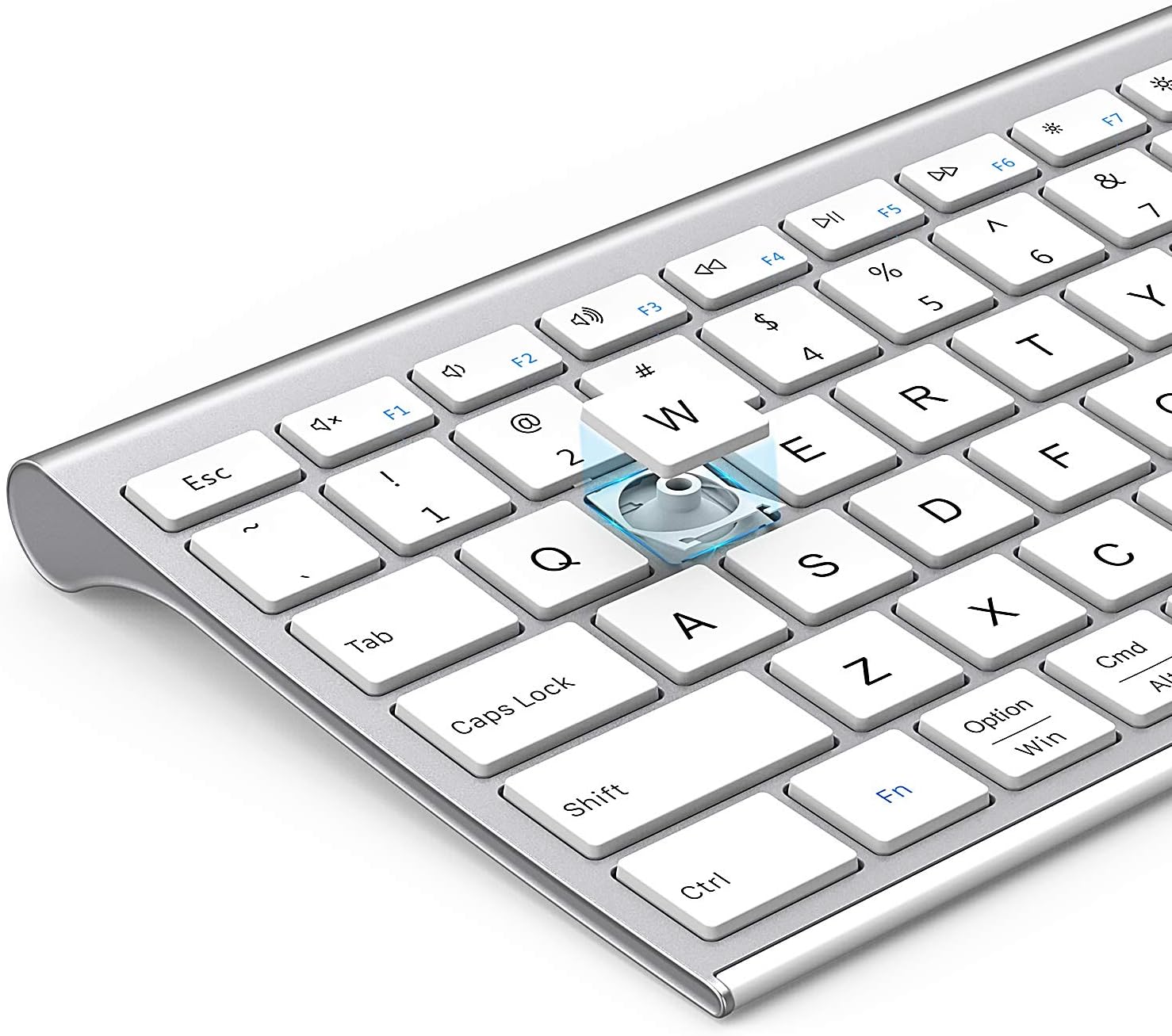
ຮູບພາບ: ລະເບີດ view of a keycap, illustrating the underlying scissor mechanism for stable and precise typing.
ບໍາລຸງຮັກສາ
ເພື່ອຮັບປະກັນອາຍຸການໃຊ້ງານທີ່ຍາວນານ ແລະ ປະສິດທິພາບທີ່ດີທີ່ສຸດຂອງແປ້ນພິມຂອງທ່ານ, ໃຫ້ປະຕິບັດຕາມຄຳແນະນຳການບຳລຸງຮັກສາເຫຼົ່ານີ້:
- ທໍາຄວາມສະອາດ: ໃຊ້ຜ້າອ່ອນ, ແຫ້ງ, ແລະ ບໍ່ມີຂົນເພື່ອເຊັດໜ້າຜິວຂອງແປ້ນພິມ. ສຳລັບຝຸ່ນທີ່ຝັງແໜ້ນ, ໃຫ້ເຊັດອອກເລັກນ້ອຍampen ຜ້າດ້ວຍນ້ໍາຫຼືການແກ້ໄຂການທໍາຄວາມສະອາດອ່ອນໆ. ຫຼີກເວັ້ນຄວາມຊຸ່ມຊື່ນຫຼາຍເກີນໄປ.
- ການປົກຫຸ້ມຂອງຝຸ່ນ: Utilize the included silicone dust cover when the keyboard is not in use to protect it from dust, spills, and debris.
- ການເກັບຮັກສາ: ເກັບຮັກສາແປ້ນພິມໄວ້ໃນບ່ອນທີ່ເຢັນ, ແຫ້ງ, ຫ່າງຈາກແສງແດດໂດຍກົງແລະອຸນຫະພູມທີ່ຮຸນແຮງ.
- ຫຼີກລ້ຽງການຂອງແຫຼວ: Do not expose the keyboard to liquids. In case of accidental spills, immediately power off the keyboard and allow it to dry completely before use.
ການແກ້ໄຂບັນຫາ
If you encounter issues with your Nasuque Bluetooth Keyboard, please refer to the following common solutions:
| ບັນຫາ | ສາເຫດທີ່ເປັນໄປໄດ້ | ການແກ້ໄຂ |
|---|---|---|
| Keyboard does not connect or is not detected. | Keyboard is off, low battery, not in pairing mode, or device Bluetooth is off. |
|
| ປຸ່ມບໍ່ຕອບສະໜອງ ຫຼື ພິມຜິດ. | Low battery, connection interference, or software issue. |
|
| ມີຄວາມຫຍຸ້ງຍາກໃນການສະຫຼັບລະຫວ່າງອຸປະກອນຕ່າງໆ. | Incorrect key press or device not properly paired to selected channel. |
|
ຂໍ້ມູນຈໍາເພາະ
| ຄຸນສົມບັດ | ລາຍລະອຽດ |
|---|---|
| ຕົວແບບ | B09XQL2NJY |
| ການເຊື່ອມຕໍ່ | Bluetooth (Multi-device support for up to 3 devices) |
| ຄວາມເຂົ້າກັນໄດ້ | Mac OS X 10.12 or higher, Bluetooth 4.0 or higher (MacBook Pro/Air, iMac, iPhone, iPad Pro/Air/Mini) |
| ຂະໜາດ (L x W x H) | 14.41 x 4.92 x 0.64 ນິ້ວ |
| ນ້ຳໜັກ | 1.12 ປອນ |
| ແບັດເຕີຣີ | ແບັດເຕີຣີ Lithium ທີ່ສາມາດສາກໄດ້ |
| ໄລຍະທາງປະຕິບັດການ | ສູງເຖິງ 8 ແມັດ (26 ຟຸດ) |
| ກົນໄກກຸນແຈ | ມີດຕັດສະຫຼັບ |

Image: Diagram illustrating the precise dimensions of the Nasuque Bluetooth Keyboard.
ການຮັບປະກັນ & ສະຫນັບສະຫນູນ
For warranty information, technical support, or any inquiries regarding your Nasuque Bluetooth Keyboard, please contact the manufacturer directly through the retailer's platform or the contact information provided with your purchase. Please retain your proof of purchase for warranty claims.
Ask a question about this manual
Ask about setup, troubleshooting, compatibility, parts, safety, or missing instructions. Manuals+ will review the question and use this page’s manual context to help answer it.