
1. ບົດແນະນຳ
The Raspberry Pi 4 Model B (2GB) is a powerful, compact single-board computer designed for a wide range of applications, from desktop computing to embedded projects. It offers enhanced processing power, improved multimedia capabilities, and expanded connectivity compared to previous models. This manual provides essential information for setting up, operating, and maintaining your Raspberry Pi 4 Model B.

Image 1.1: The Raspberry Pi 4 Model B (2GB) single-board computer, showcasing ການອອກແບບທີ່ຫນາແຫນ້ນຂອງມັນແລະພອດຕ່າງໆ.
2. ເນື້ອໃນຊຸດ
Upon opening your Raspberry Pi 4 Model B package, you should find the following:
- Raspberry Pi 4 Model B (2GB) board
Note: Additional accessories such as a power supply, microSD card, HDMI cables, and a case are typically sold separately.
3. ຄຸນລັກສະນະຂອງຜະລິດຕະພັນ
The Raspberry Pi 4 Model B (2GB) includes several key features:
- ໜ່ວຍປະມວນຜົນ: Broadcom BCM2711, Quad core Cortex-A72 (ARM v8) 64-bit SoC @ 1.5GHz
- RAM: 2GB LPDDR4-3200 SDRAM
- ການເຊື່ອມຕໍ່ແບບໄຮ້ສາຍ: 2.4 GHz and 5.0 GHz IEEE 802.11ac wireless, Bluetooth 5.0, BLE
- ອີເທີເນັດ: Gigabit Ethernet
- ພອດ USB: 2 USB 3.0 ports; 2 USB 2.0 ports
- GPIO: Standard 40-pin GPIO header (fully backwards compatible with previous boards)
- ວິດີໂອ ແລະສຽງ: 2 micro-HDMI ports (up to 4Kp60 supported), 2-lane MIPI DSI display port, 2-lane MIPI CSI camera port, 4-pole stereo audio and composite video port
- ການເກັບຮັກສາ: ຊ່ອງສຽບກາດ MicroSD ສໍາລັບລະບົບປະຕິບັດການແລະການເກັບຮັກສາຂໍ້ມູນ
4. ຄູ່ມືການຕິດຕັ້ງ
4.1. ອົງປະກອບທີ່ຕ້ອງການ (ບໍ່ລວມ)
- USB-C Power Supply (5V/3A recommended)
- MicroSD Card (minimum 8GB, Class 10 recommended)
- HDMI Cable(s) (micro-HDMI to standard HDMI)
- ແປ້ນພິມ USB ແລະຫນູ
- ຈໍພາບ ຫຼືໂທລະພາບທີ່ມີອິນພຸດ HDMI
4.2. Installing the Operating System
- Download the Raspberry Pi Imager software from the official Raspberry Pi webເວັບໄຊ (www.raspberrypi.com/software/).
- Insert your microSD card into your computer's card reader.
- Open Raspberry Pi Imager, select your desired operating system (e.g., Raspberry Pi OS), and choose your microSD card as the destination.
- Click "Write" and wait for the process to complete.
- Safely eject the microSD card from your computer.
4.3. ການເຊື່ອມຕໍ່ຮາດແວ
- Insert the prepared microSD card into the card slot on the underside of the Raspberry Pi.
- Connect your USB keyboard and mouse to the USB ports on the Raspberry Pi.
- Connect your monitor(s) to the micro-HDMI ports using appropriate cables. The Raspberry Pi 4 supports up to two displays.
- (Optional) Connect an Ethernet cable for wired network access.
- Finally, connect the USB-C power supply to the Raspberry Pi. The device will power on automatically.
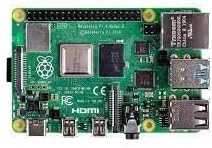
ຮູບພາບທີ 4.3.1: ເປັນການປິດ view of the Raspberry Pi 4 Model B's various ports, including USB, Ethernet, and micro-HDMI.
5. ຄໍາແນະນໍາການດໍາເນີນງານ
5.1. First Boot and Initial Configuration
On the first boot, the Raspberry Pi OS will guide you through an initial setup wizard. This includes setting your country, language, timezone, creating a user password, connecting to Wi-Fi, and updating the software. Follow the on-screen prompts to complete these steps.
5.2. Desktop Environment
Once configured, you will be presented with the Raspberry Pi OS desktop environment. This is similar to other desktop operating systems, allowing you to launch applications, browse the web, ຄຸ້ມຄອງ files, ແລະອື່ນໆ.
5.3. ການປິດເຄື່ອງ
To safely shut down your Raspberry Pi, click the Raspberry Pi icon in the top-left corner of the screen, then select ປິດລົງ. Always shut down the system properly before disconnecting power to prevent data corruption on the microSD card.
6. ບໍາລຸງຮັກສາ
- ອັບເດດຊອບແວ: Regularly update your operating system and installed software to ensure optimal performance and security. This can typically be done via the terminal using commands like
sudo apt updateແລະsudo apt full-upgrade. - ຄວາມເຢັນ: The Raspberry Pi 4 can generate heat under heavy load. Consider using a heatsink or a fan case to ensure proper cooling and prevent thermal throttling, especially for demanding applications.
- ການສະຫນອງພະລັງງານ: Use a high-quality 5V/3A USB-C power supply to ensure stable operation. Insufficient power can lead to instability.
- ການດູແລບັດ MicroSD: Avoid frequently writing large amounts of data to the microSD card to prolong its lifespan. Consider using a USB SSD for heavy data operations.
7. ການແກ້ໄຂບັນຫາ
- ບໍ່ມີການສະແດງຜົນອອກ: Ensure micro-HDMI cables are securely connected and your monitor is set to the correct input. Try a different micro-HDMI port or cable.
- ໄຟ LED ກະພິບ: This often indicates an insufficient power supply. Ensure you are using a 5V/3A USB-C power supply.
- ບັນຫາ Wi-Fi/Bluetooth: Check your network settings in the Raspberry Pi OS. Ensure the device is within range of your Wi-Fi router.
- ລະບົບບໍ່ສະຖຽນ/ຂັດຂ້ອງ: This could be due to overheating (ensure proper cooling), a corrupted microSD card (try re-flashing the OS), or an inadequate power supply.
- ບັນຫາທົ່ວໄປ: The Raspberry Pi community forums and documentation are excellent resources for troubleshooting specific problems.
8. ຂໍ້ມູນຈໍາເພາະ
| ຄຸນສົມບັດ | ລາຍລະອຽດ |
|---|---|
| ໂຮງງານຜະລິດ | Broadcom BCM2711, Quad core Cortex-A72 (ARM v8) 64-bit SoC @ 1.5GHz |
| RAM | 2GB LPDDR4-3200 SDRAM |
| ປະເພດໄຮ້ສາຍ | 802.11ac, Bluetooth 5.0, BLE |
| ອີເທີເນັດ | Gigabit Ethernet |
| ພອດ USB | 2 USB 3.0 ports, 2 USB 2.0 ports |
| ຜົນຜະລິດວິດີໂອ | 2 micro-HDMI ports (up to 4Kp60) |
| ສຽງອອກ | 4-pole stereo audio audio ແລະພອດວີດີໂອແບບປະສົມ |
| ສ່ວນຫົວ GPIO | Standard 40-pin GPIO header |
| ການເກັບຮັກສາ | ຊ່ອງໃສ່ບັດ microSD |
| ລະບົບປະຕິບັດການ | Linux (e.g., Raspberry Pi OS) |
| ນ້ໍາຫນັກລາຍການ | 2.11 ອອນ |
9. ການຮັບປະກັນແລະການສະຫນັບສະຫນູນ
ສຳລັບຂໍ້ມູນການຮັບປະກັນ ແລະ ການຊ່ວຍເຫຼືອດ້ານເຕັກນິກ, ກະລຸນາອ້າງອີງເຖິງ Raspberry Pi ຢ່າງເປັນທາງການ website or contact your retailer. The Raspberry Pi community also provides extensive resources, forums, and documentation for assistance with projects and troubleshooting.
ທາງການ Webເວັບໄຊ: www.raspberrypi.com