
Fnatic BOLT
Fnatic BOLT Wireless Gaming Mouse User Manual
ແນະນຳ
This manual provides detailed instructions for the setup, operation, maintenance, and troubleshooting of your Fnatic BOLT Wireless Gaming Mouse. Please read this manual thoroughly before using the product to ensure optimal performance and longevity.
ສິນຄ້າເກີນview
The Fnatic BOLT is a lightweight wireless gaming mouse designed for high performance. It features a durable construction and versatile connectivity options.
ອົງປະກອບ
- Left and Right Click Buttons
- ລໍ້ເລື່ອນ
- DPI Cycle Button (typically located on the bottom or top)
- ປຸ່ມດ້ານຂ້າງ (ໄປໜ້າ/ຫຼັງ)
- ພອດສາກໄຟ USB-C
- Wireless Receiver (dongle)

ຮູບທີ 1: ທາງເທິງ view of the Fnatic BOLT Wireless Gaming Mouse, showing the main click buttons and scroll wheel.

ຮູບທີ 2: ມຸມ view of the Fnatic BOLT Wireless Gaming Mouse, highlighting the two programmable side buttons.

ຮູບ 3: ດ້ານຫນ້າ view of the Fnatic BOLT Wireless Gaming Mouse, displaying the USB-C charging port.
ຕັ້ງຄ່າ
1. ການສາກໄຟເບື້ອງຕົ້ນ
Before first use, it is recommended to fully charge the Fnatic BOLT mouse.
- ເຊື່ອມຕໍ່ສາຍ USB-C ທີ່ໃຫ້ມາກັບຜອດສາກໄຟຢູ່ດ້ານໜ້າຂອງເມົາສ໌.
- Connect the other end of the USB-C cable to a powered USB port on your computer or a USB wall adapter.
- The mouse's indicator light will show charging status (refer to product documentation for specific light patterns). A full charge typically takes a few hours.
2. ການເຊື່ອມຕໍ່ກັບຄອມພິວເຕີຂອງທ່ານ
The Fnatic BOLT supports two wireless connection modes: 2.4 GHz wireless (via USB dongle) and Bluetooth.
2.1. ການເຊື່ອມຕໍ່ໄຮ້ສາຍ 2.4 GHz
- Locate the USB wireless receiver (dongle) that came with your mouse.
- ສຽບຕົວຮັບ USB ເຂົ້າໄປໃນຜອດ USB ທີ່ມີຢູ່ໃນຄອມພິວເຕີຂອງທ່ານ.
- ເປີດເມົາສ໌ໂດຍໃຊ້ສະວິດເປີດປິດທີ່ຢູ່ດ້ານລຸ່ມຂອງເມົາສ໌.
- The mouse should automatically connect to the receiver. The indicator light will confirm a successful connection.
2.2. ການເຊື່ອມຕໍ່ບູທູດ
- ກວດໃຫ້ແນ່ໃຈວ່າ Bluetooth ຂອງຄອມພິວເຕີຂອງທ່ານຖືກເປີດໃຊ້.
- Turn on the mouse and switch it to Bluetooth mode (refer to the mouse's bottom switch or button for mode selection).
- ໃນຄອມພິວເຕີຂອງທ່ານ, ໄປທີ່ການຕັ້ງຄ່າ Bluetooth ແລະຊອກຫາອຸປະກອນໃໝ່.
- Select "Fnatic BOLT" from the list of available devices to pair.
- The mouse's indicator light will confirm successful pairing.
ຄໍາແນະນໍາການດໍາເນີນງານ
ການປັບ DPI
The Fnatic BOLT mouse allows you to adjust its Dots Per Inch (DPI) sensitivity. This mouse features 4 preset DPI levels.
- Locate the DPI cycle button, typically on the bottom of the mouse.
- Press the DPI button to cycle through the available sensitivity settings.
- An indicator light (often on the scroll wheel or top of the mouse) may change color or flash to indicate the current DPI level.
ຟັງຊັນປຸ່ມ
- ຄລິກຊ້າຍ: ການປະຕິບັດຂັ້ນຕົ້ນ, ການຄັດເລືອກ.
- ກົດຂວາ: ເມນູບໍລິບົດ, ຄຳສັ່ງສຳຮອງ.
- ລໍ້ເລື່ອນຄລິກ: Middle click, often used for opening links in new tabs or specific in-game functions.
- ເລື່ອນຂຶ້ນ/ລົງ: Navigating documents or web ໜ້າ.
- ປຸ່ມຂ້າງ: Default to Forward/Back in web browsers. These can often be customized via software (if available).
ການຄຸ້ມຄອງພະລັງງານ
- To conserve battery life, turn off the mouse using the power switch when not in use for extended periods.
- The mouse may enter a sleep mode after a period of inactivity. Move the mouse or click a button to wake it up.
- Monitor the battery indicator (if available) to know when to recharge.
ບໍາລຸງຮັກສາ
ທໍາຄວາມສະອາດ
- Regularly clean the mouse surface with a soft, dry, lint-free cloth.
- ສໍາລັບຝຸ່ນ stubborn, ເລັກນ້ອຍ dampen ຜ້າດ້ວຍນ້ໍາຫຼືການແກ້ໄຂການທໍາຄວາມສະອາດອ່ອນໆ. ຫຼີກເວັ້ນການສານເຄມີທີ່ຮຸນແຮງ.
- Clean the optical sensor on the bottom of the mouse with a cotton swab to ensure accurate tracking.
- Do not allow liquids to enter the mouse's internal components.
ການດູແລຫມໍ້ໄຟ
- ຫຼີກລ້ຽງການປະຈຸຫມໍ້ໄຟຢ່າງເຕັມທີ່ເລື້ອຍໆ.
- ເກັບຮັກສາຫນູໄວ້ໃນບ່ອນທີ່ເຢັນ, ແຫ້ງ, ເມື່ອບໍ່ໄດ້ໃຊ້ເປັນເວລາດົນ.
- ຢ່າໃຫ້ໜູຖືກອຸນຫະພູມສູງເກີນໄປ.
ການແກ້ໄຂບັນຫາ
ເມົາສ໌ບໍ່ຕອບສະໜອງ
- ກວດສອບຫມໍ້ໄຟ: Ensure the mouse is charged. Connect it to the USB-C cable and allow it to charge for a period.
- ສັບປ່ຽນພະລັງງານ: Verify the mouse's power switch is in the "ON" position.
- Wireless Connection (2.4 GHz):
- ກວດໃຫ້ແນ່ໃຈວ່າໄດ້ສຽບຕົວຮັບ USB ເຂົ້າໄປໃນພອດ USB ທີ່ເຮັດວຽກໄດ້ຢ່າງປອດໄພ. ລອງໃຊ້ພອດ USB ອື່ນ.
- Ensure the mouse is within range of the receiver.
- ຫຼີກລ້ຽງແຫຼ່ງການແຊກແຊງ (ຕົວຢ່າງ, ອຸປະກອນໄຮ້ສາຍອື່ນໆ, ວັດຖຸໂລຫະຂະຫນາດໃຫຍ່).
- ການເຊື່ອມຕໍ່ບູທູດ:
- ກວດໃຫ້ແນ່ໃຈວ່າ Bluetooth ຂອງຄອມພິວເຕີຂອງທ່ານຖືກເປີດໃຊ້.
- Check if the mouse is in Bluetooth pairing mode or already paired. Re-pair if necessary.
- Remove and re-add the device in your computer's Bluetooth settings.
- ຣີສະຕາດ: ປິດເປີດຄອມພິວເຕີຂອງທ່ານຄືນໃໝ່.
ການຕິດຕາມບໍ່ຖືກຕ້ອງ
- ເຊັນເຊີສະອາດ: ເຮັດຄວາມສະອາດເຊັນເຊີ optical ຢູ່ດ້ານລຸ່ມຂອງຫນູ.
- ພື້ນຜິວ: Ensure you are using the mouse on a suitable surface. Highly reflective or uneven surfaces can affect tracking. A mouse pad is recommended.
- ການຕັ້ງຄ່າ DPI: Adjust the DPI setting to a level that suits your preference and task.
ອາຍຸແບັດເຕີຣີສັ້ນ
- ການສາກໄຟ: ກວດໃຫ້ແນ່ໃຈວ່າເມົາສ໌ຖືກສາກເຕັມແລ້ວ.
- ປິດພະລັງງານ: Remember to turn off the mouse when not in use.
- ການນຳໃຊ້: High-intensity usage or certain settings might consume more power.
ຂໍ້ມູນຈໍາເພາະ
| ຄຸນສົມບັດ | ລາຍລະອຽດ |
|---|---|
| ຍີ່ຫໍ້ | Fnatic |
| ຊື່ຕົວແບບ | FnaticGear BOLT |
| ໝາຍເລກຕົວແບບ | ໂບ |
| ສີ | ສີຂາວ |
| ເຕັກໂນໂລຊີການເຊື່ອມຕໍ່ | Bluetooth, Wi-Fi (2.4 GHz Wireless) |
| ເຕັກໂນໂລຍີກວດຈັບການເຄື່ອນໄຫວ | Optical |
| ຈໍານວນປຸ່ມ | 6 |
| ທິດທາງມື | ສິດ |
| ຄຸນນະສົມບັດພິເສດ | ນ້ຳໜັກເບົາ |
| ປະເພດແຫຼ່ງພະລັງງານ | Wireless (Rechargeable Battery) |
| ແບດເຕີລີ່ລວມ | ແມ່ນແລ້ວ (ແບັດເຕີຣີໂລຫະລິທຽມ 1 ກ້ອນ) |
| ເນື້ອໃນພະລັງງານຫມໍ້ໄຟ Lithium | 470 ລ້ານamp ຊົ່ວໂມງ (mAh) |
| ຂະໜາດສິນຄ້າ | ຂະ ໜາດ 12.5 x 6.5 x 0.1 ຊມ; 69 ກ |
| ອຸປະກອນທີ່ເຂົ້າກັນໄດ້ | ແລັບທັອບ, ຄອມພິວເຕີສ່ວນຕົວ |
| ລະບົບປະຕິບັດການ | Linux, Windows 7, Windows XP (and newer) |
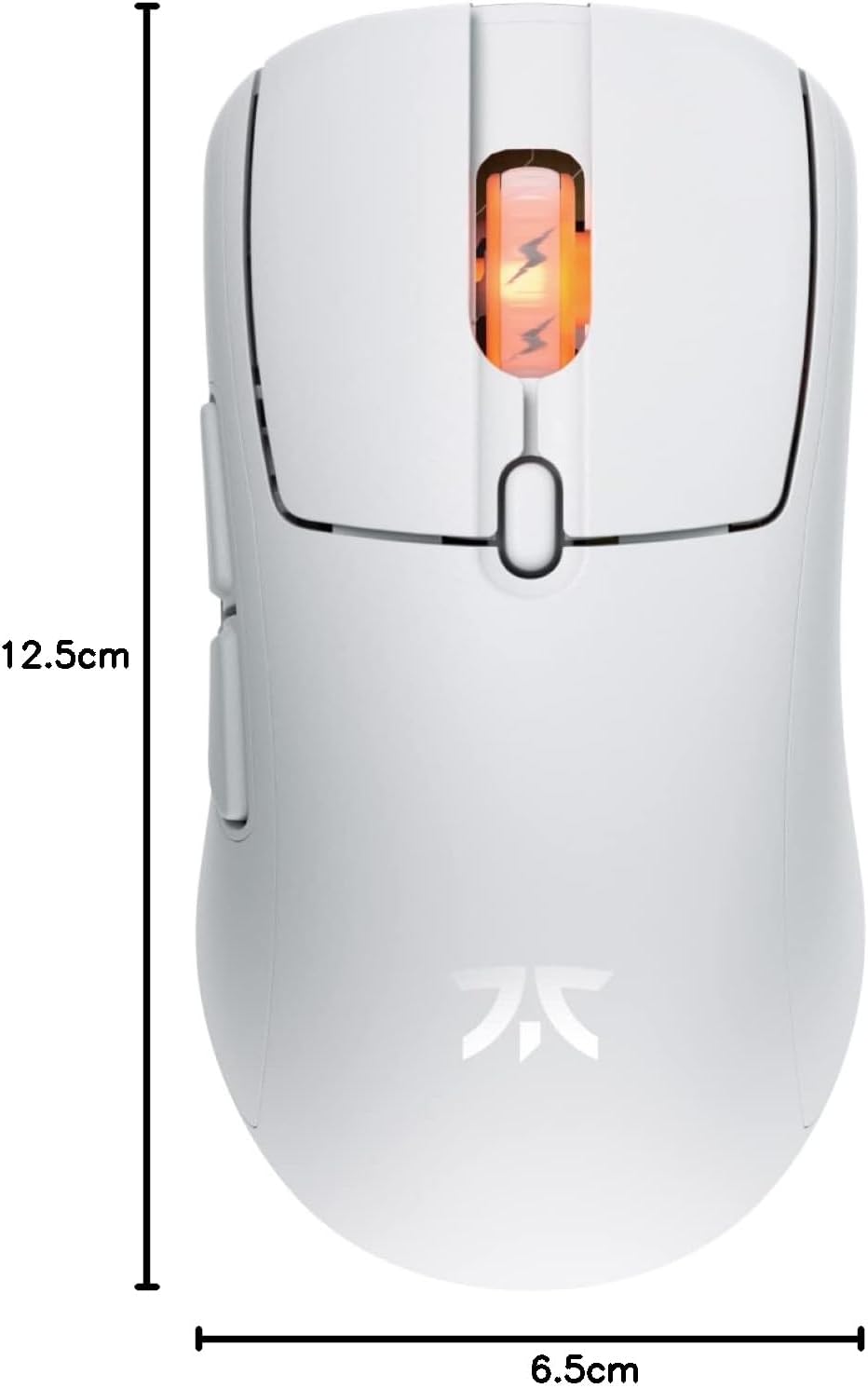
Figure 4: Diagram showing the dimensions of the Fnatic BOLT Wireless Gaming Mouse.
ການຮັບປະກັນແລະການສະຫນັບສະຫນູນ
For information regarding warranty coverage and technical support, please refer to the official Fnatic webເວັບໄຊ ຫຼືບັດຮັບປະກັນລວມຢູ່ໃນຜະລິດຕະພັນຂອງທ່ານ.
You can typically find support resources, FAQs, and contact information on the manufacturer's official support pages.
Ask a question about this manual
Ask about setup, troubleshooting, compatibility, parts, safety, or missing instructions. Manuals+ will review the question and use this page’s manual context to help answer it.