
Finlux FLU5535ANDROID
Finlux FLU5535ANDROID 55-inch 4K Ultra HD Android Smart TV
ຄູ່ມືຜູ້ໃຊ້
1. ບົດແນະນຳ
ຂອບໃຈສໍາລັບການຊື້asing the Finlux FLU5535ANDROID 55-inch 4K Ultra HD Android Smart TV. This manual provides essential information for setting up, operating, and maintaining your new television. Please read this manual thoroughly before using the product and keep it for future reference.
ຂໍ້ມູນຄວາມປອດໄພທີ່ສໍາຄັນ
Always follow basic safety precautions when using this television to reduce the risk of fire, electric shock, and injury to persons. Do not expose the TV to rain or moisture. Do not open the cabinet. Refer all servicing to qualified personnel.
- ຮັບປະກັນການລະບາຍອາກາດທີ່ເຫມາະສົມຮອບໂທລະທັດ.
- ຢ່າປິດກັ້ນຊ່ອງລະບາຍອາກາດດ້ວຍສິ່ງຂອງຕ່າງໆເຊັ່ນ: ໜັງສືພິມ, ຜ້າປູໂຕະ ຫຼື ຜ້າມ່ານ.
- ຢ່າວາງໂທລະທັດໃສ່ລົດເຂັນ, ຂາຕັ້ງ, ຂາຕັ້ງ, ວົງເລັບ, ຫຼືໂຕະທີ່ບໍ່ໝັ້ນຄົງ.
- ຖອດສາຍໂທລະທັດໃນເວລາມີພາຍຸຟ້າຜ່າ ຫຼືເມື່ອບໍ່ໄດ້ໃຊ້ເປັນເວລາດົນນານ.
- Keep small components and batteries out of reach of children.
2. ສິ່ງທີ່ຢູ່ໃນກ່ອງ
Upon unpacking your Finlux FLU5535ANDROID TV, please ensure all the following items are present:
- Finlux FLU5535ANDROID 55-inch 4K Ultra HD Android Smart TV
- ການຄວບຄຸມໄລຍະໄກທີ່ມີຫມໍ້ໄຟ
- ສາຍໄຟ
- Stand (if applicable, for tabletop placement)
- ຄູ່ມືຜູ້ໃຊ້ (ເອກະສານນີ້)
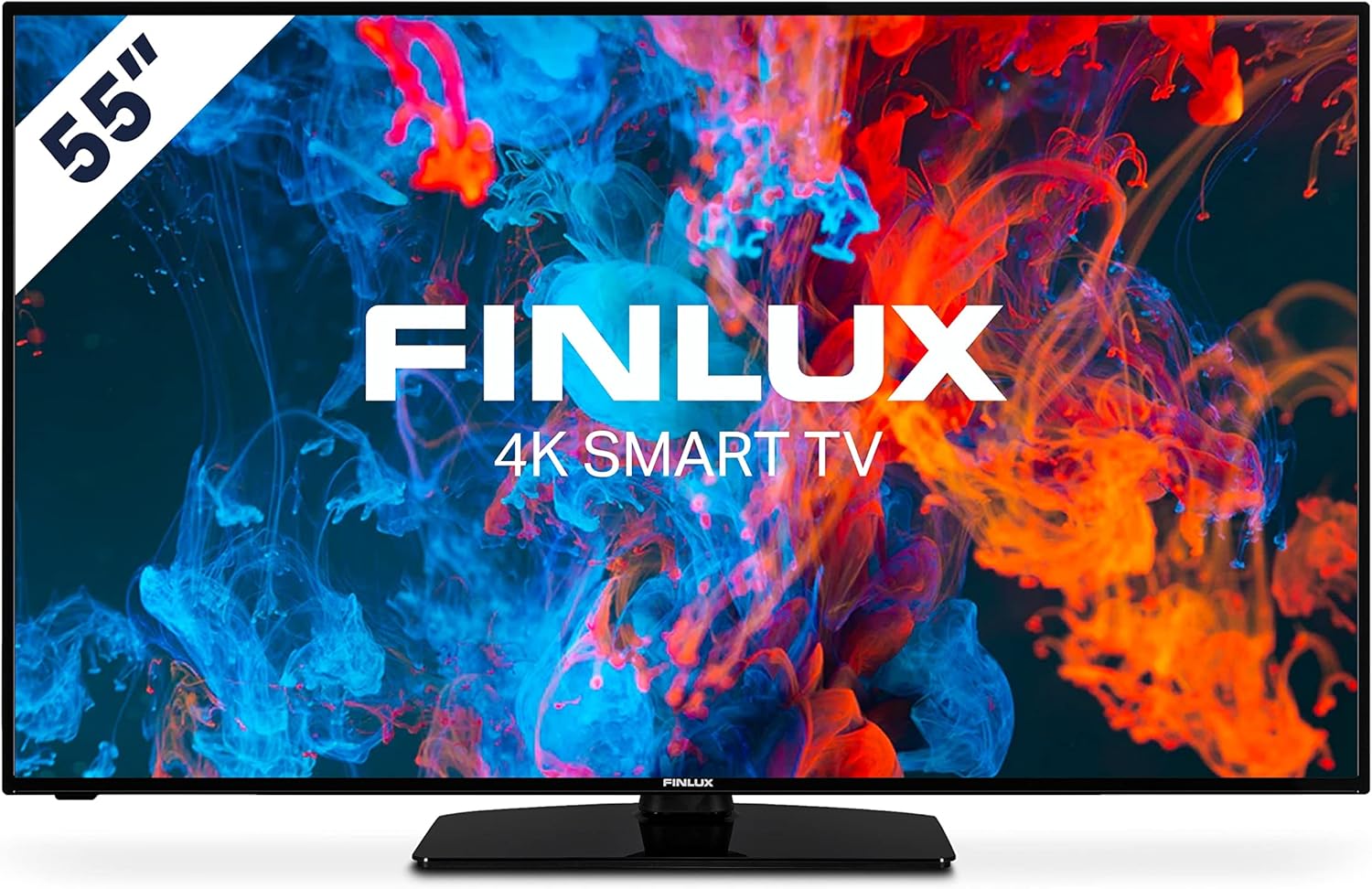
ຮູບພາບ: ທາງຫນ້າ view of the Finlux FLU5535ANDROID 55-inch 4K Ultra HD Android Smart TV, showcasing its slim bezel and central stand.
3. ຕັ້ງຄ່າ
3.1 ການຈັດວາງທາງດ້ານຮ່າງກາຍ
The Finlux FLU5535ANDROID TV features a practical size and a slim screen, making it easy to place in various rooms. Its flat back and thin screen design allow for easy wall mounting or placement against a wall.
- ການຈັດວາງເທິງໂຕະ: Attach the provided stand securely to the TV following the instructions in the separate quick start guide. Place the TV on a stable, level surface.
- ຕິດຝາ: If you plan to wall mount the TV, ensure you use a VESA-compatible wall mount (not included) and follow the wall mount manufacturer's instructions.
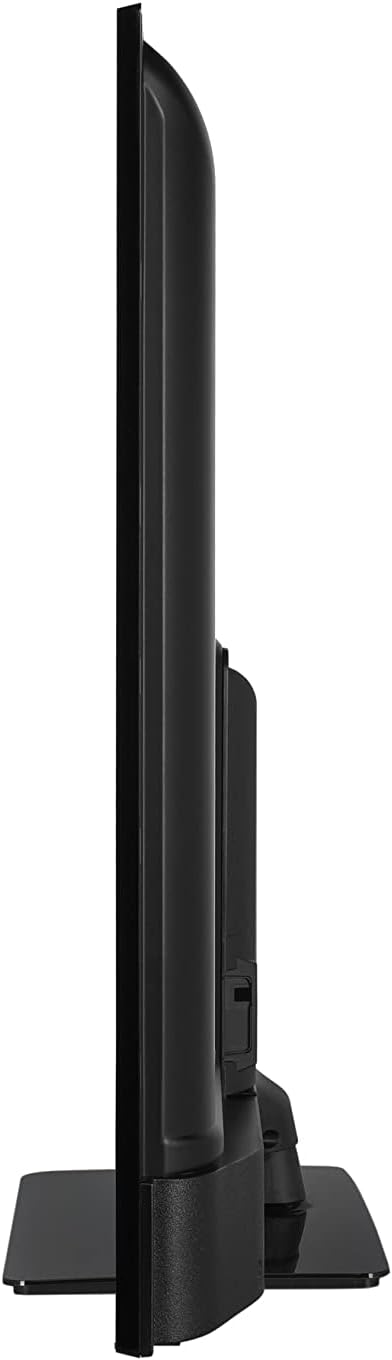
ຮູບພາບ: Side profile view of the Finlux FLU5535ANDROID TV, highlighting its slim design.
3.2 ສາຍເຊື່ອມຕໍ່
Connect the power cable to the TV's power input and then to a wall outlet. Connect your external devices such as set-top boxes, gaming consoles, or Blu-ray players to the appropriate ports on the TV.

ຮູບພາບ: ດ້ານຫລັງ view of the Finlux FLU5535ANDROID TV, displaying the arrangement of its input ports including HDMI and USB.
- HDMI: Connect high-definition devices using HDMI cables. This TV features 4 HDMI ports.
- USB: Connect USB storage devices for media playback or PVR functionality. This TV has 2 USB ports.
- ເສົາອາກາດ/ສາຍ: Connect your antenna or cable TV input for broadcast channels.
- ອີເທີເນັດ: ສໍາລັບການເຊື່ອມຕໍ່ອິນເຕີເນັດແບບມີສາຍທີ່ຫມັ້ນຄົງ.
3.3 ການເປີດເຄື່ອງເບື້ອງຕົ້ນ ແລະຕົວຊ່ວຍສ້າງການຕັ້ງຄ່າ
After connecting all necessary cables, plug the TV into a power outlet and press the power button on the remote control or the TV itself. The TV will guide you through the initial setup process, including language selection, network connection, and channel scanning.
4. ການປະຕິບັດໂທລະພາບຂອງທ່ານ
4.1 ການຄວບຄຸມໄລຍະໄກເກີນview
The provided remote control allows you to navigate the TV's features and menus. Insert the included batteries into the remote control before use.

Image: The Finlux TV remote control, featuring dedicated buttons for quick access to popular streaming services like Netflix and YouTube, along with standard navigation and number keys.
- ປຸ່ມເປີດປິດ: ເປີດ ຫຼືປິດໂທລະພາບ.
- ປຸ່ມຕົວເລກ: ສໍາລັບການເລືອກຊ່ອງທາງໂດຍກົງ.
- ແຜ່ນນໍາທາງ (ຂຶ້ນ/ລົງ/ຊ້າຍ/ຂວາ/ຕົກລົງ): To navigate menus and confirm selections.
- ປະລິມານຂຶ້ນ/ລົງ: ປັບລະດັບສຽງ.
- ຊ່ອງຂຶ້ນ/ລົງ: ປ່ຽນຊ່ອງໂທລະພາບ.
- ປຸ່ມ Netflix/YouTube: ເຂົ້າເຖິງແອັບພລິເຄຊັນການຖ່າຍທອດເຫຼົ່ານີ້ໂດຍກົງ.
- ປຸ່ມເມນູ: ເປີດເມນູການຕັ້ງຄ່າຕົ້ນຕໍ.
- ປຸ່ມອອກ: ອອກຈາກເມນູ ຫຼືແອັບພລິເຄຊັນປະຈຸບັນ.
4.2 Android Smart TV Features
This TV runs on the Android operating system, providing access to a wide range of applications and smart features. Popular applications like Netflix, YouTube, and Prime Video are pre-configured for your convenience.
- ບໍລິການຖ່າຍທອດ: Enjoy movies and series in high quality from Netflix, YouTube, Prime Video, and Spotify.
- Google Play Store: Download additional apps, games, and content from the Google Play Store.
- Chromecast ໃນຕົວ: Easily cast content from your smartphone or other compatible devices directly to your TV.
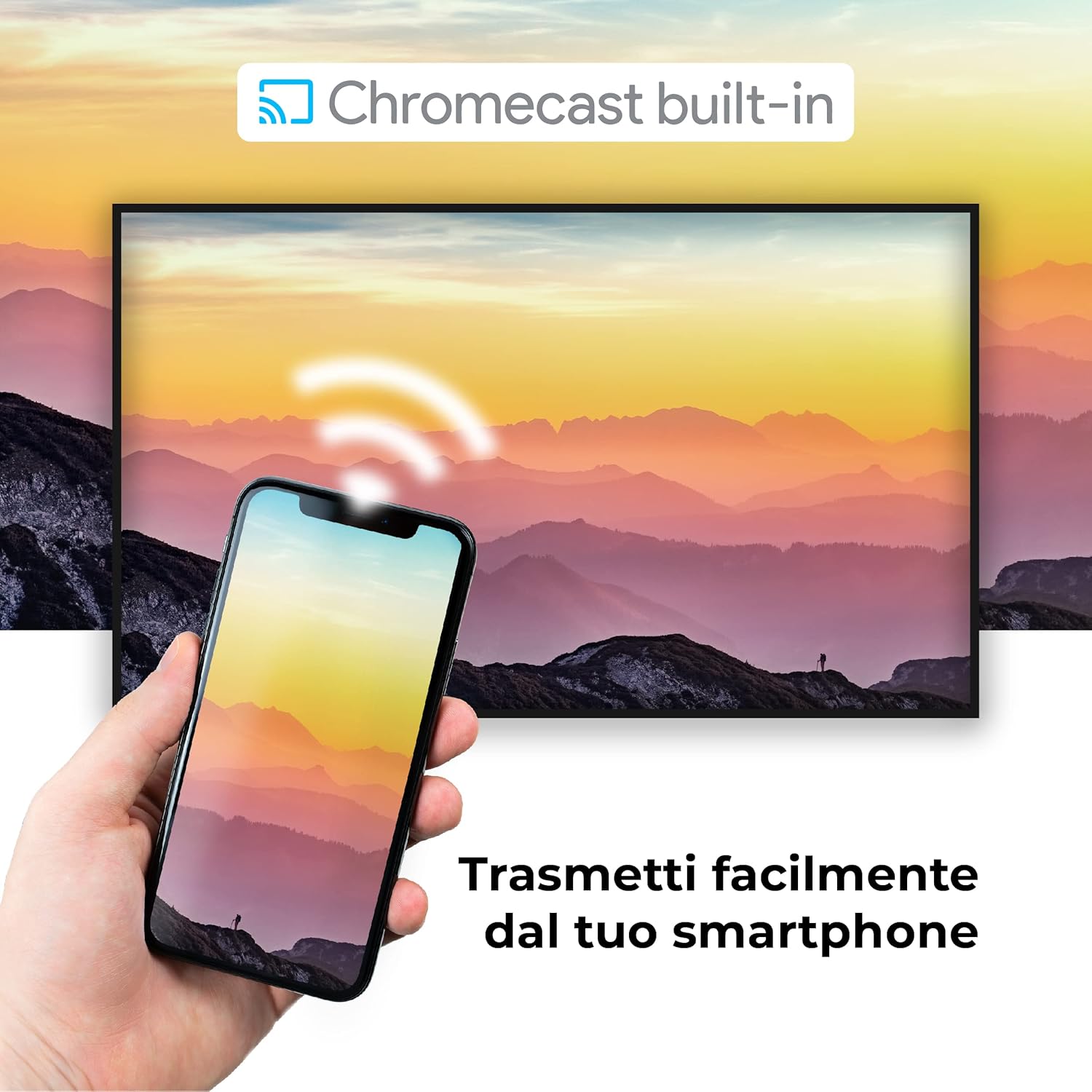
Image: A visual representation of the Chromecast built-in feature, demonstrating how content can be easily streamed from a smartphone to the Finlux TV.
4.3 USB Media Player and PVR
The TV supports USB multimedia playback, allowing you to view photos, play music, or watch videos directly from a USB storage device. It also features PVR (Personal Video Recorder) readiness, enabling you to record TV programs to a connected USB drive.
5. ການເຊື່ອມຕໍ່
Your Finlux TV offers a variety of connection options for external devices:
- ຜອດ HDMI (x4): ສໍາລັບການເຊື່ອມຕໍ່ອຸປະກອນທີ່ມີຄວາມລະອຽດສູງເຊັ່ນ: ເຄື່ອງຫຼິ້ນ Blu-ray, ເຄື່ອງຫຼີ້ນເກມ, ແລະກ່ອງຕັ້ງເທິງ.
- ພອດ USB (x2): For connecting USB storage devices (e.g., flash drives, external hard drives) for media playback or PVR functionality.
- Bluetooth: For wireless connection to compatible audio devices like headphones or soundbars.
- Wi-Fi: Built-in Wi-Fi for wireless internet access and Smart TV features.
- ອີເທີເນັດ (LAN): ສໍາລັບການເຊື່ອມຕໍ່ອິນເຕີເນັດແບບມີສາຍທີ່ຫມັ້ນຄົງ.
- ການປ້ອນຂໍ້ມູນເສົາອາກາດ: For connecting an aerial for digital terrestrial television (DVB-T, DVB-T2).
- ການປ້ອນຂໍ້ມູນດາວທຽມ: For connecting a satellite dish (DVB-S, DVB-S2).
- Optical Digital Audio Output: For connecting to a soundbar or home theater system for high-quality audio.
6. ບໍາລຸງຮັກສາ
6.1 ການທໍາຄວາມສະອາດໂທລະພາບ
To ensure the longevity and optimal performance of your TV, regular cleaning is recommended:
- ໜ້າຈໍ: ເຊັດໜ້າຈໍຢ່າງອ່ອນໂຍນດ້ວຍຜ້າອ່ອນໆ, ບໍ່ມີເຈັ້ຍ. ສໍາລັບຮອຍແຂງ, ງampໃສ່ຜ້າເລັກນ້ອຍດ້ວຍນ້ໍາຫຼືເຄື່ອງເຮັດຄວາມສະອາດຫນ້າຈໍພິເສດ. ຢ່າສີດນ້ຳສະອາດໃສ່ໜ້າຈໍໂດຍກົງ.
- ຕູ້: ໃຊ້ຜ້າອ່ອນໆເຊັດຕູ້ໂທລະທັດ. ຫຼີກເວັ້ນການນໍາໃຊ້ເຄື່ອງເຮັດຄວາມສະອາດຂັດຫຼືສານລະລາຍ.
- ກ່ອນທໍາຄວາມສະອາດ: ຖອດສາຍໂທລະທັດອອກຈາກປລັກສຽບໄຟກ່ອນທຳຄວາມສະອາດທຸກຄັ້ງ.
6.2 ການເບິ່ງແຍງທົ່ວໄປ
- ຫຼີກເວັ້ນການວາງໂທລະທັດຢູ່ໃນແສງແດດໂດຍກົງຫຼືຢູ່ໃກ້ກັບແຫຼ່ງຄວາມຮ້ອນ.
- ຢ່າໃຫ້ໂທລະທັດຖືກອຸນຫະພູມ ຫຼື ຄວາມຊຸ່ມຫຼາຍເກີນໄປ.
- Protect the TV from dust by regularly dusting its surface.
- ຫ້າມວາງວັດຖຸໜັກຢູ່ເທິງໂທລະທັດ.
7. ການແກ້ໄຂບັນຫາ
If you encounter issues with your TV, refer to the following common problems and solutions before contacting support:
| ບັນຫາ | ສາເຫດ / ການແກ້ໄຂທີ່ເປັນໄປໄດ້ |
|---|---|
| ບໍ່ມີພະລັງງານ | Ensure the power cable is securely plugged into the TV and the wall outlet. Check if the power outlet is working. Try pressing the power button on the TV itself. |
| ບໍ່ມີຮູບພາບ / ບໍ່ມີສຽງ | Check the input source (HDMI, AV, TV) is correctly selected. Ensure external devices are powered on and connected properly. For sound, check volume levels and mute settings. |
| ຄຸນນະພາບຮູບບໍ່ດີ | Check antenna/cable connection. Adjust picture settings (brightness, contrast, sharpness) in the TV menu. Ensure the source content is high quality. |
| ການຄວບຄຸມໄລຍະໄກບໍ່ເຮັດວຽກ | ກວດສອບ ແລະ ປ່ຽນແບັດເຕີຣີ. ໃຫ້ແນ່ໃຈວ່າບໍ່ມີສິ່ງກີດຂວາງລະຫວ່າງຣີໂໝດ ແລະ ເຊັນເຊີອິນຟາເຣດຂອງໂທລະພາບ. |
| ບໍ່ສາມາດເຊື່ອມຕໍ່ກັບ Wi-Fi ໄດ້ | Ensure Wi-Fi is enabled on the TV. Check your router is working and within range. Re-enter the Wi-Fi password. Try restarting both the TV and the router. |
| ແອັບ Smart TV ບໍ່ໂຫຼດ | Check your internet connection. Try restarting the TV. Ensure the app is updated to the latest version. Clear app cache if available in settings. |
8. ຂໍ້ມູນຈໍາເພາະ
Below are the key technical specifications for the Finlux FLU5535ANDROID TV:
| ຄຸນສົມບັດ | ລາຍລະອຽດ |
|---|---|
| ຍີ່ຫໍ້ | ຟິນລັກ |
| ໝາຍເລກຕົວແບບ | FLU5535ANDROID |
| ຂະໜາດໜ້າຈໍ | 55 ນິ້ວ (140 ຊມ) |
| ເຕັກໂນໂລຊີການສະແດງ | LED |
| ຄວາມລະອຽດ | 4K Ultra HD (3840 x 2160) |
| ອັດຕາການໂຫຼດຂໍ້ມູນຄືນໃໝ່ | 100 Hz (with integrated technology, base 50 Hz) |
| ລະບົບປະຕິບັດການ | Android |
| ການເຊື່ອມຕໍ່ | ບລູທູດ, HDMI, USB, Wi-Fi, ອີເທີເນັດ |
| ພອດ HDMI | 4 |
| ພອດ USB | 2 |
| ຄຸນນະສົມບັດພິເສດ | Flat Design, Android Smart TV, Chromecast Built-in, PVR Ready |
| ບໍລິການອິນເຕີເນັດທີ່ຮອງຮັບ | Netflix, YouTube, Prime Video, Spotify |
| ອົງປະກອບລວມ | Power cable, Standard, TV |

Image: EU Energy Label for the Finlux FLU5535ANDROID TV, indicating its energy efficiency class G and power consumption details. For more details, visit the official EPREL database: ຂໍ້ມູນຜະລິດຕະພັນ EPREL
9. ການຮັບປະກັນແລະການສະຫນັບສະຫນູນ
Finlux products are designed for reliability and performance. This product comes with a standard manufacturer's warranty. Please refer to the warranty card included with your product for specific terms and conditions.
For technical support, troubleshooting assistance beyond this manual, or warranty claims, please contact Finlux customer service. Contact information can typically be found on the manufacturer's official webສະຖານທີ່ຫຼືຢູ່ໃນການຫຸ້ມຫໍ່ຜະລິດຕະພັນ.
Note: Information regarding spare parts availability is not provided. Software updates are not guaranteed beyond a certain period.
Ask a question about this manual
Ask about setup, troubleshooting, compatibility, parts, safety, or missing instructions. Manuals+ will review the question and use this page’s manual context to help answer it.