
1. ບົດແນະນຳ
The Xetron STC-1000ProTH is a pre-wired digital temperature and humidity controller designed for precise environmental management. This device allows simultaneous or independent control of both temperature (heating or cooling) and humidity (humidification or dehumidification) within a specified range. It is suitable for various applications including seed fermentation, reptile habitats, incubators, greenhouses, and more.
This manual provides detailed instructions for the safe and effective use of your STC-1000ProTH controller. Please read it thoroughly before operation.
2. ຂໍ້ມູນຄວາມປອດໄພ
- ຮັບປະກັນການສະຫນອງພະລັງງານ voltage matches the controller's specifications (110V 10A).
- Do not immerse the controller or sensor probe in water or expose to excessive moisture.
- Always unplug the controller from the power outlet before cleaning or performing any maintenance.
- Do not exceed the maximum load capacity of 10A for the outlets.
- ຮັກສາໃຫ້ໄກຈາກເດັກນ້ອຍ.
- The controller is made of anti-flame ABS material for enhanced safety.
3. ຜະລິດຕະພັນເກີນview ແລະຄຸນສົມບັດ
The Xetron STC-1000ProTH features a large LCD screen for clear display of current and set values, along with intuitive 3-button operation for easy programming.

Figure 3.1: Xetron STC-1000ProTH Controller, sensor, and power outlets.
ຄຸນນະສົມບັດທີ່ສໍາຄັນ:
- ການຄວບຄຸມຄູ່: Manages both temperature and humidity simultaneously or independently.
- Wide Range & High Accuracy: Temperature control from 23℉ to 158℉ (-5℃ to 70℃) with ±1℉/±0.5℃ accuracy. Humidity control from 5%RH to 99%RH with ±5%RH accuracy.
- ການອອກແບບກ່ອນສາຍ: Includes two pre-wired outlets (Work1 for temperature, Work2 for humidity) and a 2.5-inch LCD screen for plug-and-play operation.
- Customizable Parameters: Supports settings for ℃/℉, temperature & humidity calibration, high/low alarm values, start-up delay, and protection time.
- ລະບົບປຸກສອງ: Visual (bell icon) and audible (buzzer) alerts activate if temperature or humidity exceeds set limits.
- ການປົກປ້ອງຄວາມລ່າຊ້າຂອງເຄື່ອງບີບອັດ: Extends the service life of connected equipment by preventing rapid cycling.
- ການກໍ່ສ້າງທົນທານ: Made from anti-flame ABS material, compliant with CE and FCC standards.

Figure 3.2: The controller supports both humidification/dehumidification and heating/cooling functions.

Figure 3.3: Visual and audible alerts, along with compressor delay protection.
4. ເນື້ອໃນຊຸດ
ກວດສອບວ່າລາຍການທັງຫມົດແມ່ນມີຢູ່ໃນຊຸດ:
- 1x Xetron STC-1000ProTH Temperature and Humidity Controller
- 1x ຄູ່ມືຜູ້ໃຊ້ (ເອກະສານນີ້)
- 1x Temperature and Humidity Sensor Probe
5. ຄູ່ມືການຕິດຕັ້ງ
5.1 ການເຊື່ອມຕໍ່ຕົວຄວບຄຸມ
- Plug the main power cord of the Xetron STC-1000ProTH controller into a standard 110V AC power outlet.
- Connect the temperature and humidity sensor probe to the designated port on the controller. Ensure it is securely inserted.
- Identify the 'WORK1' outlet for temperature control and 'WORK2' for humidity control.
- Plug your heating or cooling device into the 'WORK1' outlet.
- Plug your humidifying or dehumidifying device into the 'WORK2' outlet.

Figure 5.1: Connection points for the sensor and controlled devices.

Figure 5.2: Features including the large LCD screen, 2m NTC sensor, pre-wired sockets, and safe plug.
6. ຄໍາແນະນໍາການດໍາເນີນງານ
6.1 ຄວາມເຂົ້າໃຈກ່ຽວກັບຈໍສະແດງຜົນ
The large LCD screen displays key information:
- TPV: Temperature Present Value (current temperature).
- HPV: Humidity Present Value (current humidity).
- TSV: Temperature Set Value (desired temperature).
- HSV: Humidity Set Value (desired humidity).
The display also shows icons for heating, cooling, humidifying, dehumidifying, and alarms.

Figure 6.1: Screen display with value definitions.
6.2 ການຕັ້ງຄ່າພາລາມິເຕີພື້ນຖານ
ເພື່ອເຂົ້າສູ່ໂໝດການຕັ້ງຄ່າ, ໃຫ້ກົດຄ້າງໄວ້ SET button for 3 seconds until the display beeps or flashes. Use the UP ແລະ ລົງ buttons to navigate through parameters. Press SET once to select a parameter, use UP/ລົງ to adjust the value, then press SET again to confirm. Hold SET for 3 seconds to exit setting mode.
Example: Setting Humidity Range (e.g., 55% to 65% RH)
- ກົດຄ້າງໄວ້ SET ເປັນເວລາ 3 ວິນາທີເພື່ອເຂົ້າສູ່ໂໝດການຕັ້ງຄ່າ.
- ໃຊ້ UP/ລົງ to navigate to the 'HS' (Humidity Start) setting.
- ກົດ SET once, then use UP/ລົງ to set the value to '60' (for 60% RH). Press SET ເພື່ອຢືນຢັນ.
- Navigate to the 'HD' (Humidity Differential) setting.
- ກົດ SET once, then use UP/ລົງ to set the value to '5' (for 5% RH differential). Press SET to confirm. This means the humidity will turn on at 55% (60-5) and turn off at 60%.
- ຖື SET for 3 seconds to exit setting mode.

ຮູບທີ 6.2: ຕົວຢ່າງample of setting humidity parameters (HS and HD).
6.3 ການຕັ້ງຄ່າໂມງປຸກ
The controller features dual alarms for both temperature and humidity. You can set high and low alarm limits. If the measured value goes outside these limits, the controller will sound a buzzer and display a bell icon.

Figure 6.3: Audible and visual alarm indicators.
6.4 Compressor Delay Protection
This feature prevents rapid cycling of connected compressors (e.g., in refrigerators or dehumidifiers), which can extend their lifespan. You can set a delay time in the parameter settings.

Figure 6.4: Compressor delay protection mechanism.
6.5 Screen Display Options
The controller allows you to set the screen display to always remain ON. Refer to the manual's parameter list for the specific setting (e.g., 'BL' to 'O').

Figure 6.5: Option to keep the screen display continuously ON.
7. ຄໍາຮ້ອງສະຫມັກທົ່ວໄປ
The Xetron STC-1000ProTH controller is versatile and can be used in various environments requiring precise temperature and humidity control:
- Reptile Habitats: Maintain optimal temperature and humidity levels for the health and well-being of reptiles.
- Seed Germination/Cultivation: Create ideal conditions for plant growth and seed starting in greenhouses or grow tents.
- ການໝັກ: Control temperature for consistent results in home brewing, yogurt making, or other fermentation processes.
- ເຄື່ອງບົ່ມເຊື້ອ: Regulate temperature and humidity for successful egg incubation.
- Freezers/Refrigerators: Convert a standard refrigerator into a freezer or maintain specific storage temperatures.
- ການຜະລິດເບຍຢູ່ເຮືອນ: Ensure precise temperature control for fermentation.
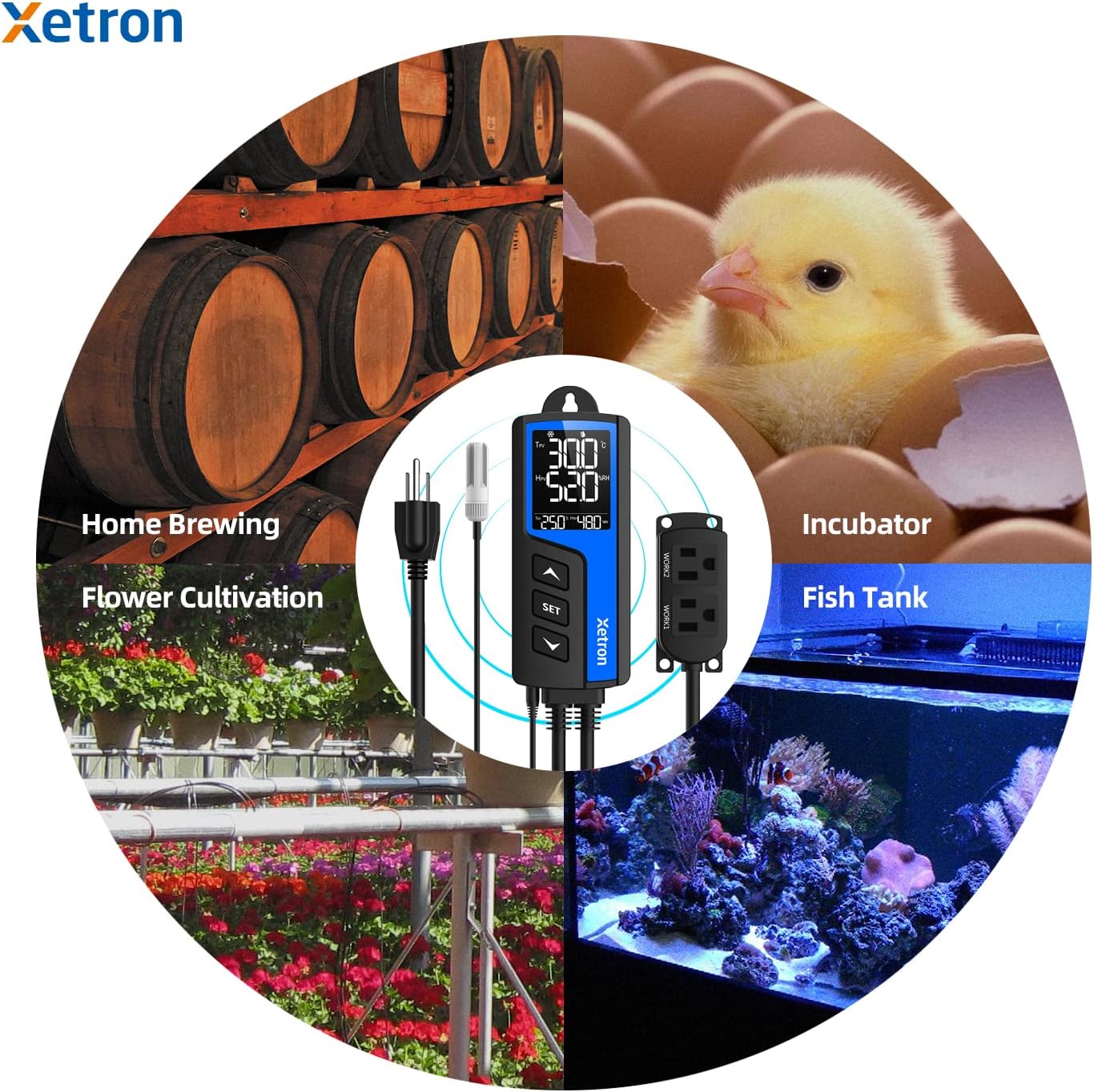
Figure 7.1: Diverse applications of the Xetron STC-1000ProTH controller.

Figure 7.2: Reptile temperature and humidity control.

Figure 7.3: Seedling temperature and humidity control.

Figure 7.4: Fermentation temperature control.

Figure 7.5: Freezer temperature control.
8. ບໍາລຸງຮັກສາ
- ທໍາຄວາມສະອາດ: Wipe the controller and sensor probe with a soft, dry cloth. Do not use abrasive cleaners or immerse in liquids.
- ການດູແລເຊັນເຊີ: Handle the sensor probe carefully. Avoid bending or damaging the cable. Ensure the sensor is free from dust or debris for accurate readings.
- ການເກັບຮັກສາ: When not in use, store the controller in a cool, dry place away from direct sunlight.
9. ການແກ້ໄຂບັນຫາ
- ການຄວບຄຸມບໍ່ໄດ້ເປີດ: Check if the main power plug is securely inserted into a live outlet.
- Connected Device Not Activating:
- Verify that the device is correctly plugged into the 'WORK1' (temperature) or 'WORK2' (humidity) outlet.
- Ensure the device itself is functional by plugging it directly into a wall outlet.
- Check your set parameters (TSV, HSV, differentials) to ensure the current conditions should trigger the device.
- Review alarm settings; if an alarm is active, it might prevent normal operation.
- Consider the compressor delay protection setting if applicable.
- ການອ່ານທີ່ບໍ່ຖືກຕ້ອງ:
- Ensure the sensor probe is clean and unobstructed.
- Verify the sensor is properly connected to the controller.
- Perform a temperature and humidity calibration if you have a reference instrument.
- Alarm Constantly Triggering: Adjust the high and low alarm limits to suit your desired operating range.
10. ຂໍ້ກໍານົດດ້ານວິຊາການ
| ຂໍ້ມູນຈໍາເພາະ | ມູນຄ່າ |
|---|---|
| ໝາຍເລກຕົວແບບ | STC-1000Pro TH |
| ການປ້ອນຂໍ້ມູນ Voltage | 110V AC |
| ກະແສໄຟຟ້າສູງສຸດ | 10A |
| ໄລຍະການຄວບຄຸມອຸນຫະພູມ | 23℉ ~ 158℉ (-5℃ ~ 70℃) |
| ຄວາມຖືກຕ້ອງຂອງອຸນຫະພູມ | ±1℉ / ±0.5℃ |
| ລະດັບການຄວບຄຸມຄວາມຊຸ່ມຊື່ນ | 5% RH ~ 99% RH |
| ຄວາມຖືກຕ້ອງຂອງຄວາມຊຸ່ມຊື່ນ | 5% RH |
| ປະເພດການສະແດງ | ຈໍ LCD |
| ວັດສະດຸ | Anti-flame ABS Plastic |
| ຂະໜາດສິນຄ້າ | 7.87 x 5.91 x 2.36 ນິ້ວ (Controller: 2.36"L x 1.2"W x 5.5"H) |
| ນ້ໍາຫນັກລາຍການ | 14.1 ອອນສ໌ (0.4 ກິໂລກຣາມ) |
| ອົງປະກອບລວມ | Controller, User Manual, T&H Sensor Probe |
11. ການຮັບປະກັນແລະການສະຫນັບສະຫນູນລູກຄ້າ
Xetron provides a one-year warranty for this product, covering manufacturing defects and ensuring continuous customer assistance. For technical support, troubleshooting, or warranty claims, please contact Xetron customer service through the retailer's platform or visit the official Xetron webເວັບໄຊສໍາລັບຂໍ້ມູນຕິດຕໍ່.