
ແນະນຳ
This manual provides detailed instructions for the installation, operation, and maintenance of your darkFlash DLC29 All Mesh PC Case. Designed as an ATX Mid Tower, this case prioritizes high cooling performance and broad compatibility for various PC components. Please read this manual thoroughly before beginning assembly to ensure proper setup and optimal performance.

Image: The darkFlash DLC29 PC case with its mesh panels detached, illustrating the internal chassis and the full mesh design of the side and top panels.
ຄຸນນະສົມບັດທີ່ສໍາຄັນ
- ການອອກແບບທັນສະໄຫມ: Features fine mesh panels on all sides for efficient airflow and dust filtration. Includes an integrated GPU supporter.
- ຮອງຮັບເມນບອດ: Compatible with ATX, M-ATX, and ITX motherboard form factors.
- ຄວາມເຂົ້າກັນໄດ້ຂອງອົງປະກອບ: Supports Graphics Processing Units (GPUs) up to 330mm in length and CPU coolers up to 165mm in height. Designed for bottom-mounted ATX power supplies.
- ລະບົບເຮັດຄວາມເຢັນທີ່ມີປະສິດທິພາບ: Accommodates up to 6 fans simultaneously. Supports liquid coolers in sizes 120mm, 140mm, 240mm, 280mm, and 360mm for enhanced thermal management.
- Multifunctional I/O Panel: Conveniently located on the top, featuring 2x USB 3.0 ports, 2x USB 2.0 ports, HD Audio jacks, and Power/Reset buttons.
- Sufficient Internal Space: Case dimensions are 385mm (L) x 210mm (W) x 478mm (H). Offers flexible storage options with 4 or 5 (2.5-inch) drive bays and 2 or 1 (3.5-inch) drive bays. Provides 9 expansion slots.

Image: An illustration demonstrating the airflow pattern within the DLC29 case, with blue arrows indicating cool air intake from the front and sides, and orange arrows showing warm air exhaust from the top.
ຂໍ້ມູນຈໍາເພາະ
| ຍີ່ຫໍ້ | darkFlash |
| ຊື່ຕົວແບບ | DLC29 |
| ໝາຍເລກຕົວແບບ | HU-XI-58 |
| ປະເພດກໍລະນີ | ຫໍກາງ |
| ວັດສະດຸ | ໂລຫະ |
| ສີ | ດຳ |
| ຂະໜາດສິນຄ້າ (LxWxH) | 11.02 x 18.11 x 22.05 ນິ້ວ (385 x 210 x 478 ມມ) |
| ນ້ໍາຫນັກລາຍການ | 14.97 ປອນ |
| ຄວາມເຂົ້າກັນໄດ້ຂອງເມນບອດ | ATX, M-ATX, ITX |
| ຄວາມຍາວສູງສຸດຂອງ GPU | 330ມມ |
| ຄວາມສູງຂອງ CPU Cooler ສູງສຸດ | 165ມມ |
| ປະເພດການຕິດຕັ້ງການສະຫນອງພະລັງງານ | Bottom Mount (ATX) |
| ວິທີການເຮັດຄວາມເຢັນ | ອາກາດ, ນ້ໍາ |
| ສະຫນັບສະຫນູນພັດລົມ | Up to 6 fans (120mm/140mm) |
| ສະຫນັບສະຫນູນ radiator | 120mm, 140mm, 240mm, 280mm, 360mm |
| Drive Bays (2.5" SSD) | 4 ຫຼື 5 |
| Drive Bays (3.5" HDD) | 2 ຫຼື 1 |
| ສະລັອດຕິງຂະຫຍາຍ | 9 |
| ທ່າເຮືອທາງ ໜ້າ I / O | 2x USB 3.0, 2x USB 2.0, HD Audio, Power, Reset |

Image: Technical drawing displaying the external dimensions of the darkFlash DLC29 case, including its width (210mm), depth (385mm), and height (478mm).
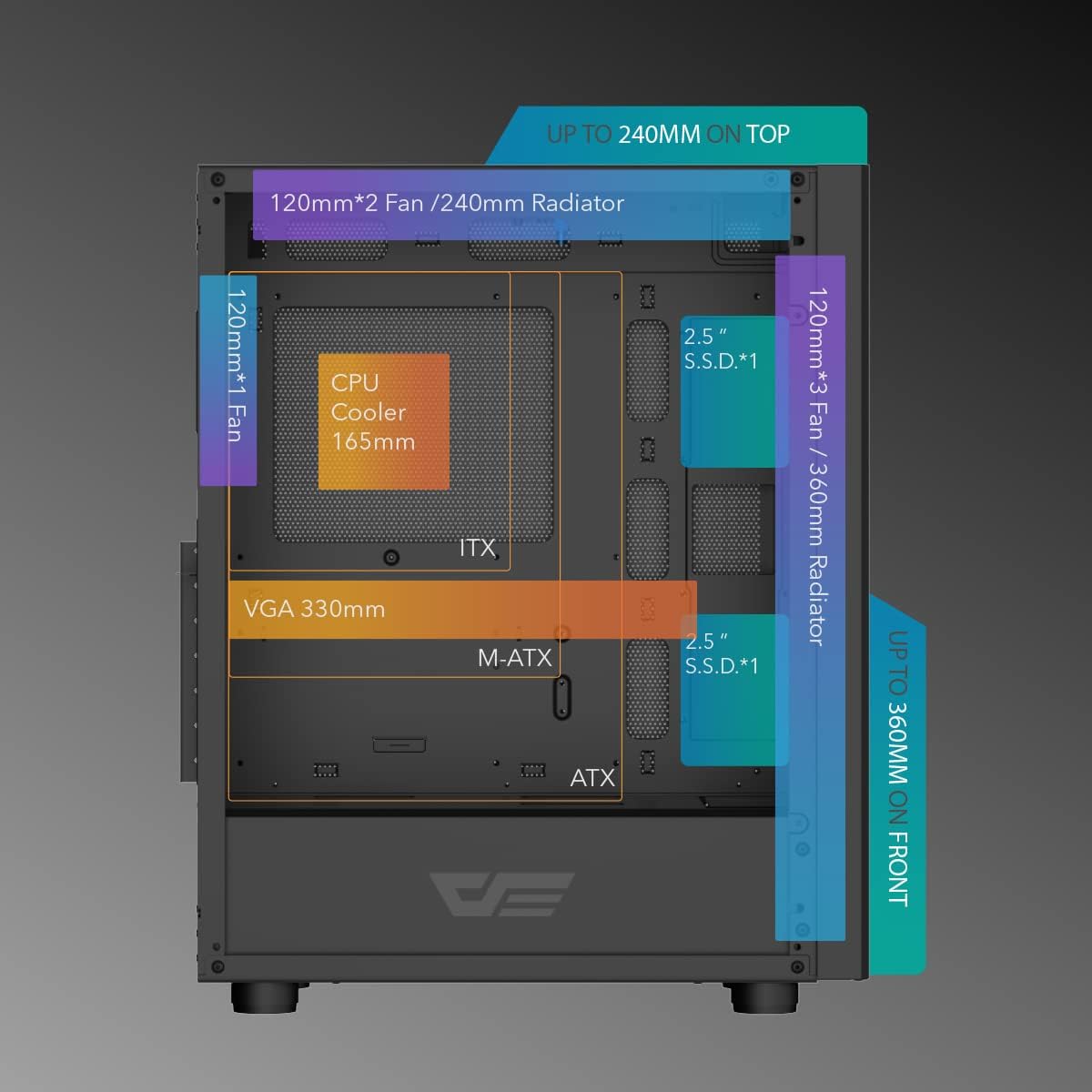
Image: An internal diagram of the DLC29 case, highlighting compatible component sizes such as CPU cooler height (165mm), VGA length (330mm), and various fan/radiator configurations for the front, top, and rear.

ຮູບພາບ: ກ view of the rear interior of the DLC29 case, detailing the mounting locations for 2.5-inch SSDs, 3.5-inch HDDs, and the dedicated compartment for the ATX power supply.
ການຕິດຕັ້ງແລະການຕິດຕັ້ງ
This section outlines the general steps for assembling your PC components within the darkFlash DLC29 case. For specific component installation, refer to your component's individual manuals.
- ການຫຸ້ມຫໍ່: Carefully remove the PC case from its packaging. Inspect for any damage during transit.
- ການກໍາຈັດແຜງ: Remove the side panels to access the interior. The mesh panels are typically secured with thumbscrews or a clip mechanism.
- ການຕິດຕັ້ງເມນບອດ: Install the standoffs (if not pre-installed) according to your motherboard's form factor (ATX, M-ATX, ITX). Secure the motherboard into place.
- CPU and CPU Cooler Installation: Install your CPU and then the CPU cooler (air or liquid) onto the motherboard before or after installing the motherboard into the case, depending on the cooler's size and case access. Ensure the CPU cooler height does not exceed 165mm.
- ການຕິດຕັ້ງບັດກາຟິກ (GPU): Insert your GPU into the appropriate PCIe slot. Ensure the GPU length does not exceed 330mm. Utilize the included GPU supporter for stability if needed.
- ການຕິດຕັ້ງຫນ່ວຍບໍລິການສະຫນອງພະລັງງານ (PSU): Mount the ATX power supply in the bottom compartment of the case.
- ການຕິດຕັ້ງອຸປະກອນການເກັບຮັກສາ: Install 2.5-inch SSDs and 3.5-inch HDDs into their designated bays. The case offers flexible configurations for these drives.
- ການຕິດຕັ້ງພັດລົມ ແລະລັງສີ: Install additional cooling fans (up to 6) or liquid cooling radiators (120mm/140mm/240mm/280mm/360mm) in the designated front, top, and rear mounting points.
- ການຄຸ້ມຄອງສາຍໄຟ: Route all power and data cables through the provided cutouts and tie-down points behind the motherboard tray to ensure clean aesthetics and unobstructed airflow.
- ສະພາສຸດທ້າຍ: Reattach the side panels. Connect all external peripherals.

Image: An exploded diagram of the DLC29 case, illustrating how the front, top, and side mesh panels can be detached from the main chassis for easier component installation and maintenance.
ຄໍາແນະນໍາການດໍາເນີນງານ
Operating the darkFlash DLC29 PC case involves basic interaction with its front I/O panel.
- ເປີດ/ປິດ: Press the power button located on the top I/O panel to turn your system on or off. A short press typically powers on, while a longer press may initiate a forced shutdown.
- ປຸ່ມຣີເຊັດ: Use the reset button for a quick system restart if necessary.
- ພອດ USB: Utilize the 2x USB 3.0 and 2x USB 2.0 ports for connecting peripherals such as keyboards, mice, external drives, and other USB-compatible devices.
- ສຽງແຈັກ HD: Connect your headphones or microphone to the dedicated HD Audio jacks for audio input and output.
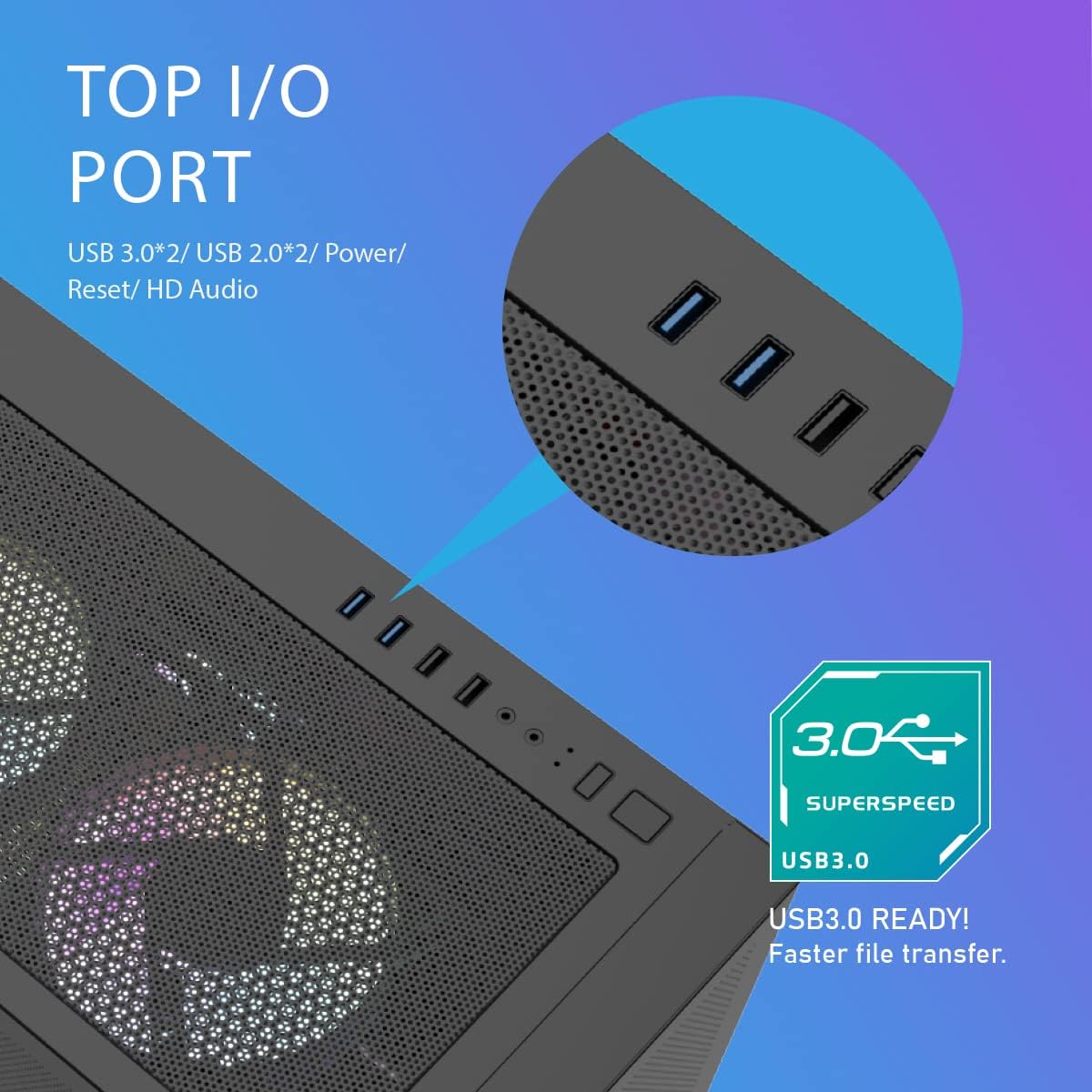
ຮູບພາບ: A ລາຍລະອຽດ view of the top I/O panel of the DLC29 case, showing the arrangement of the USB 3.0, USB 2.0, HD Audio ports, and power/reset buttons.
ບໍາລຸງຮັກສາ
Regular maintenance helps ensure the longevity and optimal performance of your darkFlash DLC29 PC case and the components within.
- ການເຮັດຄວາມສະອາດກອງຂີ້ຝຸ່ນ: The mesh panels act as dust filters. Periodically remove the panels and gently clean them using compressed air or a soft brush to remove accumulated dust. This maintains optimal airflow.
- ທຳ ຄວາມສະອາດພາຍໃນ: With the system powered off and unplugged, use compressed air to clear dust from internal components such as CPU coolers, GPU fans, and power supply vents.
- ການກວດສອບການຄຸ້ມຄອງສາຍ: Occasionally inspect cable routing to ensure no cables have come loose or are obstructing airflow.
- ການອະນາໄມພາຍນອກ: ເຊັດພື້ນຜິວພາຍນອກດ້ວຍຜ້າອ່ອນໆ, ງamp ຜ້າ. ຫຼີກລ້ຽງການເຮັດຄວາມສະອາດຂັດຫຼືສານລະລາຍ.
ການແກ້ໄຂບັນຫາ
This section addresses common issues you might encounter with your PC case. For complex system issues, consult a qualified technician or your component manufacturers' support.
- ລະບົບບໍ່ເປີດ:
- ໃຫ້ແນ່ໃຈວ່າແຫຼ່ງຈ່າຍໄຟໄດ້ເຊື່ອມຕໍ່ກັບປລັກໄຟທີ່ຕິດຝາຢ່າງຖືກຕ້ອງ ແລະ ສະວິດ PSU ຢູ່ໃນຕຳແໜ່ງ 'ເປີດ'.
- Verify all internal power cables (24-pin motherboard, CPU, GPU) are securely seated.
- Check that the front panel power switch cable is correctly connected to the motherboard's F_PANEL header.
- ບັນຫາຄວາມຮ້ອນເກີນ:
- Confirm all case fans are spinning and oriented correctly for optimal airflow (intake at front/bottom, exhaust at rear/top).
- ທຳຄວາມສະອາດຕົວກອງຝຸ່ນ ແລະ ອົງປະກອບພາຍໃນຕາມທີ່ໄດ້ອະທິບາຍໄວ້ໃນພາກການບຳລຸງຮັກສາ.
- Ensure CPU cooler and GPU heatsinks are free of dust and fans are functioning.
- ພອດ I/O ດ້ານໜ້າບໍ່ເຮັດວຽກ:
- Check that the USB and HD Audio cables from the front panel are correctly connected to the corresponding headers on your motherboard.
- Ensure motherboard drivers are installed and up to date.
- ສິ່ງລົບກວນຫຼາຍເກີນໄປ:
- Identify the source of the noise (fans, hard drives).
- Ensure all fans are securely mounted and free from cable obstruction.
- If using traditional hard drives, ensure they are properly secured in their bays to minimize vibration.
ການຮັບປະກັນແລະການສະຫນັບສະຫນູນ
For warranty information, technical support, or service inquiries regarding your darkFlash DLC29 PC Case, please refer to the official darkFlash website ຫຼືຕິດຕໍ່ສະຫນັບສະຫນູນລູກຄ້າຂອງເຂົາເຈົ້າໂດຍກົງ. ຮັກສາຫຼັກຖານການຊື້ຂອງທ່ານສໍາລັບການຮ້ອງຂໍການຮັບປະກັນ.
Official darkFlash Webເວັບໄຊ: darkFlash Store on Amazon


