
1. ບົດແນະນຳ
The CME WIDI Bud Pro is a compact Bluetooth MIDI interface designed to provide wireless MIDI connectivity for various operating systems and devices. It eliminates the need for traditional MIDI cables, offering a low-latency, reliable solution for musicians and producers.
ຄຸນນະສົມບັດທີ່ສໍາຄັນປະກອບມີ:
- ຄວາມເຂົ້າກັນໄດ້ທົ່ວໂລກ: Supports iOS, macOS, Windows, Android, ChromeOS, and Linux.
- ເວລາຕອບສະໜອງຕໍ່າສຸດ: Achieves a latency of only 3ms between WIDI devices.
- Plug, Pair & Play: Designed for automatic pairing and ease of use.
- ບໍ່ມີພະລັງງານພາຍນອກ: Operates solely on USB bus power.
- ໄລຍະຂະຫຍາຍ: Offers a wireless range of up to 65 feet (20 meters) in plain sight.

Image: The CME WIDI Bud Pro, a compact USB dongle with a blue LED indicator.

Image: The WIDI Bud Pro shown with icons representing compatibility with Android, ChromeOS, Linux, Windows, macOS, and iOS.
2. ການຕິດຕັ້ງແລະການຕິດຕັ້ງ
Follow these steps to set up your CME WIDI Bud Pro for wireless MIDI communication.
2.1 ການເຊື່ອມຕໍ່ເບື້ອງຕົ້ນ
- ປລັກອິນ: Insert the WIDI Bud Pro into a powered USB host port on your computer or MIDI device. The device will draw power directly from the USB port.
- ສັງເກດ LED: The blue LED on the WIDI Bud Pro will flash slowly, indicating it is starting up and waiting for a connection.

Image: The WIDI Bud Pro connected to a laptop's USB port, illustrating its direct power and data connection.
2.2 Firmware Update (Recommended)
It is highly recommended to update the firmware of your WIDI Bud Pro using the WIDI App for optimal performance and access to the latest features. General Bluetooth pairing methods may not work for Bluetooth MIDI without proper configuration.
- ດາວນ໌ໂຫລດ ແອັບ WIDI from your device's app store (available for iOS and Android).
- Open the WIDI App and follow the on-screen instructions to connect to your WIDI Bud Pro and perform any available firmware updates.
- Ensure all other Bluetooth profiles are temporarily deleted or disconnected on your device before attempting the firmware update to prevent conflicts.

Image: A laptop displaying the WIDI App interface, used for managing and updating WIDI devices.
2.3 ການຈັບຄູ່
After firmware updates, follow the specific pairing instructions for your operating system or WIDI device.
- ສໍາລັບ ອຸປະກອນ WIDI (e.g., WIDI Master, WIDI Jack), the WIDI Bud Pro will automatically pair.
- ສໍາລັບ iOS, macOS, Windows 10/11, and Android, refer to the step-by-step guides available on the official CME webເວັບໄຊ (bluetoothmidi.com) for detailed pairing instructions.
3. ຄໍາແນະນໍາການດໍາເນີນງານ
The WIDI Bud Pro facilitates seamless wireless MIDI communication. Once paired, it operates as a transparent MIDI interface.
3.1 MIDI Communication
- The WIDI Bud Pro supports bi-directional MIDI communication, allowing both sending and receiving of MIDI messages.
- It transmits all standard MIDI messages, including System Exclusive (SysEx) and MIDI Polyphonic Expression (MPE) data.
- Experience ultra-low latency, typically around 3ms, for responsive musical performance.
- The effective wireless range is up to 65 feet (20 meters) in open environments.

Image: A visual representation of the WIDI Bud Pro converting USB MIDI to Bluetooth MIDI, highlighting its ultra-low 3ms latency, 20m/65ft range, and automatic pairing capabilities.
3.2 WIDI Groups
Using the WIDI App, you can create groups of up to five (5) standard Bluetooth MIDI controllers and WIDI devices for complex setups.

Image: An illustration demonstrating how the WIDI Bud Pro enables advanced wireless connectivity, allowing the creation of Bluetooth MIDI groups and transmission of MIDI messages between various devices like laptops, synthesizers, and controllers.
4. ຕົວຊີ້ວັດສະຖານະ LED
The LED on the WIDI Bud Pro provides visual feedback on its current status:

Image: A detailed guide to the LED indicators on the WIDI Bud Pro, explaining different light patterns and their meanings (slow flash, constant, quick flash, light blue, green, red).
- ໄຟ LED ສີຟ້າກະພິບຊ້າໆ: Device is starting up and waiting for connection.
- Blue LED constant: ເຊື່ອມຕໍ່ອຸປະກອນສຳເລັດແລ້ວ.
- ໄຟ LED ສີຟ້າກະພິບໄວ: Device is connected, and MIDI messages are being received or sent.
- Light blue LED: Device has automatically assumed the central role and is connected to one or more peripheral devices.
- LED ສີຂຽວ: Device is in firmware upgrade mode. Use the WIDI App to start or resume the upgrade procedure.
- ໄຟແດງ: Device is in test mode. Use the WIDI App to reactivate the device.
5. ບໍາລຸງຮັກສາ
Regular firmware updates ensure optimal performance and access to new features.
- ການອັບເດດເຟີມແວ: Use the WIDI App (iOS/Android) to check for and install the latest firmware. This can optimize performance, including latency and jitter.
- ທໍາຄວາມສະອາດ: Keep the device clean and free from dust. Use a soft, dry cloth for cleaning. Avoid liquids or abrasive cleaners.
6. ການແກ້ໄຂບັນຫາ
If you encounter issues with your WIDI Bud Pro, refer to the following common problems and solutions:
- Device Not Connecting/Pairing:
- Ensure the WIDI Bud Pro is properly plugged into a powered USB port.
- Crucially, general Bluetooth pairing does not work for Bluetooth MIDI. Always use the WIDI App for initial setup and pairing, or follow specific instructions for your operating system.
- Update the firmware via the WIDI App. Outdated firmware can cause connectivity issues.
- Temporarily disable or delete other Bluetooth profiles on your host device (computer/mobile) before attempting to connect the WIDI Bud Pro.
- Intermittent Connection or Ghost Notes:
- Check the distance between the WIDI Bud Pro and the connected MIDI device. While rated for 65ft, environmental factors can reduce range.
- ຫຼຸດຜ່ອນການລົບກວນຈາກອຸປະກອນໄຮ້ສາຍອື່ນໆ (ເຣົາເຕີ Wi-Fi, ອຸປະກອນ Bluetooth ອື່ນໆ).
- Ensure the WIDI Bud Pro has a clear line of sight to the other WIDI device or host.
- If using with Android, ensure you have a compatible Bluetooth MIDI app installed (e.g., "Bluetooth MIDI Connect" or "MIDI+BTLE") and that your music application supports external Bluetooth MIDI devices.
- ຣີເຊັດອຸປະກອນ:
- Terminate Existing Connections: When the device is switched ON, press and hold the button for 3 seconds to terminate all existing connections and activate peripheral mode.
- ປັບຄ່າໂຮງງານ: When the device is switched OFF, press and hold the button while switching it ON. Continue holding until the LED flashes 3 times, then release it to return to factory settings.
7. ຂໍ້ມູນຈໍາເພາະ
| ຄຸນສົມບັດ | ລາຍລະອຽດ |
|---|---|
| ໝາຍເລກຕົວແບບ | WIDI Bud Pro |
| ນ້ໍາຫນັກລາຍການ | 0.4 ອອນສ໌ (ປະມານ 11.3 ກຣາມ) |
| ຂະໜາດສິນຄ້າ | 1.85 x 0.91 x 0.43 ນິ້ວ (ປະມານ 4.7 x 2.3 x 1.1 ຊມ) |
| ອຸປະກອນທີ່ເຂົ້າກັນໄດ້ | MIDI devices with powered USB host port, macOS, iOS, Windows, Android, Linux, ChromeOS |
| ການໂຕ້ຕອບຮາດແວ | ບູທູດ 5, USB 2.0 |
| ຈໍານວນຊ່ອງ | 2 (ສອງທິດທາງ) |
| ເຕັກໂນໂລຊີການເຊື່ອມຕໍ່ | USB, Bluetooth |
| Range ໄຮ້ສາຍ | Up to 65 feet (20 meters) in plain sight |
| ເວລາແຝງ | Ultra-low, approximately 3ms between WIDI devices |
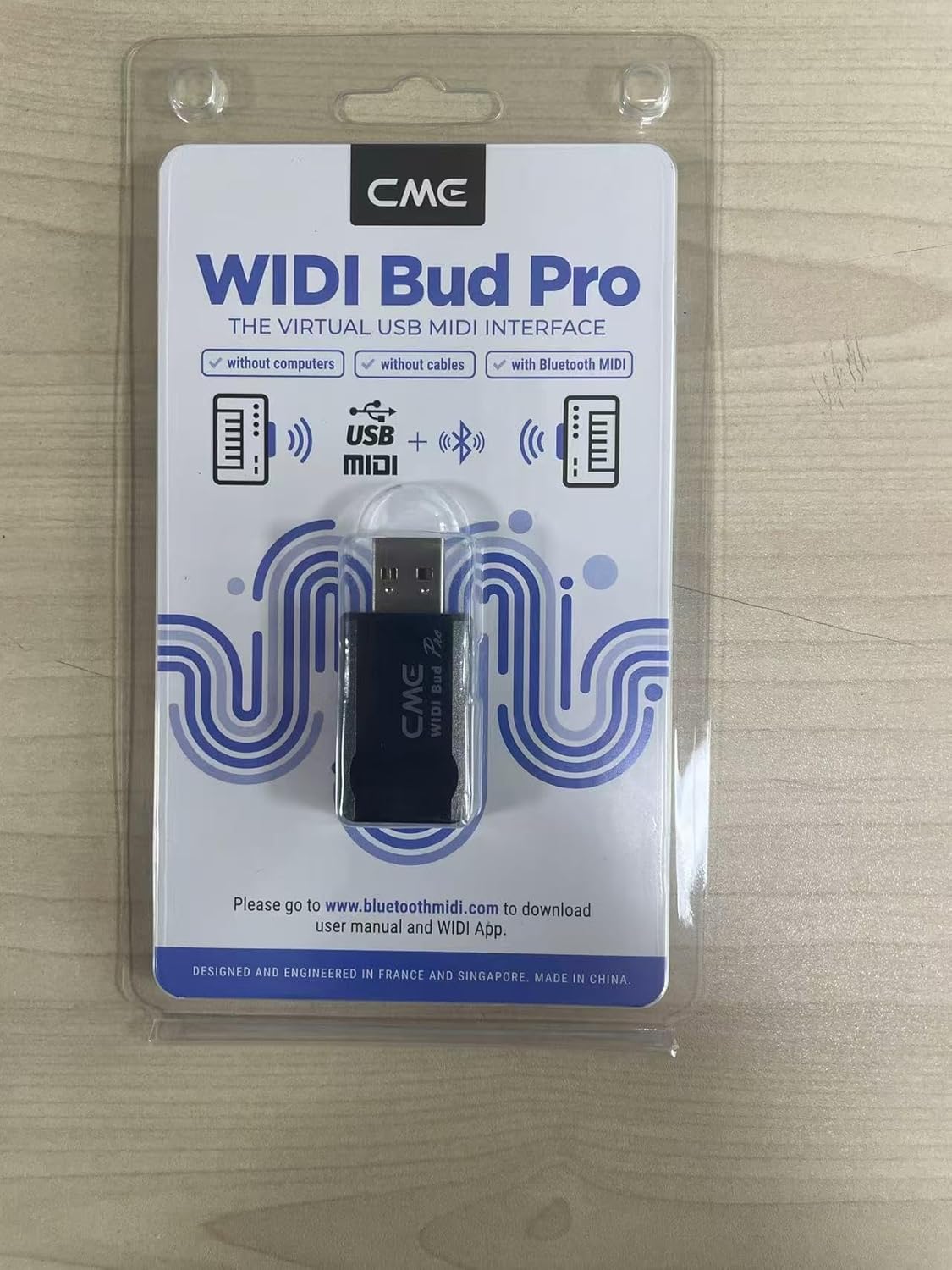
Image: The rear packaging of the WIDI Bud Pro, displaying technical specifications and manufacturer details.
8. ການຮັບປະກັນແລະການສະຫນັບສະຫນູນ
8.1 ຂໍ້ມູນການຮັບປະກັນ
The CME WIDI Bud Pro typically comes with a ຮັບປະກັນ 1 ປີ ຈາກວັນທີ່ຊື້. ກະລຸນາຮັກສາຫຼັກຖານການຊື້ຂອງທ່ານສໍາລັບການຮຽກຮ້ອງການຮັບປະກັນ.
8.2 ສະຫນັບສະຫນູນລູກຄ້າ
For further assistance, technical support, or detailed guides, please visit the official CME WIDI webເວັບໄຊ ຫຼືຕິດຕໍ່ບໍລິການລູກຄ້າ:
- ທາງການ Webເວັບໄຊ: bluetoothmidi.com
- ອີເມວຜູ້ຜະລິດ: info@cme-pro.com
- ທີ່ຢູ່ຜູ້ຜະລິດ: JURONG EAST STREET 21 #04-20, IMM BUILDING, SINGAPORE (609631)
- Representative Agency (Netherlands) Email: info@cme-pro.com
- Representative Agency (Netherlands) Address: Tuinstraat 6, Delft, The Netherlands