
1. ບົດແນະນຳ
This manual provides instructions for the Keychron K14 mechanical keyboard. The K14 is a 70% layout, 72-key keyboard designed for both Mac and Windows operating systems, offering both Bluetooth wireless and USB wired connectivity. It features an RGB backlight, an aluminum frame, and Gateron G Pro Brown mechanical switches.

ຮູບພາບ: ຫຼາຍກວ່າview of the Keychron K14 mechanical keyboard highlighting its 70% layout, wireless/wired modes, multi-device connectivity, Gateron G Pro switches, RGB lighting, Mac/Windows compatibility, and USB-C plug.
2. ເນື້ອໃນຊຸດ
Verify that all items are present in your Keychron K14 package:
- Keychron K14 Mechanical Keyboard
- ສາຍ USB Type-C
- ຕົວດຶງກະແຈ
- Switch Puller (if hot-swappable version)
- Extra Keycaps for Windows/Mac operating systems
- ຄູ່ມືຜູ້ໃຊ້
3. ຄຸນລັກສະນະຂອງຜະລິດຕະພັນ
3.1. 70% Layout and Key Cluster
The K14 features a compact 70% layout with 72 keys, providing a smaller footprint while retaining essential navigation keys such as Home, End, and Arrow keys, similar to a tenkeyless keyboard.

ຮູບພາບ: A close-up view of the Keychron K14 keyboard, illustrating its 70% layout which includes dedicated navigation keys such as Insert, Home, End, Delete, Page Up, Page Down, and arrow keys.
3.2. Gateron G Pro Brown Switches
The keyboard is equipped with Gateron G Pro Brown mechanical switches, known for their tactile feedback. These switches offer a durable lifespan of up to 50 million keystrokes.

Image: Specifications for the Gateron G Pro mechanical Brown Switch, detailing operating force (55±15gf), pre-travel (2±0.6mm), tactile behavior, gentle sound level, pre-lubed status (Yes), and a lifespan of up to 50 million keystrokes.
3.3. ການອອກແບບ Ergonomic
The K14 features two-level adjustable feet, allowing for typing angles of 6º and 9º. This design, combined with an inclined bottom frame, provides ergonomic support for extended typing comfort.

ຮູບພາບ: A side view of the Keychron K14 keyboard, illustrating its two-level adjustable feet that allow for typing angles of 6 and 9 degrees, enhancing ergonomic support.
4. ຕັ້ງຄ່າ
4.1. ການເຊື່ອມຕໍ່ແປ້ນພິມ
The Keychron K14 supports both Bluetooth wireless and USB Type-C wired connections.
4.1.1. ການເຊື່ອມຕໍ່ບູທູດ
- Ensure the keyboard's mode switch (located on the side) is set to "BT" (Bluetooth).
- Press and hold the "Fn" + "1" (or "2" or "3") keys for 4 seconds to enter pairing mode. The backlight will flash rapidly.
- On your device (smartphone, laptop, iPad), enable Bluetooth and search for "Keychron K14".
- Select the keyboard to pair. The backlight will stop flashing upon successful connection.
- The keyboard can connect to up to 3 devices. Use "Fn" + "1", "Fn" + "2", or "Fn" + "3" to switch between paired devices.
4.1.2. ການເຊື່ອມຕໍ່ສາຍ
- Ensure the keyboard's mode switch is set to "Cable".
- ເຊື່ອມຕໍ່ສາຍ USB Type-C ທີ່ໃຫ້ມາຈາກແປ້ນພິມເຂົ້າກັບພອດ USB ຂອງຄອມພິວເຕີຂອງທ່ານ.
- The keyboard will automatically be recognized and function as a wired keyboard.

Image: The Keychron K14 keyboard shown connecting wirelessly to a desktop computer, laptop, and smartphone, indicating compatibility with Mac and Windows operating systems.

Image: The Keychron K14 keyboard displayed with icons representing its dual connectivity options: wireless Bluetooth and wired USB-C.
4.2. ສະວິດລະບົບປະຕິບັດການ
The K14 includes a switch to toggle between Mac and Windows layouts. Locate the OS switch on the side of the keyboard and set it to the appropriate operating system for optimal key functionality.
4.3. ການປັບມຸມແປ້ນພິມ
The keyboard features two-level adjustable feet. Flip out the feet to select between 6º and 9º typing angles to suit your ergonomic preference.
5. ການດໍາເນີນງານ
5.1. ການຄວບຄຸມໄຟ Backlight
The Keychron K14 features RGB backlighting with 19 different types of lighting effects. Use the dedicated backlight key (often marked with a lightbulb icon) or function key combinations to cycle through effects, adjust brightness, and change colors.
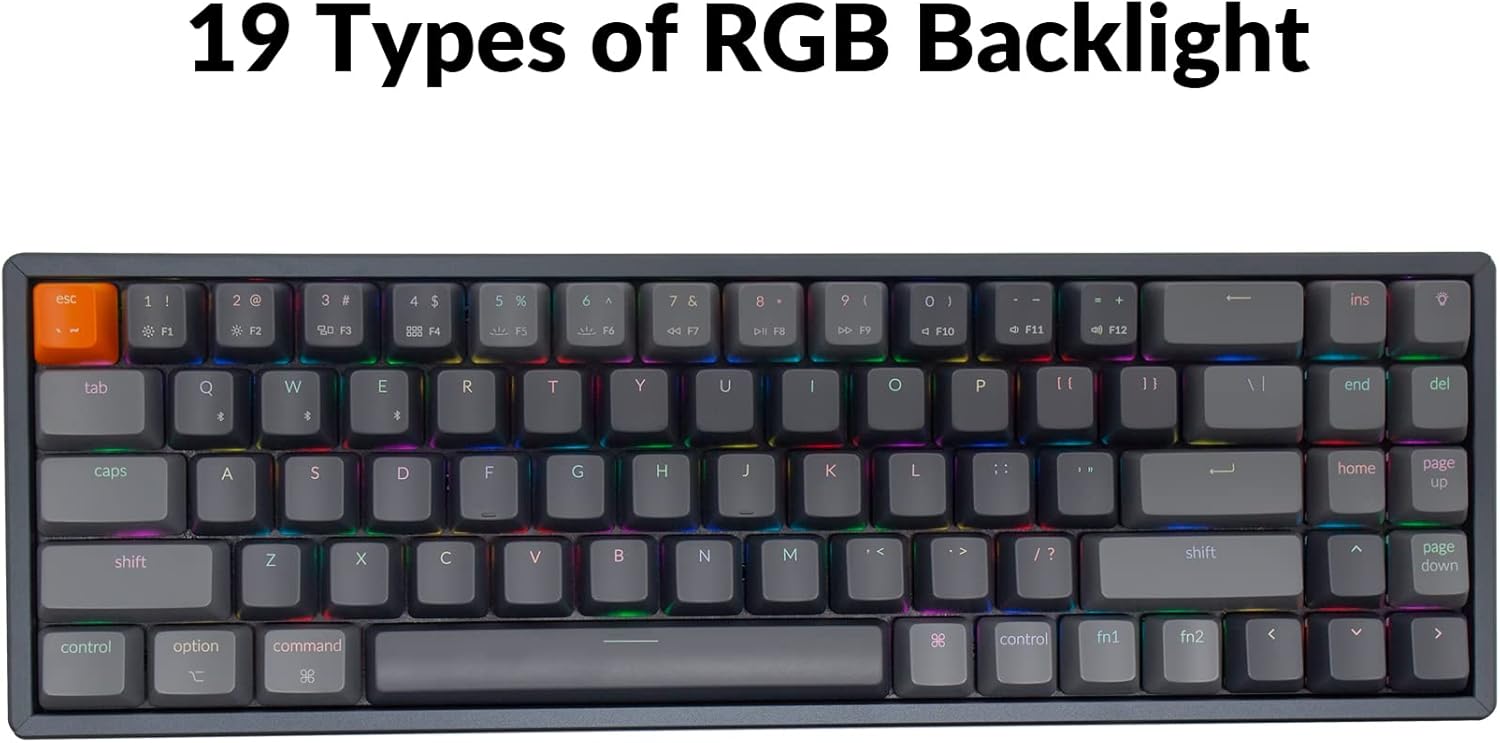
Image: The Keychron K14 keyboard illuminated with a multi-color RGB backlight, demonstrating its various lighting capabilities.
5.2. ປຸ່ມມັນຕິມີເດຍ
Access multimedia functions (e.g., volume control, play/pause) using the Fn key in combination with the designated function row keys. Refer to the keycap legends for specific functions.
5.3. N-Key Rollover (NKRO)
The K14 supports N-key rollover (NKRO) in wired mode, allowing all keys to be registered simultaneously. In wireless mode, it supports 6-key rollover (6KRO).
6. ການຄຸ້ມຄອງຫມໍ້ໄຟ
The Keychron K14 is equipped with a 4000 mAh battery, providing up to 240 hours of usage with the backlight off. Connect the keyboard via the USB Type-C cable to charge the battery. The charging indicator will show the charging status.

Image: A close-up of the Keychron K14 keyboard with a prominent overlay indicating its 4000 mAh battery capacity.
7. ບໍາລຸງຮັກສາ
To ensure the longevity and optimal performance of your Keychron K14 keyboard, follow these maintenance guidelines:
- ທໍາຄວາມສະອາດ Keycaps: Use a keycap puller to remove keycaps. Clean them with a mild soap solution and a soft cloth. Ensure they are completely dry before reattaching.
- ທໍາຄວາມສະອາດຮ່າງກາຍ Keyboard: Use a soft, dry, lint-free cloth to wipe the aluminum frame and other surfaces. For stubborn dirt, a slightly damp ຜ້າສາມາດນໍາໃຊ້ໄດ້, ແຕ່ຫຼີກເວັ້ນຄວາມຊຸ່ມຊື່ນຫຼາຍເກີນໄປ.
- ການກຳຈັດຂີ້ຝຸ່ນ: ໃຊ້ອາກາດອັດເພື່ອກຳຈັດຝຸ່ນ ແລະ ສິ່ງເສດເຫຼືອອອກຈາກລະຫວ່າງຝາປິດແປ້ນພິມ ແລະ ສະວິດ.
- ການເກັບຮັກສາ: ເມື່ອບໍ່ໄດ້ນຳໃຊ້ເປັນເວລາດົນ, ໃຫ້ເກັບຮັກສາແປ້ນພິມໄວ້ໃນບ່ອນແຫ້ງ, ເຢັນ ຫ່າງຈາກແສງແດດໂດຍກົງ ແລະ ອຸນຫະພູມທີ່ຮ້າຍກາດ.
- ຫຼີກລ້ຽງການຂອງແຫຼວ: The keyboard is not water-resistant. Keep liquids away to prevent damage.
8. ການແກ້ໄຂບັນຫາ
If you encounter issues with your Keychron K14 keyboard, refer to the following common solutions:
8.1. ແປ້ນພິມບໍ່ຕອບສະໜອງ
- ກວດສອບການເຊື່ອມຕໍ່: Ensure the USB cable is securely connected or that Bluetooth is properly paired.
- ລະດັບຫມໍ້ໄຟ: If using Bluetooth, check if the battery is charged. Connect the USB cable to charge.
- ສະຫຼັບໂໝດ: Verify the keyboard's mode switch is set correctly (BT for Bluetooth, Cable for wired).
- ຣີສະຕາດ: Try restarting your computer or device and the keyboard.
8.2. ບັນຫາການຕັດການເຊື່ອມຕໍ່ Bluetooth
- ແຊກແຊງ: ຍ້າຍແປ້ນພິມໃຫ້ໃກ້ກັບອຸປະກອນຂອງທ່ານ ແລະ ຫ່າງຈາກອຸປະກອນໄຮ້ສາຍອື່ນໆທີ່ອາດຈະເຮັດໃຫ້ເກີດການລົບກວນ.
- ຄູ່ໃໝ່: ຍົກເລີກການຈັບຄູ່ແປ້ນພິມຈາກການຕັ້ງຄ່າ Bluetooth ຂອງອຸປະກອນຂອງທ່ານ ແລະ ຈາກນັ້ນຈັບຄູ່ມັນຄືນໃໝ່.
- ເຟີມແວ: Check the official Keychron website for any available firmware updates for your K14 model.
8.3. Keys Not Registering or Double Typing
- Clean Switches: Dust or debris under the keycap or switch can cause issues. Use compressed air.
- ປ່ຽນແທນ: If you have a hot-swappable version, try replacing the problematic switch with a spare one.
8.4. Backlight ບໍ່ເຮັດວຽກ
- ຄວາມສະຫວ່າງ: Ensure the backlight brightness is not set to the lowest level.
- ປຸ່ມຟັງຊັນ: Try cycling through backlight modes and brightness levels using the designated function key combinations.
9. ຂໍ້ມູນຈໍາເພາະ
| ຄຸນສົມບັດ | ລາຍລະອຽດ |
|---|---|
| ຍີ່ຫໍ້ | ຄີໂຄຣນ |
| ໝາຍເລກຕົວແບບ | K14C3 |
| ແຜນຜັງ | 70% (72 ກະແຈ) |
| ການເຊື່ອມຕໍ່ | Bluetooth 5.1 ແລະ USB Type-C ມີສາຍ |
| ສະວິດ | Gateron G Pro Brown Mechanical |
| ແສງຫຼັງ | RGB (19 types) |
| ວັດສະດຸກອບ | ອາລູມີນຽມ |
| ຄວາມອາດສາມາດຫມໍ້ໄຟ | 4000 mAh |
| ຊີວິດຫມໍ້ໄຟ | Up to 240 hours (backlight off) |
| ຕີນສາມາດປັບໄດ້ | Yes (6º and 9º) |
| N-Key Rollover | NKRO (Wired), 6KRO (Wireless) |
| ອຸປະກອນທີ່ເຂົ້າກັນໄດ້ | ແລັບທັອບ, ໂທລະສັບສະຫຼາດ, ແທັບເລັດ |
| ລະບົບປະຕິບັດການ | Mac, Windows |
10. ການຮັບປະກັນແລະການສະຫນັບສະຫນູນ
Keychron products are covered by a limited warranty. For specific warranty terms, duration, and support inquiries, please refer to the official Keychron webເວັບໄຊ ຫຼືຕິດຕໍ່ບໍລິການລູກຄ້າຂອງເຂົາເຈົ້າໂດຍກົງ. ຮັກສາຫຼັກຖານການຊື້ຂອງທ່ານສໍາລັບການຮ້ອງຂໍການຮັບປະກັນ.
ທາງການ Webເວັບໄຊ: www.keychron.com