
ແນະນຳ
The Keychron Q2 is a fully customizable wired mechanical keyboard featuring a compact 65% layout. Constructed with a solid full aluminum frame, the Q2 is designed for easy assembly and offers a premium typing experience. It supports full QMK and VIA programming for extensive customization and features hot-swappable switches for personalized tactile feedback.

Image: The Keychron Q2 Wired Custom Mechanical Keyboard, showcasing its compact 65% layout and blue color scheme.
ຄູ່ມືການຕິດຕັ້ງ
1. ເນື້ອໃນຊຸດ
ກ່ອນທີ່ຈະເລີ່ມຕົ້ນ, ໃຫ້ແນ່ໃຈວ່າອົງປະກອບທັງຫມົດມີຢູ່:
- Keychron Q2 Keyboard Kit (Aluminum Case, PCB, Steel Plate, Sound Absorbing Foam, Case Foam, Gaskets)
- ສາຍ USB Type-C ເຖິງ Type-C
- ອະແດັບເຕີ USB Type-A ຫາ Type-C
- ສະຫຼັບຕົວດຶງ
- ຕົວດຶງກະແຈ
- ໄຂຄວງ
- ກະແຈ Hex
- Stabilizers (4 sets)
Note: All tools are typically located at the bottom of the packaging.

Image: Diagram illustrating the contents of the Keychron Q2 package, including the keyboard, cables, and tools.
2. ການເຊື່ອມຕໍ່ແປ້ນພິມ
- Locate the USB Type-C port on the back of the Keychron Q2 keyboard.
- Connect one end of the provided USB Type-C to Type-C cable to the keyboard.
- Connect the other end of the cable to your computer's USB Type-C port. If your computer only has USB Type-A ports, use the included USB Type-A to Type-C adapter.
- Ensure the operating system switch (located on the back edge of the keyboard) is set to the correct position for your system (Mac or Windows).
- ແປ້ນພິມຈະຖືກຮັບຮູ້ໂດຍອັດຕະໂນມັດໂດຍລະບົບປະຕິບັດການຂອງທ່ານ.

ຮູບພາບ: A close-up view of the Keychron Q2 keyboard with a USB-C cable connected, showing the Mac/Win switch.
ຄໍາແນະນໍາການດໍາເນີນງານ
1. ການປັບແຕ່ງ QMK/VIA
The Keychron Q2 supports full QMK and VIA programming, allowing you to remap keys, create macros, and customize lighting effects. To use VIA software:
- Download the VIA software from the official Keychron webເວັບໄຊ (keychron.com/pages/qmk-via).
- Connect your Q2 keyboard to your computer via the USB cable.
- Launch the VIA software. The software should automatically detect your Q2 keyboard. If not, you may need to import the Q2 keymap JSON file, also available on the Keychron webເວັບໄຊ.
- Use the graphical interface to drag and drop functions, assign macros, and configure lighting for each key. Changes are applied in real-time.

Image: Screenshot of the VIA software interface, demonstrating how to remap keys on the Keychron Q2 keyboard.
2. ສະວິດທີ່ສາມາດແລກປ່ຽນໄດ້ດ້ວຍຄວາມຮ້ອນ
The Q2's PCB supports both 3-pin and 5-pin MX style mechanical switches, allowing for easy switch replacement without soldering.
- Using the provided keycap puller, carefully remove the keycap from the switch you wish to replace.
- Use the provided switch puller to gently grip the top and bottom clips of the switch. Pull the switch straight up to remove it from the PCB.
- ຈັດຮຽງ pins ຂອງສະວິດໃຫມ່ກັບຮູຢູ່ໃນ PCB ໄດ້. ໃຫ້ແນ່ໃຈວ່າເຂັມຕັ້ງຊື່ເພື່ອຫຼີກເວັ້ນການງໍ.
- ກົດປຸ່ມໃຫມ່ຢ່າງແຫນ້ນຫນາຈົນກ່ວາມັນກົດ.
- ຕິດຝາປິດກະແຈຄືນ.

ຮູບພາບ: A close-up view of the Keychron Q2's PCB with several switches removed, demonstrating the hot-swappable feature.
3. Keycaps and RGB Lighting
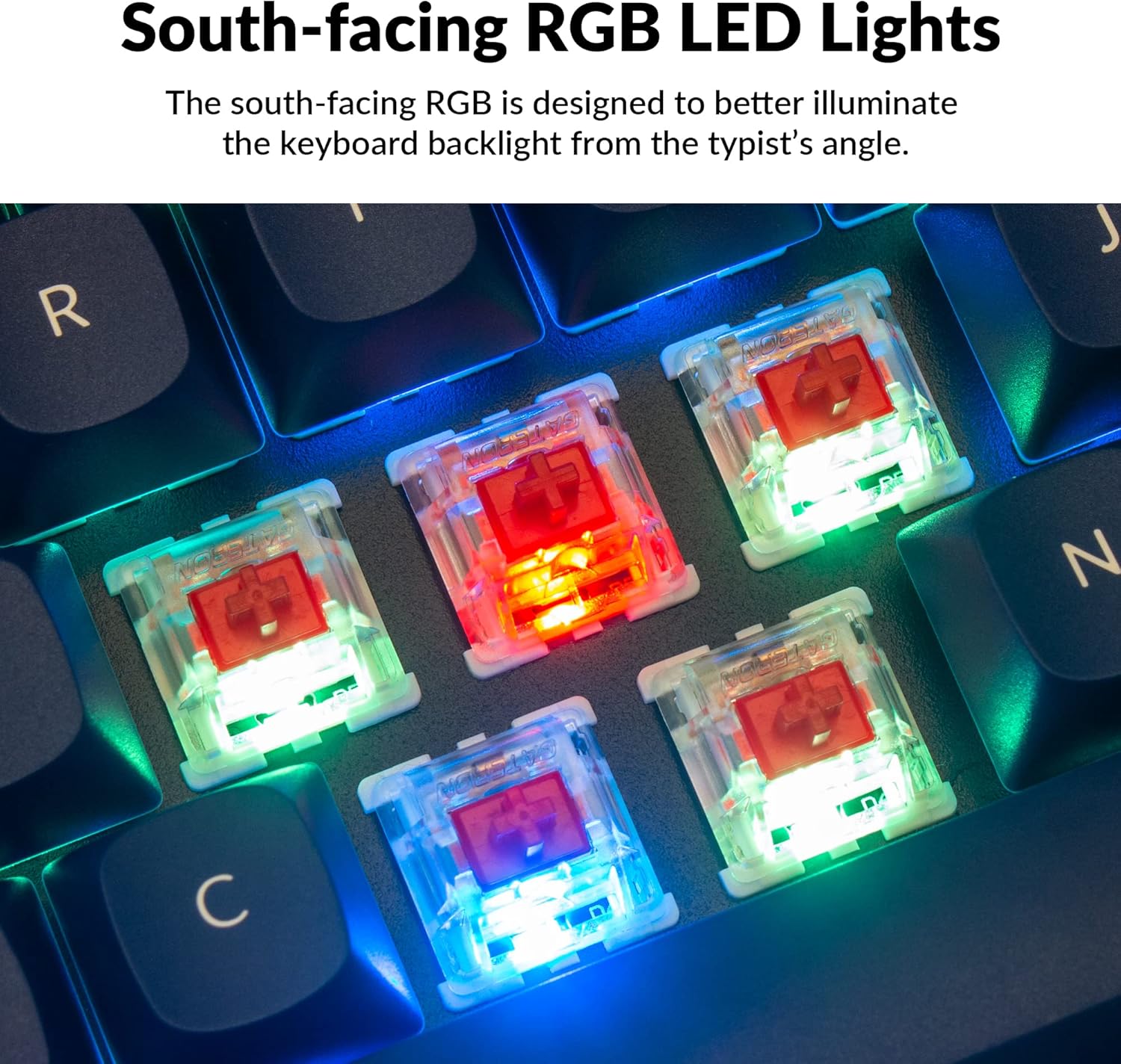
The Q2 comes with premium non-shine-through PBT keycaps, known for their durability and oil resistance. The keyboard features south-facing RGB LEDs, designed to provide better illumination of the backlight from the typist's perspective.
ຮູບພາບ: A ລາຍລະອຽດ view of the Keychron Q2's double-shot PBT keycaps, highlighting their texture and legends.

Image: A close-up of the Keychron Q2's south-facing RGB LEDs illuminating the switches from below.
ບໍາລຸງຮັກສາ
1. ການເຮັດຄວາມສະອາດແປ້ນພິມ
ການທໍາຄວາມສະອາດເປັນປົກກະຕິຊ່ວຍຮັກສາປະສິດທິພາບແລະຮູບລັກສະນະຂອງແປ້ນພິມ.
- ການກຳຈັດຂີ້ຝຸ່ນ: ໃຊ້ກະປ໋ອງທີ່ບີບອັດອາກາດເພື່ອພັດເອົາຝຸ່ນ ແລະສິ່ງເສດເຫຼືອອອກຈາກລະຫວ່າງປຸ່ມກົດ.
- ການເຮັດຄວາມສະອາດຄີບອດ: For deeper cleaning, remove the keycaps using the provided keycap puller. Wash them with mild soap and water, then ensure they are completely dry before reattaching.
- ການອະນາໄມກໍລະນີ: Wipe the aluminum case with a soft, damp ຜ້າ. ຫຼີກເວັ້ນການສານເຄມີທີ່ຮຸນແຮງທີ່ອາດຈະທໍາລາຍການສໍາເລັດຮູບ.
2. Switch and Stabilizer Maintenance
The hot-swappable design allows for easy maintenance of switches and stabilizers.
- ປ່ຽນແທນ: If a switch becomes faulty, replace it using the hot-swapping procedure described in the Operating Instructions.
- Stabilizer Lubrication: For optimal performance and reduced wobbliness on larger keys (space bar, shift, enter), the PCB-mounted screw-in stabilizers can be lubricated. This typically involves disassembling the keyboard to access the stabilizers.

Image: An exploded diagram of the Keychron Q2, showing its various components like keycaps, switches, top case, gaskets, plate, PCB, sound absorbing foam, case foam, bottom case, and silicone gaskets, illustrating ease of disassembly.
ການແກ້ໄຂບັນຫາ
ບັນຫາທົ່ວໄປ ແລະການແກ້ໄຂ:
- ແປ້ນພິມບໍ່ຕອບສະໜອງ:
- ໃຫ້ແນ່ໃຈວ່າສາຍ USB ໄດ້ເຊື່ອມຕໍ່ຢ່າງປອດໄພກັບທັງແປ້ນພິມ ແລະຄອມພິວເຕີ.
- Verify the Mac/Windows switch on the back of the keyboard is set to the correct operating system.
- Try connecting the keyboard to a different USB port or a different computer to rule out port issues.
- ປິດເປີດຄອມພິວເຕີຂອງທ່ານຄືນໃໝ່.
- ກະແຈສະເພາະບໍ່ເຮັດວຽກ:
- Remove the keycap and switch for the non-functional key. Inspect the switch pins for bends or damage. Straighten bent pins carefully or replace the switch if damaged.
- ໃຫ້ແນ່ໃຈວ່າສະວິດຖືກນັ່ງຢູ່ໃນ PCB ຢ່າງສົມບູນ.
- Check VIA software to ensure the key has not been accidentally remapped or disabled.
- ບັນຫາແສງ RGB:
- ໃຫ້ແນ່ໃຈວ່າແປ້ນພິມເຊື່ອມຕໍ່ຢ່າງຖືກຕ້ອງ.
- Use the VIA software to check and adjust lighting settings.
- Perform a factory reset if lighting issues persist (refer to Keychron's official support for specific reset procedures).
- Keyboard Disconnecting Randomly:
- ລອງໃຊ້ສາຍ USB ອື່ນ.
- Ensure the USB port on your computer is stable and providing sufficient power.
- ອັບເດດໄດຣເວີ USB ຂອງຄອມພິວເຕີຂອງທ່ານ.
If you encounter issues not covered here, please refer to the official Keychron support resources.
ຂໍ້ມູນຈໍາເພາະ
| ຄຸນສົມບັດ | ລາຍລະອຽດ |
|---|---|
| ຍີ່ຫໍ້ | ຄີໂຄຣນ |
| ຊື່ຕົວແບບ | Q2 |
| ໝາຍເລກຕົວແບບ | Q2-J1 |
| ຮູບແບບແປ້ນພິມ | 65% (68 Keys), QWERTY |
| ເຕັກໂນໂລຊີການເຊື່ອມຕໍ່ | Wired (USB-A, USB-C) |
| ອຸປະກອນທີ່ເຂົ້າກັນໄດ້ | PC (Linux, MacOS, Windows) |
| ປະເພດສະຫຼັບ | Gateron G Pro Red (Linear), Hot-swappable |
| Backlighting | RGB (ທິດໃຕ້) |
| ວັດສະດຸ | Full Aluminum Frame, PBT Keycaps |
| ຂະໜາດສິນຄ້າ | 12.89"L x 4.76"W x 1.33"H |
| ຄຸນນະສົມບັດພິເສດ | QMK/VIA Programmable, Double Gasket Design |
ຂໍ້ມູນການຮັບປະກັນ
Keychron products typically come with a standard manufacturer's warranty. For detailed information regarding the warranty period, coverage, and terms and conditions for your Keychron Q2 keyboard, please refer to the official Keychron webເວັບໄຊ ຫຼືບັດຮັບປະກັນລວມຢູ່ໃນຜະລິດຕະພັນຂອງທ່ານ. ຮັກສາຫຼັກຖານການຊື້ຂອງທ່ານສໍາລັບການຮ້ອງຂໍການຮັບປະກັນ.
ສະຫນັບສະຫນູນແລະຊັບພະຍາກອນ
For further assistance, software downloads (VIA), firmware updates, and frequently asked questions, please visit the official Keychron support page:
- ຢ່າງເປັນທາງການຂອງ Keychron Webເວັບໄຊ: www.keychron.com
- QMK/VIA Software & Firmware: www.keychron.com/pages/qmk-via
- Keychron Store: Visit the Keychron Store on Amazon
You can also find community forums and additional user guides online for advanced customization and troubleshooting tips.