
1. ບົດແນະນຳ
This manual provides detailed instructions for the setup, operation, and maintenance of your Bytech BYMCWC101BLK PC Web Camera. Please read this manual thoroughly before using the product to ensure proper functionality and longevity.
2. ເນື້ອໃນຊຸດ
ກວດສອບວ່າລາຍການທັງຫມົດທີ່ລະບຸໄວ້ຂ້າງລຸ່ມນີ້ແມ່ນລວມຢູ່ໃນຊຸດຜະລິດຕະພັນຂອງທ່ານ:
- ຄອມພິວເຕີ Bytech BYMCWC101BLK Web ກ້ອງຖ່າຍຮູບ
- ຄູ່ມືຜູ້ໃຊ້ (ເອກະສານນີ້)
- ສາຍ USB ປະສົມປະສານ
3. ຕັ້ງຄ່າ
Follow these steps to set up your Bytech BYMCWC101BLK PC Web ກ້ອງຖ່າຍຮູບ:
- ການຈັດວາງ: ຕໍາແໜ່ງ webcam on top of your computer monitor, laptop screen, or a flat surface. The adjustable clip allows for secure attachment.
- ເຊື່ອມຕໍ່ກັບຄອມພິວເຕີ: ສຽບສາຍ USB ປະສົມປະສານຈາກ webcam ເຂົ້າໄປໃນພອດ USB ທີ່ມີຢູ່ໃນຄອມພິວເຕີຂອງທ່ານ.
- ການຕິດຕັ້ງໄດເວີ: ໄດ້ webcam is typically plug-and-play. Your operating system (Windows, macOS, Linux) should automatically detect and install the necessary drivers. Wait for the installation to complete.
- ການຢັ້ງຢືນ: Open a video conferencing application (e.g., Zoom, Skype, Microsoft Teams) or your computer's camera application to confirm the webcam is recognized and displaying video.
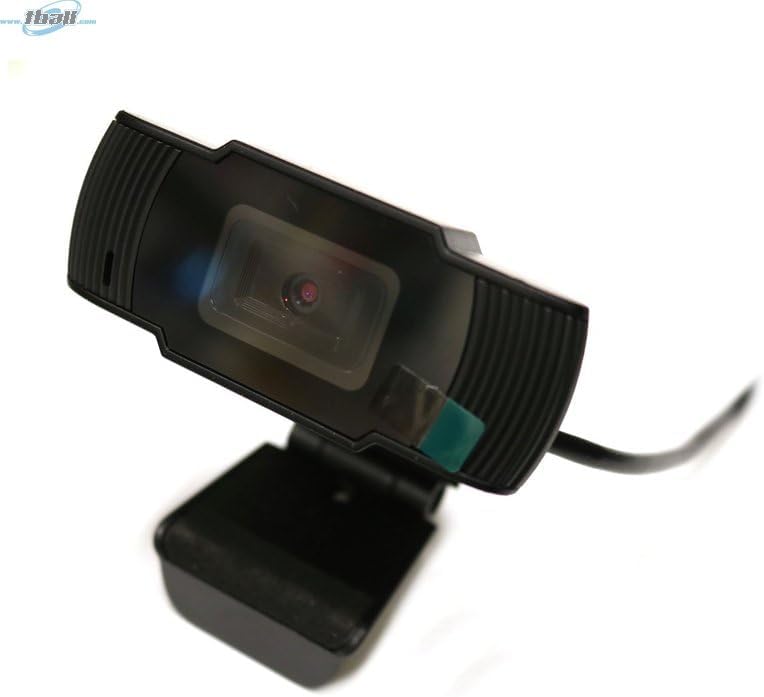
Image: The Bytech BYMCWC101BLK PC Web Camera securely mounted on top of a computer monitor, demonstrating its adjustable clip design.
4. ຄໍາແນະນໍາການດໍາເນີນງານ
Once installed, the Bytech BYMCWC101BLK PC Web Camera can be used with various applications:
- ການປະຊຸມວິດີໂອ: Select the Bytech webcam as your video input device within your preferred video conferencing software (e.g., Zoom, Skype, Google Meet).
- ການຖ່າຍທອດ: For live streaming platforms, configure the webcam as your primary video source in your streaming software (e.g., OBS Studio).
- ການບັນທຶກ: Use your computer's built-in camera application or third-party software to record video.
- ປະສິດທິພາບແສງຕ່ຳ: ໄດ້ webcam features BSI CMOS photo sensor technology and is designed to perform effectively in low-light conditions, providing clear video even with limited ambient lighting.
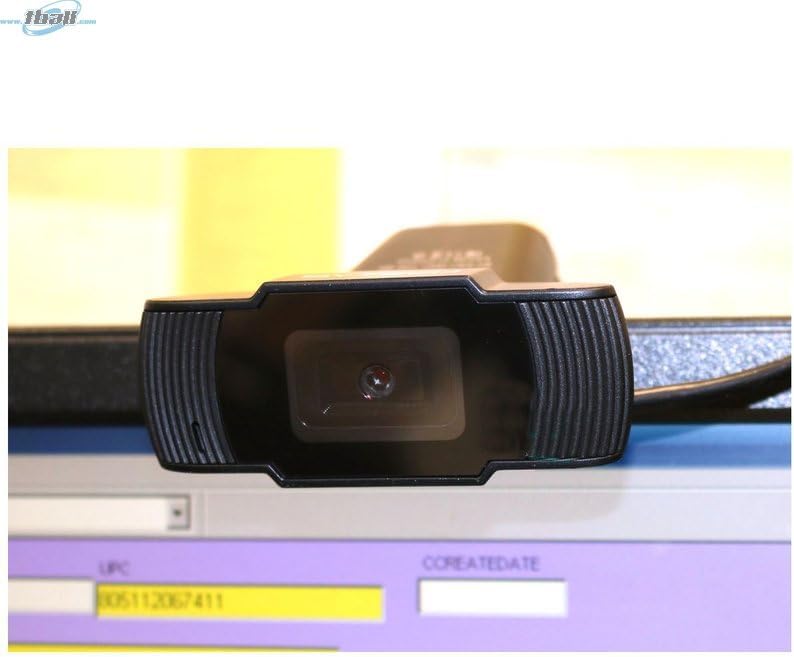
ຮູບພາບ: A close-up view of the Bytech BYMCWC101BLK PC Web Camera's lens, highlighting its design and integrated privacy cover (if applicable, otherwise just lens).
5. ບໍາລຸງຮັກສາ
To ensure optimal performance and extend the lifespan of your webກ້ອງ:
- ທໍາຄວາມສະອາດ: Gently wipe the lens with a soft, lint-free cloth. Avoid using harsh chemicals or abrasive materials.
- ການເກັບຮັກສາ: ເມື່ອບໍ່ໄດ້ໃຊ້, ເກັບມ້ຽນ webcam in a clean, dry environment away from direct sunlight and extreme temperatures.
- ການດູແລສາຍໄຟ: Do not bend or crimp the USB cable excessively.
6. ການແກ້ໄຂບັນຫາ
ຖ້າເຈົ້າພົບບັນຫາກັບເຈົ້າ webcam, ອ້າງອີງເຖິງບັນຫາທົ່ວໄປຕໍ່ໄປນີ້ແລະວິທີແກ້ໄຂ:
- ບໍ່ມີຮູບພາບ/ວິດີໂອ:
- ໃຫ້ແນ່ໃຈວ່າສາຍ USB ໄດ້ເຊື່ອມຕໍ່ຢ່າງປອດໄພກັບທັງສອງ webcam ແລະຄອມພິວເຕີຂອງທ່ານ.
- ລອງສຽບ webcam ເຂົ້າໄປໃນທີ່ Port USB ທີ່ແຕກຕ່າງກັນ.
- ປິດເປີດຄອມພິວເຕີຂອງທ່ານຄືນໃໝ່.
- Check your application settings to ensure the Bytech webcam is selected as the video input device.
- ຄຸນນະພາບວິດີໂອບໍ່ດີ:
- ຮັບປະກັນໃຫ້ມີແສງສະຫວ່າງພຽງພໍໃນສະພາບແວດລ້ອມຂອງທ່ານ.
- ອະນາໄມ webເຊັດເລນກ້ອງດ້ວຍຜ້າອ່ອນ.
- Check your application's video settings for resolution and frame rate.
- ໄມໂຄຣໂຟນບໍ່ເຮັດວຽກ (ຖ້າມີ):
- ກວດສອບວ່າ webcam's microphone is selected as the audio input device in your computer's sound settings and within your application.
- Ensure the microphone is not muted in your system or application.
7. ຂໍ້ມູນຈໍາເພາະ
| ຄຸນສົມບັດ | ລາຍລະອຽດ |
|---|---|
| ຊື່ຕົວແບບ | BYMCWC101BLK |
| ຍີ່ຫໍ້ | Bytech |
| ເຕັກໂນໂລຊີການເຊື່ອມຕໍ່ | USB |
| ເທັກໂນໂລຍີເຊັນເຊີຮູບພາບ | BSI CMOS |
| ຮູບແບບການຖ່າຍຮູບວິດີໂອ | MP4 |
| ຄຸນນະສົມບັດພິເສດ | ແສງໜ້ອຍ |
| ສີ | ດຳ |
| ນ້ໍາຫນັກລາຍການ | 4.9 ອອນ |
| ຂະໜາດແພັກເກັດ | 7.76 x 4.65 x 2.44 ນິ້ວ |
8. ການຮັບປະກັນແລະການສະຫນັບສະຫນູນ
For warranty information or technical support, please refer to the documentation included with your purchase or contact your retailer. Keep your proof of purchase for warranty claims.