
Poly (Plantronics + Polycom) 2200-87090-001
Poly Studio E70 Intelligent Camera User Manual
Comprehensive guide for setup, operation, and maintenance of your Poly Studio E70 Intelligent Camera.
ສິນຄ້າເກີນview
The Poly Studio E70 is an intelligent camera designed for large conference rooms, offering exceptional video quality and advanced features for hybrid work environments. It incorporates dual 4K sensors and Poly DirectorAI technology to provide an immersive video experience, including speaker tracking and group framing capabilities. The camera is engineered to ensure participants appear clear and natural, enhancing remote collaboration.

ດ້ານໜ້າ view of the Poly Studio E70 Intelligent Camera, showcasing its dual lenses and sleek design.
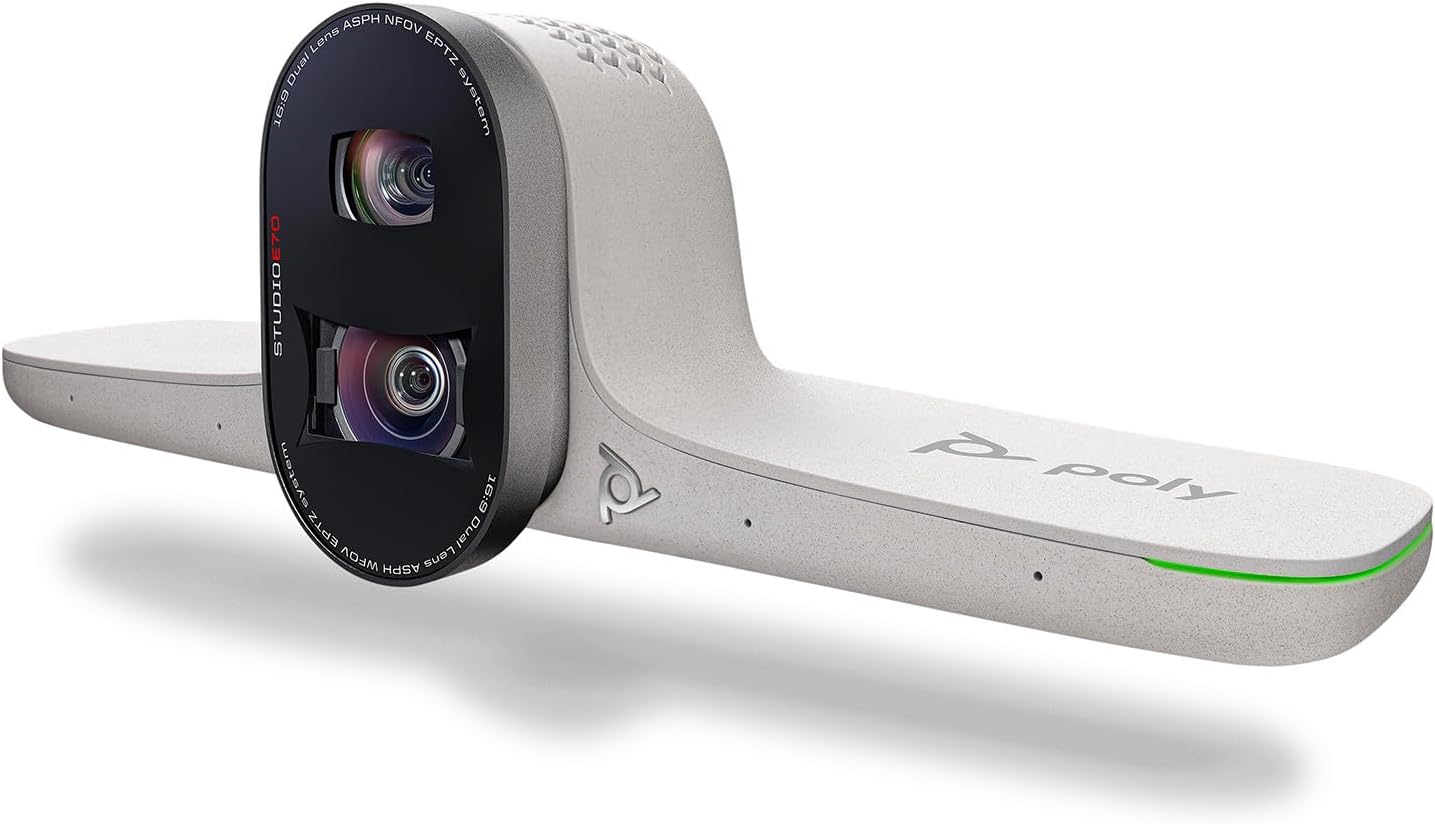
ມຸມ view of the Poly Studio E70 Intelligent Camera, highlighting its modern aesthetic and integrated design.
ແມ່ນຫຍັງຢູ່ໃນກ່ອງ
The Poly Studio E70 package includes the following components:
- Poly Studio E70 Intelligent Camera
- ສາຍ USB Type-C
- ສາຍອີເທີເນັດ
ຕັ້ງຄ່າ
Follow these steps to set up your Poly Studio E70 Intelligent Camera:
- ການຕິດຕັ້ງກ້ອງຖ່າຍຮູບ: Position the Poly Studio E70 camera securely on top of your display or a suitable mounting surface in your conference room. Ensure it has a clear line of sight to all participants.
- Connecting Power and Network: The Poly Studio E70 requires Power Over Ethernet (POE). Connect one end of the provided Ethernet cable to the POE-enabled network port on the camera and the other end to a POE-enabled network switch or injector.
- ການເຊື່ອມຕໍ່ກັບລະບົບ: The Poly Studio E70 works with Poly G7500 or Poly Microsoft Teams Room systems (sold separately). Connect the camera to your compatible system using the appropriate cables and follow the system's instructions for camera integration.
- ການຕັ້ງຄ່າເບື້ອງຕົ້ນ: For initial setup and management, utilize Poly Lens Desktop for Windows or the cloud-based Poly Lens device management software. These tools allow for firmware updates, configuration adjustments, and monitoring.

The Poly Studio E70 camera mounted on a display in a conference room setting.

ຫລັງ view of the Poly Studio E70, showing the connectivity ports including the Ethernet port for POE.
ປະຕິບັດການກ້ອງຖ່າຍຮູບ
The Poly Studio E70 is designed for intelligent and automated video conferencing. Key operational features include:
- Dual 4K Lenses: The camera features two 4K lenses that capture high-resolution video, ensuring clear and detailed images of meeting participants.
- Poly DirectorAI Technology: This advanced AI technology powers features such as speaker tracking and group framing.
- ການຕິດຕາມລຳໂພງ: The camera automatically focuses on the active speaker, ensuring they are clearly visible to remote participants.
- Group Framing: The camera intelligently frames all participants in the room, adjusting the view as people enter or leave.
- Integrated Electronic Privacy Shutter: For enhanced security and privacy, the camera includes a motorized privacy shutter that can be activated when the camera is not in use.
- Management with Poly Lens: Use Poly Lens software for ongoing management, including adjusting camera settings, monitoring device status, and deploying firmware updates.

ລາຍລະອຽດ view of the Poly Studio E70's dual 4K lenses.
ບໍາລຸງຮັກສາ
Proper maintenance ensures the longevity and optimal performance of your Poly Studio E70 camera:
- ທໍາຄວາມສະອາດ: Gently wipe the camera lenses and exterior with a soft, dry, lint-free cloth. Avoid using abrasive cleaners, solvents, or aerosol sprays directly on the device.
- ການອັບເດດເຟີມແວ: Regularly check for and install firmware updates via Poly Lens. Updates often include performance improvements, new features, and security enhancements.
- ເງື່ອນໄຂສິ່ງແວດລ້ອມ: Operate the camera within recommended temperature and humidity ranges to prevent damage. Avoid exposing the camera to extreme temperatures or direct sunlight.
ການແກ້ໄຂບັນຫາ
If you encounter issues with your Poly Studio E70, consider the following troubleshooting steps:
- ບໍ່ມີຜົນຜະລິດວິດີໂອ:
- Ensure the Ethernet cable is securely connected and the network provides Power Over Ethernet (POE).
- Verify that the camera is properly connected to your Poly G7500 or Microsoft Teams Room system.
- Check the privacy shutter status; ensure it is open.
- ຄຸນນະພາບວິດີໂອບໍ່ດີ:
- Clean the camera lenses with a soft, lint-free cloth.
- Ensure adequate lighting in the conference room.
- ກວດເບິ່ງແບນວິດແລະຄວາມຫມັ້ນຄົງຂອງເຄືອຂ່າຍ.
- Speaker Tracking/Group Framing Issues:
- Ensure the camera is positioned correctly and has an unobstructed view ຂອງຫ້ອງ.
- Verify that Poly DirectorAI features are enabled and configured correctly in Poly Lens.
- ບັນຫາການເຊື່ອມຕໍ່:
- Restart the camera by disconnecting and reconnecting the POE cable.
- Check network settings and ensure the camera has a valid IP address.
For more detailed troubleshooting, refer to the Poly Lens application or the official Poly support webເວັບໄຊ.
ຂໍ້ມູນຈໍາເພາະ
| ຄຸນສົມບັດ | ລາຍລະອຽດ |
|---|---|
| ຍີ່ຫໍ້ | Poly (Plantronics + Polycom) |
| ຊຸດ | Poly Studio E70 |
| ໝາຍເລກຕົວແບບ | 2200-87090-001 |
| ນ້ໍາຫນັກລາຍການ | 4.4 ປອນ |
| ຂະໜາດສິນຄ້າ | 14.4 x 5 x 11 ນິ້ວ |
| ເທັກໂນໂລຍີເຊັນເຊີຮູບພາບ | CMOS |
| ຄວາມລະອຽດການຖ່າຍວິດີໂອ | 4K |
| ຮູຮັບແສງສູງສຸດ | 20 f |
| ປະເພດຫນ່ວຍຄວາມຈໍາ Flash | ໜ່ວຍຄວາມຈຳແຟລດພາຍໃນ |
| ຮູບແບບການຖ່າຍຮູບວິດີໂອ | MP4 |
| ຮູບແບບສຽງທີ່ຮອງຮັບ | AAC, MP3, PCM |
| ເຕັກໂນໂລຊີການເຊື່ອມຕໍ່ | ອີເທີເນັດ |
| ຄຸນນະສົມບັດພິເສດ | Poly DirectorAI technology with speaker tracking, group framing, and privacy shutter |
ຂໍ້ມູນການຮັບປະກັນ
The Poly Studio E70 Intelligent Camera is covered by Poly's standard product warranty. For specific details regarding the warranty period, coverage, and terms and conditions, please refer to the warranty documentation included with your purchase or visit the official Poly website. Extended protection plans may also be available from your reseller.
ສະຫນັບສະຫນູນ
For further assistance, technical support, or to access additional resources for your Poly Studio E70 Intelligent Camera, please utilize the following options:
- Poly Lens Software: Use the Poly Lens desktop application or cloud service for device management, diagnostics, and firmware updates.
- ສະຫນັບສະຫນູນອອນໄລນ໌: Visit the official Poly support website for comprehensive documentation, FAQs, and troubleshooting guides.
- ຕິດຕໍ່ສະຫນັບສະຫນູນ: If you require direct assistance, contact Poly customer support through the channels provided on their webເວັບໄຊ.
For the latest information and support, always refer to the official Poly resources.
Ask a question about this manual
Ask about setup, troubleshooting, compatibility, parts, safety, or missing instructions. Manuals+ will review the question and use this page’s manual context to help answer it.