
1. ບົດແນະນຳ
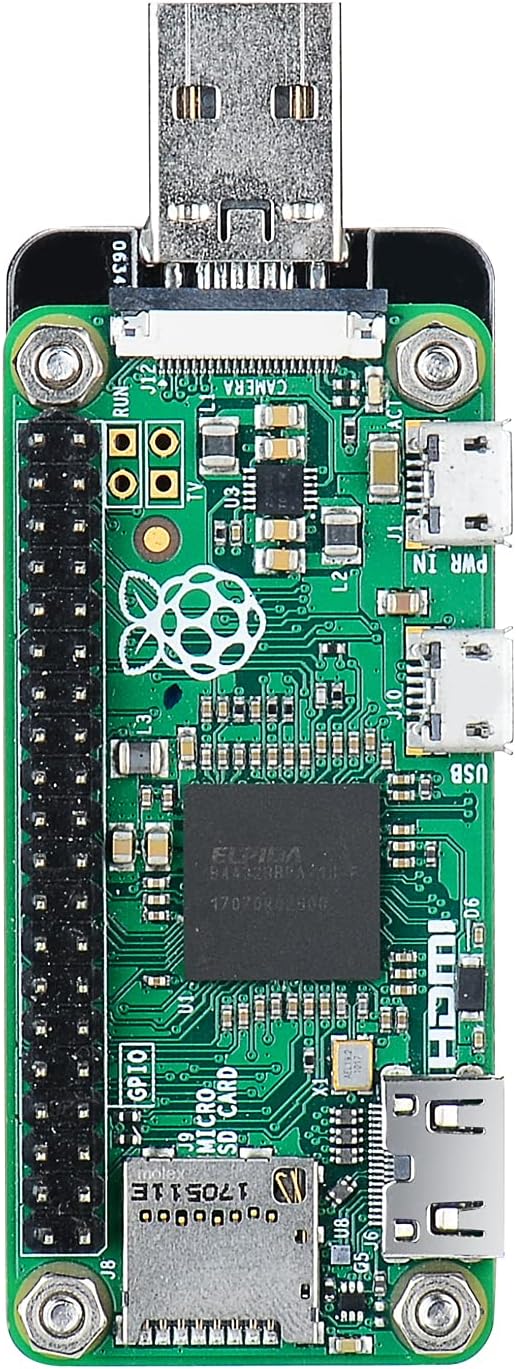
The GeeekPi USB Dongle Expansion Board with Case is designed to enhance the functionality of your Raspberry Pi Zero, Zero W, Zero 2, or Zero W 2. It converts your Raspberry Pi Zero into a convenient PC stick by utilizing the test points underneath the Pi Zero to attach a full-sized USB connector. This allows you to connect your Pi to a computer via USB Ethernet, access the Raspbian OS through SSH or VNC services, and share your computer's internet connection without additional cables or power supplies. The USB interface is reversible, allowing insertion from either the front or back.
2. ອົງປະກອບຂອງຜະລິດຕະພັນ
ຊຸດປະກອບມີອົງປະກອບດັ່ງຕໍ່ໄປນີ້:
- USB Dongle Expansion Board
- Acrylic Case (top and bottom plates)
- Mounting Screws and Stand-offs

The expansion board features a full-sized USB-A connector, an Ethernet port, and additional USB ports for peripherals. The acrylic case provides protection and a neat enclosure for your Raspberry Pi Zero setup.
3. ການຕິດຕັ້ງແລະການຕິດຕັ້ງ
Follow these steps to assemble your GeeekPi USB Dongle Expansion Board with your Raspberry Pi Zero:
- Attach the Raspberry Pi Zero to the Expansion Board: Carefully align the Raspberry Pi Zero with the pogo pins on the expansion board. The pogo pins connect to the USB data pads on the underside of the Pi Zero. Secure the Pi Zero to the expansion board using the provided silver screws. Ensure a firm connection to engage the pogo pins.
- Assemble the Case: Place the assembled Raspberry Pi Zero and expansion board into the bottom part of the acrylic case. Secure it with the remaining screws. Choose the top cover that best suits your needs; one with a GPIO cutout is available for ventilation or access to GPIO pins.
- Software Configuration (for Raspberry Pi Zero 2/Zero W2): If you are using a Raspberry Pi Zero 2 or Zero W2, you must open the "boot" partition on your TF card and edit the "config.txt" file. Add the line
dtoverlay=dwc2ໄປຫາລຸ່ມສຸດຂອງ file and save it. This step is crucial for proper functionality.

ວິດີໂອການຕິດຕັ້ງ
Video 3.1: Installation guide for the X306 and X306-C1, demonstrating the assembly process for a similar product. Note that the product in this manual is the GeeekPi USB Dongle Expansion Board, which shares similar assembly principles.
4. ຄໍາແນະນໍາການດໍາເນີນງານ
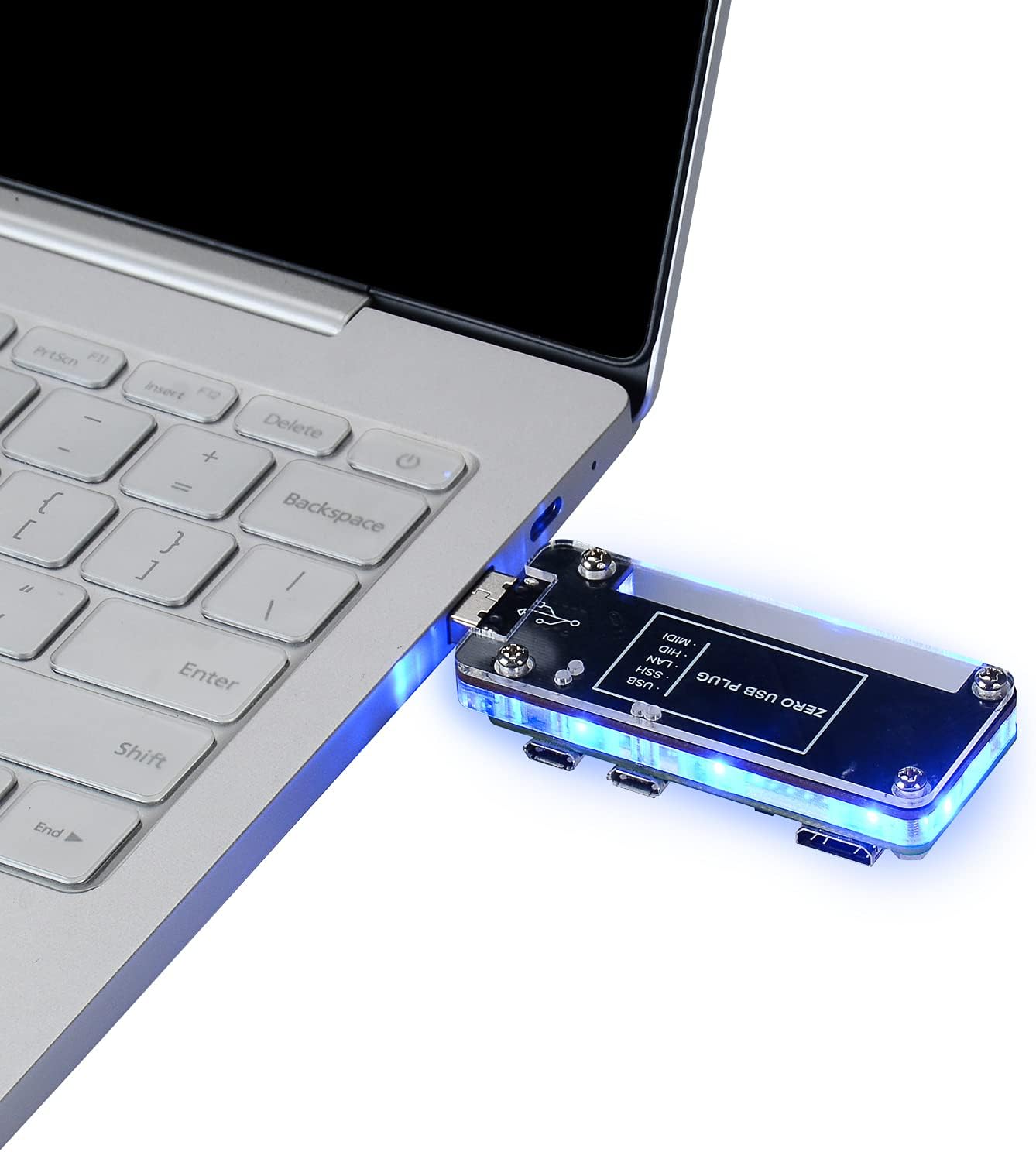
Once assembled and configured, the GeeekPi USB Dongle Expansion Board allows you to use your Raspberry Pi Zero as a PC stick. Simply plug the USB-A connector into a free USB port on your computer. You can then connect to your Pi over USB Ethernet and access its operating system via SSH or VNC services. This setup also enables you to share your computer's internet connection with the Raspberry Pi.
The expansion board provides three Type-A USB ports and a 10/100 Ethernet port, offering reliable connectivity for various peripherals and network access. The reversible USB interface ensures ease of use.

5. ບໍາລຸງຮັກສາ
To ensure the longevity and optimal performance of your GeeekPi USB Dongle Expansion Board, consider the following maintenance tips:
- ຮັກສາອຸປະກອນໃຫ້ສະອາດ ແລະບໍ່ມີຝຸ່ນ. ໃຊ້ຜ້າອ່ອນໆ, ແຫ້ງເພື່ອທໍາຄວາມສະອາດ.
- ຫຼີກເວັ້ນການເປີດເຜີຍອຸປະກອນກັບອຸນຫະພູມຫຼືຄວາມຊຸ່ມຊື່ນທີ່ສຸດ.
- Handle with care to prevent physical damage to the board or case.
- Ensure proper ventilation, especially if using a heat sink, to prevent overheating.
6. ການແກ້ໄຂບັນຫາ
- Device not recognized (Raspberry Pi Zero 2/Zero W2): Ensure you have correctly added
dtoverlay=dwc2ກັບconfig.txtfile in the boot partition of your TF card. - Heat sink clearance issues: If using a heat sink on your Raspberry Pi Zero, ensure it is a low-profile design to allow the case lid to fit properly. Taller heat sinks may prevent the case from closing.
- Difficulty extracting SD card: The design may make it challenging to remove the micro SD card without tools. Consider using tweezers or a similar small tool for extraction if needed.
- USB accessories not working: This is a USB 2.0 hub. While generally reliable, ensure your USB accessories are compatible and do not exceed the power capabilities of the Raspberry Pi Zero's USB port.
7. ຂໍ້ມູນຈໍາເພາະ
| ຄຸນສົມບັດ | ລາຍລະອຽດ |
|---|---|
| ຄວາມເຂົ້າກັນໄດ້ | Raspberry Pi Zero/Zero W/Zero 2/Zero W 2 |
| ການເຊື່ອມຕໍ່ | USB-A (full-sized), Ethernet (10/100), 3x USB Type-A ports |
| ການໂຕ້ຕອບ | Pogo pin connection to Raspberry Pi Zero USB data pads |
| ວັດສະດຸກໍລະນີ | ອະຄິລິກ |
| ຂະໜາດ | 4.06 x 3.23 x 1.14 ນິ້ວ (ຫຸ້ມຫໍ່) |
| ນ້ໍາຫນັກລາຍການ | 1.06 ອອນ |
8. ການຮັບປະກັນແລະການສະຫນັບສະຫນູນ
For warranty information and technical support, please refer to the official GeeekPi webເວັບໄຊ ຫຼືຕິດຕໍ່ບໍລິການລູກຄ້າຂອງເຂົາເຈົ້າໂດຍກົງ. ຮັກສາໃບຮັບເງິນການຊື້ຂອງທ່ານສໍາລັບການຮຽກຮ້ອງການຮັບປະກັນໃດໆ.