
1. ຜະລິດຕະພັນເກີນview
The Cisco Catalyst 9300 C9300-24S-E is a 24-port Gigabit Ethernet SFP modular uplink network switch designed for enterprise-level network deployments. It provides high-performance switching capabilities, advanced security features, and network automation for modern business environments. This manual provides essential information for the safe and efficient installation, operation, and maintenance of your switch.
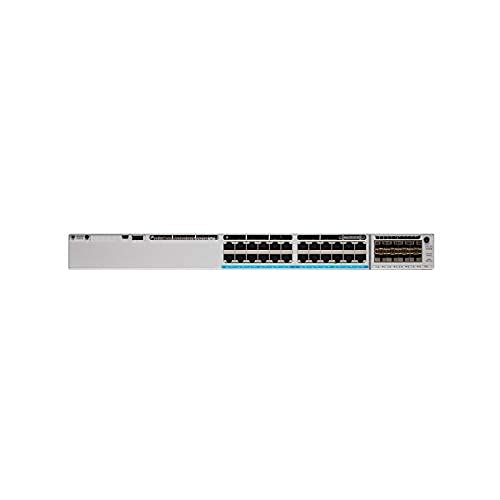
ຮູບ 1: ດ້ານຫນ້າ view of the Cisco Catalyst 9300 C9300-24S-E Switch. This image displays the 24 SFP ports and modular uplink slots.
2. ຂໍ້ມູນຄວາມປອດໄພ
Read all safety warnings and instructions before installing, operating, or servicing this equipment. Failure to follow these instructions can result in serious injury or equipment damage.
- ຄວາມປອດໄພທາງໄຟຟ້າ: Ensure the power source matches the switch's voltage requirements. Always connect the power cord to a grounded outlet. Do not operate the switch with damaged power cords or plugs.
- ການລະບາຍອາກາດ: Maintain adequate airflow around the switch to prevent overheating. Do not block ventilation openings.
- ການຈັດການ: This device is heavy. Use proper lifting techniques or assistance when moving or installing.
- ສະພາບແວດລ້ອມ: Operate the switch within the specified temperature and humidity ranges. Avoid exposure to moisture or extreme temperatures.
- ການບໍລິການ: Refer all servicing to qualified service personnel. Do not attempt to open or repair the switch yourself.
3. ເນື້ອໃນຊຸດ
Verify that your package contains the following items. If any item is missing or damaged, contact your vendor immediately.
- Cisco Catalyst 9300 C9300-24S-E Switch
- ສາຍໄຟ AC
- Rack-mount Kit (brackets, screws)
- ສາຍຄອນໂຊນ (RJ-45 ຫາ DB-9)
- ເອກະສານ (ຄູ່ມືເລີ່ມຕົ້ນດ່ວນ, ຂໍ້ມູນຄວາມປອດໄພ)
4. ລາຍລະອຽດທາງກາຍະພາບ ແລະ ອົງປະກອບຕ່າງໆ
The C9300-24S-E switch features a robust design with various ports and indicators for network connectivity and status monitoring.
4.1 ກະດານດ້ານ ໜ້າ
ຮູບທີ 2: ລາຍລະອຽດ view of the switch's front panel, highlighting SFP ports and status LEDs.
- 24 x SFP Ports: For Gigabit Ethernet fiber or copper connectivity using SFP transceivers.
- Modular Uplink Slots: Located on the right side, these slots accommodate optional uplink modules for higher bandwidth connections (e.g., 10G, 25G, 40G, 100G).
- LEDs ສະຖານະ: Indicate system status (SYS), redundant power supply (RPS), port status (STAT), and stack status (STACK).
- USB Type-A Port: For external storage or software upgrades.
- USB Type-C Console Port: For console access and initial configuration.
- ຜອດຄອນໂຊ RJ-45: For traditional console access.
4.2 ແຜງດ້ານຫລັງ
ຮູບ 3: ດ້ານຫລັງ view of the switch, showing power supply bays and fan modules.
- ຊ່ອງສະໜອງພະລັງງານ: Two bays for redundant power supplies.
- ໂມດູນພັດລົມ: Field-replaceable fan modules for cooling.
- StackWise-1T Ports: (If applicable to the specific model variant) For stacking multiple switches.
5. ການຕິດຕັ້ງແລະການຕິດຕັ້ງ
Follow these steps to properly install your Cisco Catalyst 9300 switch.
5.1 ການຕິດຕັ້ງ Rack
- ຕິດຂາຍຶດແບບຕິດຕັ້ງທີ່ໃຫ້ມາໃສ່ດ້ານຂ້າງຂອງສະວິດໂດຍໃຊ້ສະກູທີ່ໃຫ້ມາ.
- Align the switch with the desired rack unit (RU) space in your equipment rack.
- Secure the switch to the rack using the rack screws.
Figure 4: Illustration of the switch being mounted into a standard equipment rack.
5.2 ການເຊື່ອມຕໍ່ພະລັງງານ
- Insert the AC power cord into the power supply module on the rear of the switch.
- ເຊື່ອມຕໍ່ອີກປາຍສາຍໄຟກັບປລັກສຽບໄຟ AC ທີ່ມີສາຍດິນ.
- If using redundant power supplies, repeat for the second power supply.
5.3 ການເຊື່ອມຕໍ່ເຄືອຂ່າຍ
- Insert appropriate SFP transceivers into the 24 SFP ports as needed.
- Connect fiber optic or copper cables from your network devices (servers, workstations, other switches) to the SFP transceivers.
- Install any optional uplink modules into the modular uplink slots and connect them to your core network infrastructure.
6. ຄໍາແນະນໍາການດໍາເນີນງານ
6.1 ການເປີດເຄື່ອງ
Once power is connected, the switch will automatically power on. Observe the system status LEDs on the front panel. The SYS LED should turn green after the boot sequence completes.
6.2 ການຕັ້ງຄ່າເບື້ອງຕົ້ນ
For initial configuration, connect a console cable from your computer to the switch's console port (either USB-C or RJ-45). Use a terminal emulation program (e.g., PuTTY, Tera Term) with the following settings:
- ອັດຕາ Baud: 9600
- ບິດຂໍ້ມູນ: 8
- ຄວາມສະເີພາບ: ບໍ່ມີ
- ຢຸດບິດ: 1
- ການຄວບຄຸມການໄຫຼເຂົ້າ: ບໍ່ມີ
Follow the on-screen prompts to complete the initial setup wizard. For advanced configurations, refer to the Cisco IOS XE documentation for Catalyst 9300 Series switches.
6.3 ຕົວຊີ້ວັດ LED
| LED | ສີ/ລັດ | ລາຍລະອຽດ |
|---|---|---|
| SYS (ລະບົບ) | ສີຂຽວ (ແຂງ) | ລະບົບເຮັດວຽກເປັນປົກກະຕິ. |
| ອໍາພັນ (ແຂງ) | System fault or error. | |
| STAT (Port Status) | ສີຂຽວ (ແຂງ) | ສ້າງການເຊື່ອມຕໍ່. |
| ສີຂຽວ (ກະພິບ) | Activity on port. | |
| ປິດ | No link or port disabled. |
7. ບໍາລຸງຮັກສາ
ການບຳລຸງຮັກສາເປັນປະຈຳຮັບປະກັນປະສິດທິພາບທີ່ດີທີ່ສຸດ ແລະ ອາຍຸການໃຊ້ງານທີ່ຍາວນານຂອງສະວິດຂອງທ່ານ.
- ທໍາຄວາມສະອາດ: Periodically clean the exterior of the switch with a soft, dry cloth. Ensure ventilation openings are free from dust and debris. Do not use liquid cleaners directly on the switch.
- ການອັບເດດເຟີມແວ: ກວດສອບການສະໜັບສະໜູນຂອງ Cisco ເປັນປະຈຳ website for the latest firmware updates. Applying updates can improve performance, add features, and address security vulnerabilities. Follow Cisco's recommended procedures for firmware upgrades.
- ການຕິດຕາມສິ່ງແວດລ້ອມ: Ensure the operating environment remains within specified temperature and humidity ranges to prevent hardware stress.
8. ການແກ້ໄຂບັນຫາ
ພາກນີ້ສະຫນອງການແກ້ໄຂບັນຫາທົ່ວໄປທີ່ທ່ານອາດຈະພົບ.
8.1 ບໍ່ມີພະລັງງານ
- ກວດເບິ່ງສາຍໄຟ: ໃຫ້ແນ່ໃຈວ່າສາຍໄຟໄດ້ເຊື່ອມຕໍ່ກັບທັງສະວິດ ແລະ ປລັກໄຟຢ່າງແໜ້ນໜາແລ້ວ.
- ຢືນຢັນ Outlet: ທົດສອບປລັກໄຟດ້ວຍອຸປະກອນອື່ນເພື່ອຢືນຢັນວ່າມັນໃຊ້ງານໄດ້.
- ສະຖານະການສະຫນອງພະລັງງານ: Check the power supply LEDs on the rear of the switch. If off or amber, the power supply may be faulty or not receiving power.
8.2 ບໍ່ມີການເຊື່ອມຕໍ່ຢູ່ໃນພອດ
- ການເຊື່ອມຕໍ່ສາຍ: Ensure the network cable is securely connected to both the switch port and the connected device.
- ຄວາມສົມບູນຂອງສາຍ: Test the cable with another device or replace it to rule out a faulty cable.
- Transceiver: If using SFP transceivers, ensure they are properly seated and compatible with both the switch and the connected device.
- ການຕັ້ງຄ່າພອດ: Verify that the switch port is enabled and correctly configured (e.g., speed, duplex settings).
8.3 ບັນຫາການເຊື່ອມຕໍ່ເຄືອຂ່າຍ
- ການຕັ້ງຄ່າ IP: Verify IP addresses, subnet masks, and gateway settings on connected devices and the switch.
- VLANs: If using VLANs, ensure ports are assigned to the correct VLANs and trunk links are properly configured.
- Firewall/ACLs: Check for any Access Control Lists (ACLs) or firewall rules on the switch that might be blocking traffic.
- ບັນຫາຊອບແວ: Consider restarting the switch or checking the system logs for error messages.
9. ຂໍ້ມູນຈໍາເພາະ
Key technical specifications for the Cisco Catalyst 9300 C9300-24S-E switch:
| ຄຸນສົມບັດ | ລາຍລະອຽດ |
|---|---|
| ໝາຍເລກຕົວແບບ | C9300-24S-E |
| ຍີ່ຫໍ້ | ຊິສໂກ |
| ປະເພດການໂຕ້ຕອບ | SFP |
| ຈໍານວນພອດ | 24 |
| ອຸປະກອນທີ່ເຂົ້າກັນໄດ້ | ຄອມພິວເຕີຕັ້ງໂຕະ, ຄອມພິວເຕີໂນດບຸກ, ເຄື່ອງພິມ |
| ຂະໜາດສິນຄ້າ | 21.65 x 22.44 x 9.45 ນິ້ວ |
| ວັດສະດຸກໍລະນີ | ພາດສະຕິກ |
| ລະດັບອຸນຫະພູມສູງສຸດ | 40 ອົງສາ Celsius |
| ຜູ້ຜະລິດ | ລະບົບຊິສໂກ - ວິສາຫະກິດ |
| UPC | 656942062790 |
10. ການຮັບປະກັນແລະການສະຫນັບສະຫນູນ
This Cisco product is typically covered by a limited hardware warranty provided by Cisco Systems. The exact terms and duration of the warranty may vary based on your region and purchase agreement. For detailed warranty information, please refer to the official Cisco warranty statements available on their webຫຼື ຕິດຕໍ່ຕົວແທນຈຳໜ່າຍ Cisco ທີ່ໄດ້ຮັບອະນຸຍາດຂອງທ່ານ.
For technical support, documentation, and software downloads, visit the official Cisco Support website. You will need your product serial number to register and access certain support resources.
- ສະຫນັບສະຫນູນ Cisco Webເວັບໄຊ: www.cisco.com/go/support
- ຕິດຕໍ່ສະຫນັບສະຫນູນ: ອ້າງເຖິງ Cisco webສະຖານທີ່ສໍາລັບຂໍ້ມູນຕິດຕໍ່ພາກພື້ນ.