
1. ຜະລິດຕະພັນເກີນview
The Netac N530S is a 2.5-inch SATA III Solid State Drive designed to enhance the performance of your laptop, desktop computer, or gaming console. It offers fast data transfer speeds, improved system responsiveness, and a durable, energy-efficient design.
- ປະສິດທິພາບຄວາມໄວສູງ: Achieves sequential read speeds up to 550 MB/s and write speeds up to 510 MB/s, significantly reducing boot times and application load times.
- Enhanced System Responsiveness: Improves overall system performance compared to traditional hard disk drives (HDDs).
- ທົນທານແລະເຊື່ອຖືໄດ້: Features error correction code, wear leveling, and TRIM technology for stable operation and extended lifespan. It is also shock, vibration, and temperature resistant.
- ປະສິດທິພາບພະລັງງານ: Consumes less power than traditional HDDs, contributing to longer battery life in laptops and reduced energy costs for desktops.
- ຄວາມເຂົ້າກັນໄດ້ຢ່າງກວ້າງຂວາງ: Standard 2.5-inch form factor with SATA interface, suitable for a broad range of devices.

Image: Netac N530S SSD highlighting read speed up to 550 MB/s and write speed up to 500 MB/s. Performance may vary based on internal testing, drive capacity, host device, and usage conditions.
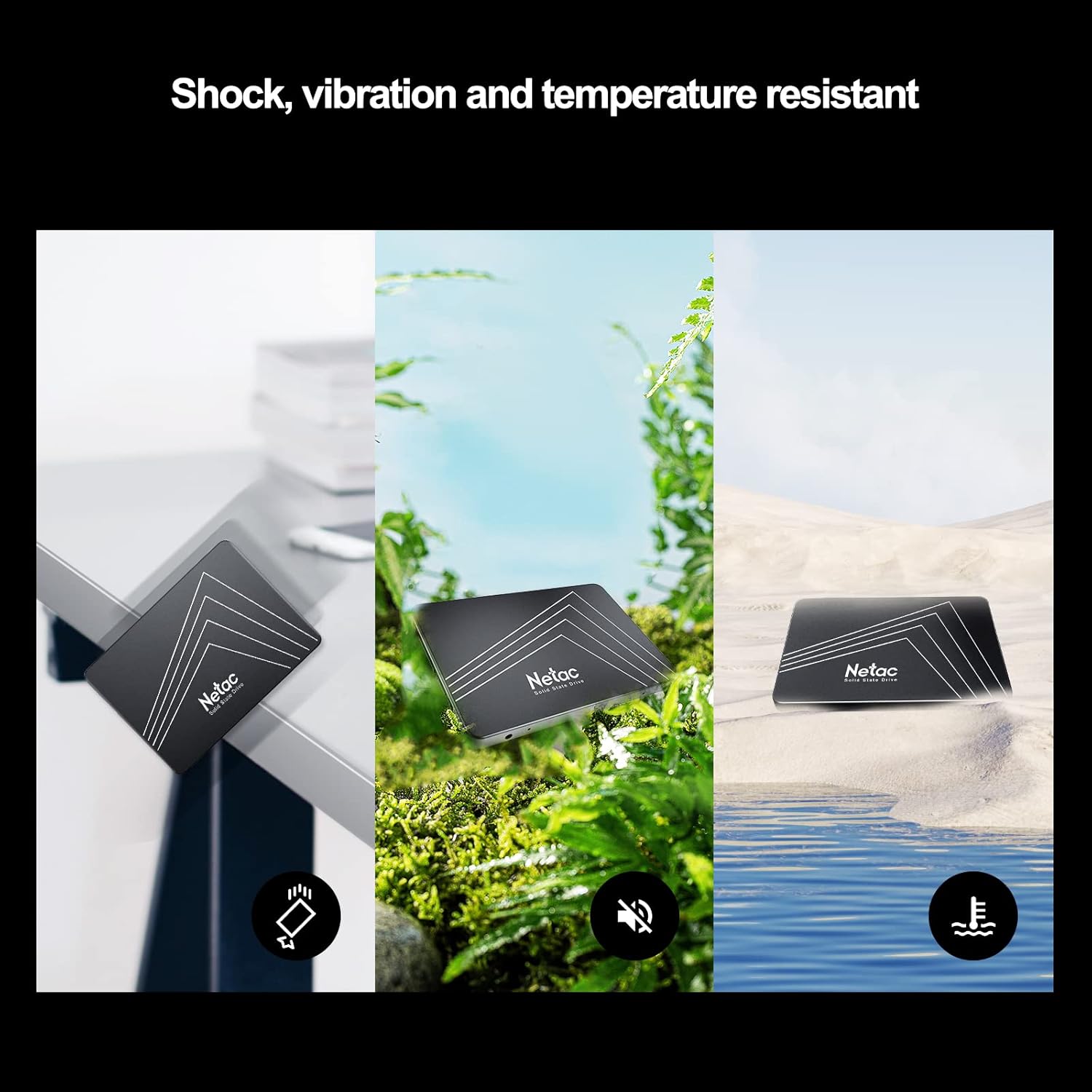
Image: The Netac N530S SSD is designed to be resistant to shock, vibration, and extreme temperatures, ensuring data integrity and reliability in various environments.
ວິດີໂອ: ວິດີໂອແນະນໍາasing the Netac N530S Solid State Drive, highlighting its features and benefits for various computing needs.
2. ການຕິດຕັ້ງແລະການຕິດຕັ້ງ
This section provides general guidelines for installing your Netac N530S SSD. Specific steps may vary depending on your computer model. It is recommended to back up your data before proceeding with any hardware changes.
2.1 ເຄື່ອງມືທີ່ຕ້ອງການ
- ໝວດ ຫົວ screwdriver Phillips
- ສາຍຂໍ້ມູນ SATA (ຖ້າຍັງບໍ່ມີຢູ່ໃນລະບົບຂອງທ່ານ)
- ສາຍໄຟ SATA (ໂດຍປົກກະຕິແລ້ວມາຈາກແຫຼ່ງຈ່າຍໄຟຂອງທ່ານ)
- Optional: 2.5-inch to 3.5-inch drive bay adapter (for desktop PCs without 2.5-inch bays)
2.2 Installation Steps (Desktop PC)
- ປິດ ແລະ ຕັດການເຊື່ອມຕໍ່: Shut down your computer completely and disconnect the power cable from the wall outlet.
- ເປີດກໍລະນີ: ເອົາແຜງດ້ານຂ້າງຂອງເຄສຄອມພິວເຕີຂອງທ່ານອອກເພື່ອເຂົ້າເຖິງອຸປະກອນພາຍໃນ.
- ຊອກຫາ Drive Bay: Identify an available 2.5-inch drive bay. If only 3.5-inch bays are available, use a 2.5-inch to 3.5-inch adapter.
- Mount SSD: Secure the Netac N530S SSD into the drive bay or adapter using screws.
- ເຊື່ອມຕໍ່ສາຍ:
- ເຊື່ອມຕໍ່ປາຍສາຍຂໍ້ມູນ SATA ດ້ານໜຶ່ງເຂົ້າກັບ SSD ແລະປາຍອີກດ້ານໜຶ່ງເຂົ້າກັບພອດ SATA ທີ່ມີຢູ່ໃນເມນບອດຂອງທ່ານ.
- ເຊື່ອມຕໍ່ສາຍໄຟ SATA ຈາກໜ່ວຍສະໜອງພະລັງງານຂອງທ່ານໄປຫາ SSD.

Image: A hand connecting the SATA power and data cables to the Netac N530S SSD inside a computer case. This illustrates the simple operation suitable for DIY installation.
- ປິດເຄສ ແລະເປີດເຄື່ອງ: Reattach the side panel, reconnect the power cable, and power on your computer.
- Initialize and Format (New SSD): For a new SSD, you may need to initialize it in Disk Management (Windows) or Disk Utility (macOS) and format it before use. Refer to your operating system's documentation for detailed steps.
2.3 Installation Steps (Laptop)
- ປິດ ແລະ ຕັດການເຊື່ອມຕໍ່: Shut down your laptop, disconnect the power adapter, and remove the battery (if removable).
- ເຂົ້າເຖິງ Drive Bay: Consult your laptop's manual to locate and open the hard drive bay. This usually involves removing a panel on the bottom of the laptop.
- ລຶບໄດຣຟ໌ເກົ່າອອກ: Carefully disconnect and remove the existing hard drive. Note how it is connected and mounted.
- ຕິດຕັ້ງ SSD ໃໝ່: Place the Netac N530S SSD into the drive bay. Secure it with any brackets or screws that held the old drive. Connect the SSD to the laptop's SATA connector.
- ປິດ ແລະ ເປີດ: Reattach the panel, reinsert the battery, reconnect the power adapter, and power on your laptop.
- Install Operating System: If replacing the primary drive, you will need to install your operating system onto the new SSD.
3. ປະຕິບັດການ SSD
Once installed, your Netac N530S SSD operates like any other storage device. For optimal performance and longevity, consider the following:
- ສະຫນັບສະຫນູນລະບົບປະຕິບັດການ: Ensure your operating system supports TRIM functionality, which helps maintain SSD performance over time. Modern operating systems (Windows 7+, macOS, Linux) typically support TRIM automatically.
- ຫຼີກເວັ້ນການ Defragmentation: Unlike HDDs, SSDs do not benefit from defragmentation. In fact, defragmenting an SSD can reduce its lifespan by causing unnecessary write cycles. Disable any automatic defragmentation tools for your SSD.
- ປ່ອຍໃຫ້ພື້ນທີ່ຫວ່າງບາງບ່ອນ: It is generally recommended to leave at least 10-15% of the SSD's capacity free. This allows the SSD's wear-leveling algorithms to function effectively and maintain performance.
- Use as Boot Drive: For the best performance improvement, install your operating system and frequently used applications on the SSD.
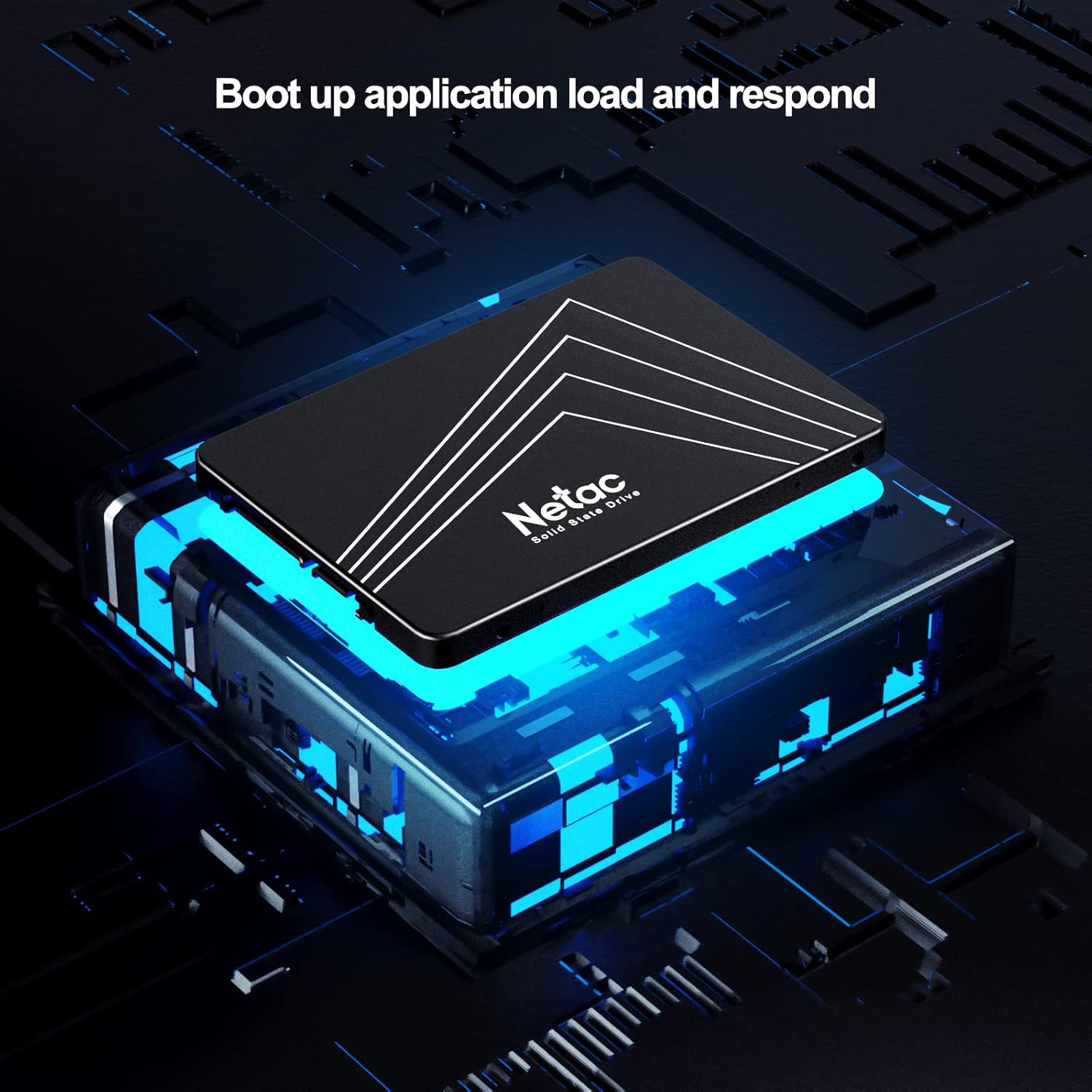
Image: The Netac N530S SSD significantly speeds up boot times and application loading, enhancing the overall responsiveness of your system.

Image: The Netac N530S SSD facilitates seamless multitasking, allowing users to run multiple applications and processes smoothly without slowdowns.
4. ບໍາລຸງຮັກສາ
Proper maintenance can extend the life and maintain the performance of your Netac N530S SSD.
- ການອັບເດດເຟີມແວ: Periodically check the Netac official website for any available firmware updates for your N530S SSD. Firmware updates can improve performance, stability, and compatibility.
- Monitor SSD Health: Use S.M.A.R.T. (Self-Monitoring, Analysis, and Reporting Technology) tools to monitor the health and estimated lifespan of your SSD. Many operating systems and third-party utilities offer this feature.
- Backup ປົກກະຕິ: While SSDs are reliable, no storage device is infallible. Regularly back up important data to another drive or cloud storage.
5. ການແກ້ໄຂບັນຫາ
If you encounter issues with your Netac N530S SSD, try the following troubleshooting steps:
- SSD ບໍ່ກວດພົບ:
- ກວດເບິ່ງຂໍ້ມູນ SATA ແລະການເຊື່ອມຕໍ່ສາຍໄຟທັງໝົດເພື່ອຮັບປະກັນວ່າພວກມັນປອດໄພ.
- Verify that the SATA port on the motherboard is enabled in the BIOS/UEFI settings.
- Try connecting the SSD to a different SATA port or using different cables.
- Ensure the SSD is properly initialized and formatted in Disk Management (Windows) or Disk Utility (macOS) if it's a new drive.
- ປະສິດທິພາບຊ້າ:
- Confirm that TRIM is enabled for your operating system.
- Ensure the SSD is connected to a SATA III (6Gb/s) port for optimal speed.
- ກວດສອບຂະບວນການພື້ນຫຼັງ ຫຼື ແອັບພລິເຄຊັນທີ່ອາດຈະໃຊ້ປະໂຫຍດຈາກໄດຣຟ໌ຢ່າງຫຼວງຫຼາຍ.
- Ensure there is sufficient free space on the SSD (at least 10-15%).
- ອັບເດດເຟີມແວ SSD ຖ້າມີ.
- ລະບົບປະຕິບັດການບໍ່ເປີດ:
- Verify the boot order in your BIOS/UEFI settings to ensure the SSD is set as the primary boot device.
- If you cloned your old drive, ensure the cloning process was successful and the new SSD is bootable.
6. ຂໍ້ມູນຈໍາເພາະ
Detailed technical specifications for the Netac N530S 1TB Internal SSD.
| ຄຸນສົມບັດ | ຂໍ້ມູນຈໍາເພາະ |
|---|---|
| ຍີ່ຫໍ້ | Netac |
| ໝາຍເລກຕົວແບບ | N530S |
| ຄວາມອາດສາມາດເກັບຮັກສາດິຈິຕອນ | 1 TB |
| ການໂຕ້ຕອບຮາດດິດ | Serial ATA (SATA III 6Gb/s) |
| ປັດໄຈຮູບແບບຮາດດິດ | 2.5 ນິ້ວ |
| ອຸປະກອນທີ່ເຂົ້າກັນໄດ້ | ຄອມພິວເຕີຕັ້ງໂຕະ, ເຄື່ອງຫຼິ້ນເກມ, ແລັບທັອບ |
| ປະເພດການຕິດຕັ້ງ | ຮາດດິດພາຍໃນ |
| ຂະໜາດລາຍການ (LxWxH) | 3.94 x 2.76 x 0.28 ນິ້ວ (100 x 70 x 7 ມມ) |
| ນ້ໍາຫນັກລາຍການ | 2.39 ອອນ |
| ເວທີຮາດແວ | PC |
| ຄວາມໄວການອ່ານຕາມລໍາດັບ | ສູງສຸດ 550 MB/s |
| ຄວາມໄວການຂຽນຕາມລໍາດັບ | ສູງສຸດ 510 MB/s |

Image: Visual representation of the Netac N530S SSD's dimensions (100mm x 70mm) and various available capacities, including 120GB, 128GB, 240GB, 256GB, 480GB, 512GB, 1TB, and 2TB.
7. ການຮັບປະກັນແລະການສະຫນັບສະຫນູນ
Netac provides a limited warranty for its products. For specific warranty terms, conditions, and duration, please refer to the warranty information included with your product packaging or visit the official Netac website. For technical support, product inquiries, or warranty claims, please contact Netac customer service through their official channels.