
1. ບົດແນະນຳ
This manual provides essential information for setting up, operating, maintaining, and troubleshooting your ASUS TUF Gaming A15 FA506II-AS53 laptop. Please read this manual thoroughly to ensure proper usage and to maximize the performance and lifespan of your device.
2. ຜະລິດຕະພັນເກີນview
The ASUS TUF Gaming A15 FA506II-AS53 is a robust gaming laptop designed for performance and durability. It features a 15.6-inch 144Hz Full HD IPS-Type display, powered by an AMD Ryzen 5 4600H processor and NVIDIA GeForce GTX 1650 Ti graphics. The laptop includes 8GB DDR4 RAM and a 512GB PCIe SSD for fast loading and multitasking. Its design incorporates a durable MIL-STD-810H military standard construction and an Anti-Dust Cooling (ADC) system for extended longevity. The RGB backlit keyboard offers a 20-million keystroke durability.
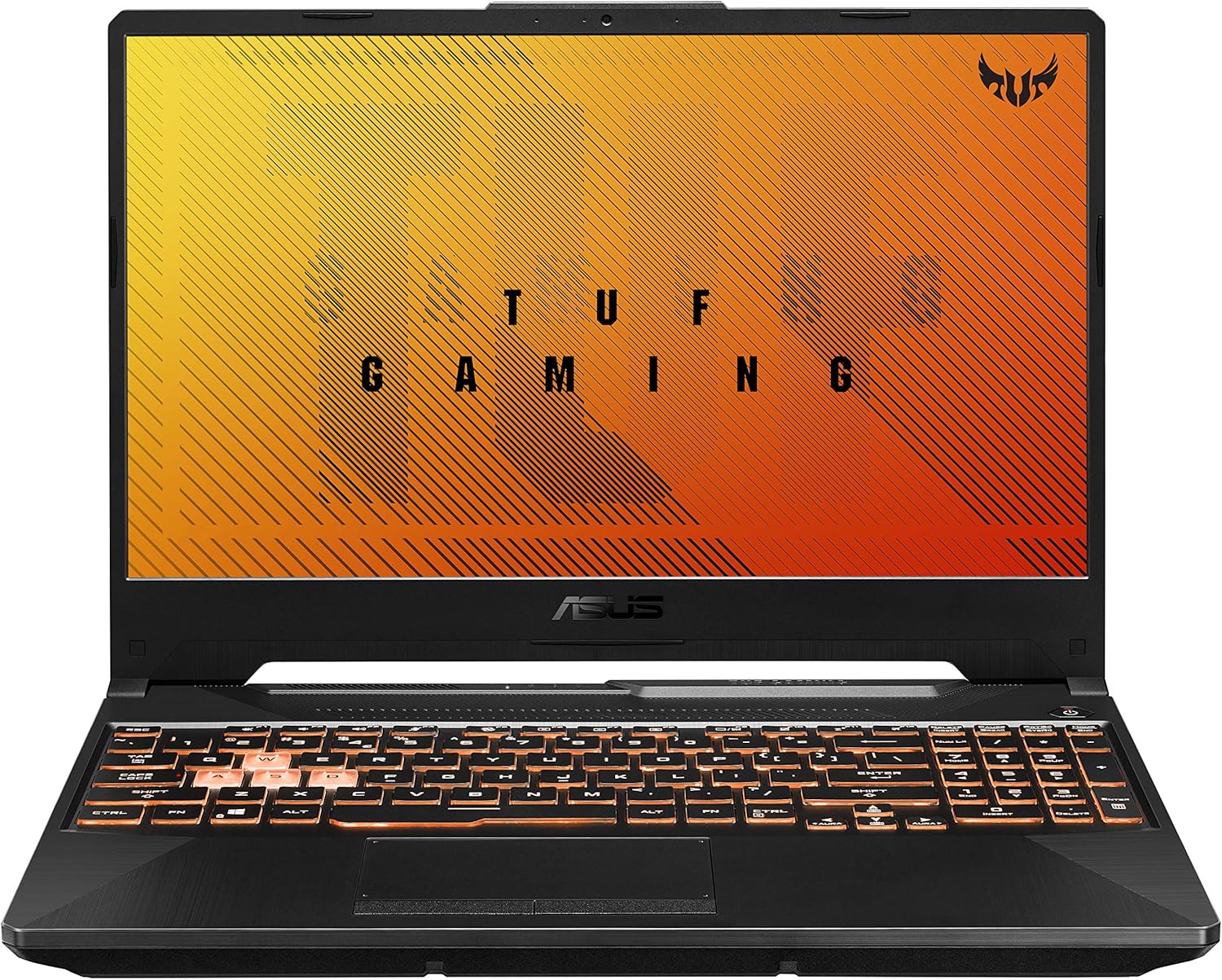
ຮູບທີ 2.1: ມຸມ view of the ASUS TUF Gaming A15 laptop with its display open.
ຄຸນນະສົມບັດທີ່ສໍາຄັນ:
- ໜ່ວຍປະມວນຜົນ: AMD Ryzen 5 4600H
- ຮູບພາບ: NVIDIA GeForce GTX 1650 Ti 4GB GDDR6
- ຈໍສະແດງຜົນ: 15.6-inch 144Hz FHD (1920x1080) IPS-Type
- ການເກັບຮັກສາ: 512GB PCIe NVMe M.2 SSD
- ໜ່ວຍຄວາມຈຳ: 8GB DDR4 3200MHz RAM
- ລະບົບປະຕິບັດການ: Windows 10 Home (Free upgrade to Windows 11 available)
- ຄວາມທົນທານ: ການກໍ່ສ້າງມາດຕະຖານທາງທະຫານ MIL-STD-810H
- ຄວາມເຢັນ: Dual fans with self-cleaning anti-dust technology
- ແປ້ນພິມ: RGB Backlit, 20-million keystroke durability
- ການເຊື່ອມຕໍ່: Gigabit Wave 2 Wi-Fi 5 (802.11ac)
3. ການຕິດຕັ້ງເບື້ອງຕົ້ນ
3.1 Unboxing ແລະການເຊື່ອມຕໍ່ພະລັງງານ
- ເອົາແລັບທັອບ ແລະອຸປະກອນເສີມທັງໝົດອອກຈາກເຄື່ອງຫຸ້ມຫໍ່ຢ່າງລະມັດລະວັງ.
- ເຊື່ອມຕໍ່ອະແດບເຕີ AC ເຂົ້າກັບພອດສຽບໄຟຂອງແລັບທັອບ ແລະ ຈາກນັ້ນສຽບມັນເຂົ້າກັບປລັກໄຟ.
- Open the laptop lid and press the power button to turn on the device.

Figure 3.1: The ASUS TUF Gaming A15 laptop with its display open, ready for initial setup.
3.2 ການຕັ້ງຄ່າລະບົບປະຕິບັດການ (Windows 10 Home)
Upon first boot, the laptop will guide you through the Windows 10 Home setup wizard. Follow the on-screen prompts to configure your region, language, network settings, and user account. It is recommended to connect to the internet during this process to ensure all necessary updates are downloaded.
During the setup, you will be asked to customize your device usage. Selecting 'Gaming' will optimize Windows 10 for gaming performance and suggest relevant tools and services.

ຮູບ 3.2: ເທິງລົງລຸ່ມ view of the ASUS TUF Gaming A15 keyboard, highlighting the WASD keys and RGB backlighting.
4. ພອດແລະການເຊື່ອມຕໍ່
The ASUS TUF Gaming A15 offers a variety of ports for connecting peripherals and external displays.
4.1 Available Ports:
- USB 3.2 Gen 1 Type-A: Multiple ports for high-speed data transfer.
- USB 3.2 Gen 2 Type-C: Supports DisplayPort 1.4 for external monitors.
- HDMI 2.0b: ສໍາລັບການເຊື່ອມຕໍ່ກັບຈໍສະແດງຜົນພາຍນອກຫຼືໂທລະພາບ.
- ພອດ LAN RJ45: ສໍາລັບການເຊື່ອມຕໍ່ອິນເຕີເນັດແບບມີສາຍ.
- ຊ່ອງສຽບສຽງຄອມໂບ 3.5 ມມ: ສຳລັບຫູຟັງທີ່ມີໄມໂຄຣໂຟນ.
- ການປ້ອນຂໍ້ມູນພະລັງງານ: ສໍາລັບການເຊື່ອມຕໍ່ອະແດບເຕີ AC.

Figure 4.1: Left side of the ASUS TUF Gaming A15 laptop, displaying the power input, RJ45, HDMI, USB-A, and USB-C ports.
4.2 Wireless Connectivity:
- Wi-Fi 5 (802.11ac): Provides fast wireless internet access.
- Bluetooth 5.0: For connecting wireless peripherals like headsets and mice.
5. ແປ້ນພິມ ແລະ Touchpad
The ASUS TUF Gaming A15 features a full-sized RGB backlit keyboard and a responsive touchpad.
5.1 RGB Backlit Keyboard:
- The keyboard offers customizable RGB backlighting, allowing you to personalize the lighting effects.
- The WASD keys are highlighted for gaming.
- Keys are rated for 20-million keystroke durability.
5.2 ແຜ່ນສໍາຜັດ:
The touchpad supports multi-touch gestures for intuitive navigation within Windows. It is designed for quick and accurate response.
6. ການປະຕິບັດ
The ASUS TUF Gaming A15 is built for gaming and demanding tasks. Its AMD Ryzen 5 4600H processor and NVIDIA GeForce GTX 1650 Ti graphics card provide solid performance for 1080p gaming and everyday computing.
6.1 Gaming Performance:
The GTX 1650 Ti is capable of running many modern games at 1080p resolution with playable frame rates. For optimal performance, ensure your laptop is plugged in and set to a high-performance power profile.
6.2 ລະບົບຄວາມເຢັນ:
The laptop incorporates dual fans with self-cleaning anti-dust technology to maintain optimal temperatures during intensive use, preventing thermal throttling and extending component lifespan. While fans may become audible under heavy load, this is normal for gaming laptops.

Figure 6.1: Diagram illustrating the 'Lasting Cool' anti-dust cooling system of the ASUS TUF Gaming A15.
7. ບໍາລຸງຮັກສາ
Regular maintenance helps ensure the longevity and optimal performance of your ASUS TUF Gaming A15 laptop.
7.1 ການອະນາໄມ:
- ໃຊ້ຜ້າແພທີ່ອ່ອນນຸ່ມ, ບໍ່ມີສານດ່າງເພື່ອເຮັດຄວາມສະອາດໜ້າຈໍ ແລະ ພາຍນອກ.
- ສໍາລັບຮອຍເປື້ອນທີ່ແຂງ, ເບົາບາງ dampໃສ່ຜ້າດ້ວຍນ້ໍາຫຼືເຄື່ອງເຮັດຄວາມສະອາດຫນ້າຈໍ.
- ທຳຄວາມສະອາດແປ້ນພິມ ແລະ ແຜ່ນສຳຜັດເປັນປະຈຳເພື່ອກຳຈັດຝຸ່ນ ແລະ ສິ່ງເສດເຫຼືອຕ່າງໆ.
- Ensure cooling vents are clear of obstructions to maintain airflow.
7.2 ການປັບປຸງຊອບແວ:
Keep your operating system and drivers updated. Windows Update will handle OS updates, and the MyASUS application can assist with driver and firmware updates specific to your ASUS hardware.
7.3 ການດູແລຫມໍ້ໄຟ:
- ຫຼີກລ້ຽງການປະຈຸຫມໍ້ໄຟຢ່າງເຕັມທີ່ເລື້ອຍໆ.
- For prolonged storage, charge the battery to about 50-60% and store the laptop in a cool, dry place.
- If primarily using the laptop while plugged in, consider using battery health management features in MyASUS to extend battery lifespan.
8. ການແກ້ໄຂບັນຫາ
ພາກສ່ວນນີ້ແກ້ໄຂບັນຫາທົ່ວໄປທີ່ເຈົ້າອາດຈະພົບກັບແລັບທັອບຂອງເຈົ້າ.
8.1 ບັນຫາທົ່ວໄປ ແລະ ວິທີແກ້ໄຂ:
- ແລັບທັອບບໍ່ເປີດ: ໃຫ້ແນ່ໃຈວ່າອະແດບເຕີ AC ໄດ້ເຊື່ອມຕໍ່ຢ່າງແໜ້ນໜາ ແລະ ປລັກໄຟຍັງໃຊ້ງານໄດ້ຢູ່. ລອງກົດປຸ່ມເປີດປິດຄ້າງໄວ້ປະມານ 15-20 ວິນາທີເພື່ອປະຕິບັດການຣີເຊັດແບບຍາກ.
- ໜ້າ ຈໍຫວ່າງເປົ່າ: Connect an external monitor to check if the display output is working. If it is, the laptop screen may require service. Try pressing Fn + F6 (or the appropriate function key for display toggle) to switch display modes.
- ປະສິດທິພາບຊ້າ: Check for background applications consuming resources. Ensure Windows and drivers are up to date. Consider upgrading RAM if frequently running demanding applications.
- ບັນຫາການເຊື່ອມຕໍ່ Wi-Fi: Restart your router and modem. Ensure Wi-Fi drivers are updated. Check network settings in Windows.
- ແປ້ນພິມ ຫຼື touchpad ບໍ່ຕອບສະໜອງ: ຣີສະຕາດແລັບທັອບ. ກວດເບິ່ງການອັບເດດໄດເວີໃນ Device Manager.
8.2 MyASUS Application for Diagnostics and Support:
The MyASUS application provides tools for system diagnostics, updates, and direct contact with ASUS support. It can help identify and resolve many software and hardware issues.
Video 8.1: MyASUS Product Video. This video demonstrates the features and benefits of the MyASUS application, including system updates, diagnostics, and customer support options, helping users maintain and troubleshoot their ASUS devices.
9. ຂໍ້ມູນຈໍາເພາະ
| ຄຸນສົມບັດ | ຂໍ້ມູນຈໍາເພາະ |
|---|---|
| ຍີ່ຫໍ້ | ASUS |
| ຊື່ຕົວແບບ | ASUS TUF A16 Gaming Laptop (FA506II-AS53) |
| ຂະໜາດໜ້າຈໍ | 15.6 ນິ້ວ |
| ຄວາມລະອຽດໜ້າຈໍ | 1920 x 1080 pixels (FHD IPS-Type) |
| ໂຮງງານຜະລິດ | AMD Ryzen 5 4600H (3 GHz) |
| RAM | 8 GB DDR4 3200MHz |
| ຮາດດິດ | 512 GB PCIe NVMe M.2 SSD |
| Graphics Coprocessor | NVIDIA GeForce GTX 1650 Ti (4 GB GDDR6) |
| ລະບົບປະຕິບັດການ | ໜ້າຫຼັກ Windows 10 |
| ປະເພດໄຮ້ສາຍ | 802.11ac (Wi-Fi 5) |
| ຈຳນວນຂອງ USB 3.0 Ports | 4 (includes USB 3.2 Gen 1 Type-A and USB 3.2 Gen 2 Type-C) |
| ນ້ໍາຫນັກລາຍການ | 5.07 ປອນ (2.3 ກິໂລ) |
| ຂະໜາດສິນຄ້າ | 13.97 x 0.87 x 9.92 ນິ້ວ |
| ສີ | Bonfire Black |
| ໝໍ້ໄຟ | 1 ຫມໍ້ໄຟ Lithium Ion ຕ້ອງການ (ລວມ) |
10. ການຮັບປະກັນແລະການສະຫນັບສະຫນູນ
Your ASUS TUF Gaming A15 laptop comes with a manufacturer's warranty. For specific warranty terms and conditions, please refer to the documentation included with your product or visit the official ASUS support website. Registering your product with ASUS can facilitate support and warranty claims.
10.1 Contacting ASUS Support:
For technical assistance, troubleshooting, or warranty service, you can contact ASUS customer support through their official website or the MyASUS application. Having your product's serial number (located on the bottom of the laptop or in the MyASUS app) ready will expedite the support process.
10.2 MyASUS Application:
The MyASUS application is pre-installed on your laptop and serves as a central hub for system information, diagnostics, software updates, and direct access to ASUS customer service. It is recommended to utilize this tool for managing your device and seeking support.