
ແນະນຳ
This manual provides essential instructions for setting up, operating, maintaining, and troubleshooting your Surfans K7 Kids Tablet. Please read this guide thoroughly to ensure proper use and to maximize the tablet's features for a safe and engaging experience for children.
ສິນຄ້າເກີນview
ຄຸນນະສົມບັດທີ່ສໍາຄັນ
- ລະບົບປະຕິບັດການ Android 10.0: Provides a secure and fast user experience.
- 7-inch IPS FHD Display: Features a 1920 x 1200 resolution eye-care touchscreen with a 178-degree wide viewມຸມ ing.
- Quad-core Processor: Ensures smooth performance for apps and games.
- 2GB RAM, 32GB ROM: Sufficient memory for multitasking and storage, expandable via MicroSD card.
- ກ້ອງຄູ່: Equipped with 2MP front and 5MP rear cameras for photos and video calls.
- ການເຊື່ອມຕໍ່: Includes Wi-Fi and Bluetooth for wireless connections.
- Pre-installed iWAWA App: Offers updated educational content including games, videos, e-books, drawing, puzzles, and creative arts.
- ການເຂົ້າເຖິງ Google Play Store: Allows downloading additional applications like YouTube Kids, Netflix, and Hulu.
- Parental Control Mode: Enables parents to manage content, set time limits, and customize child profiles.
- Durable Kid-Proof Case: Comes with a colorful, soft, and high-quality silicone case with an integrated 360-degree adjustable stand, suitable for children aged 2 to 10 years.

Image: The Surfans K7 Kids Tablet showcasing its GMS Certified Android 10.0 operating system and access to various applications via Google Play Store.

Image: The Surfans K7 Kids Tablet in use, illustrating its key features including quad-core processor, Android 10.0, 2GB RAM, 32GB ROM, WiFi, and Parent Mode.
ອົງປະກອບຂອງແທັບເລັດ
ເຮັດຄວາມຄຸ້ນເຄີຍກັບອົງປະກອບທາງກາຍະພາບຂອງແທັບເລັດຂອງທ່ານ:
- ປຸ່ມເປີດປິດ: Typically located on the side, used to turn the tablet on/off or put it to sleep/wake it up.
- ປຸ່ມລະດັບສຽງ: ປັບລະດັບສຽງອອກ.
- ຜອດ USB-C: For charging the tablet and connecting to a computer for data transfer.
- Jack ສຽງ 3.5mm: ສໍາລັບການເຊື່ອມຕໍ່ຫູຟັງຫຼືລໍາໂພງພາຍນອກ.
- ຊ່ອງສຽບກາດ MicroSD: Allows for memory expansion using a compatible MicroSD card.
- ກ້ອງໜ້າ: Used for video calls and taking selfies.
- ກ້ອງຫຼັງ: ສໍາລັບການຖ່າຍຮູບແລະວິດີໂອ.
- ລໍາໂພງ: Provides audio output for media and notifications.
ຕັ້ງຄ່າ
1. ການສາກແທັບເລັດ
Before first use, fully charge the tablet. Connect the provided USB cable to the tablet's USB-C port and the other end to the power adapter. Plug the adapter into a wall outlet. The battery indicator on the screen will show the charging status.
2. ເປີດ / ປິດພະລັງງານ
- ເພື່ອເປີດເຄື່ອງ: Press and hold the Power Button until the screen lights up and the Surfans logo appears.
- ປິດເຄື່ອງ: Press and hold the Power Button until a menu appears on the screen. Select "Power off" and confirm.
- ນອນ/ຕື່ນ: Briefly press the Power Button to put the tablet to sleep or wake it up.
3. ການຕິດຕັ້ງເບື້ອງຕົ້ນ
Upon first power-on, follow the on-screen prompts to configure basic settings:
- ເລືອກພາສາທີ່ທ່ານຕ້ອງການ.
- Connect to a Wi-Fi network (see next step).
- Set up your Google account or create a new one. This is necessary for downloading apps from the Google Play Store.
- Review ແລະຍອມຮັບຂໍ້ກໍານົດແລະເງື່ອນໄຂ.
4. ການເຊື່ອມຕໍ່ Wi-Fi
To connect your tablet to the internet:
- ໄປທີ່ ການຕັ້ງຄ່າ.
- ແຕະໃສ່ ເຄືອຂ່າຍ ແລະອິນເຕີເນັດ.
- ເລືອກ Wi-Fi ແລະເປີດມັນ.
- The tablet will scan for available networks. Select your desired network from the list.
- Enter the Wi-Fi password if prompted, then tap ເຊື່ອມຕໍ່.
ຄໍາແນະນໍາການດໍາເນີນງານ
1. ການນໍາທາງພື້ນຖານ
The Surfans K7 tablet uses a touchscreen for interaction:
- ແຕະ: ສຳຜັດໜ້າຈໍໜຶ່ງຄັ້ງເພື່ອເລືອກລາຍການ, ເປີດແອັບ ຫຼື ກົດປຸ່ມ.
- ປັດ: Drag your finger across the screen to scroll through pages, lists, or switch between home screens.
- Pinch-to-Zoom: ວາງສອງນິ້ວເທິງໜ້າຈໍ ແລະຍ້າຍພວກມັນອອກຈາກກັນ ຫຼືເຂົ້າກັນເພື່ອຊູມເຂົ້າ ຫຼືອອກ.
- ການແຈ້ງເຕືອນ ແລະການຕັ້ງຄ່າດ່ວນ: Swipe down from the top of the screen to access notifications and quick settings toggles (Wi-Fi, Bluetooth, etc.).
2. Downloading Apps from Google Play Store
With a Google account set up, you can download a wide variety of applications:
- ແຕະທີ່ Play Store icon ໃນຫນ້າຈໍເຮືອນຫຼື app drawer ຂອງທ່ານ.
- Browse or search for apps, games, movies, and books.
- Select an item and tap ຕິດຕັ້ງ ເພື່ອດາວໂຫລດແລະຕິດຕັ້ງມັນ.
3. Using Pre-installed iWAWA App
The iWAWA app provides a safe and engaging environment for children:
- ຄົ້ນຫາແລະແຕະທີ່ iWAWA ໄອຄອນ.
- Explore the various categories such as games, videos, e-books, and creative activities.
- Content within iWAWA is curated to be age-appropriate and educational.
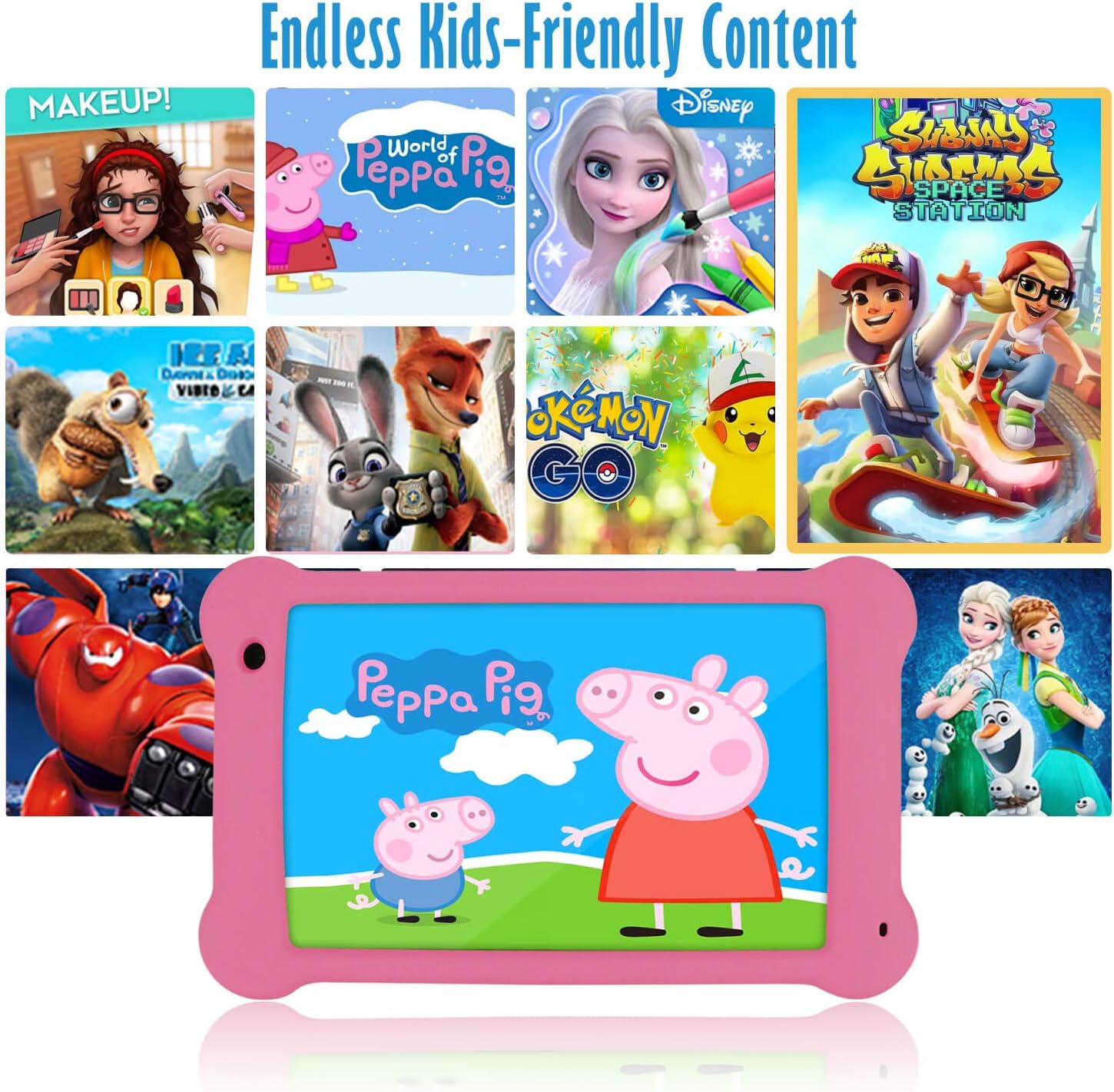
Image: The Surfans K7 Kids Tablet showcasing a variety of popular kid-friendly content, accessible through pre-installed apps and Google Play Store.
ໂໝດການຄວບຄຸມຂອງພໍ່ແມ່
The Surfans K7 tablet includes a dedicated Parental Control Mode to manage your child's usage and ensure a safe digital environment.
1. Accessing Parental Mode
To access and configure parental controls:
- ຊອກຫາແລະເປີດ ໂໝດພໍ່ແມ່ or iWAWA Parent ຄໍາຮ້ອງສະຫມັກໃນແທັບເລັດ.
- You will be prompted to set up a password or PIN for secure access. Remember this password.
2. Setting Time Limits
Manage how long your child can use the tablet:
- Configure daily usage limits for the tablet.
- Set specific time blocks during which the tablet can or cannot be used (e.g., bedtime restrictions).
3. Content Filtering
Ensure your child accesses only appropriate content:
- Select and approve specific applications, websites, and media content that your child is allowed to access.
- Block inappropriate content categories or specific webສະຖານທີ່.
4. Managing Child Profiles
Create personalized experiences for each child:
- ສ້າງສ່ວນບຸກຄົນ profiles for multiple children.
- Customize settings, content access, and time limits for each profile based on age and preferences.

Image: A parent and child using the Surfans K7 Kids Tablet, demonstrating the ease of setting up and managing parental controls for time limits, child lock, and content filtering.
ບໍາລຸງຮັກສາ
1. ການເຮັດຄວາມສະອາດແທັບເລັດ
To keep your tablet clean and functional:
- Use a soft, lint-free cloth (e.g., microfiber cloth) to gently wipe the screen and tablet body.
- ສໍາລັບ smudges stubborn, ເລັກນ້ອຍ dampen the cloth with water. Avoid using harsh chemicals, abrasive cleaners, or excessive moisture, as these can damage the screen or internal components.
- ກວດໃຫ້ແນ່ໃຈວ່າແທັບເລັດຖືກປິດ ແລະຖອດປລັກອອກກ່ອນທຳຄວາມສະອາດ.
2. ການດູແລຫມໍ້ໄຟ
Proper battery care extends the tablet's lifespan:
- Avoid fully discharging the tablet frequently. Charge the tablet when the battery level is low (e.g., below 20%).
- Do not expose the tablet to extreme temperatures (hot or cold), as this can degrade battery performance.
- ໃຊ້ພຽງແຕ່ເຄື່ອງສາກທີ່ສະໜອງໃຫ້ ຫຼືເຄື່ອງສາກທີ່ເຂົ້າກັນໄດ້ທີ່ໄດ້ຮັບການຮັບຮອງ.
3. ການປັບປຸງຊອບແວ
Keep your tablet's software up-to-date for optimal performance and security:
- Periodically check for system updates by going to ການຕັ້ງຄ່າ > ລະບົບ > ການປັບປຸງລະບົບ.
- Ensure your tablet is connected to Wi-Fi and has sufficient battery charge before starting an update.
4. ການດູແລກໍລະນີປ້ອງກັນ
The included kid-proof silicone case offers protection:
- ເຮັດຄວາມສະອາດກໍລະນີດ້ວຍການໂຄສະນາamp ຜ້າຖ້າມັນເປື້ອນ.
- Ensure the case is properly fitted around the tablet to provide maximum protection against drops and bumps.

ຮູບພາບ: A ລາຍລະອຽດ view of the Surfans K7 Kids Tablet's durable kid-proof case, highlighting its soft silicone material and anti-drop corner design for enhanced protection.
ການແກ້ໄຂບັນຫາ
This section addresses common issues you might encounter with your Surfans K7 Kids Tablet.
Tablet Does Not Turn On
- ກວດສອບຫມໍ້ໄຟ: Ensure the tablet is charged. Connect it to the charger for at least 30 minutes, then try powering it on again.
- ບັງຄັບປິດເປີດໃໝ່: Press and hold the Power Button for about 10-15 seconds until the tablet restarts.
Screen is Black but Audio is Playing
This can sometimes occur:
- Briefly press the Power Button to put the screen to sleep, then press it again to wake it up.
- If the issue persists, perform a force restart by pressing and holding the Power Button for 10-15 seconds.
ບັນຫາການເຊື່ອມຕໍ່ Wi-Fi
- ເປີດໃຊ້ Wi-Fi: ໄປທີ່ ການຕັ້ງຄ່າ > ເຄືອຂ່າຍ ແລະອິນເຕີເນັດ > Wi-Fi and ensure Wi-Fi is turned on.
- ຣີສະຕາດເຣົາເຕີ: ຣີສະຕາດເລົາເຕີ Wi-Fi ແລະໂມເດັມຂອງທ່ານ.
- ລືມເຄືອຂ່າຍ: Go to Wi-Fi settings, tap on your network, and select "Forget network." Then, reconnect to the network and re-enter the password.
- ຄວາມແຮງຂອງສັນຍານ: If the signal is weak, move closer to your Wi-Fi router.
Apps Are Slow or Crashing
- ປິດແອັບທີ່ບໍ່ໄດ້ໃຊ້: Swipe up from the bottom of the screen (or tap the square navigation button) to view recent apps, then swipe them away to close.
- ຣີສະຕາດແທັບເລັດ: A simple restart can often resolve performance issues.
- ລຶບລ້າງ App Cache: ໄປທີ່ ການຕັ້ງຄ່າ > ແອັບ > [ຊື່ແອັບ] > ບ່ອນເກັບຂໍ້ມູນ ແລະແຄດ > ລຶບແຄດ.
Tablet is Unresponsive
If the tablet freezes and does not respond to touch:
- Perform a force restart by pressing and holding the Power Button for approximately 10-15 seconds until the device powers off and restarts.
ຣີເຊັດເປັນຄ່າໂຮງງານ (ຣີສອດຄັ້ງສຸດທ້າຍ)
If all other troubleshooting steps fail, a factory reset may be necessary. Warning: This will erase all data on the tablet, including apps, photos, and user settings. Back up any important data before proceeding.
- ໄປທີ່ ການຕັ້ງຄ່າ > ລະບົບ > ຕົວເລືອກຣີເຊັດ.
- ແຕະ ລຶບຂໍ້ມູນທັງໝົດ (ຣີເຊັດເປັນຄ່າໂຮງງານ).
- ຢືນຢັນການຕັດສິນໃຈຂອງທ່ານແລະປະຕິບັດຕາມຄໍາແນະນໍາໃນຫນ້າຈໍ.
ຂໍ້ມູນຈໍາເພາະ

Image: Visual comparison highlighting the superior clarity of the 1920x1200 FHD IPS display with a 178-degree wide viewing angle on the Surfans K7 Kids Tablet.
| ຄຸນສົມບັດ | ຂໍ້ມູນຈໍາເພາະ |
|---|---|
| ຍີ່ຫໍ້ | Surfans |
| ຊື່ຕົວແບບ | K7 |
| ລະບົບປະຕິບັດການ | Android 10.0 |
| ຂະໜາດໜ້າຈໍ | 7 ນິ້ວ |
| ຄວາມລະອຽດໜ້າຈໍສູງສຸດ | 1920 x 1200 ພິກເຊລ |
| ຍີ່ຫໍ້ເຄື່ອງປະມວນຜົນ | ARM (Quad-core 1.6GHz) |
| Installed RAM Memory | 2 GB |
| ຄວາມອາດສາມາດເກັບຮັກສາຫນ່ວຍຄວາມຈໍາ | 32 GB |
| ການເກັບຮັກສາທີ່ຂະຫຍາຍໄດ້ | ຊ່ອງສຽບກາດ MicroSD |
| Front Photo Sensor Resolution | 2 MP |
| ສູງສຸດ Webcam ຄວາມລະອຽດຮູບພາບ | 5 MP |
| ຄວາມລະອຽດການບັນທຶກວິດີໂອ | FHD 1080p |
| ເຕັກໂນໂລຊີການເຊື່ອມຕໍ່ | Bluetooth, USB, Wi-Fi |
| ເຂົ້າກັນໄດ້ Wireless | 802.11a/b/g/n |
| ການເຊື່ອມຕໍ່ຮາດແວ | 3.5 mm Audio Jack, USB-C Port |
| ປະເພດຫມໍ້ໄຟ | ລີໂທມໂພລີເມີ |
| ຄວາມອາດສາມາດຫມໍ້ໄຟ | 3000 mAh |
| ອາຍຸຫມໍ້ໄຟສະເລ່ຍ | 8 ຊົ່ວໂມງ |
| ນ້ໍາຫນັກລາຍການ | 450 ກຣາມ |
| ສີ | ສີບົວ |
| ລາຍລະອຽດຊ່ວງອາຍຸ | Baby, Children (2-10 years) |
ການຮັບປະກັນແລະການສະຫນັບສະຫນູນ
The Surfans K7 Kids Tablet comes with a standard manufacturer's warranty. For specific warranty terms, conditions, and duration, please refer to the warranty card included in the product packaging or contact Surfans customer support.
For technical assistance, troubleshooting beyond this manual, or further inquiries, please visit the official Surfans webເວັບໄຊທ໌ ຫຼື ຕິດຕໍ່ພະແນກບໍລິການລູກຄ້າຂອງເຂົາເຈົ້າຜ່ານຂໍ້ມູນຕິດຕໍ່ທີ່ໃຫ້ມາພ້ອມກັບການຊື້ຂອງທ່ານ ຫຼື ໃນ webເວັບໄຊ.