
ແນະນຳ
This manual provides detailed instructions for the POMIACAM VGA to USB 2.0 Video Capture Card. This device is designed to convert VGA signals from various sources into a USB 2.0 output for capture and recording on a computer. It supports UVC/UAC specifications and is compatible with Windows, Linux, and Android operating systems.

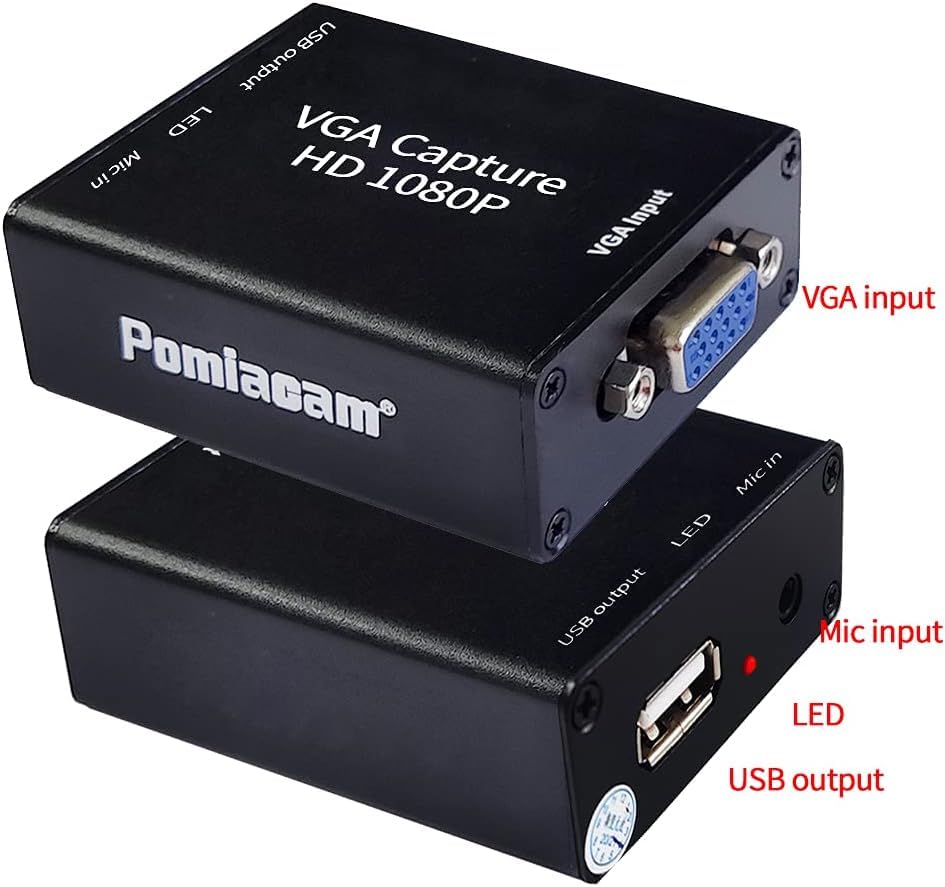
Figure 0: POMIACAM VGA to USB 2.0 Video Capture Card. ໂດຍລວມ view of the capture card, highlighting its compact form factor and primary connection ports.
ມີຫຍັງແດ່
ຊຸດປະກອບມີລາຍການຕໍ່ໄປນີ້:
- VGA Capture Card
ຮູບທີ 1: ເນື້ອໃນຊຸດ. This image displays the VGA Capture Card along with its included accessories: a VGA cable and a USB cable.
ຄຸນສົມບັດ
- VGA to USB Conversion: Converts VGA signal input to USB 2.0 output.
- Audio and Video Capture: Functions as an audio and video capture device.
- UVC/UAC Compliant: Adheres to USB Video Class and USB Audio Class specifications.
- ຄວາມເຂົ້າກັນໄດ້ຢ່າງກວ້າງຂວາງ: Supports Windows, Linux, and Android systems.
- Driver-Free: Plug-and-play functionality without the need for driver installation.
- Independent Audio Input: Allows for separate audio input via a microphone jack.
- ການຈັບພາບຄວາມລະອຽດສູງ: Captures 1080P at 30 frames/sec and 720P at 60 frames/sec.
- ບໍ່ຕ້ອງການພະລັງງານພາຍນອກ: Operates without an additional power supply.
- ການອອກແບບກະທັດຮັດ: Mini size for portability and convenience.
ຄໍາແນະນໍາການຕິດຕັ້ງ
Follow these steps to set up your POMIACAM VGA to USB 2.0 Video Capture Card:
- Connect VGA Signal Source: Connect the VGA signal source (e.g., computer, ultrasound machine, industrial camera) to the VGA input interface on the capture card.
- ເຊື່ອມຕໍ່ກັບຄອມພິວເຕີ: Connect the USB output of the capture card to a USB port on your computer using the provided USB cable. The device is drive-free.
- ການປ້ອນຂໍ້ມູນສຽງ (ທາງເລືອກ): For audio input, connect an audio signal source (e.g., microphone) to the "Mic in" port on the capture card.

Figure 2: VGA Signal Input Sources. This diagram shows common devices that can connect to the capture card's VGA input, including a laptop, an ultrasound machine, and a VGA industrial camera.

Figure 3: Connection Diagram. This illustration details the setup process, showing a VGA signal source connected to the capture card, an optional microphone connected for audio input, and the capture card's USB output connected to a laptop for data transfer.

Figure 4: USB Output Connection. ລາຍລະອຽດ view of the capture card's USB output port connected to a laptop, emphasizing its USB 2.0 interface and driver-free operation.
ຄໍາແນະນໍາການດໍາເນີນງານ
Once the capture card is connected, follow these steps to begin capturing video:
- Open Acquisition Software: On your computer, open your preferred video acquisition software (e.g., OBS, Potplayer, AMCAP, VLC).
- ເລືອກອຸປະກອນ: Within the software, select the device named "AFN_Cap video" and activate it.
- ກວດສອບສັນຍານ: A red LED light on the capture card will flash, indicating successful signal acquisition.
- ເລີ່ມການບັນທຶກ/ສະຕຣີມມິງ: You can now use the software to record or stream the VGA input.
The capture card supports real-time capture of 1080P at 30 frames/second and 720P at 60 frames/second. The lowest supported resolution is 640x480p.

Figure 5: High-Definition Capture Exampເລ. This image illustrates the capture card's ability to capture high-definition video, showing a projector connected to a laptop, capable of real-time 1080P 30fps or 720P 60fps capture.
ຄໍາຮ້ອງສະຫມັກ
The POMIACAM VGA to USB 2.0 Video Capture Card is suitable for a variety of applications, including:
- Equipment video collection
- Corporate video conferencing
- Educational presentations (PTT)
- Church services and events
- Using a laptop/PC as a monitor for devices or game consoles
- Connecting a projector to a computer
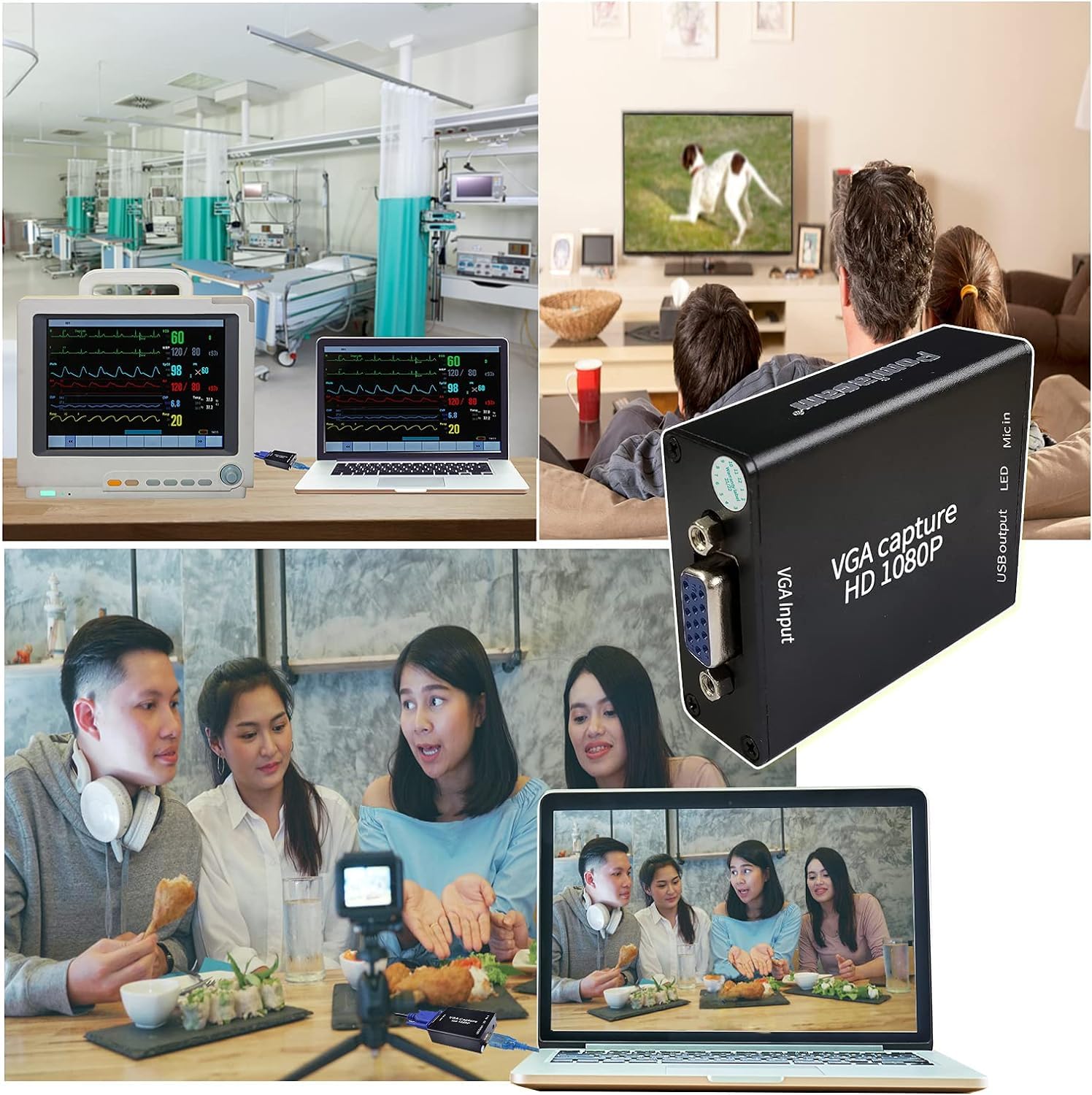
Figure 6: Diverse Applications. A visual collage showcasing the versatility of the VGA Capture Card across different environments, such as medical facilities, home entertainment setups, and professional video conferencing or streaming.
ຂໍ້ມູນຈໍາເພາະ
| ຄຸນສົມບັດ | ລາຍລະອຽດ |
|---|---|
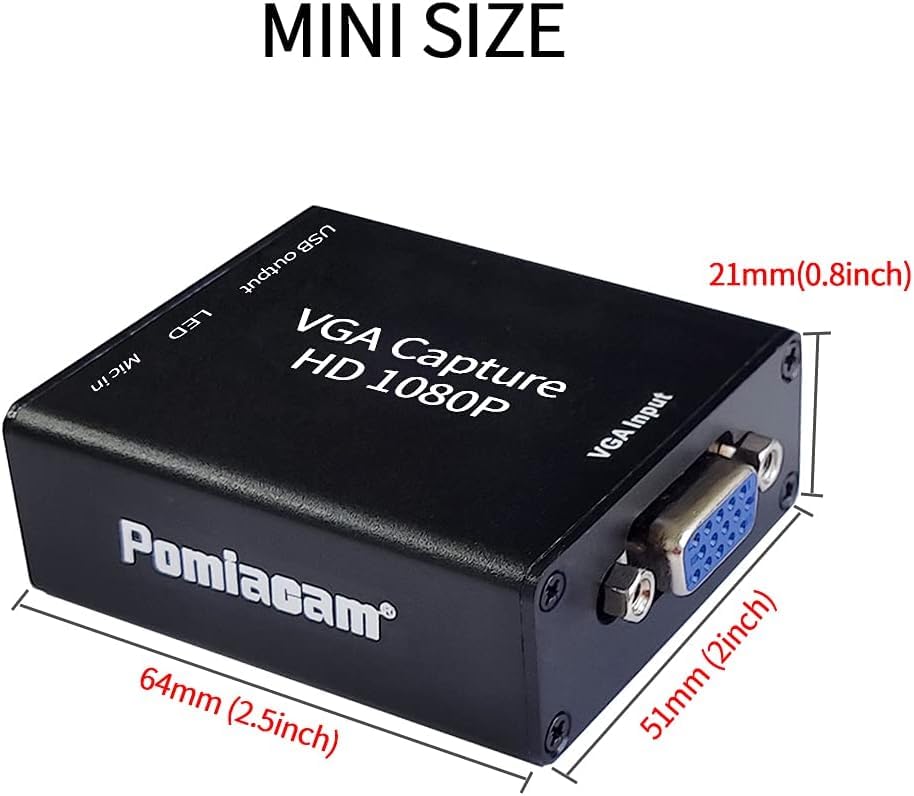
| ຂະໜາດສິນຄ້າ | 2.56 x 2.17 x 0.98 ນິ້ວ |
| ນ້ໍາຫນັກລາຍການ | 2.12 ອອນ |
| ການໂຕ້ຕອບຮາດແວ | USB 2.0 |
| ຄວາມລະອຽດການຖ່າຍວິດີໂອ | 1080p (30fps), 720p (60fps) |
| ຄວາມເຂົ້າກັນໄດ້ຂອງລະບົບປະຕິບັດການ | Android, Linux, Windows |
| Minimum Resolution Supported | ຂະ ໜາດ 640x480p |
ຮູບທີ 7: ຂະໜາດຜະລິດຕະພັນ. This image provides a clear visual of the capture card's compact size, with precise measurements for length, width, and height.
ການແກ້ໄຂບັນຫາ
- ບໍ່ມີສັນຍານ/ໜ້າຈໍດຳ:
- Ensure all cables (VGA and USB) are securely connected.
- Verify that the VGA source device is powered on and outputting a signal.
- Check your acquisition software settings to ensure the correct device ("AFN_Cap video") is selected and active.
- Confirm the red LED on the capture card is flashing, indicating signal acquisition.
- ບໍ່ມີສຽງ:
- Ensure the audio source is properly connected to the "Mic in" port.
- Check audio settings within your acquisition software and computer's sound settings.
- Verify the audio source is active and producing sound.
- ຄຸນນະພາບ/ຄວາມຊັກຊ້າຂອງວິດີໂອບໍ່ດີ:
- Ensure your computer meets the minimum system requirements for video capture.
- Close other demanding applications running in the background.
- Try a different USB 2.0 port on your computer.
- Reduce the capture resolution or frame rate in your software settings if your system struggles with higher settings.
- ອຸປະກອນບໍ່ຮັບຮູ້:
- Try connecting the capture card to a different USB port.
- ປິດເປີດຄອມພິວເຕີຂອງທ່ານຄືນໃໝ່.
- Although driver-free, ensure your operating system is up-to-date.
ການຮັບປະກັນແລະການສະຫນັບສະຫນູນ
The POMIACAM VGA to USB 2.0 Video Capture Card comes with a free one-year warranty. For any questions or support regarding the VGA capture card, please contact customer service. You can leave a message, and a response will be provided within 24 hours.
ວິດີໂອສາທິດຜະລິດຕະພັນ
Video 1: VGA to USB Adapter Converter Overview. ວິດີໂອນີ້ໃຫ້ລາຍລະອຽດສັ້ນໆview of the POMIACAM VGA to USB adapter converter, demonstrating its physical connections and highlighting its mini size and plug-and-play features. It shows the VGA input and USB output connections.