
1. ບົດແນະນຳ
The i-tec USB-C Quattro Docking Station is designed to expand the connectivity of your USB-C enabled laptop or tablet, allowing for connection of up to four external displays, multiple USB peripherals, Gigabit Ethernet, and audio devices. It also provides up to 85W Power Delivery to charge your host device. This manual provides detailed instructions for setting up, operating, and maintaining your docking station.
2. ເນື້ອໃນຊຸດ
ກະລຸນາກວດສອບວ່າລາຍການທັງໝົດທີ່ມີລາຍຊື່ລຸ່ມນີ້ຢູ່ໃນຊຸດຂອງທ່ານ:
- i-tec USB-C Quattro Docking Station
- Power Adapter
- ສາຍໄຟ
- ສາຍ USB-C ຫາ USB-C
- ຄູ່ມືເລີ່ມຕົ້ນດ່ວນ

ຮູບທີ 2.1: Package Contents. The image displays the docking station, its power adapter, a power cable, and a quick setup guide.
3. ຜະລິດຕະພັນເກີນview
Familiarize yourself with the ports and indicators on your i-tec USB-C Quattro Docking Station.
3.1 ກະດານດ້ານ ໜ້າ

ຮູບທີ 3.1: Front Panel. This image shows the front of the docking station with a power button, microphone input jack, headphone output jack, one USB-C data port, and one USB 3.0 port.
- ປຸ່ມເປີດປິດ: ເພື່ອເປີດ / ປິດສະຖານີຈອດ.
- Microphone Jack (3.5mm): ເຊື່ອມຕໍ່ໄມໂຄຣໂຟນ.
- Jack ຫູຟັງ (3.5mm): ເຊື່ອມຕໍ່ຫູຟັງ ຫຼື ລຳໂພງ.
- ພອດຂໍ້ມູນ USB-C: ສຳລັບການເຊື່ອມຕໍ່ອຸປະກອນພ່ວງ USB-C.
- ພອດ USB 3.0: For connecting USB 3.0/2.0 peripherals.
3.2 ແຜງດ້ານຫລັງ

ຮູບທີ 3.2: Rear Panel. This image displays the rear of the docking station, featuring the DC 20V power input, USB-C PD host connection, two DisplayPort outputs, two HDMI outputs, a Gigabit Ethernet (LAN) port, and four additional USB 3.0 ports.
- ການປ້ອນຂໍ້ມູນພະລັງງານ DC 20V: ເຊື່ອມຕໍ່ອະແດບເຕີໄຟທີ່ປະກອບມາ.
- USB-C PD Host Port: Connect to your laptop/tablet for data, video, and power delivery.
- ພອດສະແດງຜົນ 2x: Connect external monitors via DisplayPort cables.
- 2x HDMI: Connect external monitors via HDMI cables.
- GLAN (RJ-45) Port: ເຊື່ອມຕໍ່ກັບເຄືອຂ່າຍມີສາຍ.
- 4x USB 3.0 Ports: Connect USB 3.0/2.0 peripherals.
4. ຄໍາແນະນໍາການຕິດຕັ້ງ
Follow these steps to set up your i-tec USB-C Quattro Docking Station:
- ເຊື່ອມຕໍ່ພະລັງງານ: Connect the power adapter to the DC 20V input on the rear of the docking station, then plug the power cable into a wall outlet.
- ເຊື່ອມຕໍ່ຫາອຸປະກອນໂຮສ: Use the provided USB-C to USB-C cable to connect the docking station's USB-C PD Host Port to your laptop's USB-C port. Ensure your laptop's USB-C port supports DisplayPort Alternate Mode and Power Delivery for full functionality.
- ເຊື່ອມຕໍ່ຈໍສະແດງຜົນພາຍນອກ: Connect your monitors to the DisplayPort and/or HDMI ports on the rear of the docking station. You can connect up to four displays simultaneously.
- ເຊື່ອມຕໍ່ອຸປະກອນຕໍ່ພ່ວງ: Plug your USB devices (keyboard, mouse, external drives) into the available USB 3.0 or USB-C data ports. Connect an Ethernet cable to the GLAN port for wired network access. Connect headphones/speakers and a microphone to the respective audio jacks on the front panel.
- ເປີດ: Press the power button on the front of the docking station. Your operating system should automatically detect the connected devices.
- ການຕິດຕັ້ງໄດເວີ (ຖ້າຈໍາເປັນ): For optimal performance or specific features, visit www.i-tec.cz/setup to download and install any required drivers for your operating system.
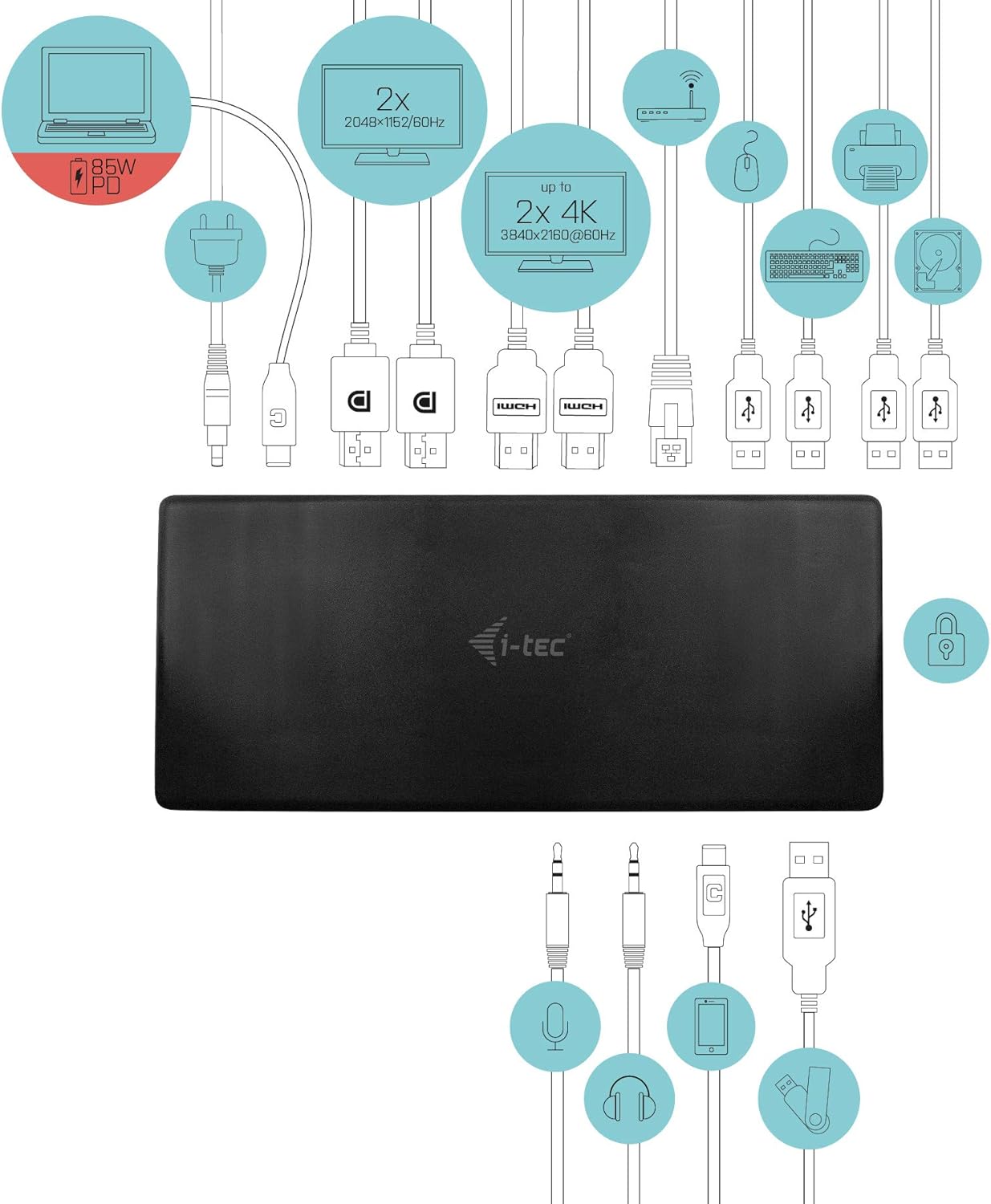
ຮູບທີ 4.1: Connection Diagram. This diagram shows the various connections to the docking station, including power, host laptop, multiple monitors (DisplayPort and HDMI), Ethernet, and USB peripherals like a mouse, keyboard, and external storage.
5. ຄໍາແນະນໍາການດໍາເນີນງານ
Once set up, your docking station provides enhanced functionality for your workspace.
5.1 ການຕັ້ງຄ່າຫຼາຍຈໍສະແດງຜົນ
The docking station supports up to four external displays. You can configure these displays in various modes (extended, mirrored) through your operating system's display settings.
- ການແກ້ໄຂ: Supports up to 2x 2048x1152@60Hz and 2x 4K/60Hz, depending on your host device's capabilities and display connections.
- Windows: Right-click on the desktop, select 'Display settings' to arrange and configure your monitors.
- macOS: Go to 'System Preferences' > 'Displays' to adjust settings.

ຮູບທີ 5.1: Four-Display Setup Example. This image illustrates a workstation with a laptop connected to the docking station, driving four external monitors simultaneously, showcasing a multi-tasking environment.
5.2 ການສົ່ງພະລັງງານ
The USB-C PD Host Port provides up to 85W of power to charge your connected laptop or tablet, eliminating the need for a separate power adapter for your host device.
5.3 ການເຊື່ອມຕໍ່ USB
Utilize the 5x USB 3.0 ports and 1x USB-C data port for connecting various peripherals such as external hard drives, USB flash drives, keyboards, mice, and printers. USB 3.0 ports offer high-speed data transfer.
5.4 Gigabit Ethernet
The GLAN RJ-45 port provides a stable and high-speed wired internet connection (10/100/1000 Mbps), which is often more reliable than Wi-Fi.
5.5 ໜ້າທີ່ສຽງ
Connect your headphones, speakers, or microphone to the 3.5mm audio jacks on the front panel for integrated audio input and output.

ຮູບທີ 5.2: Productivity Setup. This image shows a professional desk environment where the docking station facilitates a multi-monitor setup for enhanced productivity, displaying various applications and data across four screens.
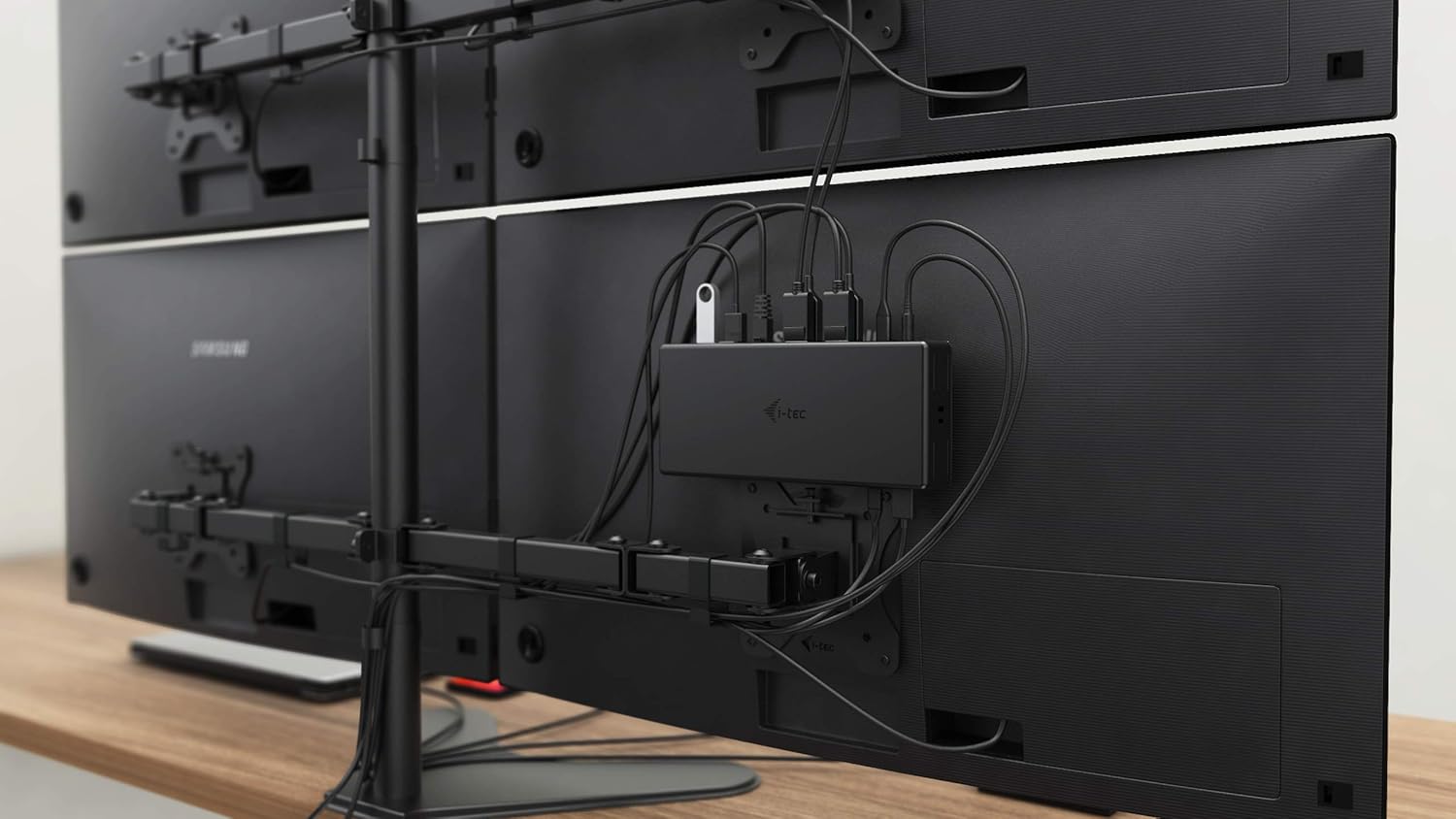
ຮູບທີ 5.3: VESA Mounting. The docking station is shown mounted vertically on the back of a VESA-compatible monitor, demonstrating its space-saving installation capability and organized cable routing.

ຮູບທີ 5.4: Connected Workstation. This image provides a close-up of the docking station on a desk, connected to a laptop via USB-C, and featuring various peripherals plugged into its front ports, including a USB drive and audio devices.
6. ບໍາລຸງຮັກສາ
ເພື່ອຮັບປະກັນອາຍຸຍືນ ແລະປະສິດທິພາບທີ່ດີທີ່ສຸດຂອງສະຖານີຈອດຂອງທ່ານ, ປະຕິບັດຕາມຄໍາແນະນໍາການບໍາລຸງຮັກເຫຼົ່ານີ້:
- ທໍາຄວາມສະອາດ: Use a soft, dry cloth to clean the exterior of the docking station. Do not use liquid cleaners or aerosols.
- ການລະບາຍອາກາດ: ໃຫ້ແນ່ໃຈວ່າສະຖານີເຊື່ອມຕໍ່ຖືກວາງໄວ້ໃນບໍລິເວນທີ່ມີລະບາຍອາກາດດີເພື່ອປ້ອງກັນຄວາມຮ້ອນເກີນໄປ. ຢ່າອຸດຕັນຊ່ອງລະບາຍອາກາດໃດໆ.
- ການຈັດການ: Avoid dropping or subjecting the docking station to strong impacts.
- ສະພາບແວດລ້ອມ: ຮັກສາອຸປະກອນໃຫ້ຫ່າງຈາກອຸນຫະພູມ, ຄວາມຊຸ່ມຊື່ນ, ແລະແສງແດດໂດຍກົງ.
- ການຄຸ້ມຄອງສາຍໄຟ: Ensure cables are not excessively bent or strained to prevent damage to ports and cables.
7. ການແກ້ໄຂບັນຫາ
ຖ້າທ່ານພົບບັນຫາກັບສະຖານີຈອດຂອງທ່ານ, ໃຫ້ອ້າງອີງເຖິງບັນຫາທົ່ວໄປ ແລະວິທີແກ້ໄຂບັນຫາຕໍ່ໄປນີ້:
7.1 ບໍ່ມີການສະແດງຜົນອອກ
- ກວດສອບການເຊື່ອມຕໍ່: Ensure all display cables (HDMI/DisplayPort) are securely connected to both the docking station and the monitors.
- ການເຊື່ອມຕໍ່ໂຮສຕ໌: Verify the USB-C cable from the docking station is firmly connected to your laptop's USB-C port.
- ພະລັງງານ: Confirm the docking station is powered on and receiving power from the adapter.
- ຄວາມເຂົ້າກັນໄດ້ຂອງແລັບທັອບ: ໃຫ້ແນ່ໃຈວ່າພອດ USB-C ຂອງແລັບທັອບຂອງທ່ານຮອງຮັບໂໝດທາງເລືອກ DisplayPort.
- ຄົນຂັບລົດ: Install the latest drivers from www.i-tec.cz/setup.
- ການຕັ້ງຄ່າການສະແດງຜົນ: Adjust your operating system's display settings to detect and extend/mirror displays.
7.2 USB Devices Not Working
- ເຊື່ອມຕໍ່ຄືນ: Disconnect and reconnect the USB device to a different port on the docking station.
- ພະລັງງານ: ກວດໃຫ້ແນ່ໃຈວ່າສະຖານີຈອດເປີດຢູ່.
- ການເຊື່ອມຕໍ່ໂຮສຕ໌: Verify the USB-C connection to your laptop.
- ການບໍລິໂພກພະລັງງານ: If connecting high-power USB devices, ensure the docking station's power adapter is correctly connected and providing sufficient power.
7.3 No Network Connection (GLAN)
- ກວດສອບສາຍ: ກວດໃຫ້ແນ່ໃຈວ່າສາຍອີເທີເນັດຖືກເຊື່ອມຕໍ່ຢ່າງປອດໄພກັບທັງສະຖານີຈອດ ແລະເຣົາເຕີ/ໂມເດັມຂອງທ່ານ.
- ເຣົາເຕີ/ໂມເດັມ: ກວດສອບວ່າເຣົາເຕີ/ໂມເດັມຂອງທ່ານເຮັດວຽກຢ່າງຖືກຕ້ອງ.
- ຄົນຂັບລົດ: Ensure the latest network drivers are installed for the docking station.
7.4 Laptop Not Charging (Power Delivery)
- Power Adapter: Confirm the docking station's power adapter is correctly connected and functioning.
- ສາຍ USB-C: Ensure the USB-C cable connecting the dock to your laptop supports Power Delivery.
- ຄວາມເຂົ້າກັນໄດ້ຂອງແລັບທັອບ: Verify your laptop's USB-C port supports Power Delivery input.
8. ຂໍ້ມູນຈໍາເພາະ
| ຄຸນສົມບັດ | ລາຍລະອຽດ |
|---|---|
| ໝາຍເລກຕົວແບບ | C31QUATTRODOCKPDUK |
| ຍີ່ຫໍ້ | i-tec |
| ຂະໜາດສິນຄ້າ | 10 x 2 x 2.7 ນິ້ວ (25.4 x 5.08 x 6.86 cm) |
| ນ້ໍາຫນັກລາຍການ | 10.2 ອໍ (0.29 ກິໂລ) |
| ການໂຕ້ຕອບຮາດແວ | DisplayPort, Ethernet, HDMI, USB, USB 3.0, USB Type C |
| ອຸປະກອນທີ່ເຂົ້າກັນໄດ້ | Laptop, Monitor, Tablet with USB-C (DisplayPort Alt Mode & Power Delivery support recommended) |
| ພອດ USB ທັງໝົດ | 6 (5x USB 3.0, 1x USB-C Data) |
| ພອດ HDMI ທັງໝົດ | 2 |
| ໜ້າຈໍສະແດງຜົນທັງໝົດ | 2 |
| ອີເທີເນັດ | Gigabit Ethernet (RJ-45) |
| ສຽງ Jacks | 1x Microphone (3.5mm), 1x Headphone (3.5mm) |
| ການຈັດສົ່ງພະລັງງານ | Up to 85W to host device |
| ສີ | ດຳ |
| ລະບົບປະຕິບັດການ | Windows 10, macOS, Android, Linux |
9. ຂໍ້ມູນການຮັບປະກັນ
The i-tec USB-C Quattro Docking Station is covered by a manufacturer's warranty. Please refer to the warranty card included in your package or visit the official i-tec webເວັບໄຊສໍາລັບເງື່ອນໄຂການຮັບປະກັນລາຍລະອຽດ. ຮັກສາຫຼັກຖານການຊື້ຂອງທ່ານສໍາລັບການຮ້ອງຂໍການຮັບປະກັນ.
10. ການຊ່ວຍເຫຼືອລູກຄ້າ
For further assistance, technical support, or to download the latest drivers and firmware, please visit the official i-tec support webເວັບໄຊ:
You may also find helpful resources and FAQs on the product's dedicated setup page: www.i-tec.cz/setup