
ແນະນຳ
The Homcloud Mini 8S Wi-Fi Camera is designed to enhance your home security with smart, intuitive features. This camera allows you to monitor, program, and automate your home devices directly from your smartphone, providing control from anywhere. It integrates seamlessly into your smart home ecosystem, offering convenience and peace of mind.
ຄຸນນະສົມບັດທີ່ສໍາຄັນປະກອບມີ:
- Full HD 1080p Video Recording
- Night Vision up to 10 meters
- Motion Detection with Live Notifications
- Two-Way Audio and Noise Reduction
- ຕົວເລືອກກາດ SD ແລະ ບ່ອນເກັບຂໍ້ມູນໃນຄລາວ
- ການເຊື່ອມຕໍ່ Wi-Fi
- Compatibility with Homcloud App, Amazon Alexa, and Google Home

Image: The Homcloud Mini 8S Wi-Fi Camera on a desk, highlighting its key features such as HD Video, Night Vision, SD Card & Cloud storage, Motion Detection, and Live Notifications.
ສ່ວນປະກອບຂອງຜະລິດຕະພັນ
The Homcloud Mini 8S Wi-Fi Camera package typically includes the following items:
- Homcloud Mini 8S Wi-Fi Camera
- ສາຍໄຟ USB
- Power Adapter (ອາດຈະແຕກຕ່າງກັນຕາມພາກພື້ນ)
- Mounting Accessories (for wall mounting)
- ຄູ່ມືຜູ້ໃຊ້ (ເອກະສານນີ້)

Image: The Homcloud Mini 8S Wi-Fi Camera positioned on a desk, demonstrating its compact design and typical indoor placement.
ຄູ່ມືການຕິດຕັ້ງ
Follow these steps to set up your Homcloud Mini 8S Wi-Fi Camera:
- Download the Homcloud App: ຊອກຫາ "Homcloud" in the Apple App Store or Google Play Store, or scan the QR code below to download the official application.
- ສ້າງບັນຊີ: Open the Homcloud app and register for a new account or log in if you already have one.
- ເປີດກ້ອງ: Connect the camera to a power source using the provided USB cable and power adapter. Wait for the indicator light to flash, indicating it's ready for pairing.
- ເພີ່ມອຸປະກອນ: In the Homcloud app, tap the "+" icon (usually in the top right corner) to add a new device. Select "Security Camera" or "Smart Camera" from the device list.
- ເຊື່ອມຕໍ່ກັບ Wi-Fi: Follow the in-app instructions to connect the camera to your 2.4GHz Wi-Fi network. You may need to scan a QR code displayed on your phone screen with the camera lens.
- ການຈັດວາງ: Position the camera in your desired location. It supports standalone placement or wall mounting. Ensure it has a clear view ຂອງພື້ນທີ່ທີ່ທ່ານຕ້ອງການຕິດຕາມ.

Image: Multiple smartphones displaying the Homcloud application interface, along with the Homcloud logo and a QR code for easy app download. The QR code links to https://smartapp.tuya.com/homcloudsmart.
ຄໍາແນະນໍາການດໍາເນີນງານ
Once your Homcloud Mini 8S Wi-Fi Camera is set up, you can control and monitor it using the Homcloud app:
- ດໍາລົງຊີວິດ View: ເປີດ app ແລະເລືອກກ້ອງຖ່າຍຮູບຂອງທ່ານທີ່ຈະ view live video feed in Full HD 1080p resolution.
- ສຽງສອງທາງ: Use the microphone and speaker icons in the app to communicate with people near the camera.
- ວິໄສທັດກາງຄືນ: The camera automatically switches to night vision mode in low-light conditions, providing clear black and white video up to 10 meters.
- ກວດຈັບການເຄື່ອນໄຫວ: Enable motion detection in the app settings to receive instant notifications on your smartphone when movement is detected. You can adjust sensitivity levels.
- ການບັນທຶກແລະການເກັບຮັກສາ:
- SD ກາດ: Insert a microSD card (not included) into the camera's slot for local video storage. The camera supports continuous recording or event-triggered recording.
- Cloud Storage: Subscribe to Homcloud's cloud storage service (if available) for secure off-site video backup.
- ການເຊື່ອມໂຍງເຮືອນອັດສະລິຍະ: Connect your Homcloud account with Amazon Alexa or Google Home to control the camera using voice commands (e.g., "Alexa, show me the living room camera").
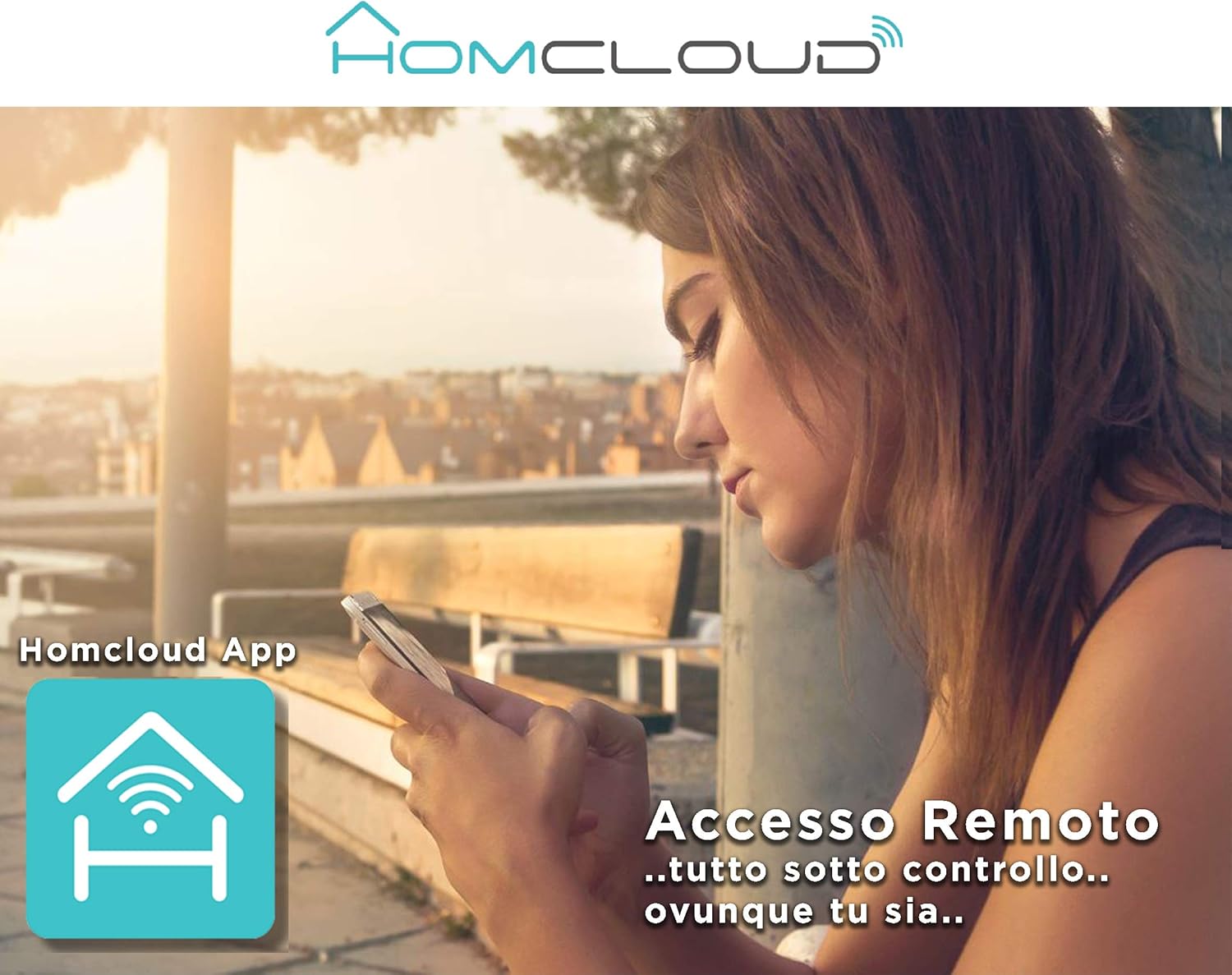
Image: A woman using her smartphone, illustrating the remote access capabilities of the Homcloud App to control and monitor the camera from any location.

Image: A family enjoying their smart home, demonstrating the integration of Homcloud solutions with Amazon Alexa and Google Assistant for convenient control.
ບໍາລຸງຮັກສາ
ການບໍາລຸງຮັກສາທີ່ເຫມາະສົມຮັບປະກັນຄວາມທົນທານແລະປະສິດທິພາບທີ່ດີທີ່ສຸດຂອງກ້ອງຖ່າຍຮູບຂອງທ່ານ:
- ທໍາຄວາມສະອາດ: ເຊັດເລນກ້ອງຖ່າຍຮູບ ແລະ ຕົວກ້ອງດ້ວຍຜ້າອ່ອນໆ ແລະ ແຫ້ງຄ່ອຍໆ. ຫຼີກລ່ຽງການໃຊ້ສານເຄມີທີ່ຮຸນແຮງ ຫຼື ວັດສະດຸຂັດທີ່ອາດຈະເຮັດໃຫ້ເລນຂູດ ຫຼື ທຳລາຍກ້ອງໄດ້.asing.
- ການອັບເດດເຟີມແວ: Regularly check the Homcloud app for available firmware updates. Keeping your camera's firmware up-to-date ensures you have the latest features, security patches, and performance improvements.
- ການສະຫນອງພະລັງງານ: Use only the original power adapter and cable provided with the camera. Ensure the power connection is secure and free from damage.
- ສະພາບແວດລ້ອມ: The camera is designed for indoor use. Avoid exposing it to extreme temperatures, direct sunlight, high humidity, or water. While it is listed as "waterproof" in some specifications, this typically refers to splash resistance and not full submersion or outdoor exposure.
ການແກ້ໄຂບັນຫາ
If you encounter issues with your Homcloud Mini 8S Wi-Fi Camera, refer to the following common solutions:
- ກ້ອງຖ່າຍຮູບອອບລາຍ:
- Check if the camera is powered on and the power cable is securely connected.
- Ensure your Wi-Fi router is working and the internet connection is stable.
- ຣີສະຕາດກ້ອງຖ່າຍຮູບໂດຍການຖອດປລັກ ແລະສຽບມັນຄືນໃໝ່.
- Verify that the camera is within range of your Wi-Fi router.
- If the issue persists, try re-pairing the camera with the Homcloud app.
- ຄຸນນະພາບວິດີໂອບໍ່ດີ:
- ເຮັດຄວາມສະອາດເລນກ້ອງຖ່າຍຮູບດ້ວຍຜ້າອ່ອນໆ.
- Ensure adequate lighting in the monitored area, especially for color video.
- Check your Wi-Fi signal strength; a weak signal can affect streaming quality.
- ກວດຈັບການເຄື່ອນໄຫວບໍ່ເຮັດວຽກ:
- Verify that motion detection is enabled in the Homcloud app settings for your camera.
- ປັບຄວາມອ່ອນໄຫວກວດຈັບການເຄື່ອນໄຫວ.
- ໃຫ້ແນ່ໃຈວ່າບໍ່ມີສິ່ງກີດຂວາງໃດໆທີ່ຂັດຂວາງກ້ອງຖ່າຍຮູບ view.
- ບໍ່ສາມາດເຊື່ອມຕໍ່ກັບແອັບ:
- Make sure your smartphone is connected to a 2.4GHz Wi-Fi network during the pairing process.
- Confirm that you are entering the correct Wi-Fi password.
- Reset the camera (refer to the app or product for specific reset instructions, usually a small button) and try the pairing process again.
ຂໍ້ມູນຈໍາເພາະ
| ຄຸນສົມບັດ | ລາຍລະອຽດ |
|---|---|
| ຍີ່ຫໍ້ | Homcloud |
| ໝາຍເລກຕົວແບບ | TY-WCM8S |
| ຄວາມລະອຽດການບັນທຶກວິດີໂອ | ຄວາມລະອຽດ Full HD 1080p |
| ຄວາມລະອຽດວິດີໂອທີ່ມີປະສິດທິພາບ | 1080 |
| ອັດຕາເຟຣມ | 25 fps |
| ເຕັກໂນໂລຊີການສື່ສານໄຮ້ສາຍ | Wi-Fi |
| ອະນຸສັນຍາການເຊື່ອມຕໍ່ | Wi-Fi |
| Viewໃນມຸມ | 100 ອົງສາ |
| ຂອບເຂດວິໄສທັດກາງຄືນ | 10 ແມັດ |
| ຄຸນນະສົມບັດພິເສດ | Two-Way Audio, Noise Reduction, HD Resolution, Night Vision |
| ການນໍາໃຊ້ທີ່ແນະນໍາ | ຄວາມປອດໄພພາຍໃນ |
| ໃຊ້ພາຍໃນ/ນອກ | ພາຍໃນ |
| ອຸປະກອນທີ່ເຂົ້າກັນໄດ້ | Homcloud App, Amazon Alexa, Android, Google Home, Smart Life, iOS |
| ແຫຼ່ງພະລັງງານ | ສາຍໄຟຟ້າ |
| ສະບັບtage | 5 ໂວນ |
| ການບໍລິໂພກພະລັງງານ | 2.5 ວັດ |
| ວັດສະດຸ | ພາດສະຕິກ |
| ຂະໜາດ (L x W x H) | 8 x 5 x 9 cm |
| ນ້ຳໜັກ | 350 ກຣາມ |
| ປະເພດການຕິດຕັ້ງ | ຕິດຝາ |
| ລະດັບຄວາມຕ້ານທານນ້ໍາ | Waterproof (Note: Typically splash resistant for indoor use) |
ການຮັບປະກັນແລະການສະຫນັບສະຫນູນ
For warranty information, please refer to the documentation provided at the time of purchase or visit the official Homcloud website. If you require technical assistance or have questions not covered in this manual, please contact Homcloud customer support through their official channels.
You can find more information and support resources on the Homcloud website or through the Homcloud application.