
ແນະນຳ
This manual provides essential information for the proper setup, operation, and maintenance of your Philips 346B1C Curved Monitor. This 34-inch WQHD (3440 x 1440) display features a 100 Hz refresh rate, 5ms response time, and a curved VA panel for an immersive viewing experience. Key features include USB-C docking, MultiView functionality, FreeSync technology, LowBlue Mode, and FlickerFree technology for enhanced user comfort and productivity.

ຮູບພາບ: ທາງຫນ້າ view of the Philips 346B1C curved monitor, showcasing its ultrawide display and key features like WQHD, USB-C Docking, and MultiView.
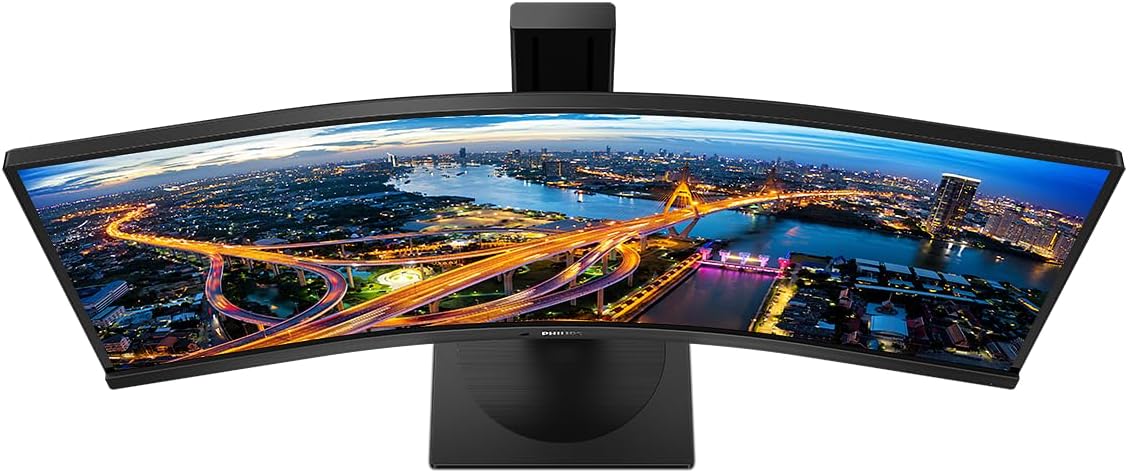
ຮູບພາບ: ເທິງລົງລຸ່ມ view of the Philips 346B1C curved monitor, emphasizing the curvature of the screen.
ແມ່ນຫຍັງຢູ່ໃນກ່ອງ
ກວດສອບວ່າອົງປະກອບທັງຫມົດແມ່ນມີກ່ອນທີ່ຈະສືບຕໍ່ການຕັ້ງຄ່າ.
- Philips 346B1C Curved Monitor
- Monitor Stand (ຖານ ແລະ ຄໍ)
- ສາຍໄຟ
- ສາຍ HDMI
- ສາຍ DisplayPort
- ສາຍ USB-C ຫາ USB-C
- USB-A to USB-B Cable (Upstream)
- Documentation (Quick Start Guide, User Manual CD)
ຄໍາແນະນໍາການຕິດຕັ້ງ
1. ການປະກອບຂາຕັ້ງ
- ວາງຈໍພາບໜ້າລົງເທິງພື້ນຜິວທີ່ສະອາດ ແລະ ອ່ອນນຸ້ມເພື່ອປ້ອງກັນຮອຍຂີດຂ່ວນ.
- ແນບຄໍຂາຕັ້ງໃສ່ກັບແຜງຈໍພາບ. ໃຫ້ແນ່ໃຈວ່າມັນກົດຢ່າງປອດໄພເຂົ້າໄປໃນສະຖານທີ່ຫຼືໄດ້ຖືກ fastened ດ້ວຍ screws ຖ້າຫາກວ່າໄດ້ສະຫນອງໃຫ້.
- ຕິດຖານຂາຕັ້ງເຂົ້າກັບຄໍຂາຕັ້ງ. ຂັນສະກູນິ້ວໂປ້ ຫຼື ສະກູຈາກດ້ານລຸ່ມຂອງຖານໃຫ້ແໜ້ນ.

ຮູບພາບ: ດ້ານຫລັງ view of the Philips 346B1C monitor, showing the stand attachment point and VESA mounting holes.
2. ການເຊື່ອມຕໍ່ກັບຄອມພິວເຕີຂອງທ່ານ
Connect the monitor to your computer using one of the following methods:
- ການເຊື່ອມຕໍ່ HDMI: ເຊື່ອມຕໍ່ສົ້ນໜຶ່ງຂອງສາຍ HDMI ກັບຜອດ HDMI ຂອງຈໍພາບ ແລະອີກສົ້ນໜຶ່ງກັບຊ່ອງສຽບ HDMI ຂອງຄອມພິວເຕີຂອງທ່ານ.
- ການເຊື່ອມຕໍ່ DisplayPort: Connect one end of the DisplayPort cable to the monitor's DisplayPort and the other end to your computer's DisplayPort output.
- ການເຊື່ອມຕໍ່ USB-C: Connect one end of the USB-C cable to the monitor's USB-C port and the other end to your computer's USB-C port. This connection supports video, data, and power delivery (up to 90W) to your laptop.
For USB hub functionality, connect the USB-A to USB-B upstream cable from your computer to the monitor's USB-B upstream port.
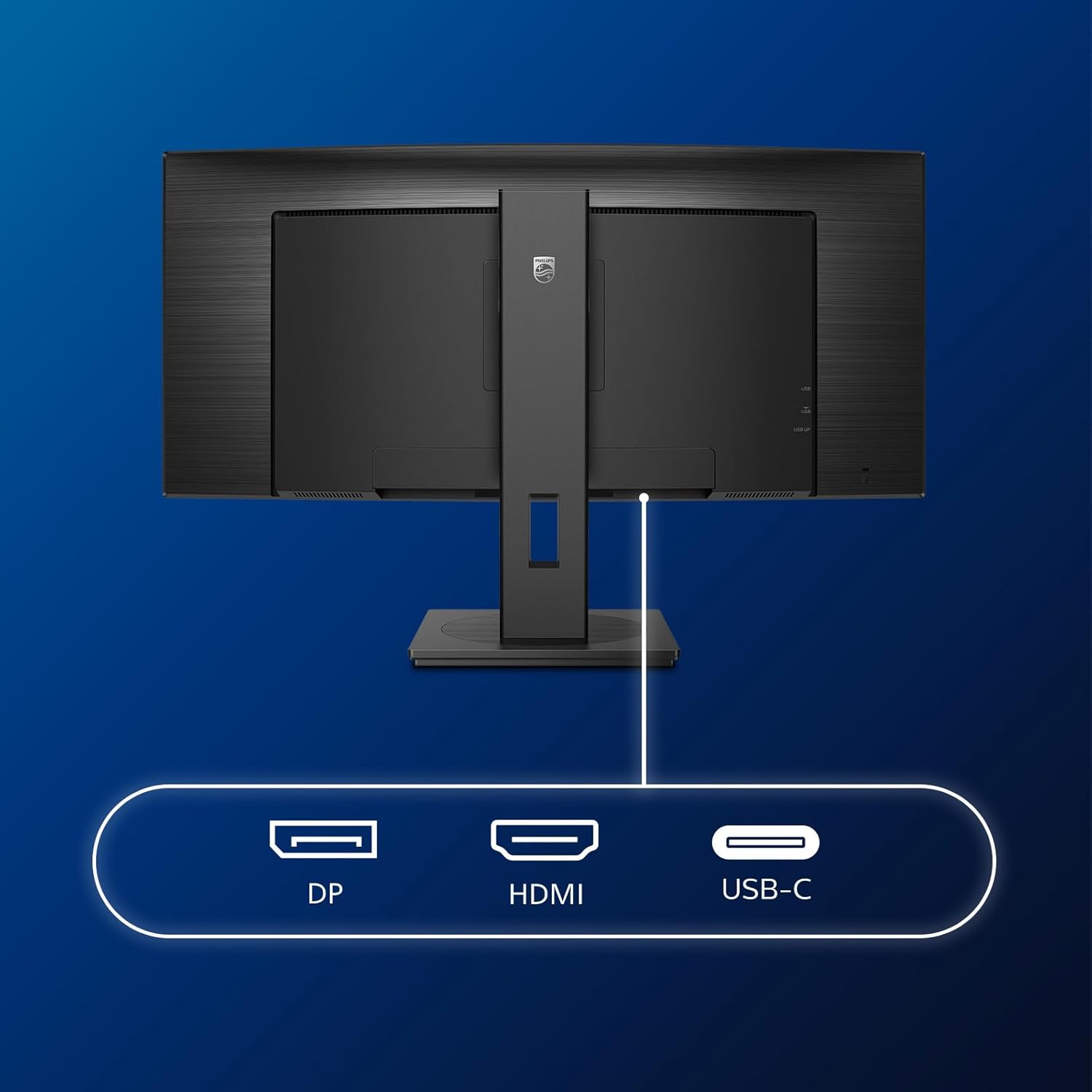
ຮູບພາບ: ລາຍລະອຽດ view of the monitor's input ports, including DisplayPort (DP), HDMI, and USB-C, for connecting to various devices.
3. ການເຊື່ອມຕໍ່ພະລັງງານ
ເຊື່ອມຕໍ່ສາຍໄຟເຂົ້າກັບຊ່ອງສຽບໄຟຟ້າຂອງຈໍພາບ ແລະ ຈາກນັ້ນເຂົ້າກັບປລັກໄຟຟ້າທີ່ມີສາຍດິນ.
4. ການເປີດເຄື່ອງເບື້ອງຕົ້ນ
Press the power button located on the monitor to turn it on. The monitor should automatically detect the input signal. If not, use the On-Screen Display (OSD) menu to select the correct input source.
ຄໍາແນະນໍາການດໍາເນີນງານ
ເມນູການສະແດງຢູ່ໜ້າຈໍ (OSD).
The OSD menu allows you to adjust various monitor settings. Use the joystick control located on the back or bottom of the monitor to navigate the menu.
- ຄວາມສະຫວ່າງ/ຄວາມຄົມຊັດ: ປັບຄວາມສະຫວ່າງໂດຍລວມແລະຄວາມຄົມຊັດຂອງຈໍສະແດງຜົນ.
- ການຕັ້ງຄ່າສີ: ປັບອຸນຫະພູມສີ, ແກມມາ ແລະ ພື້ນທີ່ສີໃຫ້ລະອຽດ.
- ເລືອກການປ້ອນຂໍ້ມູນ: ສະຫຼັບລະຫວ່າງອິນພຸດ HDMI, DisplayPort, ແລະ USB-C ດ້ວຍຕົນເອງ.
- ສຽງ: Adjust volume or mute the built-in speakers.
- ໂໝດຮູບ: Select from preset picture modes (e.g., Standard, Gaming, Text).
ຫຼາຍView ການທໍາງານ
ຫຼາຍView feature allows you to connect and view content from two different sources simultaneously on the screen. Access this feature through the OSD menu to select Picture-by-Picture (PbP) or Picture-in-Picture (PiP) modes and configure input sources.
USB-C Docking
When connected via USB-C, the monitor acts as a docking station, providing video, data transfer through its integrated USB hub, and power delivery to charge your connected laptop (up to 90W).
SmartErgoBase and Adjustability
The monitor's SmartErgoBase allows for ergonomic adjustments including height, swivel, and tilt to optimize your viewສະດວກສະບາຍ.

Image: Illustrations demonstrating the monitor's adjustable features, including height adjustment, tilt, and swivel capabilities for ergonomic positioning.
ຄຸນນະສົມບັດຄວາມສະດວກສະບາຍຂອງຕາ
- ໂໝດ LowBlue: Reduces harmful shortwave blue light emissions to prevent eye strain. Activate this mode via the OSD menu.
- FlickerFree Technology: Regulates brightness and reduces flicker for more comfortable viewing. This feature is always active.
- PowerSensor & LightSensor: These sensors automatically adjust monitor brightness based on ambient light conditions and user presence, saving energy and reducing eye strain.
ບໍາລຸງຮັກສາ
ອະນາໄມຈໍສະແດງຜົນ
- ຖອດສາຍຈໍສະແດງຜົນກ່ອນທຳຄວາມສະອາດທຸກຄັ້ງ.
- ໃຊ້ຜ້າແພອ່ອນໆ ທີ່ບໍ່ມີເສັ້ນດ່າງ ງampຜະສົມດ້ວຍນ້ໍາຫຼືເຄື່ອງເຮັດຄວາມສະອາດຫນ້າຈໍອ່ອນໆທີ່ບໍ່ມີການຂັດ.
- Do not use alcohol, solvents, or ammonia-based cleaners, as these can damage the screen surface.
- ເຊັດໜ້າຈໍຄ່ອຍໆເພື່ອກຳຈັດຂີ້ຝຸ່ນ ແລະຮອຍເປື້ອນ.
- ອະນາໄມຈໍພາບ ຄasing ດ້ວຍຜ້າອ່ອນ, ແຫ້ງ.
ການດູແລທົ່ວໄປ
- ຫຼີກເວັ້ນການວາງວັດຖຸໜັກໃສ່ຈໍພາບ ຫຼືສາຍຂອງມັນ.
- ຫ້າມບໍ່ໃຫ້ຈໍສະແດງຜົນຖືກແສງແດດໂດຍກົງ, ຄວາມຮ້ອນເກີນໄປ, ຫຼືເຢັນທີ່ສຸດ.
- ຮັບປະກັນການລະບາຍອາກາດທີ່ເຫມາະສົມຮອບຈໍ.
ການແກ້ໄຂບັນຫາ
ຖ້າທ່ານພົບບັນຫາກັບຈໍພາບຂອງທ່ານ, ໃຫ້ອ້າງອີງເຖິງຂັ້ນຕອນການແກ້ໄຂບັນຫາທົ່ວໄປຕໍ່ໄປນີ້:
| ບັນຫາ | ສາເຫດທີ່ເປັນໄປໄດ້ | ການແກ້ໄຂ |
|---|---|---|
| ບໍ່ມີຮູບພາບໃນ ໜ້າ ຈໍ | ສາຍໄຟຖືກຕັດ; ສາຍວິດີໂອຖືກຕັດ; ເລືອກແຫຼ່ງປ້ອນຂໍ້ມູນບໍ່ຖືກຕ້ອງ. | Ensure power cable is securely connected; Check video cable connections (HDMI, DP, USB-C); Select correct input source via OSD menu. |
| ຮູບພາບມົວຫຼືບິດເບືອນ | ການແກ້ໄຂບໍ່ຖືກຕ້ອງ; ບັນຫາໄດເວີກຣາຟິກ. | Set display resolution to 3440 x 1440; Update graphics card drivers. |
| ບໍ່ມີສຽງຈາກ ລຳ ໂພງ | Volume muted or too low; Incorrect audio output selected on computer. | Adjust monitor volume via OSD; Check computer's audio output settings. |
| ພອດ USB ບໍ່ເຮັດວຽກ | ສາຍ USB upstream ບໍ່ເຊື່ອມຕໍ່. | Ensure the USB-A to USB-B upstream cable is connected from the monitor to your computer. |
For further assistance, please refer to the support section or contact Philips customer service.
ຂໍ້ມູນຈໍາເພາະ
| ຄຸນສົມບັດ | ລາຍລະອຽດ |
|---|---|
| ຍີ່ຫໍ້ | ຟີລິບ |
| ໝາຍເລກຕົວແບບ | 346B1C |
| ຂະໜາດໜ້າຈໍ | 34 ນິ້ວ (86 ຊມ) |
| ຄວາມລະອຽດ | 3440 x 1440 (WQHD) |
| ອັດຕາສ່ວນ | 21:9 |
| ຫນ້າຈໍ | Curved VA Panel |
| ອັດຕາການໂຫຼດຂໍ້ມູນຄືນໃໝ່ | 100 Hz |
| ເວລາຕອບສະຫນອງ | 5 Milliseconds (GtG) |
| ອັດຕາສ່ວນກົງກັນຂ້າມ | 3000:1 (ປົກກະຕິ) |
| ຄວາມສະຫວ່າງ | 300 cd/m² |
| Viewໃນມຸມ | 178° (H) / 178° (V) |
| ການເຊື່ອມຕໍ່ | 1x HDMI 2.0, 1x DisplayPort 1.2, 1x USB-C 3.2 Gen 1 (upstream, power up to 90W), 1x USB-B (upstream), 4x USB 3.2 (downstream), RJ45 (Ethernet) |
| Adaptive Sync | FreeSync |
| ລຳໂພງໃນຕົວ | 2x 5W |
| ການບໍລິໂພກພະລັງງານ | 5 Watts (Eco mode) |
| ນ້ຳໜັກ | 7.8 Kilograms (with stand) |
ການຮັບປະກັນແລະການສະຫນັບສະຫນູນ
ຂໍ້ມູນການຮັບປະກັນ
This Philips monitor comes with a ການຮັບປະກັນຂອງຜູ້ຜະລິດ 2 ປີ. The specific terms and conditions of the warranty can be found in the detailed documentation provided with your product or on the official Philips support website. Your statutory rights as a consumer are not affected by this warranty.
ການຊ່ວຍເຫຼືອລູກຄ້າ
For technical assistance, product inquiries, or warranty claims, please visit the official Philips support website or contact their customer service department. You may need your monitor's model number (346B1C) and serial number (found on the back of the monitor) when contacting support.
ສະຫນັບສະຫນູນ Philips Webເວັບໄຊ: www.philips.com/support


