
ແນະນຳ
This manual provides essential information for the safe and efficient use of your ASUS X441BA 14-inch laptop. It covers initial setup, basic operation, maintenance guidelines, troubleshooting common issues, and detailed product specifications. Please read this manual thoroughly before using your device.
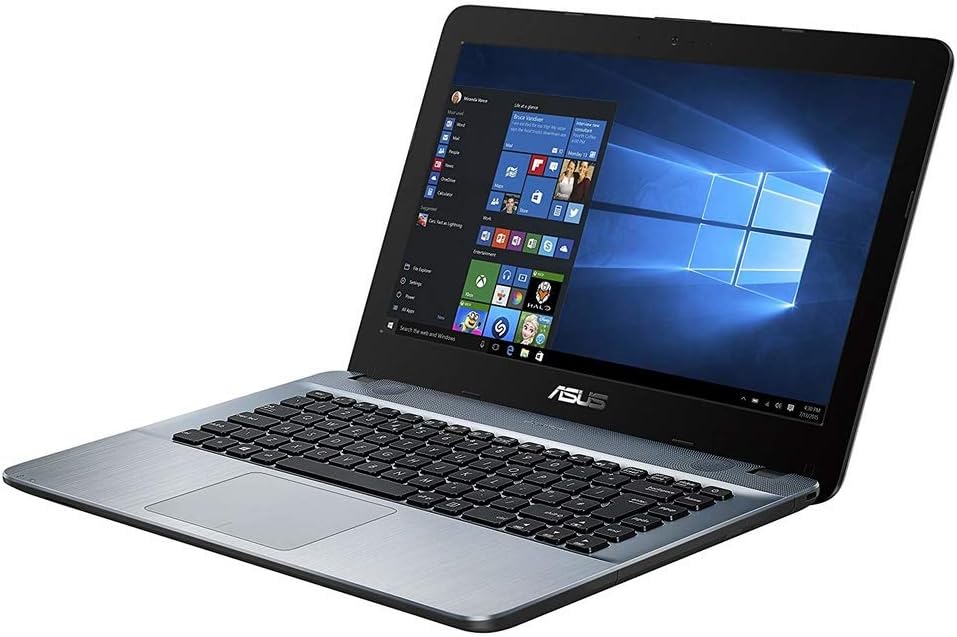
Image: The ASUS X441BA laptop, showcasing its 14-inch display and keyboard layout.
ຕັ້ງຄ່າ
1. ການຫຸ້ມຫໍ່ແລະການກວດກາເບື້ອງຕົ້ນ
ເອົາຄອມພິວເຕີໂນດບຸກ ແລະ ອຸປະກອນເສີມທັງໝົດອອກຈາກການຫຸ້ມຫໍ່ຢ່າງລະມັດລະວັງ. ກວດສອບຄວາມເສຍຫາຍ. ຖ້າມີອົງປະກອບໃດໆຫາຍໄປ ຫຼື ເສຍຫາຍ, ໃຫ້ຕິດຕໍ່ຮ້ານຄ້າປີກຂອງທ່ານທັນທີ.
2. ການເຊື່ອມຕໍ່ພະລັງງານ
Connect the AC adapter to the laptop's power input port, then plug the power cord into a wall outlet. The laptop can be used while charging. It is recommended to fully charge the battery before first use.
3. ການ Boot ເບື້ອງຕົ້ນ ແລະການຕິດຕັ້ງ Windows 10
Press the power button located on the top-right of the keyboard to turn on the laptop. Follow the on-screen instructions to complete the Windows 10 setup process, which includes selecting your language, region, and creating a user account.
4. ການເຊື່ອມຕໍ່ເຄືອຂ່າຍ
- Wi-Fi: During Windows setup or afterward, click the network icon in the taskbar, select your desired Wi-Fi network, and enter the password.
- ອີເທີເນັດ: For a wired connection, plug an Ethernet cable into the RJ45 LAN port on the side of the laptop.
ການປະຕິບັດແລັບທັອບຂອງທ່ານ
1. ການຄຸ້ມຄອງພະລັງງານ
- ເປີດ: ກົດປຸ່ມເປີດປິດ.
- ປິດລົງ: ກົດ ເລີ່ມ > ພະລັງງານ > ປິດລົງ.
- ຮູບແບບການນອນ: ກົດ ເລີ່ມ > ພະລັງງານ > ນອນ to put the laptop into a low-power state.
- ຣີສະຕາດ: ກົດ ເລີ່ມ > ພະລັງງານ > ຣີສະຕາດ.
2. ແປ້ນພິມ ແລະ Touchpad
The integrated keyboard provides a comfortable typing experience. The touchpad, located below the keyboard, allows for precise cursor control and supports multi-touch gestures for scrolling, zooming, and other functions. Refer to Windows settings for touchpad customization.
3. Connecting External Displays
Your laptop features multiple ports for connecting external monitors:
- HDMI Port: Connects to modern displays, TVs, and projectors for high-definition video and audio.
- ຜອດ VGA: Connects to older monitors and projectors.
- ພອດ USB 3.1 Type-C: May support video output with an appropriate adapter (sold separately).
After connecting, press ປຸ່ມ Windows + P to select your display mode (e.g., Duplicate, Extend, Second screen only).
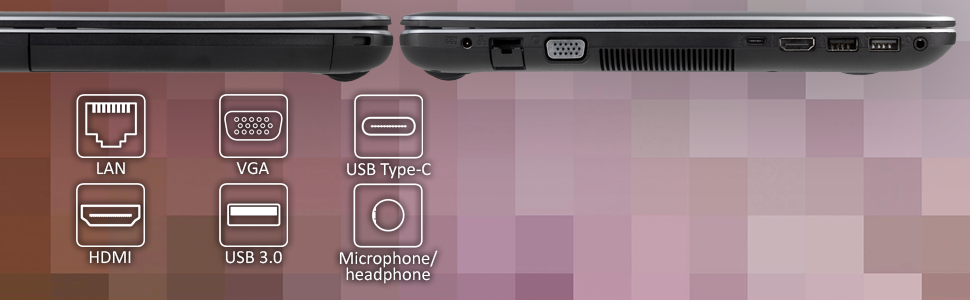
ຮູບພາບ: ຂ້າງ view of the ASUS X441BA laptop, highlighting the available connectivity ports.
4. USB Ports and Peripherals
The laptop is equipped with various USB ports for connecting external devices:
- USB 3.0 (ປະເພດ-A): ສໍາລັບການໂອນຂໍ້ມູນຄວາມໄວສູງກັບອຸປະກອນທີ່ເຂົ້າກັນໄດ້.
- USB 3.1 (Type-C): A reversible connector for newer devices, offering fast data transfer.
- USB 2.0: For standard peripherals like mice, keyboards, or printers.
5. ຄຸນສົມບັດສຽງ
The laptop includes integrated speakers for audio playback. A combo audio jack is available for connecting headphones or an external microphone.
ບໍາລຸງຮັກສາ
1. ຄໍາແນະນໍາການທໍາຄວາມສະອາດ
- ໜ້າຈໍ: Use a soft, lint-free microfiber cloth. For stubborn smudges, lightly dampen the cloth with water or a screen-specific cleaner. Avoid spraying liquids directly onto the screen.
- ໂຄງລົດ ແລະ ແປ້ນພິມ: Use a soft, dry cloth. A can of compressed air can be used to remove dust from between keyboard keys and vents.
- ທົ່ວໄປ: Avoid abrasive cleaners, solvents, or harsh chemicals. Ensure the laptop is powered off and unplugged before cleaning.
2. ການປັບປຸງຊອບແວ
Regularly check for and install Windows updates to ensure your operating system has the latest security patches, bug fixes, and performance improvements. Go to ເລີ່ມ > ການຕັ້ງຄ່າ > ອັບເດດ ແລະຄວາມປອດໄພ > Windows Update.
3. ການຄຸ້ມຄອງຮາດດິດ
Your laptop is equipped with a 500GB HDD. To maintain optimal performance:
- Disk Cleanup: Periodically run the Disk Cleanup utility to remove temporary files ແລະຂໍ້ມູນທີ່ບໍ່ຈໍາເປັນອື່ນໆ.
- Defragmentation: For HDDs, regular defragmentation can improve file access speeds. ຊອກຫາ "Defragment and Optimize Drives" in Windows.
- ການຈັດການການເກັບຮັກສາ: Monitor your storage usage and delete large, unneeded files ເພື່ອຂະຫຍາຍພື້ນທີ່ຫວ່າງ.
4. ການດູແລຫມໍ້ໄຟ
To prolong the lifespan of your laptop's integrated Lithium Ion battery:
- ຫຼີກເວັ້ນການເປີດແລັບທັອບກັບອຸນຫະພູມທີ່ຮຸນແຮງ.
- Do not frequently fully discharge the battery.
- If storing the laptop for an extended period, ensure the battery is charged to around 50-60%.
ການແກ້ໄຂບັນຫາ
This section addresses common issues you might encounter with your ASUS X441BA laptop.
1. Laptop is Slow or Unresponsive
- Check Background Processes: Open Task Manager (Ctrl+Shift+Esc) to identify and close resource-intensive applications.
- Free Up Disk Space: Ensure there is sufficient free space on your 500GB HDD. Run Disk Cleanup.
- ຣີສະຕາດ: ການຣີສະຕາດແບບງ່າຍໆມັກຈະສາມາດແກ້ໄຂບັນຫາປະສິດທິພາບຊົ່ວຄາວໄດ້.
- ອັບເດດຊອບແວ: ໃຫ້ແນ່ໃຈວ່າ Windows ແລະໄດເວີແມ່ນອັບເດດແລ້ວ.
- ການພິຈາລະນາຮາດແວ: The laptop comes with 4GB DDR4 RAM and a 500GB HDD. While suitable for basic tasks, heavy multitasking or demanding applications may benefit from a professional RAM upgrade (if supported) or replacing the HDD with a Solid State Drive (SSD).
2. Battery Not Charging or Draining Quickly
- AC Adapter Check: Ensure the AC adapter is securely connected to both the laptop and the power outlet. Try a different outlet.
- ການຕັ້ງຄ່າພະລັງງານ: Adjust Windows power settings to optimize battery life. Go to ເລີ່ມ > ການຕັ້ງຄ່າ > ລະບົບ > ແບັດເຕີຣີ.
- ສຸຂະພາບຫມໍ້ໄຟ: Over time, battery capacity naturally degrades. If the issue persists and the laptop is older, the battery may need service.
3. Unusual Noise (Fan or Internal)
- ລະບາຍອາກາດ: Ensure the laptop's ventilation openings are not blocked by dust or objects, which can cause the fan to work harder and louder.
- ອຸນຫະພູມ: High CPU usage or hot environments can increase fan speed. Reduce workload or move to a cooler area.
- ສຽງລົບກວນຢ່າງຕໍ່ເນື່ອງ: If the noise is unusual or persistent, it may indicate a hardware issue requiring professional inspection.
4. Connectivity Problems (Wi-Fi, Bluetooth)
- ຣີສະຕາດອຸປະກອນ: Restart your Wi-Fi router/modem and the laptop.
- ກວດສອບຄົນຂັບ: Ensure your wireless and Bluetooth drivers are up to date via Device Manager.
- ການຈັບຄູ່ Bluetooth: ສຳລັບອຸປະກອນ Bluetooth, ໃຫ້ແນ່ໃຈວ່າພວກມັນຢູ່ໃນໂໝດຈັບຄູ່ ແລະຢູ່ໃນຂອບເຂດ.
ຂໍ້ມູນຈໍາເພາະ
Below are the key technical specifications for the ASUS X441BA laptop:
| ຄຸນສົມບັດ | ຂໍ້ມູນຈໍາເພາະ |
|---|---|
| ຍີ່ຫໍ້ | ASUS |
| ຊື່ຕົວແບບ | X441BA |
| ຂະໜາດໜ້າຈໍ | 14 ນິ້ວ |
| ຄວາມລະອຽດການສະແດງ | HD (1366x768) LED backlit |
| ໂຮງງານຜະລິດ | AMD A6-9225 (7th Gen), Dual-Core, 2.6 GHz (up to 3.0 GHz) |
| ຮູບພາບ | AMD Radeon R4 Graphics |
| ຫນ່ວຍຄວາມຈໍາ RAM | SDRAM 4 GB DDR4-2400 |
| ການເກັບຮັກສາ | ຮາດດິດ 500 GB (5400 RPM) |
| ລະບົບປະຕິບັດການ | ໜ້າຫຼັກ Windows 10 |
| ການເຊື່ອມຕໍ່ | 802.11b/g/n Wi-Fi, Bluetooth V4.0, Ethernet (RJ45) |
| ທ່າເຮືອ | 1x USB 3.0 Type-A, 1x USB 3.1 Type-C, 1x USB 2.0, 1x HDMI, 1x VGA, 1x COMBO audio jack, 1x RJ45 LAN |
| ແບັດເຕີຣີ | 3-cell Lithium Ion, 45 Watt Hours |
| ນ້ຳໜັກ | 3.9 ປອນ |
| ປີຕົວແບບ | 2019 |
ຮັບປະກັນ
Your ASUS X441BA laptop comes with a ຮັບປະກັນ 1 ປີຈໍາກັດ. Please refer to the warranty card included with your product for full terms and conditions, including coverage details and limitations. Keep your proof of purchase for warranty claims.
ສະຫນັບສະຫນູນ
For technical assistance, driver downloads, FAQs, and further support resources, please visit the official ASUS support website. You can typically find support by searching for your specific model number (X441BA) on the ASUS support portal.
For customer service inquiries, please refer to the contact information provided in your product packaging or on the ASUS official webເວັບໄຊ.