
ຄໍາແນະນໍາຄວາມປອດໄພທີ່ສໍາຄັນ
To ensure safe operation and prolong the life of your monitor, please read and follow these instructions carefully:
- ຖອດສາຍໄຟອອກຈາກເຕົ້າສຽບໄຟທຸກຄັ້ງກ່ອນທີ່ຈະເຮັດຄວາມສະອາດຈໍສະແດງຜົນ.
- ຢ່າເຮັດໃຫ້ຈໍສະແດງຜົນຖືກຝົນຫຼືຄວາມຊຸ່ມຊື່ນເພື່ອຫຼີກເວັ້ນການຖືກໄຟຟ້າຊອດ.
- Ensure proper ventilation around the monitor to prevent overheating. Do not block ventilation openings.
- ໃຊ້ພຽງແຕ່ອະແດັບເຕີໄຟ ແລະສາຍທີ່ສະໜອງໃຫ້ໂດຍຜູ້ຜະລິດ.
- ຫຼີກເວັ້ນການວາງວັດຖຸໜັກໃສ່ສາຍໄຟ ຫຼື ຈໍພາບ.
- If the monitor is damaged or malfunctions, do not attempt to repair it yourself. Contact qualified service personnel.
ເນື້ອໃນຊຸດ
Before proceeding with the setup, please check the contents of your package to ensure all items are present:
- Acer CB272U smiiprx LED Monitor
- Monitor Stand (ຖານ ແລະແຂນ)
- ສາຍໄຟ
- ສາຍ HDMI
- ຄູ່ມືເລີ່ມຕົ້ນດ່ວນ / ບັດຮັບປະກັນ
ຕັ້ງຄ່າ
1. ການປະກອບ Monitor Stand
- Carefully remove the monitor from its packaging. Place the monitor face down on a soft, clean cloth or surface to prevent scratches to the screen.
- Attach the stand arm to the back of the monitor panel. Ensure it is securely fastened, typically by sliding it into place until it clicks or by tightening screws.
- Connect the stand base to the bottom of the stand arm. Secure the base by tightening the captive screw located underneath the base.

ຮູບ 1: ດ້ານຫລັງ view of the Acer CB272U smiiprx monitor with the stand attached, illustrating the assembly points.
2. Connecting the Monitor to Your Computer
- ເຊື່ອມຕໍ່ປາຍດ້ານໜຶ່ງຂອງສາຍ HDMI ທີ່ໃຫ້ມາເຂົ້າກັບພອດ HDMI ເທິງຈໍພາບ.
- Connect the other end of the HDMI cable to the HDMI output port on your computer or graphics card.
- Plug the power cord into the monitor's power input, then plug the other end into a grounded electrical outlet.

ຮູບ 2: ດ້ານຫລັງ view showing the input ports of the monitor, including HDMI and power connections.
ໃຊ້ງານ Monitor
ເປີດ ແລະ ປິດ
Locate the power button on the monitor's bezel. Press it once to turn the monitor on. The power indicator light will illuminate. Press it again to turn the monitor off.
Adjusting Display Settings (OSD Menu)
The On-Screen Display (OSD) menu allows you to customize various monitor settings. Use the control buttons (usually located on the back or bottom right of the monitor) to navigate the OSD menu. Common adjustments include:
- ຄວາມສະຫວ່າງ/ຄວາມຄົມຊັດ: ປັບຄວາມສະຫວ່າງໂດຍລວມ ແລະຄວາມແຕກຕ່າງລະຫວ່າງພື້ນທີ່ແສງສະຫວ່າງ ແລະບ່ອນມືດ.
- ການຕັ້ງຄ່າສີ: ແກ້ໄຂອຸນຫະພູມສີ, gamma, ແລະລະດັບ RGB ສ່ວນບຸກຄົນ.
- ແຫຼ່ງປ້ອນຂໍ້ມູນ: Manually select the video input (e.g., HDMI).
- ສຽງ: ຄວບຄຸມລະດັບສຽງສຳລັບລຳໂພງໃນຕົວ.
ການປັບຕົວ Ergonomic
The Acer CB272U smiiprx monitor stand offers multiple ergonomic adjustments to optimize your viewຄວາມສະດວກສະບາຍ:
- ການປັບຄວາມສູງ: ຍົກ ຫຼື ຫຼຸດຈໍພາບລົງໃນລະດັບສາຍຕາ.
- ອຽງ: Adjust the screen angle forward or backward to reduce glare.
- ໝູນ: Rotate the monitor horizontally to share your screen or adjust viewມຸມ ing.
- pivot: Rotate the screen to a portrait orientation for document viewing or coding.
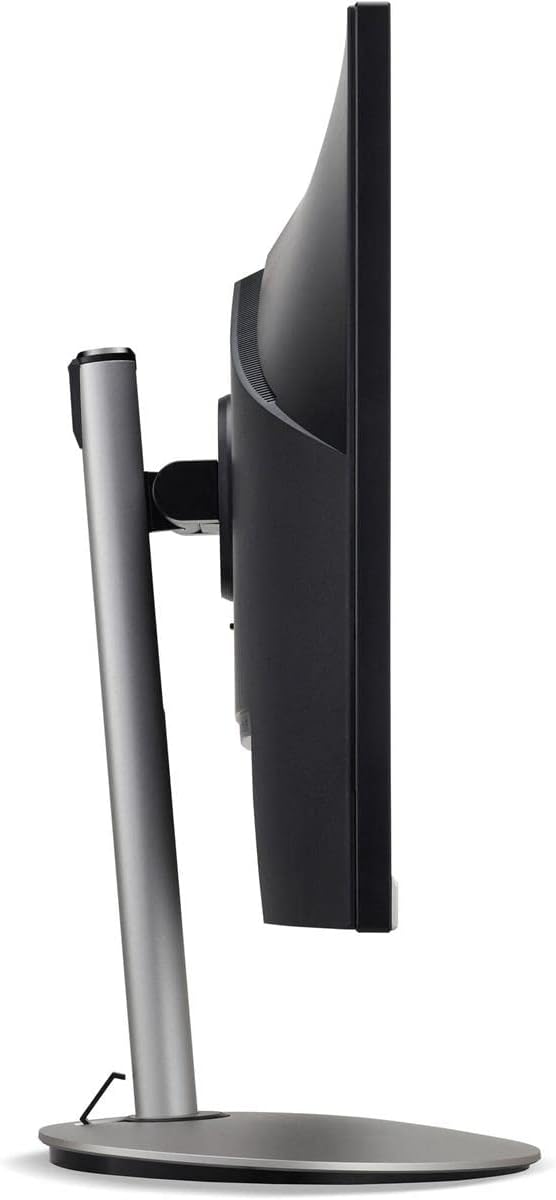
ຮູບ 3: Side profile of the monitor, illustrating its adjustable stand for ergonomic positioning.
ບໍາລຸງຮັກສາ
Cleaning the Monitor Screen and Casing
To clean your monitor, first ensure it is turned off and unplugged from the power outlet. Use a soft, lint-free cloth. For stubborn marks, lightly dampen the cloth with water or a specialized non-abrasive screen cleaner. ຢ່າສີດຂອງແຫຼວໂດຍກົງໃສ່ໜ້າຈໍ ຫຼື ຄasing. ຫຼີກລ້ຽງການໃຊ້ສານເຄມີທີ່ຮຸນແຮງ, ເຄື່ອງຂັດຂັດ, ຫຼືສານລະລາຍ.
ຂໍ້ແນະນຳການເກັບຮັກສາ
If you need to store the monitor for an extended period, it is recommended to use its original packaging to protect it from dust, moisture, and physical damage. Store in a cool, dry environment away from direct sunlight and extreme temperatures.
ການແກ້ໄຂບັນຫາ
ເບິ່ງຕາຕະລາງຂ້າງລຸ່ມນີ້ສໍາລັບບັນຫາທົ່ວໄປແລະການແກ້ໄຂຂອງພວກເຂົາ:
| ບັນຫາ | ສາເຫດທີ່ເປັນໄປໄດ້ | ການແກ້ໄຂ |
|---|---|---|
| ບໍ່ມີຮູບພາບໃນ ໜ້າ ຈໍ | ສາຍໄຟຖືກຕັດ; ສາຍວິດີໂອຖືກຕັດ; ເລືອກແຫຼ່ງປ້ອນຂໍ້ມູນບໍ່ຖືກຕ້ອງ. | Check power and video cable connections; Ensure the monitor is powered on; Select the correct input source via the OSD menu. |
| ຮູບພາບມົວຫຼືບິດເບືອນ | Incorrect resolution setting; Faulty video cable. | Set the display resolution to 2560 x 1440 at 75 Hz; Try a different HDMI cable. |
| ບໍ່ມີສຽງຈາກ ລຳ ໂພງ | Monitor volume too low or muted; Incorrect audio output selected on computer. | Adjust monitor volume via OSD; Unmute audio; Select the monitor as the audio output device in your computer's sound settings. |
| ໜ້າຈໍກະພິບ | Refresh rate mismatch; Interference; Faulty cable. | Ensure refresh rate is set to 75 Hz; Check for nearby electronic devices causing interference; Replace video cable. |
ຂໍ້ມູນຈໍາເພາະ
Key technical specifications for the Acer CB272U smiiprx LED Monitor:
| ຄຸນສົມບັດ | ລາຍລະອຽດ |
|---|---|
| ຊື່ຕົວແບບ | CB272U smiiprx |
| ຂະໜາດໜ້າຈໍ | 24.1 ນິ້ວ |
| ຄວາມລະອຽດເດີມ | 2560 x 1440 (WQHD) |
| ອັດຕາການໂຫຼດຂໍ້ມູນຄືນໃໝ່ | 75 Hz |
| ເວລາຕອບສະຫນອງ | 1 Millisecond (VRB) |
| ອັດຕາສ່ວນ | 16:9 |
| ປະເພດການສະແດງ | LED-backlit LCD / TFT active matrix (IPS) |
| ຄວາມສະຫວ່າງ | 350 cd/m² |
| ອັດຕາສ່ວນກົງກັນຂ້າມ | 1000:1 (ຄົງທີ່) |
| ການເຊື່ອມຕໍ່ | HDMI |
| Adaptive Sync | FreeSync |
| ລຳໂພງໃນຕົວ | ແມ່ນແລ້ວ |
| Dimensions (WxDxH with stand) | 24.1 x 9.2 x 20.5 ນິ້ວ |
| ນ້ຳໜັກ (ພ້ອມຂາຕັ້ງ) | 18.1 ປອນ |

Figure 4: Monitor dimensions with stand, indicating width, depth, and height.
ຂໍ້ມູນການຮັບປະກັນ
The Acer CB272U smiiprx LED Monitor comes with a ການຮັບປະກັນຈຳກັດ 3 ປີຈາກຜູ້ຜະລິດ. This warranty covers defects in materials and workmanship under normal use. For complete details regarding warranty coverage, limitations, and how to make a claim, please refer to the warranty documentation included with your product or visit the official Acer support webເວັບໄຊ.
Please retain your proof of purchase (receipt or invoice) as it will be required for any warranty service.
ການຊ່ວຍເຫຼືອລູກຄ້າ
Should you require further assistance, technical support, or wish to download the latest drivers and firmware updates for your monitor, please visit the official Acer support webເວັບໄຊ:
You can also find contact information for Acer customer service in your region on the support webສະຖານທີ່ສໍາລັບການຊ່ວຍເຫຼືອສ່ວນບຸກຄົນ.