
ແນະນຳ
ຂອບໃຈສໍາລັບການຊື້asing the AmazonBasics Vertical Ergonomic 2.4G Wireless Optical Mouse. This manual provides essential information for setting up, operating, and maintaining your new mouse. Please read these instructions carefully before use and retain them for future reference.

Image: The AmazonBasics Vertical Ergonomic Wireless Optical Mouse positioned on a white desk alongside a laptop, demonstrating a typical usage scenario.
ເນື້ອໃນຊຸດ
ກະລຸນາກວດເບິ່ງຊຸດສຳລັບລາຍການຕໍ່ໄປນີ້:
- AmazonBasics Vertical Ergonomic 2.4G Wireless Optical Mouse
- ຕົວຮັບ USB
ຫມາຍເຫດ: ຫມໍ້ໄຟບໍ່ໄດ້ລວມແລະຕ້ອງໄດ້ຮັບການຊື້ແຍກຕ່າງຫາກ.
ຄຸນສົມບັດ
- ການອອກແບບແນວຕັ້ງທີ່ເໝາະສົມກັບສະມາທິ: Promotes a natural hand and wrist posture, reducing strain.
- ການເຊື່ອມຕໍ່ໄຮ້ສາຍ 2.4G: Provides a reliable connection for use with PCs and laptops.
- ການຕິດຕາມແສງ: Ensures precise and smooth cursor control.
- DPI ທີ່ສາມາດປັບໄດ້: Allows customization of cursor sensitivity for different tasks.
- ປຸ່ມຫຼາຍອັນ: Includes left/right click, scroll wheel, DPI button, and forward/back buttons for enhanced productivity.
- ພະລັງງານຫມໍ້ໄຟ: Operates on AAA batteries for portability.

ຮູບພາບ: A side view of the AmazonBasics Vertical Ergonomic Wireless Optical Mouse, highlighting its contoured shape, thumb rest, and the forward/back buttons along with the DPI button.
ຕັ້ງຄ່າ
1. ຕິດຕັ້ງແບັດເຕີລີ
- ຊອກຫາຊ່ອງໃສ່ຫມໍ້ໄຟຢູ່ດ້ານລຸ່ມຂອງຫນູ.
- ຄ່ອຍໆເປີດຝາປິດຊ່ອງໃສ່ຫມໍ້ໄຟ.
- ໃສ່ໝໍ້ໄຟ AAA ສອງໜ່ວຍ, ຮັບປະກັນການຂົ້ວທີ່ຖືກຕ້ອງ (+/-).
- ປ່ຽນຝາປິດຊ່ອງໃສ່ໝໍ້ໄຟ ຈົນກວ່າມັນຈະກົດເຂົ້າໃສ່ຢ່າງປອດໄພ.
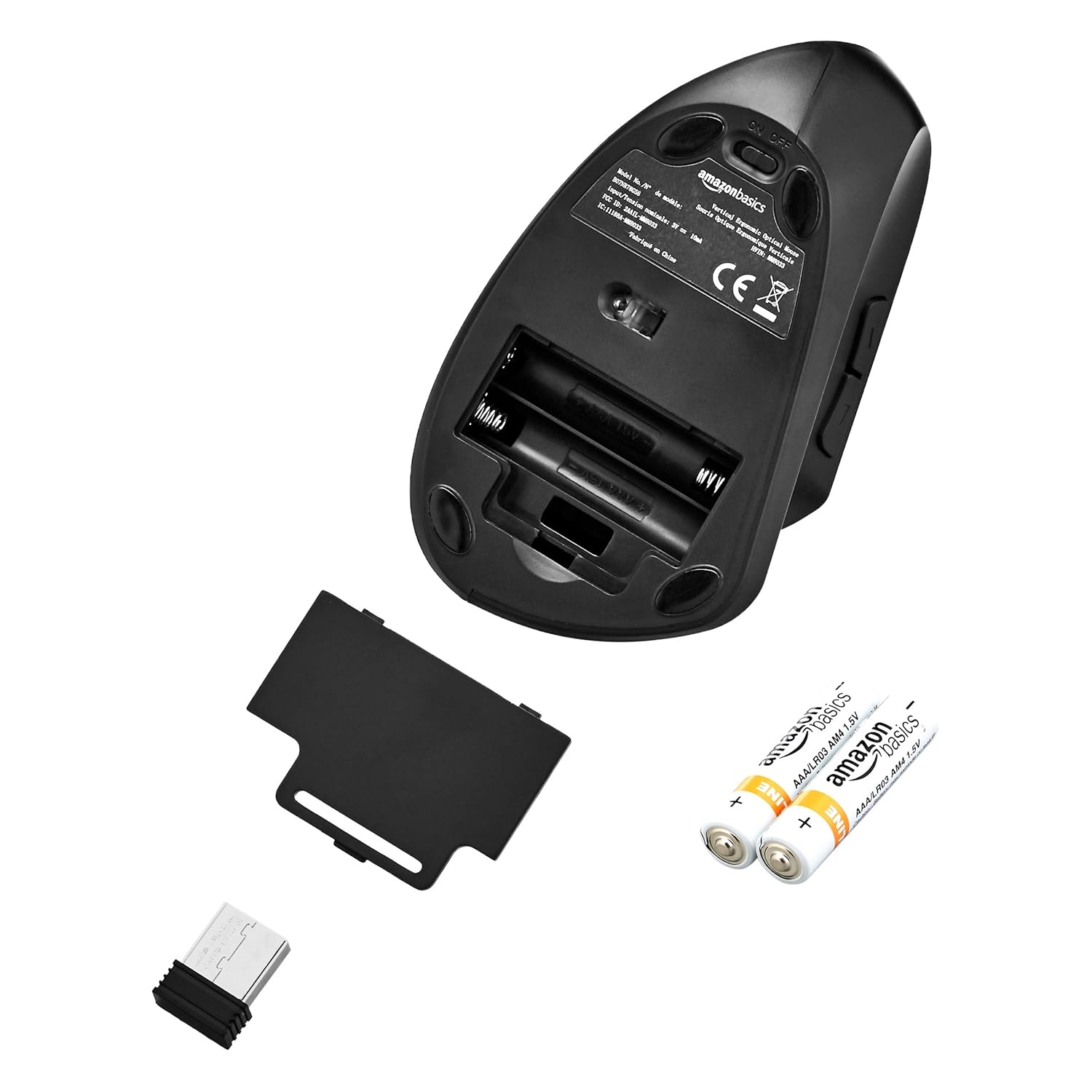
Image: The underside of the mouse with the battery compartment cover removed, showing the slots for two AAA batteries and the storage slot for the USB receiver.
2. ເຊື່ອມຕໍ່ຕົວຮັບສັນຍານ USB
- Remove the USB receiver from its storage slot within the battery compartment.
- ສຽບເຄື່ອງຮັບສັນຍານ USB ເຂົ້າກັບພອດ USB ທີ່ມີຢູ່ໃນຄອມພິວເຕີຂອງທ່ານ (PC ຫຼື laptop).
- ຄອມພິວເຕີຂອງທ່ານຄວນຈະກວດພົບແລະຕິດຕັ້ງໄດເວີທີ່ຈໍາເປັນໂດຍອັດຕະໂນມັດ. ອັນນີ້ອາດຈະໃຊ້ເວລາເລັກນ້ອຍ.
3. ເປີດເມົ້າ
- Locate the ON/OFF switch on the underside of the mouse.
- Slide the switch to the "ON" position.
- ໃນປັດຈຸບັນຫນູແມ່ນກຽມພ້ອມສໍາລັບການນໍາໃຊ້.

Image: The bottom of the AmazonBasics Vertical Ergonomic Wireless Optical Mouse, displaying the ON/OFF switch, the optical sensor, and the product label with model information.
ຄໍາແນະນໍາການດໍາເນີນງານ
ຟັງຊັນພື້ນຖານ
- ຄລິກຊ້າຍ: ການຄັດເລືອກຂັ້ນຕົ້ນແລະການເປີດໃຊ້ງານ.
- ກົດຂວາ: ເປີດເມນູຕາມສະພາບການ.
- ລໍ້ເລື່ອນ: ເລື່ອນເອກະສານ ແລະ web ຫນ້າໃນແນວຕັ້ງ. ຍັງສາມາດຖືກກົດສໍາລັບຟັງຊັນຄລິກກາງ.

ຮູບພາບ: ເທິງລົງລຸ່ມ view of the AmazonBasics Vertical Ergonomic Wireless Optical Mouse, clearly showing the left and right click buttons separated by the scroll wheel.
ຟັງຊັນຂັ້ນສູງ
- ປຸ່ມ DPI: Located near the top of the mouse. Press this button to cycle through different DPI (Dots Per Inch) settings, adjusting cursor sensitivity. This allows you to switch between faster and slower cursor speeds as needed.
- ປຸ່ມສົ່ງຕໍ່/ກັບຄືນ: Located on the side of the mouse, accessible by your thumb. These buttons typically function as 'Forward' and 'Back' in web ຕົວທ່ອງເວັບແລະ file ນັກສຳຫຼວດ.
ບໍາລຸງຮັກສາ
ທໍາຄວາມສະອາດ
ເພື່ອທຳຄວາມສະອາດເມົາສ໌, ໃຫ້ໃຊ້ຜ້າອ່ອນໆແຫ້ງ. ສຳລັບຝຸ່ນທີ່ຝັງແໜ້ນ, ໃຫ້ເຊັດອອກເລັກນ້ອຍampen the cloth with water or a mild cleaning solution. Avoid using harsh chemicals or abrasive materials, as these can damage the mouse's surface.
ການປ່ຽນແບັດ
When the mouse's performance degrades or it stops responding, it may be time to replace the batteries. Follow the steps in the "Install Batteries" section under Setup to replace the two AAA batteries.
ການແກ້ໄຂບັນຫາ
- ເມົ້າບໍ່ຕອບສະໜອງ:
- Ensure the mouse is switched to the "ON" position.
- ກວດເບິ່ງວ່າແບດເຕີຣີຖືກຕິດຕັ້ງຢ່າງຖືກຕ້ອງແລະມີການສາກໄຟພຽງພໍ. ປ່ຽນແທນຖ້າຈໍາເປັນ.
- ກວດໃຫ້ແນ່ໃຈວ່າໄດ້ສຽບຕົວຮັບ USB ຢ່າງປອດໄພກັບພອດ USB ທີ່ເຮັດວຽກຢູ່ໃນຄອມພິວເຕີຂອງທ່ານ. ລອງໃຊ້ພອດ USB ອື່ນ.
- ປິດເປີດຄອມພິວເຕີຂອງທ່ານຄືນໃໝ່.
- ການເຄື່ອນໄຫວຕົວກະພິບທີ່ຜິດພາດ:
- ເຮັດຄວາມສະອາດເຊັນເຊີ optical ຢູ່ດ້ານລຸ່ມຂອງຫນູດ້ວຍຜ້າອ່ອນ, ແຫ້ງ.
- Ensure you are using the mouse on a suitable surface. Highly reflective or transparent surfaces may affect tracking. A mouse pad is recommended.
- ກວດເບິ່ງການລົບກວນຈາກອຸປະກອນໄຮ້ສາຍອື່ນໆ.
- ບັນຫາການເຊື່ອມຕໍ່:
- ເລື່ອນເມົ້າໄປໃກ້ຕົວຮັບ USB.
- ຫຼີກລ່ຽງການວາງເຄື່ອງຮັບສັນຍານໃກ້ກັບວັດຖຸໂລຫະຂະໜາດໃຫຍ່ ຫຼື ອຸປະກອນເອເລັກໂຕຣນິກອື່ນໆທີ່ອາດຈະເຮັດໃຫ້ເກີດການລົບກວນ.
ຂໍ້ມູນຈໍາເພາະ
| ໝາຍເລກຕົວແບບ | MM-8033 |
| ເຕັກໂນໂລຊີການເຊື່ອມຕໍ່ | 2.4G ແບບໄຮ້ສາຍ |
| ການກວດຈັບການເຄື່ອນໄຫວ | Optical |
| ຈໍານວນປຸ່ມ | 5 (ຊ້າຍ, ຂວາ, ລໍ້ເລື່ອນ, DPI, ໄປໜ້າ, ກັບຫຼັງ) |
| ແຫຼ່ງພະລັງງານ | 2 x ຫມໍ້ໄຟ AAA (ບໍ່ລວມ) |
| ອາຍຸຫມໍ້ໄຟສະເລ່ຍ | ເຖິງ 12 ເດືອນ |
| ລະບົບປະຕິບັດການທີ່ເຂົ້າກັນໄດ້ | Linux, Windows 7, Windows XP (ແລະລຸ້ນໃໝ່ກວ່າ) |
| ແພລະຕະຟອມຮາດແວທີ່ເຂົ້າກັນໄດ້ | ແລັບທັອບ, PC |
| ຂະໜາດສິນຄ້າ (LxWxH) | 15.32 x 7.8 x 8.92 ຊມ (6.03 x 3.07 x 3.51 ນິ້ວ) |
| ນ້ໍາຫນັກລາຍການ | 122 g |
ການຮັບປະກັນແລະການສະຫນັບສະຫນູນ
For warranty information or technical support, please refer to the AmazonBasics product page or contact Amazon customer service directly. Keep your purchase receipt for warranty claims.