
1. ບົດແນະນຳ
The Autel MaxiLink ML519 is an advanced OBDII/EOBD scanner designed to assist in diagnosing vehicle issues. This tool provides comprehensive diagnostic functions, including reading and clearing trouble codes, viewing live data, performing I/M readiness tests, and more. It is compatible with most OBDII-compliant vehicles manufactured from 1996 onwards in the US, and from 2000 for EU-based and Asian cars.
2. ຜະລິດຕະພັນເກີນview
2.1 ລັກສະນະທີ່ສໍາຄັນ
- Reads and clears generic (P0, P2, P3, U0) and manufacturer-specific (P1, P3, U1) codes, and pending codes.
- ປິດໄຟ Check Engine (MIL), ລຶບລະຫັດ, ແລະຣີເຊັດຈໍສະແດງຜົນ.
- Patented One-Click I/M Readiness Status Key for quick emissions readiness check.
- Views freeze frame data.
- Displays live PCM data stream in text and graphing formats.
- Performs O2 Monitor Test, On-Board Monitor Test (Mode 6), and Component Test.
- Retrieves vehicle identification information (VIN, CALID, and CVN).
- Built-in DTC lookup library for code definitions.
- Memory backup for off-vehicle data review ແລະການວິເຄາະ.
- Internet updatable for software and language.
- Prints data via Windows-based PC.
2.2 ເນື້ອໃນຊຸດ
The Autel MaxiLink ML519 package typically includes the following items:
- MaxiLink ML519 Unit
- OBD II Connector Cable
- USB Data Line
- ຄູ່ມືດ່ວນ
- ຖົງເກັບຮັກສາ

Image: Contents of the Autel MaxiLink ML519 package, including the scanner unit, cables, quick guide, and storage bag.
3. ຕັ້ງຄ່າ
3.1 Connecting the Scanner to the Vehicle
- Turn the vehicle's ignition off.
- Locate the vehicle's 16-pin Data Link Connector (DLC). The DLC is usually located under the dashboard on the driver's side.
- Connect the OBD II connector cable from the ML519 scanner to the vehicle's DLC. Ensure a secure connection.
- Turn the vehicle's ignition to the ON position (engine off). The scanner will automatically power on.
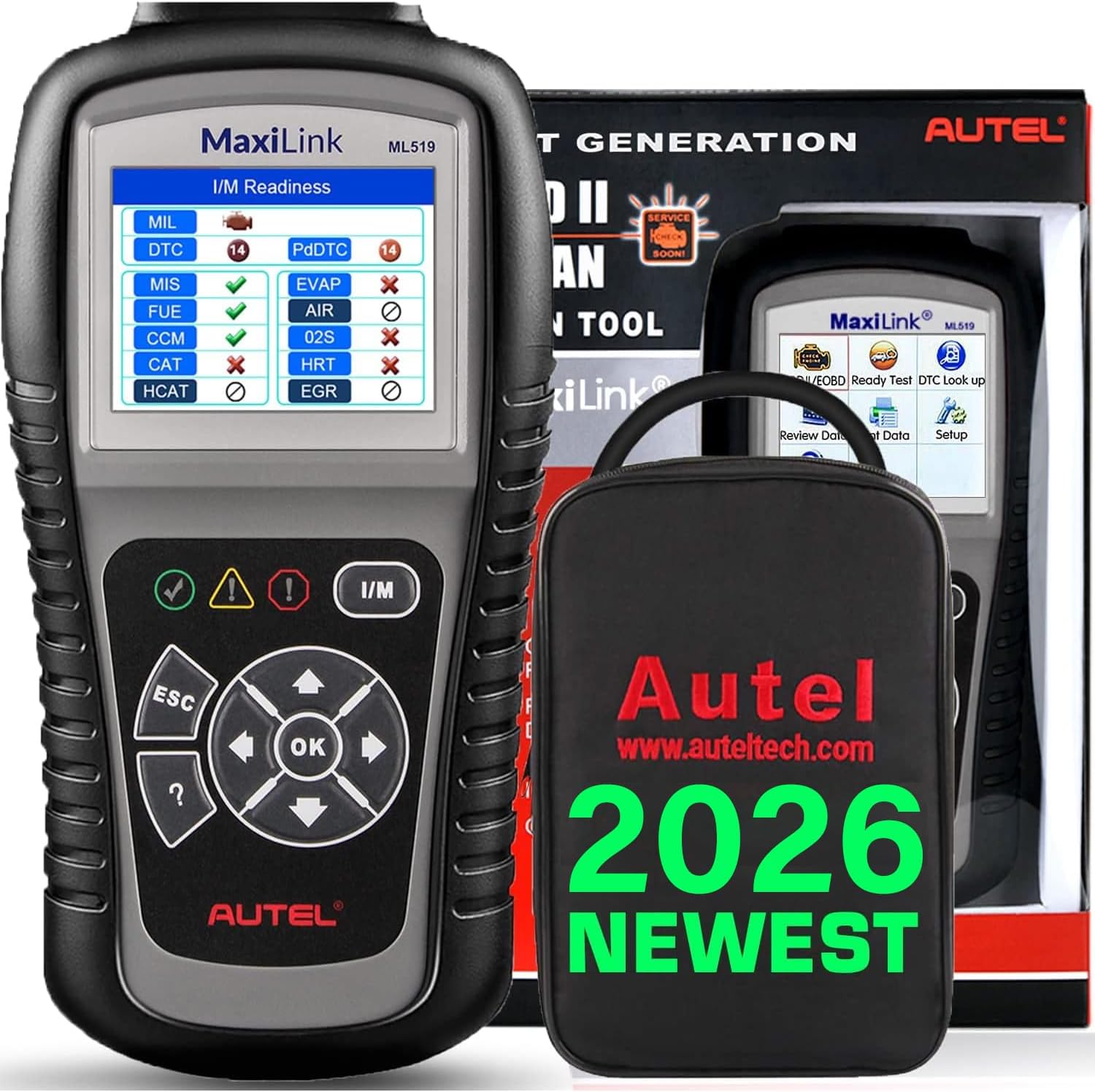
Image: The Autel MaxiLink ML519 scanner connected to a vehicle's OBD-II port, displaying its main menu.
4. ຄໍາແນະນໍາການດໍາເນີນງານ
4.1 Full OBDII Scan Tool Functions
The ML519 supports all 10 modes of OBD II operation, providing comprehensive diagnostic capabilities.

ຮູບພາບ: ຫຼາຍກວ່າview of the Autel MaxiLink ML519's full OBDII scan tool functions, including erase codes, DTC definition, live data, and more.
4.2 ການອ່ານ ແລະລຶບລະຫັດບັນຫາການວິນິໄສ (DTCs)
To read DTCs:
- ຈາກເມນູຫລັກ, ເລືອກ 'ອ່ານລະຫັດ'.
- The scanner will display any stored or pending DTCs.
To clear DTCs:
- ຈາກເມນູຫລັກ, ເລືອກ 'ລຶບລະຫັດ'.
- Confirm the action when prompted. This will turn off the Check Engine Light (MIL) and reset monitors.
4.3 One-Click I/M Readiness (Ready Test)
This function allows you to quickly check the readiness status of the vehicle's emission system, which is crucial for annual emission tests. The ML519 provides visual and audible indications.
- ກົດທີ່ອຸທິດຕົນ ຄວາມພ້ອມຂອງ I/M button on the scanner.
- The screen will display the status of various monitors (e.g., Misfire, Fuel System, O2 Sensors, EVAP). A green checkmark indicates readiness, while an 'X' indicates not ready.

Image: The Autel MaxiLink ML519 displaying the I/M Readiness screen, showing the status of various emission monitors with checkmarks and 'X' symbols.
4.4 Viewໃນ Live Data
The ML519 can display real-time sensor data from the vehicle's Powertrain Control Module (PCM) in both text and graphical formats. This allows for detailed analysis of vehicle performance.
- ຈາກເມນູຫລັກ, ເລືອກ 'ຂໍ້ມູນສົດ'.
- Choose between 'View Data' (text list) or 'Graph Data' (graphical representation).
- Use the navigation buttons to scroll through parameters or zoom in/out on graphs.

Image: The Autel MaxiLink ML519 displaying live data, showing RPM in a graphical format and a list of data parameters.
4.5 DTC Lookup Function
The built-in DTC lookup library provides detailed definitions for generic and manufacturer-specific trouble codes, helping you understand the cause of a fault.
- ຈາກເມນູຫລັກ, ເລືອກ 'ການຄົ້ນຫາ DTC'.
- Enter the DTC code using the scanner's buttons.
- The scanner will display the definition of the entered code.

Image: The Autel MaxiLink ML519 displaying the DTC Lookup function, showing how to input a code and view ຄໍານິຍາມຂອງມັນ.
4.6 Other Diagnostic Tests
- ການທົດສອບຈໍສະແດງຜົນ O2: ດຶງເອົາຜົນການທົດສອບເຊັນເຊີ O2 ສຳລັບການທົດສອບທີ່ສຳເລັດຫຼ້າສຸດຈາກຄອມພິວເຕີໃນລົດ.
- On-Board Monitor Test (Mode 6): ດຶງເອົາຜົນການທົດສອບສຳລັບອົງປະກອບ ແລະ ລະບົບລະບົບສົ່ງກຳລັງທີ່ກ່ຽວຂ້ອງກັບການປ່ອຍອາຍພິດທີ່ບໍ່ໄດ້ຮັບການຕິດຕາມກວດກາຢ່າງຕໍ່ເນື່ອງ.
- ການທົດສອບອົງປະກອບ: ອະນຸຍາດໃຫ້ເລີ່ມຕົ້ນການທົດສອບການຮົ່ວໄຫຼສຳລັບລະບົບ EVAP ຂອງຍານພາຫະນະ.
- Retrieve Vehicle Information: ສະແດງໝາຍເລກລະບຸຕົວຍານພາຫະນະ (VIN), ໝາຍເລກການປັບທຽບ (CALID) ແລະ ໝາຍເລກການຢັ້ງຢືນການປັບທຽບ (CVN).
4.7 Data Printing
The ML519 allows you to print diagnostic data via a Windows-based PC. Connect the scanner to your PC using the provided USB cable and use the Autel PC Suite software (available for download from the Autel website) to manage and print data.
5. ບໍາລຸງຮັກສາ
5.1 ການເບິ່ງແຍງທົ່ວໄປ
- Keep the scanner dry and clean. Avoid exposure to moisture or extreme temperatures.
- Do not use abrasive cleaners or solvents on the unit. Use a soft, damp ຜ້າສໍາລັບການທໍາຄວາມສະອາດ.
- Store the scanner in its protective storage bag when not in use to prevent damage.
6. ການແກ້ໄຂບັນຫາ
6.1 ບັນຫາທົ່ວໄປ ແລະການແກ້ໄຂ
- ເຄື່ອງສະແກນບໍ່ເປີດ: Ensure the OBD II cable is securely connected to the vehicle's DLC and the vehicle's ignition is in the ON position. Check the vehicle's battery voltage (must be 8.0 to 18.0 V).
- Link error: Verify the vehicle is OBDII compliant. Check the connection of the OBD II cable. Turn the ignition off, wait 10 seconds, then turn it back on.
- ບໍ່ມີການສື່ສານກັບຍານພາຫະນະ: Confirm the vehicle supports OBDII protocols. Try connecting to a different OBDII-compliant vehicle to rule out scanner issues.
- Screen freezes: Disconnect the scanner from the vehicle, then reconnect. If the issue persists, perform a software update.
7. ຂໍ້ມູນຈໍາເພາະ
| ຂໍ້ມູນຈໍາເພາະ | ມູນຄ່າ |
|---|---|
| ຈໍສະແດງຜົນ | TFT color display (320 x 240 dpi) |
| ອຸນຫະພູມປະຕິບັດການ | 0°C ຫາ 60°C (32°F ຫາ 140°F) |
| ອຸນຫະພູມການເກັບຮັກສາ | -20°C ຫາ 70°C (-4°F ຫາ 158°F) |
| ພະລັງງານພາຍນອກ | 8.0 to 18.0 V via vehicle battery |
| ຂະໜາດໜ້າຈໍ | 3.5 ນິ້ວ |
| Operating System (for PC connection) | Windows XP (or later for updates) |
| ນ້ໍາຫນັກລາຍການ | 300 ກຣາມ |
8. ການປັບປຸງຊອບແວ
The Autel MaxiLink ML519 comes with lifetime free software updates. Regular updates ensure compatibility with newer vehicle models and provide enhanced features. To update the software:
- Download the Autel PC Suite software from the official Autel webເວັບໄຊ.
- Install the software on a Windows-based PC.
- Connect the ML519 scanner to your PC using the provided USB cable.
- Follow the on-screen instructions in the PC Suite to download and install the latest software updates to your device.
9. ການຮັບປະກັນແລະການສະຫນັບສະຫນູນ
9.1 ຂໍ້ມູນການຮັບປະກັນ
The Autel MaxiLink ML519 is backed by a 12-month warranty against defects in materials and workmanship from the date of purchase. This warranty covers repair or replacement of the product under normal use conditions.
9.2 ສະຫນັບສະຫນູນລູກຄ້າ
For any questions, technical assistance, or warranty claims, please contact Autel customer service. Refer to the official Autel website for the most current contact information or use the email provided in your product documentation.