
1. ບົດແນະນຳ
Thank you for choosing the Gembird MUS-6B-01 Optical USB Mouse. This manual provides essential information for setting up, operating, maintaining, and troubleshooting your new mouse. Please read these instructions carefully to ensure optimal performance and longevity of your device.

Image: The official Gembird brand logo, featuring the company name in a stylized font with a geometric design.
2. ຜະລິດຕະພັນເກີນview
The Gembird MUS-6B-01 is a reliable 6-button optical USB mouse designed for comfortable and precise navigation. Its ambidextrous design makes it suitable for both left and right-handed users.
ຄຸນນະສົມບັດທີ່ສໍາຄັນ:
- ການຕິດຕາມແສງ: Provides smooth and accurate cursor control.
- 6 ປຸ່ມ: Includes standard left/right click, scroll wheel, DPI adjustment, and two side buttons for enhanced functionality.
- ການເຊື່ອມຕໍ່ USB: Simple plug-and-play connection to your computer.
- ການອອກແບບຜິດປົກກະຕິ: Comfortable for both left and right-handed users.
ອົງປະກອບ:
- ກົດປຸ່ມຊ້າຍ
- ກົດປຸ່ມຂວາ
- Scroll Wheel (also functions as a middle click button)
- ປຸ່ມປັບ DPI
- ປຸ່ມໄປໜ້າ (ຂ້າງ)
- ປຸ່ມຖອຍຫຼັງ (ດ້ານຂ້າງ)
- Optical Sensor (underside)
- USB Connector (at the end of the cable)
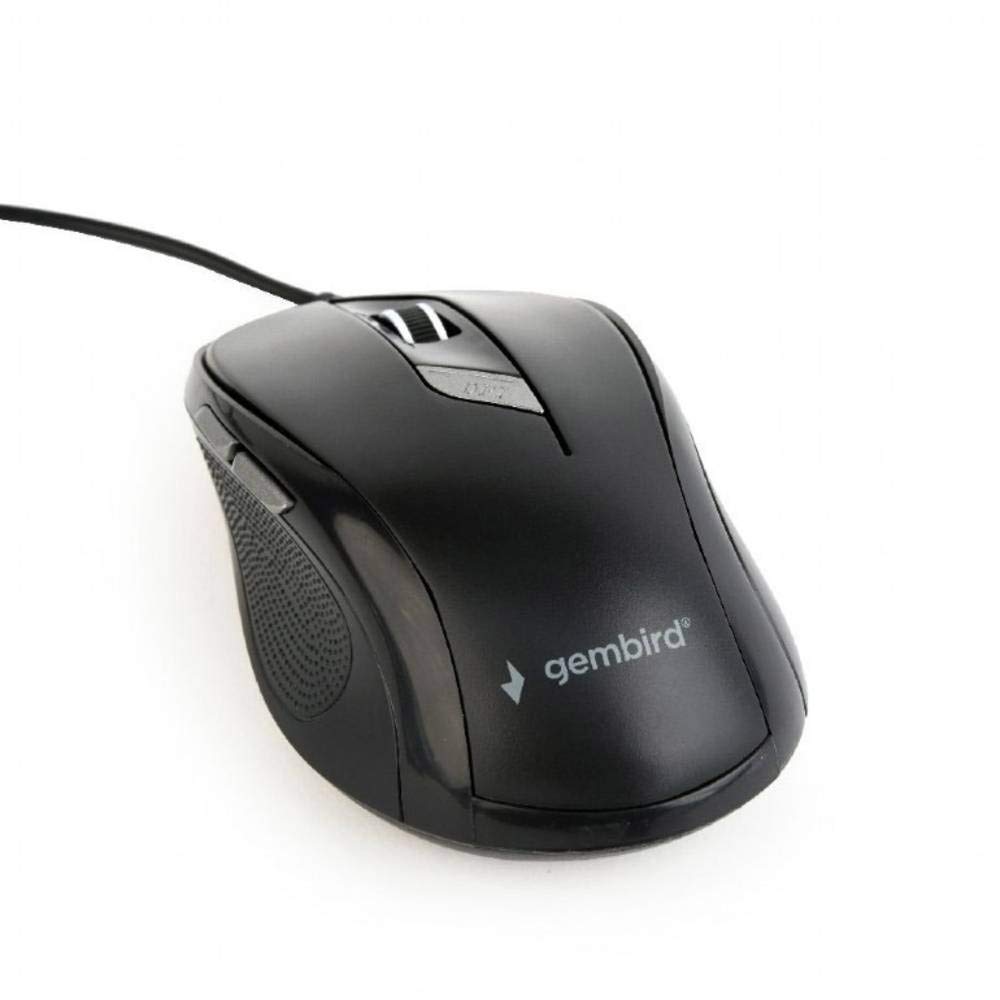
ຮູບພາບ: ເທິງລົງລຸ່ມ view of the Gembird MUS-6B-01 optical USB mouse. The mouse is black with a matte finish, featuring a scroll wheel, left and right click buttons, a DPI button, and two side buttons. A black USB cable extends from the front of the mouse.
3. ຕັ້ງຄ່າ
Setting up your Gembird MUS-6B-01 mouse is a simple plug-and-play process.
ຂັ້ນຕອນການຕິດຕັ້ງ:
- ຊອກຫາຊ່ອງສຽບ USB ທີ່ມີຢູ່ໃນຄອມພິວເຕີຂອງທ່ານ.
- Plug the USB connector of the Gembird MUS-6B-01 mouse firmly into the USB port.
- Your operating system (Windows, Linux) will automatically detect and install the necessary drivers. This process may take a few moments.
- ເມື່ອໄດເວີຖືກຕິດຕັ້ງ, ຫນູແມ່ນກຽມພ້ອມສໍາລັບການນໍາໃຊ້.
ໂດຍປົກກະຕິແລ້ວບໍ່ຈຳເປັນຕ້ອງມີການຕິດຕັ້ງຊອບແວເພີ່ມເຕີມສຳລັບການເຮັດວຽກພື້ນຖານ.
4. ຄໍາແນະນໍາການດໍາເນີນງານ
Familiarize yourself with the functions of each button on your Gembird MUS-6B-01 mouse.
ຟັງຊັນພື້ນຖານ:
- ຄລິກຊ້າຍ: Primary action, selecting items, opening files.
- ກົດຂວາ: Opens context menus, provides additional options.
- ລໍ້ເລື່ອນ: ເລື່ອນຂຶ້ນຫຼືລົງໂດຍຜ່ານເອກະສານແລະ web ໜ້າ.
- ຄລິກກາງ (ກົດລໍ້ເລື່ອນ): Often used to open links in new tabs or for specific application functions.
ຟັງຊັນຂັ້ນສູງ:
- ປຸ່ມປັບ DPI: Located behind the scroll wheel, this button allows you to cycle through different sensitivity (DPI) settings. Press it to change the cursor speed to suit your preference.
- ປຸ່ມສົ່ງຕໍ່ (ຂ້າງ): Typically navigates forward in web ຕົວທ່ອງເວັບຫຼື file ນັກສຳຫຼວດ.
- ປຸ່ມກັບຄືນ (ຂ້າງ): Typically navigates backward in web ຕົວທ່ອງເວັບຫຼື file ນັກສຳຫຼວດ.
The functionality of the side buttons may vary depending on the application or operating system settings. Some operating systems allow customization of these buttons.
5. ບໍາລຸງຮັກສາ
Proper care will help extend the life of your Gembird MUS-6B-01 mouse.
ທໍາຄວາມສະອາດ:
- ຕັດການເຊື່ອມຕໍ່ຫນູຈາກຄອມພິວເຕີຂອງທ່ານກ່ອນທີ່ຈະທໍາຄວາມສະອາດ.
- ໃຊ້ອ່ອນ, ເລັກນ້ອຍ damp, ຜ້າບໍ່ມີຂົນເພື່ອເຊັດໜ້າຜິວຂອງໜູ.
- For stubborn dirt, a small amount of mild soap solution can be applied to the cloth (not directly to the mouse).
- ໃຊ້ສຳລີ ຫຼື ລົມອັດເພື່ອທຳຄວາມສະອາດອ້ອມລໍ້ເລື່ອນ ແລະ ລະຫວ່າງປຸ່ມຕ່າງໆ.
- Ensure the optical sensor on the underside is clean and free of dust or debris.
- Do not use harsh chemicals, abrasive cleaners, or immerse the mouse in water.
ການເກັບຮັກສາ:
When not in use for extended periods, store the mouse in a clean, dry environment away from extreme temperatures and direct sunlight.
6. ການແກ້ໄຂບັນຫາ
If you encounter issues with your Gembird MUS-6B-01 mouse, try the following troubleshooting steps:
| ບັນຫາ | ການແກ້ໄຂທີ່ເປັນໄປໄດ້ |
|---|---|
| ເມົ້າບໍ່ຕອບສະໜອງ |
|
| Erratic or jumpy cursor movement |
|
| ປຸ່ມບໍ່ເຮັດວຽກ |
|
7. ຂໍ້ມູນຈໍາເພາະ
Detailed technical specifications for the Gembird MUS-6B-01 Optical USB Mouse:
| ຄຸນສົມບັດ | ຂໍ້ມູນຈໍາເພາະ |
|---|---|
| ຍີ່ຫໍ້ | ແກ້ວປະເສີດ |
| ຊື່ຕົວແບບ | MUS-6B-01 |
| ເຕັກໂນໂລຊີການເຊື່ອມຕໍ່ | ສາຍ (USB) |
| ເຕັກໂນໂລຍີກວດຈັບການເຄື່ອນໄຫວ | Optical |
| ປະລິມານປຸ່ມ | 6 |
| ທິດທາງມື | ຂີ້ຄ້ານ |
| ລະບົບປະຕິບັດການທີ່ເຂົ້າກັນໄດ້ | Linux, Windows 7, Windows XP (ແລະລຸ້ນໃໝ່ກວ່າ) |
| ເວທີຮາດແວ | ຄອມພິວເຕີສ່ວນບຸກຄົນ |
| ຄວາມຍາວສາຍ | 5.0 ແມັດ |
| ນ້ໍາຫນັກລາຍການ | 74 ກຣາມ |
| ວັດສະດຸ | ພາດສະຕິກ |
| ສີ | ດຳ |
| ຕ້ອງໃຊ້ແບັດເຕີຣີ | ບໍ່ |
8. ຂໍ້ມູນຄວາມປອດໄພ
ກະລຸນາປະຕິບັດຕາມຄໍາແນະນໍາດ້ານຄວາມປອດໄພຕໍ່ໄປນີ້:
- ຢ່າປ່ອຍໃຫ້ຫນູຖືກນ້ໍາຫຼືຄວາມຊຸ່ມຊື່ນຫຼາຍເກີນໄປ.
- ຫຼີກລ້ຽງການຫຼຸດລົງຫຼືກົດດັນຫນູໄດ້ຮັບຜົນກະທົບທີ່ເຂັ້ມແຂງ.
- ຢ່າພະຍາຍາມຖອດປະກອບ ຫຼື ສ້ອມແປງເມົາສ໌ດ້ວຍຕົນເອງ. ໃຫ້ຕິດຕໍ່ພະນັກງານບໍລິການທີ່ມີຄຸນວຸດທິ.
- ຮັກສາອຸປະກອນໃຫ້ຫ່າງຈາກອຸນຫະພູມທີ່ຮຸນແຮງ ແລະແສງແດດໂດຍກົງ.
- ກຳຈັດຂີ້ເຫຍື້ອເອເລັກໂຕຣນິກຢ່າງມີຄວາມຮັບຜິດຊອບຕາມລະບຽບການຂອງທ້ອງຖິ່ນ.
9. ການຮັບປະກັນແລະການສະຫນັບສະຫນູນ
Gembird products are designed for reliability and performance. For specific warranty terms and conditions, please refer to the warranty card included with your product or visit the official Gembird website. For technical support or further assistance, please contact your retailer or the Gembird customer service department.