
1. ຜະລິດຕະພັນເກີນview
The Jettom J1 is a 7-inch tablet designed for children, featuring a durable yellow casing. It operates on the Android system and includes dual cameras, Bluetooth connectivity, and 2G cellular support. This manual provides essential information for setting up, operating, maintaining, and troubleshooting your Jettom J1 tablet.
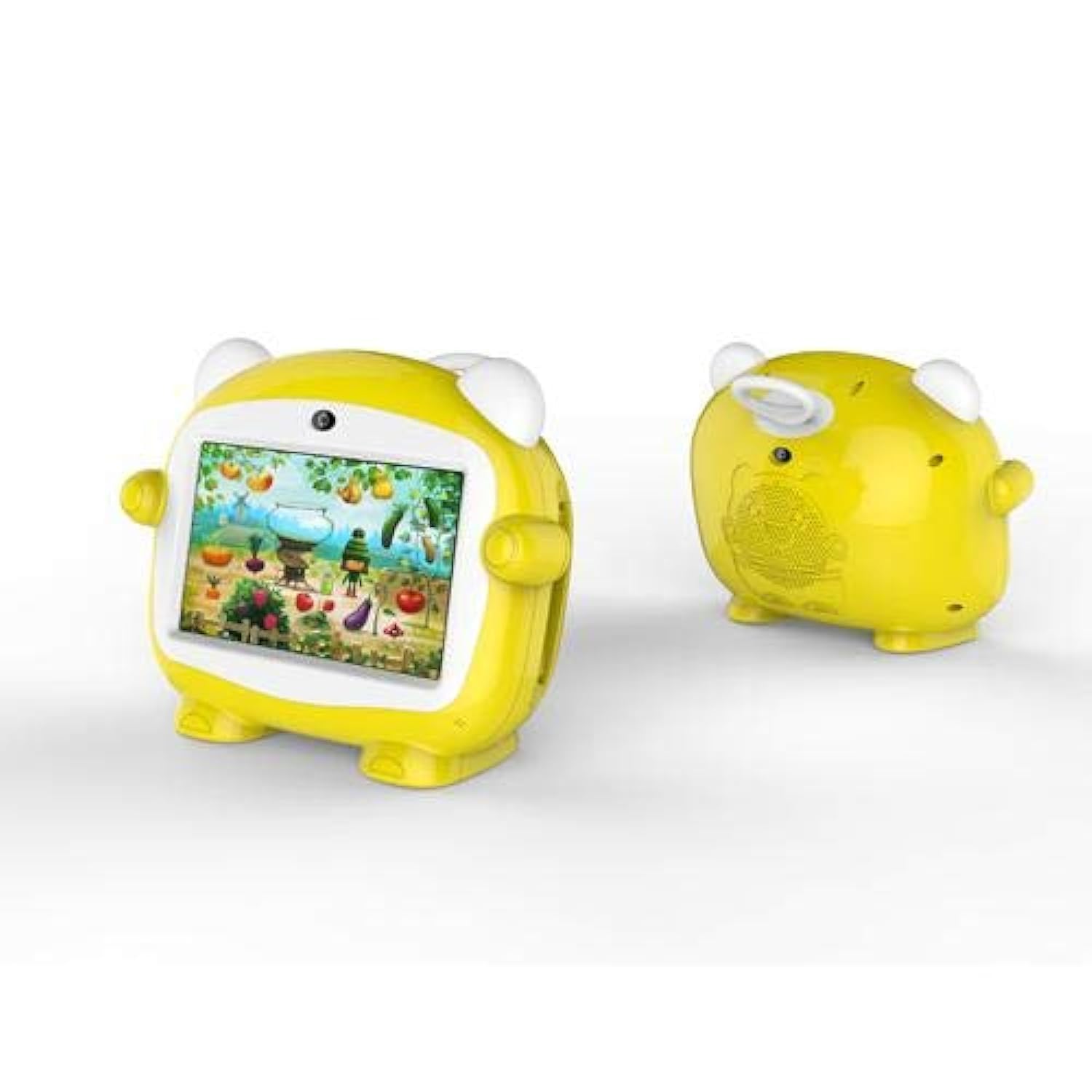
ຮູບ 1: ດ້ານຫນ້າ view of the Jettom J1 Kids Tablet.
2. ການຕິດຕັ້ງເບື້ອງຕົ້ນ
2.1 ການສາກແທັບເລັດ
Before first use, fully charge the tablet. Connect the provided charger to the tablet's charging port and plug it into a power outlet. The battery indicator on the screen will show charging status.
2.2 ການເປີດ/ປິດ
- ເພື່ອເປີດເຄື່ອງ: ກົດປຸ່ມເປີດປິດທີ່ຢູ່ຂ້າງແທັບເລັດຄ້າງໄວ້ຈົນກວ່າໜ້າຈໍຈະສະຫວ່າງຂຶ້ນ.
- ປິດເຄື່ອງ: ກົດປຸ່ມເປີດ/ປິດຄ້າງໄວ້, ຈາກນັ້ນເລືອກ 'ປິດເຄື່ອງ' ຈາກຕົວເລືອກທີ່ປາກົດຢູ່ໜ້າຈໍ.
2.3 ການຕັ້ງຄ່າເບື້ອງຕົ້ນ
Upon first startup, follow the on-screen prompts to configure basic settings:
- ເລືອກພາສາທີ່ທ່ານຕ້ອງການ.
- ເຊື່ອມຕໍ່ກັບເຄືອຂ່າຍ Wi-Fi.
- ກໍານົດວັນທີແລະເວລາ.
- Sign in with a Google account (optional, but recommended for app downloads).
2.4 Inserting a SIM Card (for 2G Cellular)
The Jettom J1 supports a single 2G SIM card for cellular connectivity. Locate the SIM card slot, typically on the side or back of the device. Carefully insert the SIM card with the gold contacts facing down, ensuring it is correctly oriented. Refer to the diagram below for slot location.

ຮູບ 2: ກັບຄືນໄປບ່ອນ view of the Jettom J1 Kids Tablet, indicating potential SIM card slot area.
3. ຄໍາແນະນໍາການດໍາເນີນງານ
3.1 ການນໍາທາງພື້ນຖານ
The tablet features a capacitive touchscreen. Use the following gestures:
- ແຕະ: ເພື່ອເລືອກລາຍການ ຫຼືເປີດແອັບພລິເຄຊັນ.
- ປັດ: ເພື່ອເລື່ອນຜ່ານໜ້າ ຫຼື ເມນູ.
- ເມື່ອເຂົ້າຕາຈົນ: ເພື່ອຊູມເຂົ້າ ຫຼືອອກໃນຮູບ ຫຼື web ໜ້າ.
3.2 ການເຊື່ອມຕໍ່ Wi-Fi
ເພື່ອເຊື່ອມຕໍ່ກັບເຄືອຂ່າຍ Wi-Fi:
- ໄປທີ່ ການຕັ້ງຄ່າ > ເຄືອຂ່າຍ ແລະອິນເຕີເນັດ > Wi-Fi.
- ສະຫຼັບ Wi-Fi On.
- ເລືອກເຄືອຂ່າຍທີ່ທ່ານຕ້ອງການຈາກບັນຊີລາຍຊື່ແລະໃສ່ລະຫັດຜ່ານຖ້າຫາກວ່າ prompted.
3.3 ການນໍາໃຊ້ກ້ອງຖ່າຍຮູບ
The tablet is equipped with a front (2MP) and rear (5MP) camera. Open the Camera application to take photos or record videos. You can switch between the front and rear cameras within the app interface.
3.4 ການຈັບຄູ່ Bluetooth
ເພື່ອຈັບຄູ່ກັບອຸປະກອນ Bluetooth:
- ໄປທີ່ ການຕັ້ງຄ່າ > ອຸປະກອນທີ່ເຊື່ອມຕໍ່ > Bluetooth.
- ສະຫຼັບ Bluetooth On.
- The tablet will scan for available devices. Select the device you wish to pair with and confirm the pairing code if necessary.
4. ບໍາລຸງຮັກສາ
4.1 ການເຮັດຄວາມສະອາດແທັບເລັດ
Use a soft, lint-free cloth to clean the screen and body of the tablet. Do not use abrasive cleaners or solvents, as these can damage the device. Avoid direct contact with liquids.
4.2 ການດູແລຫມໍ້ໄຟ
- ຫຼີກເວັ້ນການເປີດເຜີຍແທັບເລັດກັບອຸນຫະພູມທີ່ຮຸນແຮງ.
- ຢ່າປ່ອຍໃຫ້ແບດເຕີລີ່ໄຫຼເຕັມເລື້ອຍໆເລື້ອຍໆ.
- ໃຊ້ພຽງແຕ່ເຄື່ອງສາກຕົ້ນສະບັບ ຫຼືເຄື່ອງສາກທີ່ເຂົ້າກັນໄດ້ທີ່ໄດ້ຮັບການຮັບຮອງ.
4.3 ການປັບປຸງຊອບແວ
ກວດສອບການອັບເດດລະບົບເປັນໄລຍະເພື່ອຮັບປະກັນປະສິດທິພາບ ແລະ ຄວາມປອດໄພທີ່ດີທີ່ສຸດ. ໄປທີ່ ການຕັ້ງຄ່າ > ລະບົບ > ອັບເດດລະບົບ ເພື່ອກວດສອບ ແລະຕິດຕັ້ງການອັບເດດທີ່ມີຢູ່.
4.4 ການຄຸ້ມຄອງການເກັບຮັກສາ
To manage the tablet's 4GB internal storage, go to ການຕັ້ງຄ່າ > ການເກັບຮັກສາ. You can clear cached data, uninstall unused apps, or move files to an external SD card (if supported and installed) to free up space.
5. ການແກ້ໄຂບັນຫາ
| ບັນຫາ | ການແກ້ໄຂ |
|---|---|
| ແທັບເລັດບໍ່ເປີດ | Ensure the battery is charged. Connect the charger and try again. If unresponsive, press and hold the power button for 10-15 seconds to force a restart. |
| ໜ້າຈໍບໍ່ຕອບສະໜອງ | ຣີສະຕາດແທັບເລັດ. ຖ້າບັນຫາຍັງຄົງຢູ່, ໃຫ້ແນ່ໃຈວ່າຫນ້າຈໍສະອາດແລະບໍ່ມີສິ່ງເສດເຫຼືອ. |
| ບໍ່ສາມາດເຊື່ອມຕໍ່ກັບ Wi-Fi ໄດ້ | Check if Wi-Fi is enabled in Settings. Restart your Wi-Fi router. Ensure you are entering the correct password. |
| ແອັບກຳລັງຂັດຂ້ອງ ຫຼືຄ້າງ | Close and reopen the app. Clear the app's cache in Settings > Apps. Ensure the tablet has sufficient free storage space. |
| ການປະຕິບັດຊ້າ | ປິດແອັບພລິເຄຊັນທີ່ບໍ່ໄດ້ໃຊ້. ລຶບ cache ແລະຊົ່ວຄາວ files. Consider a factory reset as a last resort (back up data first). |
6. ຂໍ້ມູນຈໍາເພາະ
| ຄຸນສົມບັດ | ລາຍລະອຽດ |
|---|---|
| ຍີ່ຫໍ້ | Jettom |
| ໝາຍເລກຕົວແບບ | J1 |
| ຂະໜາດໜ້າຈໍ | 7 ນິ້ວ |
| ຄວາມລະອຽດການສະແດງ | 1024 x 600 |
| ປະເພດການສະແດງ | IPS LCD |
| ຍີ່ຫໍ້ເຄື່ອງປະມວນຜົນ | MediaTek |
| ຄວາມໄວປະມວນຜົນ | 1.3 GHz Quad-Core |
| ຂະໜາດ RAM | 512 MB |
| ຄວາມອາດສາມາດເກັບຮັກສາ | 4 GB |
| ຄວາມລະອຽດກ້ອງຫຼັງ | 5 ລ້ານພິກເຊລ |
| ຄວາມລະອຽດກ້ອງໜ້າ | 2 ລ້ານພິກເຊລ |
| ລະບົບປະຕິບັດການ | Android |
| ຄວາມອາດສາມາດຫມໍ້ໄຟ | 2000 mAh |
| ການເຊື່ອມຕໍ່ໄຮ້ສາຍ | Bluetooth |
| Cellular Network Technology | 2G (Single SIM) |
| ສີ | ສີເຫຼືອງ |
| ຄຸນນະສົມບັດພິເສດ | ກ້ອງຄູ່ |
| ຊ່ວງອາຍຸ (ລາຍລະອຽດ) | ເດັກ |
7. ການຮັບປະກັນແລະການສະຫນັບສະຫນູນ
Warranty information for the Jettom J1 tablet is typically provided at the point of purchase or within the product packaging. Please refer to these documents for details regarding coverage and terms.
For technical support, service, or inquiries regarding your product, please contact the seller or the manufacturer directly. Contact information can usually be found on the product packaging or the seller's webເວັບໄຊ.