
1. ບົດແນະນຳ
The Modecom Oberon Pro Midi Tower is a computer case designed for users seeking a functional and spacious interior with a modern aesthetic. This manual provides essential information for the proper installation, operation, and maintenance of your computer case, ensuring optimal performance and longevity of your components.
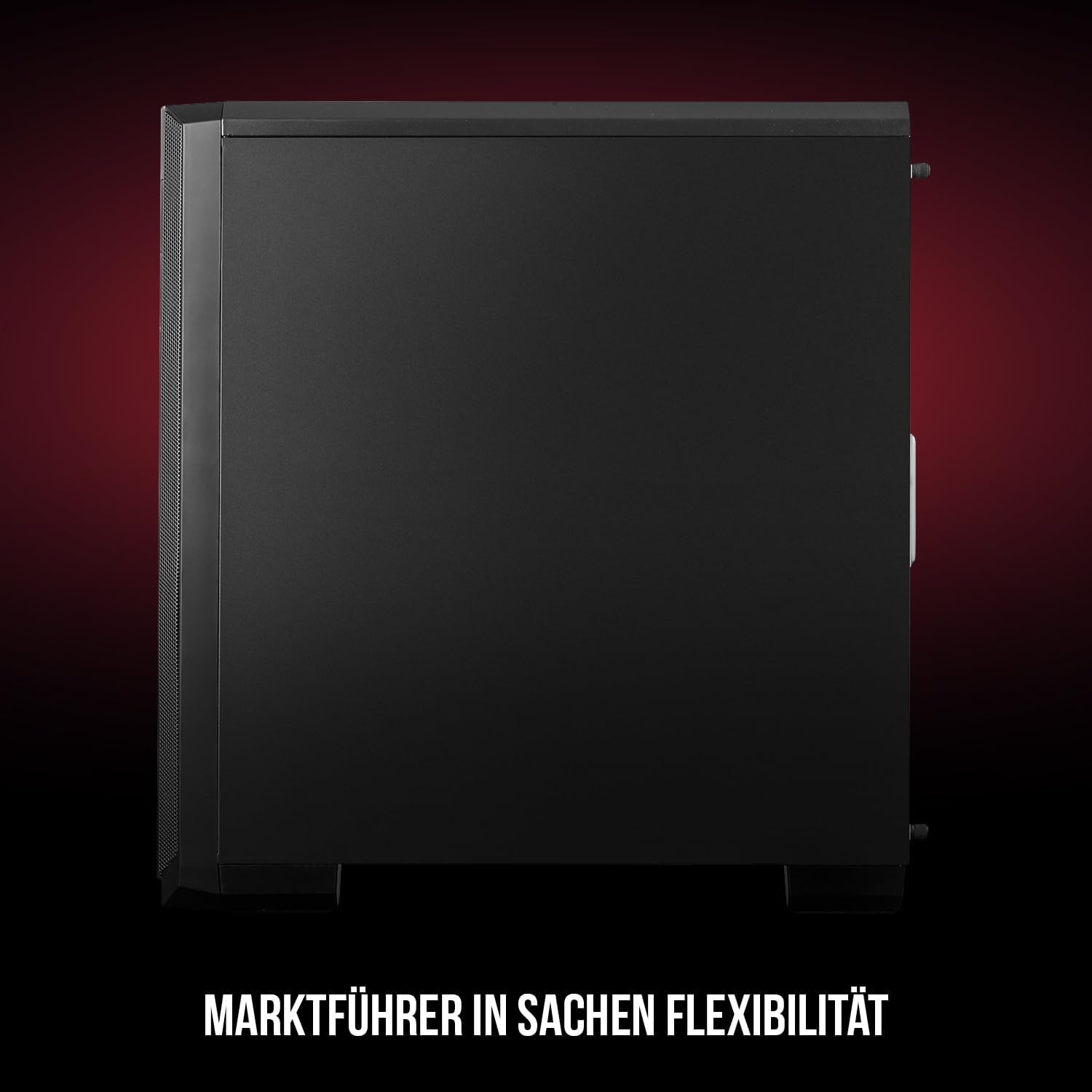
ຮູບ 1: ດ້ານຫນ້າແລະດ້ານຂ້າງ view of the Modecom Oberon Pro Midi Tower computer case.
2. ຂໍ້ມູນຄວາມປອດໄພ
- ສະເຫມີຕັດການເຊື່ອມຕໍ່ການສະຫນອງພະລັງງານຈາກເຕົ້າສຽບໃສ່ຝາກ່ອນທີ່ຈະຕິດຕັ້ງຫຼືເອົາອົງປະກອບໃດໆ.
- Handle components with care to avoid electrostatic discharge. Consider using an anti-static wrist strap.
- ຮັກສາສ່ວນນ້ອຍໆ ແລະເຄື່ອງມືຢູ່ຫ່າງຈາກເດັກນ້ອຍ.
- ຮັບປະກັນການລະບາຍອາກາດທີ່ເໝາະສົມອ້ອມຮອບກ່ອງເພື່ອປ້ອງກັນຄວາມຮ້ອນເກີນໄປ.
- Do not attempt to modify the case structure, as this may void your warranty and pose safety risks.
3. ເນື້ອໃນຊຸດ
ກວດສອບວ່າລາຍການທັງໝົດຕໍ່ໄປນີ້ມີຢູ່ໃນກ່ອງຂອງທ່ານ:
- Modecom Oberon Pro Midi Tower Computer Case
- Accessory box (screws, standoffs, cable ties)
- ຄູ່ມືຜູ້ໃຊ້ (ເອກະສານນີ້)
4. ຄຸນນະສົມບັດທີ່ສໍາຄັນ
- ພາຍໃນກວ້າງຂວາງ: Designed to accommodate high-end components and facilitate good airflow.
- ຄວາມເຢັນປະສິດທິພາບ: Includes two pre-mounted 120mm fans (front and rear) to prevent component overheating.
- ການຕິດຕັ້ງເຄື່ອງມືຟຣີ: Supports tool-free mounting for SSD/HDD drives and expansion cards.
- ການກັ່ນຕອງຝຸ່ນ: Features easily dismountable magnetic filters on the top, front, and bottom (under the power supply unit) to keep the interior clean.
- Optimized Cable Management: Provides a system for convenient wiring organization.
- Long PSU Tunnel: Offers a 240mm space for power supplies, simplifying installation and cable arrangement.
5. ການຕິດຕັ້ງແລະການຕິດຕັ້ງ
5.1. ການກະກຽມກໍລະນີ
Before installation, remove the side panels of the case. The Oberon Pro features sound-dampening mats on the side panels to reduce noise.

ຮູບ 2: ພາຍໃນ view showing sound-dampening mats on the side panel.
5.2. ການຕິດຕັ້ງເມນບອດ
Install the necessary standoffs for your motherboard form factor (ATX, Micro ATX, ITX). Carefully place your motherboard into the case, aligning it with the standoffs, and secure it with screws.

Figure 3: Interior layout with pre-installed rear fan and motherboard tray.
5.3. Drive Installation (SSD/HDD)
The Oberon Pro supports tool-free installation for three 2.5" SSDs and two 3.5" HDDs. The 3.5" HDD bays are located in the power supply tunnel at the bottom of the case. 2.5" SSDs can be mounted on both sides of the motherboard tray.

Figure 4: Dedicated bays for HDD and SSD storage devices.
5.4. ການຕິດຕັ້ງການສະຫນອງພະລັງງານ
The case features a long PSU tunnel (240mm) at the bottom. Install your power supply unit into this tunnel and secure it. This design aids in cable management and airflow.
5.5. Expansion Card Installation (PCI/PCIe)
Install your graphics card or other expansion cards into the PCI/PCIe slots. The case supports tool-free mounting for these cards, allowing for easy installation and removal.
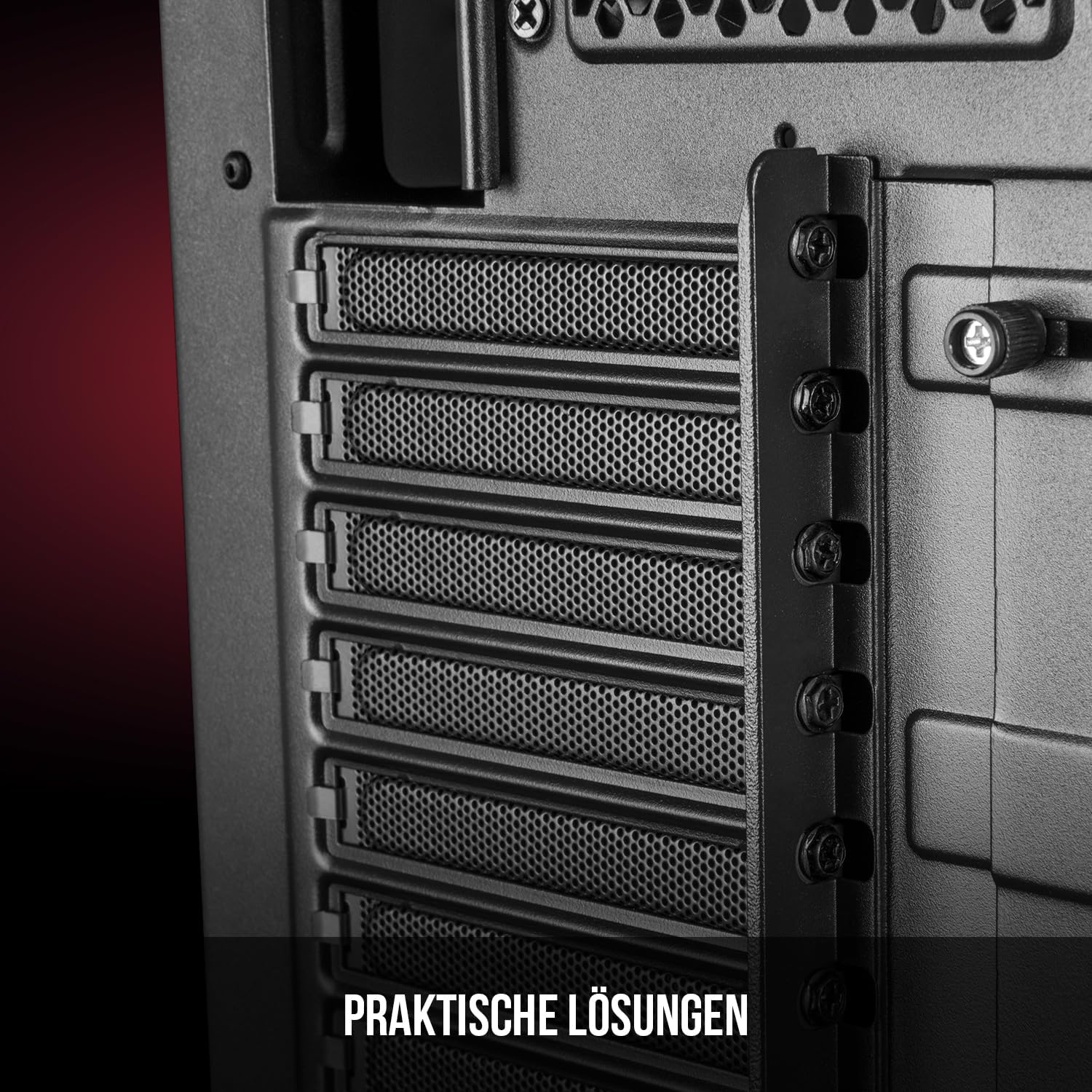
ຮູບ 5: ດ້ານຫລັງ view highlighting the expansion card slots.
5.6. ການຄຸ້ມຄອງສາຍໄຟ
Utilize the provided cable routing options and tie-down points behind the motherboard tray to organize cables. This improves airflow and maintains a tidy interior.
6. ລະບົບເຮັດຄວາມເຢັນ
The Oberon Pro comes with two pre-installed 120mm fans, one at the front and one at the rear, to ensure adequate airflow. The maximum height for a CPU cooler is 163mm, and the maximum length for a video card is 395mm, allowing for compatibility with a wide range of components.
7. ບໍາລຸງຮັກສາ
To maintain optimal performance and prevent dust buildup, regularly clean the dust filters. The magnetic filters on the top, front, and bottom of the case are easily dismountable for cleaning. Use compressed air or a soft brush to remove accumulated dust.
8. ການແກ້ໄຂບັນຫາ
- ບໍ່ມີພະລັງງານ: Ensure all power cables are securely connected to the motherboard, power supply, and wall outlet. Check the power button connection to the motherboard.
- ຄວາມຮ້ອນເກີນ: Verify that all fans are spinning correctly and that dust filters are clean. Ensure proper cable management to avoid obstructing airflow.
- ພອດແຜງດ້ານໜ້າບໍ່ເຮັດວຽກ: Check that the front panel connectors (USB, audio) are correctly plugged into the motherboard headers.
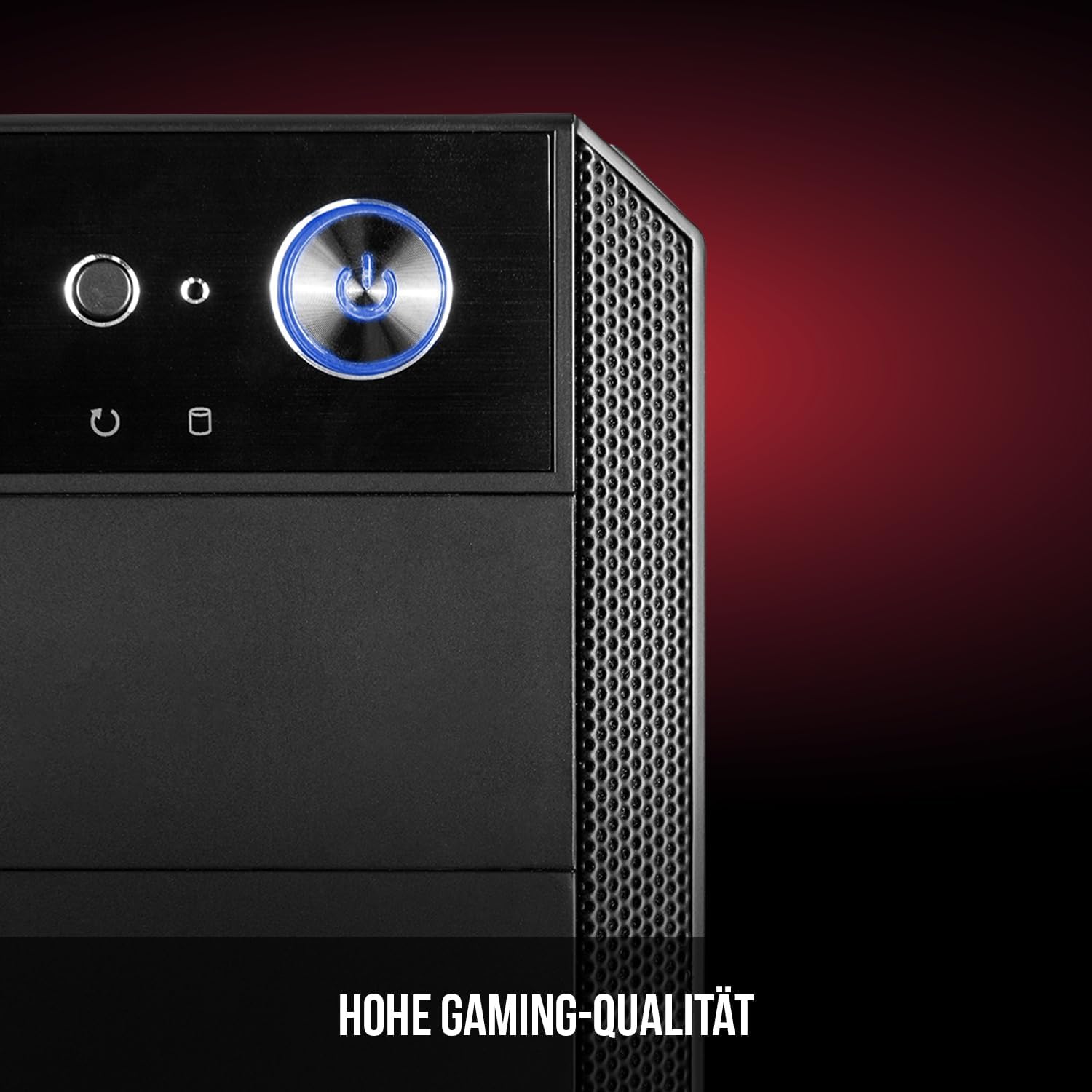
Figure 6: Front panel I/O ports for connectivity.
9. ຂໍ້ມູນຈໍາເພາະ
| ຄຸນສົມບັດ | ຂໍ້ມູນຈໍາເພາະ |
|---|---|
| ຍີ່ຫໍ້ | Modecom |
| ຊື່ຕົວແບບ | Oberon Pro |
| ໝາຍເລກຕົວແບບ | AT-OBERON-PS-10-000000-0002 |
| ສີ | ດຳ |
| ປະເພດກໍລະນີ | ຫໍ Midi |
| ຄວາມເຂົ້າກັນໄດ້ຂອງເມນບອດ | ATX, ໄມໂຄຣ ATX, ITX |
| ວັດສະດຸ | ເຫຼັກໂລຫະປະສົມ |
| ວິທີການເຮັດຄວາມເຢັນ | ອາກາດ |
| ພັດລົມທີ່ຕິດຕັ້ງໄວ້ລ່ວງໜ້າ | 2 x 120mm (Front, Rear) |
| ຄວາມສູງຂອງ CPU Cooler ສູງສຸດ | 163 ມມ |
| ຄວາມຍາວສູງສຸດຂອງ GPU | 395 ມມ |
| ຂັບລົດ Bays | SSD ຂະໜາດ 2.5 ນິ້ວ 3 ອັນ, HDD ຂະໜາດ 3.5 ນິ້ວ 2 ອັນ |
| ພອດ USB ທັງໝົດ | 4 |
| ຄຸນນະສົມບັດພິເສດ | Reset Button, Dust Filter, LED Indicators, Side Window |
| ນ້ໍາຫນັກລາຍການ | 5270 ກຣາມ |

ຮູບທີ 7: ດ້ານຫຼັງພາຍນອກ view of the computer case.
10. ການຮັບປະກັນແລະການສະຫນັບສະຫນູນ
For warranty information and technical support, please refer to the official Modecom webເວັບໄຊ ຫຼືຕິດຕໍ່ຮ້ານຂາຍຍ່ອຍຂອງທ່ານ. ຮັກສາຫຼັກຖານການຊື້ຂອງທ່ານສໍາລັບການຮຽກຮ້ອງການຮັບປະກັນໃດໆ.