
1. ບົດແນະນຳ
Thank you for choosing the Macally USB Type C Wired Mouse. This manual provides detailed instructions for setting up, operating, and maintaining your new mouse. Designed for simplicity and reliability, this plug-and-play mouse offers comfortable use with adjustable DPI settings for various computing needs.
2. ເນື້ອໃນຊຸດ
- Macally USB Type C Wired Mouse
- ຄູ່ມືການສອນ
3. ຕັ້ງຄ່າ
The Macally USB Type C Wired Mouse is designed for easy plug-and-play functionality, requiring no additional drivers for most operating systems.
- ເຊື່ອມຕໍ່ຫນູ: Locate an available USB-C port on your computer (MacBook Pro, iMac, PC, Laptop, Tablet, etc.). Insert the USB-C connector of the mouse cable firmly into the USB-C port.
- ການຮັບຮູ້ອັດຕະໂນມັດ: Your operating system should automatically detect and configure the mouse. No software installation is typically required.
- ເລີ່ມຕົ້ນການນໍາໃຊ້: ເມື່ອຮັບຮູ້ແລ້ວ, ເມົາສ໌ຈະພ້ອມທີ່ຈະໃຊ້ງານໄດ້ທັນທີ.

Image: The Macally USB-C mouse connected to a laptop via its USB-C cable, demonstrating the plug-and-play setup.
Video: A demonstration of connecting the wired USB-C mouse to a laptop, highlighting its plug-and-play functionality for Type-C computers.
4. ຄໍາແນະນໍາການດໍາເນີນງານ
4.1 ການນຳໃຊ້ພື້ນຖານ
The mouse features a standard 3-button layout for intuitive control:
- ປຸ່ມກົດຊ້າຍ: ໃຊ້ສໍາລັບການເລືອກລາຍການ, ເປີດ files, ແລະປະຕິບັດຄໍາສັ່ງ.
- ປຸ່ມກົດຂວາ: Used for accessing contextual menus and additional options.
- ລໍ້ເລື່ອນ: ໃຊ້ສຳລັບການເລື່ອນຜ່ານເອກະສານ ແລະ web pages. The scroll wheel can also be pressed as a middle click button for specific functions in some applications.

ຮູບພາບ: ເທິງລົງລຸ່ມ view of the Macally USB-C mouse, clearly showing the left-click, right-click, and scroll wheel buttons.
4.2 ການປັບ DPI
The mouse features a dedicated DPI (Dots Per Inch) switch to adjust cursor sensitivity. This allows you to change the speed and responsiveness of the cursor to suit your preference or task.
- ກົດ ປຸ່ມ DPI (located below the scroll wheel) to cycle through the available sensitivity settings: 800, 1200, 1600, and 2400 DPI.
- Select the DPI setting that provides the most comfortable and efficient cursor movement for your current activity.
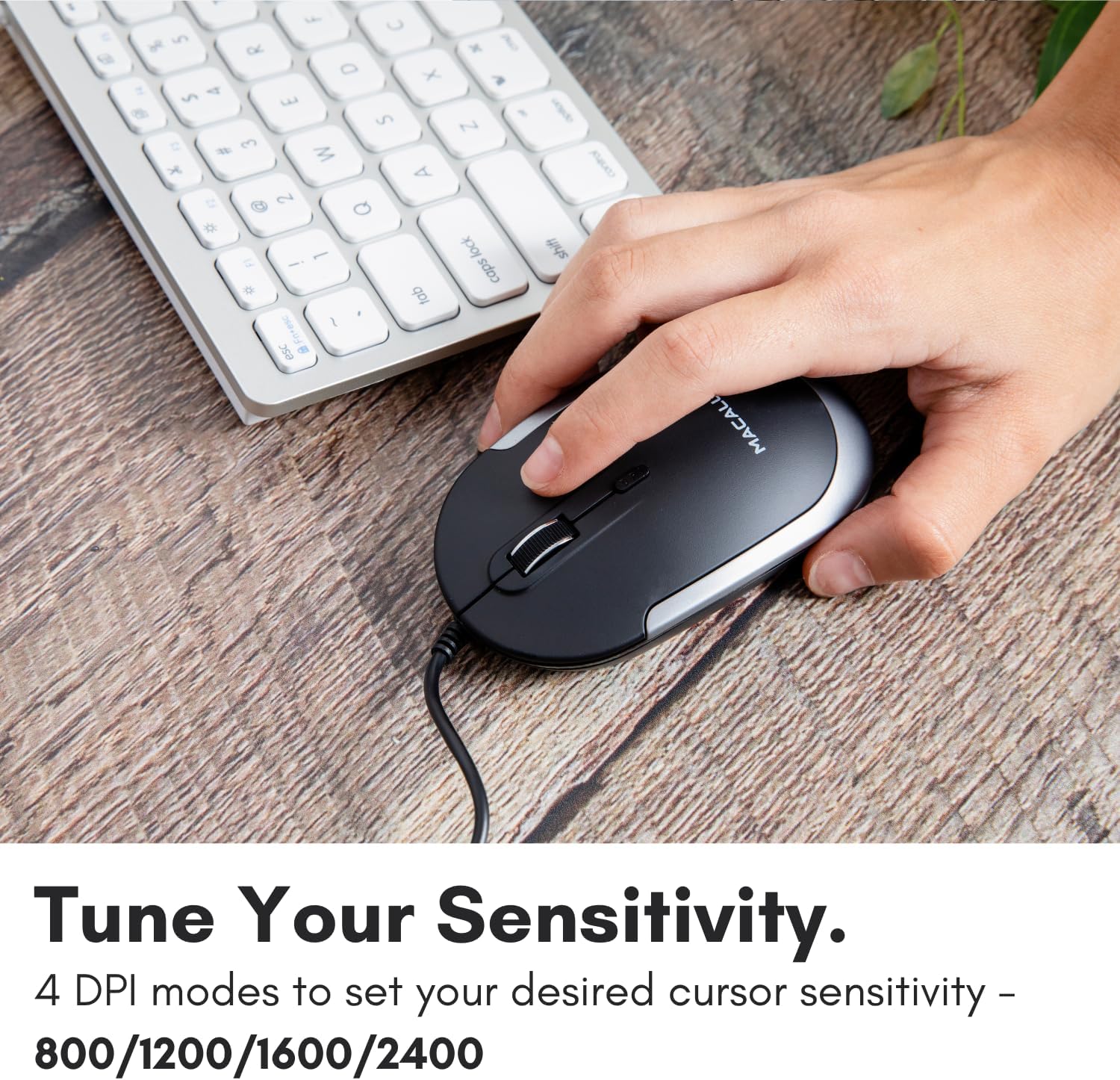
Image: A hand demonstrating how to press the DPI button on the Macally USB-C mouse to adjust sensitivity.
4.3 ຄວາມເຂົ້າກັນໄດ້
The Macally USB Type C Wired Mouse is universally compatible with a wide range of devices and operating systems:
- Mac (macOS)
- ຄອມພິວເຕີ (Windows)
- iPadOS
- Android devices with USB-C ports

Image: The Macally USB-C mouse displayed with compatibility logos for Mac, PC, iPadOS, and Android operating systems.
5. ຄຸນນະສົມບັດທີ່ສໍາຄັນ
- ການເຊື່ອມຕໍ່ USB-C: Specifically designed for modern laptops and computers with USB-C ports, ensuring a reliable wired connection.
- Slim & Compact Design: With a height of only 1 inch, the mouse is slim, comfortable, and portable, fitting snugly in your hand.
- ປຸ່ມຄລິກທີ່ງຽບໆ: Reduces clicking noise by 90% compared to traditional mice, providing a quieter work environment.
- DPI ທີ່ສາມາດປັບໄດ້: Easily switch between 800, 1200, 1600, and 2400 DPI settings for precise cursor control.
- 5-Foot Cable: ສະຫນອງ ample length for flexible setup and comfortable use, even with desktop computers.
- ການອອກແບບຜິດປົກກະຕິ: ເໝາະສຳລັບຜູ້ໃຊ້ທັງມືຂວາ ແລະມືຊ້າຍ.

Image: The Macally USB-C mouse highlighting its elegant and slim design with dimensions.
Video: A detailed look at the Macally USB-C Optical Mouse, emphasizing its quiet click buttons and compatibility with Mac and PC.
6. ບໍາລຸງຮັກສາ
To ensure the longevity and optimal performance of your Macally USB Type C Wired Mouse, follow these simple maintenance guidelines:
- ທໍາຄວາມສະອາດ: ໃຊ້ຜ້າອ່ອນ, ແຫ້ງ, ແລະ ບໍ່ມີຂົນເພື່ອເຊັດໜ້າຜິວຂອງເມົາສ໌. ສຳລັບຝຸ່ນທີ່ຝັງແໜ້ນ, ໃຫ້ເຊັດອອກເລັກນ້ອຍampen ຜ້າດ້ວຍນ້ໍາຫຼືການແກ້ໄຂການທໍາຄວາມສະອາດອ່ອນໆ. ຫຼີກເວັ້ນການນໍາໃຊ້ສານເຄມີທີ່ຮຸນແຮງຫຼືວັດສະດຸຂັດ.
- ເຊັນເຊີແສງ: ຮັກສາເຊັນເຊີ optical ຢູ່ດ້ານລຸ່ມຂອງຫນູສະອາດແລະບໍ່ມີຝຸ່ນຫຼືສິ່ງເສດເຫຼືອ. ຖ້າຈໍາເປັນ, ໃຊ້ຜ້າຝ້າຍຫຼືຜ້າອັດດັງ.
- ການດູແລສາຍໄຟ: Avoid sharp bends or excessive pulling on the USB-C cable to prevent damage. Store the cable neatly when not in use.
- ການເກັບຮັກສາ: ເມື່ອບໍ່ໄດ້ໃຊ້, ໃຫ້ເກັບຮັກສາຫນູໃນສະພາບແວດລ້ອມທີ່ສະອາດ, ແຫ້ງຫ່າງຈາກອຸນຫະພູມທີ່ຮຸນແຮງ.
7. ການແກ້ໄຂບັນຫາ
If you encounter any issues with your Macally USB Type C Wired Mouse, please refer to the following common solutions:
| ບັນຫາ | ການແກ້ໄຂ |
|---|---|
| ເມົາສ໌ບໍ່ຕອບສະໜອງ. |
|
| ການເຄື່ອນໄຫວຕົວກະພິບແມ່ນຜິດພາດ ຫຼືກະພິບ. |
|
| Buttons or scroll wheel are not working. |
|
8. ຂໍ້ມູນຈໍາເພາະ
| ຍີ່ຫໍ້ | Macally |
| ໝາຍເລກຕົວແບບ | UCDYNAMOUSESG |
| ເຕັກໂນໂລຊີການເຊື່ອມຕໍ່ | ມີສາຍ USB-C |
| ເຕັກໂນໂລຍີກວດຈັບການເຄື່ອນໄຫວ | Optical |
| ການຕັ້ງຄ່າ DPI | 800, 1200, 1600, 2400 |
| ຄວາມຍາວສາຍ | 5 ຟຸດ (ປະມານ 1.5 ແມັດ) |
| ປຸ່ມ | 3 (Left, Right, Scroll Wheel/Middle Click) + DPI Switch |
| ນ້ໍາຫນັກລາຍການ | 2.56 ອອນສ໌ (ປະມານ 72.5 ກຣາມ) |
| ຂະໜາດສິນຄ້າ (LxWxH) | 2.8 x 4.21 x 1 ນິ້ວ (ປະມານ 7.1 x 10.7 x 2.5 ຊມ) |
| ຄວາມເຂົ້າກັນໄດ້ | Mac (macOS), PC (Windows), iPadOS, Android (with USB-C) |
9. ການຮັບປະກັນແລະການສະຫນັບສະຫນູນ
Macally provides a ຮັບປະກັນ 1 ປີ for this product. For technical support, troubleshooting assistance, or warranty claims, please contact Macally customer service. You can find contact information and additional resources on the official Macally webເວັບໄຊ:
Webເວັບໄຊ: www
Macally also offers easy returns and lifetime support with your purchase.