
Bytech BYTECH Wireless Optical Mouse
BYTECH Wireless Optical Mouse User Manual
Model: BYTECH Wireless Optical Mouse
ແນະນຳ
This manual provides detailed instructions for the setup, operation, maintenance, and troubleshooting of your BYTECH Wireless Optical Mouse. Please read this manual thoroughly before using the device to ensure optimal performance and longevity.
ສິນຄ້າເກີນview
The BYTECH Wireless Optical Mouse is designed for comfortable and efficient navigation. It features a precise optical sensor, a scroll wheel, and a DPI adjustment button for customizable sensitivity. Its ergonomic design and wireless connectivity provide a clutter-free workspace.

ຮູບ 1: ເທິງລົງລຸ່ມ view of the BYTECH Wireless Optical Mouse. The mouse is black with a silver stripe along its sides. A scroll wheel and a DPI button are visible on the top surface.
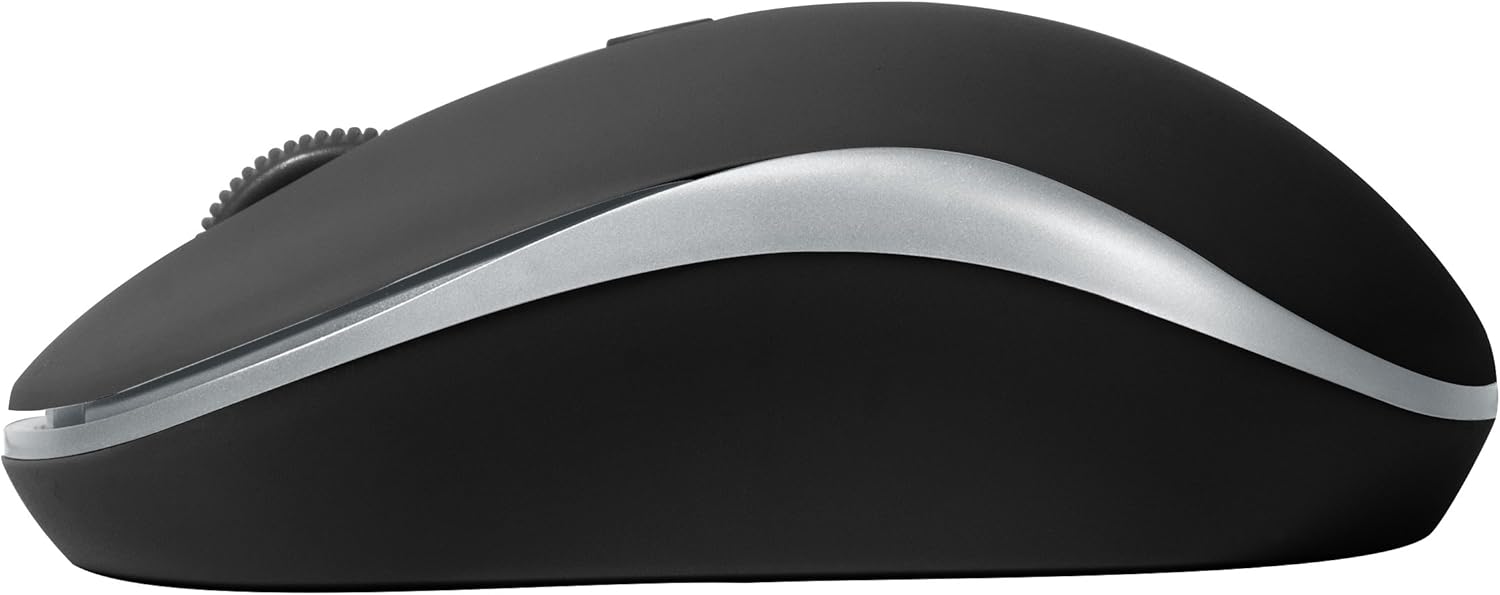
ຮູບ 2: ຂ້າງ view of the BYTECH Wireless Optical Mouse. This angle highlights the ergonomic curve and the silver accent line that runs along the side of the mouse.
ຕັ້ງຄ່າ
1. ການຕິດຕັ້ງຫມໍ້ໄຟ
- ຊອກຫາຊ່ອງໃສ່ຫມໍ້ໄຟຢູ່ດ້ານລຸ່ມຂອງຫນູ.
- ເປີດຝາປິດຊ່ອງໃສ່ຫມໍ້ໄຟ.
- Insert one AA battery (not included) into the compartment, ensuring the correct polarity (+/-) as indicated inside.
- ປິດຝາປິດຊ່ອງໃສ່ຫມໍ້ໄຟຢ່າງປອດໄພ.
2. ການເຊື່ອມຕໍ່ຕົວຮັບ USB
- Remove the USB receiver from its storage slot, usually located inside the battery compartment or near it.
- ສຽບຕົວຮັບ USB ເຂົ້າໄປໃນຜອດ USB ທີ່ມີຢູ່ໃນຄອມພິວເຕີ ຫຼືແລັບທັອບຂອງເຈົ້າ.
- ລະບົບປະຕິບັດການຂອງທ່ານຄວນກວດພົບແລະຕິດຕັ້ງໄດເວີທີ່ຈໍາເປັນໂດຍອັດຕະໂນມັດ. ອັນນີ້ອາດຈະໃຊ້ເວລາເລັກນ້ອຍ.
3. ເປີດເຄື່ອງ
- Locate the On/Off switch on the underside of the mouse.
- Slide the switch to the "On" position. The mouse should now be ready for use.
ຄໍາແນະນໍາການດໍາເນີນງານ
ຟັງຊັນພື້ນຖານ
- ຄລິກຊ້າຍ: ກົດປຸ່ມຊ້າຍເພື່ອເລືອກລາຍການ, ເປີດລິ້ງ ຫຼືເປີດໃຊ້ຟັງຊັນຕ່າງໆ.
- ກົດຂວາ: ກົດປຸ່ມຂວາເພື່ອເປີດເມນູບໍລິບົດ ຫຼືເຂົ້າເຖິງຕົວເລືອກເພີ່ມເຕີມ.
- ລໍ້ເລື່ອນ: ມ້ວນລໍ້ຂຶ້ນຫຼືລົງເພື່ອເລື່ອນຜ່ານເອກະສານຫຼື web ໜ້າ. ກົດລໍ້ເລື່ອນສໍາລັບຟັງຊັນຄລິກກາງ (ເຊັ່ນ: ເປີດລິ້ງຢູ່ໃນແຖບໃຫມ່).
ການປັບ DPI
The mouse features a DPI (Dots Per Inch) button, typically located behind the scroll wheel. Press this button to cycle through different sensitivity settings. Each press will change the cursor speed, allowing you to find the optimal setting for your task.
- ກົດ ປຸ່ມ DPI once to switch to the next sensitivity level.
- Repeat until you find your preferred cursor speed.
ໂໝດປະຢັດພະລັງງານ
To conserve battery life, the BYTECH Wireless Optical Mouse is designed to automatically enter a sleep mode after a period of inactivity. To wake the mouse, simply move it or click any button.
ບໍາລຸງຮັກສາ
ທໍາຄວາມສະອາດ
- Ensure the mouse is turned off before cleaning.
- ໃຊ້ຜ້າແພທີ່ອ່ອນໆ ທີ່ບໍ່ມີເສັ້ນດ່າງ dampຜະສົມດ້ວຍນ້ໍາຫຼືການແກ້ໄຂການທໍາຄວາມສະອາດອ່ອນໆ.
- ເຊັດໜ້າຜິວຂອງໜູຢ່າງອ່ອນໂຍນ. ຫຼີກລ່ຽງຄວາມຊຸ່ມຊື່ນຫຼາຍເກີນໄປ.
- ສຳລັບເຊັນເຊີແສງ, ໃຫ້ໃຊ້ສຳລີແຫ້ງເພື່ອເຊັດຝຸ່ນ ຫຼື ສິ່ງເສດເຫຼືອອອກຢ່າງລະມັດລະວັງ.
- ຢ່າໃຊ້ເຄື່ອງເຮັດຄວາມສະອາດຂັດ, ເຫຼົ້າ, ຫຼືສານລະລາຍ, ເພາະວ່າສິ່ງເຫຼົ່ານີ້ອາດຈະທໍາລາຍພື້ນຜິວ.
ການປ່ຽນແບັດ
When the mouse performance degrades or the cursor becomes erratic, it may be time to replace the battery. Follow the battery installation steps outlined in the "Setup" section.
ການເກັບຮັກສາ
When not in use for an extended period, it is recommended to turn off the mouse to conserve battery life. The USB receiver can be stored in its dedicated slot on the mouse's underside to prevent loss.
ການແກ້ໄຂບັນຫາ
- ເມົ້າບໍ່ຕອບສະໜອງ:
- ກວດໃຫ້ແນ່ໃຈວ່າເມົາສ໌ເປີດຢູ່.
- ກວດເບິ່ງລະດັບຫມໍ້ໄຟແລະປ່ຽນແທນຖ້າຈໍາເປັນ.
- ກວດສອບວ່າເຄື່ອງຮັບ USB ໄດ້ສຽບເຂົ້າກັບພອດ USB ທີ່ໃຊ້ງານໄດ້ຢ່າງປອດໄພ. ລອງໃຊ້ພອດ USB ອື່ນ.
- ປິດເປີດຄອມພິວເຕີຂອງທ່ານຄືນໃໝ່.
- Cursor erratic or jumping:
- ເຮັດຄວາມສະອາດເຊັນເຊີ optical ຢູ່ຂ້າງລຸ່ມຂອງຫນູ.
- Ensure you are using the mouse on a suitable surface (non-reflective, non-transparent). A mouse pad is recommended.
- ກວດເບິ່ງການລົບກວນແມ່ເຫຼັກໄຟຟ້າທີ່ເຂັ້ມແຂງຈາກອຸປະກອນອື່ນໆ.
- ບັນຫາການເຊື່ອມຕໍ່:
- ຫຼຸດໄລຍະຫ່າງລະຫວ່າງເມົາສ໌ ແລະ ຕົວຮັບສັນຍານ USB.
- Remove any large metal objects or electronic devices that might be obstructing the wireless signal.
- If using a USB hub, try connecting the receiver directly to the computer.
ຂໍ້ມູນຈໍາເພາະ
| ຄຸນສົມບັດ | ລາຍລະອຽດ |
|---|---|
| ຍີ່ຫໍ້ | Bytech |
| ຕົວແບບ | BYTECH Wireless Optical Mouse |
| ເຕັກໂນໂລຊີການເຊື່ອມຕໍ່ | ໄຮ້ສາຍ (ຕົວຮັບ USB) |
| ເຕັກໂນໂລຍີກວດຈັບການເຄື່ອນໄຫວ | Optical |
| ສີ | ດຳ |
| ແຫຼ່ງພະລັງງານ | ໃຊ້ແບັດເຕີຣີ (1x AA, ບໍ່ລວມ) |
| ຄວາມເຂົ້າກັນໄດ້ຂອງລະບົບປະຕິບັດການ | macOS, Android (and generally Windows) |
| ນ້ໍາຫນັກລາຍການ | 3.56 ອອນ |
| ຂະໜາດສິນຄ້າ (LxWxH) | 1 x 1 x 1 ນິ້ວ (ໂດຍປະມານ) |
ໝາຍ ເຫດ: ຂໍ້ມູນສະເພາະແມ່ນມີການປ່ຽນແປງໂດຍບໍ່ຕ້ອງແຈ້ງ.
ການຮັບປະກັນແລະການສະຫນັບສະຫນູນ
Bytech products are manufactured to the highest quality standards. For information regarding warranty coverage, technical support, or service, please refer to the warranty card included with your product or visit the official Bytech webເວັບໄຊ. ຮັກສາໃບຮັບເງິນການຊື້ຂອງທ່ານໄວ້ເປັນຫຼັກຖານການຊື້ສໍາລັບການຮ້ອງຂໍການຮັບປະກັນ.
For further assistance, please contact Bytech customer support through their official channels.
Ask a question about this manual
Ask about setup, troubleshooting, compatibility, parts, safety, or missing instructions. Manuals+ will review the question and use this page’s manual context to help answer it.