
IP-COM G3224P
IP-COM G3224P 24-Port Managed PoE Switch
ຄູ່ມືຜູ້ໃຊ້
Model: G3224P | Brand: IP-COM
1. ບົດແນະນຳ
This user manual provides comprehensive instructions for the installation, operation, maintenance, and troubleshooting of the IP-COM G3224P 24-Port Managed PoE Switch. Please read this manual thoroughly before using the device to ensure proper and safe operation.
The IP-COM G3224P is a high-performance managed Power over Ethernet (PoE) switch designed for small to medium-sized businesses and enterprise networks. It offers 24 Gigabit Ethernet ports with PoE+ capabilities and additional SFP ports for fiber uplinks, providing flexible and scalable network solutions.
2. ຜະລິດຕະພັນເກີນview
2.1 ເນື້ອໃນຊຸດ
- IP-COM G3224P 24-Port Managed PoE Switch
- ສາຍໄຟ
- ຊຸດຕິດຕັ້ງແຣັກ (ຂາຕັ້ງ ແລະ ສະກູ)
- ຕີນຢາງ (ສຳລັບວາງໂຕະ)
- ຄູ່ມືການຕິດຕັ້ງດ່ວນ
2.2 ລາຍລະອຽດແຜງໜ້າ
The front panel of the IP-COM G3224P switch features various ports and LED indicators for status monitoring.
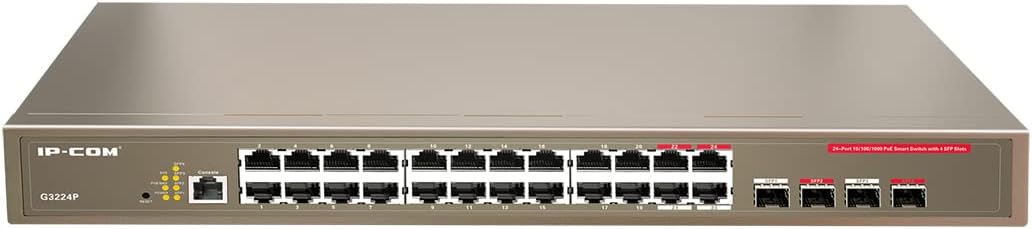
Figure 2.1: IP-COM G3224P Front Panel Layout
This image displays the front panel of the IP-COM G3224P switch. On the left, the IP-COM logo and model number G3224P are visible. To the right, there are LED indicators for SYS, PoE MAX, and individual port status. A console port is also present. The main section features 24 Gigabit Ethernet RJ45 ports, arranged in two rows, with port numbers 1 through 24. On the far right, there are four SFP ports labeled SFP1, SFP2, SFP3, and SFP4, which are used for fiber optic uplinks.
2.3 ຕົວຊີ້ວັດ LED
| ຕົວຊີ້ວັດ LED | ສະຖານະ | ລາຍລະອຽດ |
|---|---|---|
| SYS | ສີຂຽວ (ແຂງ) | ລະບົບເຮັດວຽກເປັນປົກກະຕິ. |
| SYS | ສີຂຽວ (ກະພິບຕາ) | System is booting up or firmware is being upgraded. |
| PoE MAX | ສີແດງ (ແຂງ) | PoE power budget is nearing or exceeding its limit. |
| Link/Act (Per Port) | ສີຂຽວ (ແຂງ) | ພອດຖືກເຊື່ອມຕໍ່. |
| Link/Act (Per Port) | ສີຂຽວ (ກະພິບຕາ) | Port is transmitting or receiving data. |
| PoE (ຕໍ່ພອດ) | ສີເຫຼືອງ (ແຂງ) | PoE power is being supplied to the connected device. |
3. ການຕິດຕັ້ງແລະການຕິດຕັ້ງ
3.1 ຂໍ້ຄວນລະວັງຄວາມປອດໄພ
- ຮັບປະກັນການສະຫນອງພະລັງງານ voltage matches the switch's requirements (240V as per specifications).
- ຫ້າມກີດຂວາງການເປີດລະບາຍອາກາດ.
- ຮັກສາອຸປະກອນໃຫ້ຫ່າງຈາກນໍ້າ, ໄຟ, ແລະອຸນຫະພູມສູງ.
- ຢ່າພະຍາຍາມເປີດຫຼືສ້ອມແປງອຸປະກອນດ້ວຍຕົນເອງ.
3.2 ການຕິດຕັ້ງ Rackmount
- Attach the provided rackmount brackets to the sides of the switch using the included screws.
- Secure the switch into a standard 19-inch equipment rack using appropriate rack screws (not included).
- Ensure adequate airflow around the switch for proper cooling.
3.3 ການຕິດຕັ້ງ Desktop
- ແນບຕີນຢາງທີ່ໃຫ້ມາໃສ່ລຸ່ມສຸດຂອງສະວິດ.
- Place the switch on a flat, stable surface with sufficient ventilation.
3.4 ການເຊື່ອມຕໍ່ສະວິດ
- ການເຊື່ອມຕໍ່ພະລັງງານ: Connect the power cord to the power inlet on the rear panel of the switch and then to a grounded power outlet.
- ອຸປະກອນເຄືອຂ່າຍ: Connect network devices (e.g., computers, servers, IP cameras, VoIP phones) to the RJ45 ports (1-24) on the front panel using standard Ethernet cables.
- ອຸປະກອນ PoE: For PoE-powered devices, simply connect them to any of the RJ45 ports. The switch will automatically detect and provide power if the device is PoE compliant.
- ການເຊື່ອມຕໍ່ Uplink: Use the SFP ports (SFP1-SFP4) for fiber optic uplinks to other network devices or the core network. Insert compatible SFP transceivers into the SFP slots before connecting fiber optic cables.
- ການເຊື່ອມຕໍ່ຄອນໂຊນ (ທາງເລືອກ): For initial configuration or advanced management, connect a console cable from your computer to the console port on the switch.
4. ຄໍາແນະນໍາການດໍາເນີນງານ
4.1 ການເປີດເຄື່ອງເບື້ອງຕົ້ນ
After connecting the power cord, the switch will automatically power on. Observe the SYS LED indicator. It will blink during boot-up and turn solid green once the system is ready.
4.2 ການເຊື່ອມຕໍ່ເຄືອຂ່າຍພື້ນຖານ
Once powered on, the switch will automatically detect connected devices. The Link/Act LED for each connected port will illuminate solid green, indicating a successful link. It will blink when data is being transmitted or received.
4.3 PoE Operation
When a PoE-compatible device is connected to a port, the switch will negotiate power delivery. The PoE LED for that port will turn yellow, indicating that power is being supplied. Monitor the PoE MAX LED; if it turns red, the total PoE power budget is being approached or exceeded, and you may need to reduce the number of PoE devices or use a higher-capacity power source.
4.4 ການເຂົ້າເຖິງການຄຸ້ມຄອງ
The IP-COM G3224P is a managed switch, offering various configuration options via a web-based GUI, CLI (Command Line Interface) via the console port, or SNMP. Refer to the detailed management guide (usually available on the manufacturer's website) for advanced configuration, including VLANs, QoS, port mirroring, and security settings.
- Web GUI: ເຂົ້າເຖິງສະວິດ web interface by typing its default IP address (check the Quick Installation Guide or manufacturer's documentation) into a web ຕົວທ່ອງເວັບ.
- CLI: Connect via the console port using a terminal emulator (e.g., PuTTY) with appropriate serial port settings.
5. ບໍາລຸງຮັກສາ
5.1 ການທໍາຄວາມສະອາດ
- Regularly clean the exterior of the switch with a soft, dry cloth.
- ຫ້າມໃຊ້ນໍ້າສະອາດ ຫຼື ແອໂຣໂຊລ.
- Ensure ventilation openings are free from dust and obstructions.
5.2 ການອັບເດດເຟີມແວ
Periodically check the IP-COM official webເວັບໄຊທ໌ສຳລັບການອັບເດດເຟີມແວ. ການຮັກສາເຟີມແວໃຫ້ທັນສະໄໝຢູ່ສະເໝີຮັບປະກັນປະສິດທິພາບ, ຄວາມປອດໄພ ແລະ ການເຂົ້າເຖິງຄຸນສົມບັດໃໝ່ໆທີ່ດີທີ່ສຸດ. ປະຕິບັດຕາມຄຳແນະນຳທີ່ມີໃຫ້ພ້ອມກັບຊຸດອັບເດດເຟີມແວຢ່າງລະມັດລະວັງ.
5.3 ການພິຈາລະນາດ້ານສິ່ງແວດລ້ອມ
Ensure the switch operates within its specified environmental conditions (temperature, humidity) to prevent damage and ensure longevity.
6. ການແກ້ໄຂບັນຫາ
| ບັນຫາ | ສາເຫດທີ່ເປັນໄປໄດ້ | ການແກ້ໄຂ |
|---|---|---|
| No power / SYS LED off | Power cord not connected or power outlet faulty. | ກວດເບິ່ງການເຊື່ອມຕໍ່ສາຍໄຟ. ລອງປລັກສຽບໄຟອື່ນ. |
| No link on a port (Link/Act LED off) | Cable issue, device off, or incorrect port. | Check Ethernet cable. Ensure connected device is powered on. Try a different port or cable. |
| PoE device not powering on (PoE LED off) | Device not PoE compliant, cable issue, or power budget exceeded. | Verify device is PoE compliant. Check cable. Check PoE MAX LED; if red, reduce PoE load. |
| Network performance issues | Cable quality, network congestion, or incorrect configuration. | Use high-quality Ethernet cables. Check for network loops. Review switch configuration (VLANs, QoS). |
| ບໍ່ສາມາດເຂົ້າເຖິງໄດ້ web ການໂຕ້ຕອບການຄຸ້ມຄອງ | Incorrect IP address, network settings, or firewall. | Verify the switch's IP address. Ensure your computer is on the same subnet. Disable temporary firewalls. |
If problems persist, consult the full product documentation or contact IP-COM technical support.
7. ຂໍ້ມູນຈໍາເພາະ
| ຄຸນສົມບັດ | ລາຍລະອຽດ |
|---|---|
| ຕົວແບບ | G3224P |
| ທ່າເຮືອ | 24 x 10/100/1000Base-T (RJ45) with PoE+, 4 x 1000Base-X (SFP) |
| ຄວາມອາດສາມາດສະຫຼັບ | 56 Gbps |
| ອັດຕາການສົ່ງຕໍ່ | 41.66 Mpps |
| ມາດຕະຖານ PoE | IEEE 802.3af / ທີ່ |
| ການປ້ອນຂໍ້ມູນ Voltage | 240 Volt |
| ຂະໜາດ (L x W x H) | 29 x 44 x 44 cm |
| ນ້ຳໜັກ | 15 ກິໂລກຣາມ |
| rack mount | ແມ່ນແລ້ວ |
| ການຄຸ້ມຄອງ | ຄຸ້ມຄອງ (Web GUI, CLI, SNMP) |
ຫມາຍເຫດ: ຂໍ້ມູນຈໍາເພາະແມ່ນມີການປ່ຽນແປງໂດຍບໍ່ມີການແຈ້ງລ່ວງຫນ້າ.
8. ການຮັບປະກັນແລະການສະຫນັບສະຫນູນດ້ານວິຊາການ
8.1 ຂໍ້ມູນການຮັບປະກັນ
IP-COM products typically come with a limited warranty. Please refer to the warranty card included with your product or visit the official IP-COM webເວັບໄຊສໍາລັບເງື່ອນໄຂການຮັບປະກັນລາຍລະອຽດສະເພາະກັບພາກພື້ນແລະວັນທີຊື້ຂອງທ່ານ.
8.2 ສະຫນັບສະຫນູນດ້ານວິຊາການ
For technical assistance, product inquiries, or troubleshooting beyond the scope of this manual, please contact IP-COM technical support. Support contact information can usually be found on the official IP-COM webສະຖານທີ່ ຫຼື ໃນການຫຸ້ມຫໍ່ຂອງຜະລິດຕະພັນ.
IP-COM Official Webເວັບໄຊ: www.ip-com.com.cn
Ask a question about this manual
Ask about setup, troubleshooting, compatibility, parts, safety, or missing instructions. Manuals+ will review the question and use this page’s manual context to help answer it.