
1. ບົດແນະນຳ
This manual provides essential information for the safe and efficient use of your Alienware AW3418DW 34.1-inch Curved Gaming Monitor. This monitor features a WQHD (3440x1440) resolution, a 120Hz refresh rate (overclocked), and NVIDIA G-SYNC technology for an immersive gaming experience. Please read this manual thoroughly before operating the device.
2. ຂໍ້ມູນຄວາມປອດໄພ
- Always disconnect the power cable from the wall outlet before cleaning the monitor.
- ຫ້າມບໍ່ໃຫ້ຈໍພາບຖືກຝົນ ຫຼື ຄວາມຊຸ່ມຊື້ນ ເພື່ອຫຼີກລ່ຽງອັນຕະລາຍຈາກໄຟໄໝ້ ຫຼື ຊັອດ.
- ຫ້າມເປີດຈໍພາບ casing. ບໍ່ມີສ່ວນທີ່ຜູ້ໃຊ້ບໍລິການພາຍໃນ. ອ້າງອີງການບໍລິການທັງໝົດໃຫ້ກັບພະນັກງານບໍລິການທີ່ມີຄຸນວຸດທິ.
- ວາງຈໍພາບຢູ່ເທິງພື້ນຜິວຮາບພຽງທີ່ໝັ້ນຄົງເພື່ອປ້ອງກັນບໍ່ໃຫ້ມັນຕົກ.
- ຮັບປະກັນການລະບາຍອາກາດທີ່ເຫມາະສົມຮອບຈໍ. ຫ້າມປິດຊ່ອງລະບາຍອາກາດ.
- ໃຊ້ພຽງແຕ່ອະແດັບເຕີໄຟ ແລະສາຍທີ່ໃຫ້ມາກັບຈໍພາບເທົ່ານັ້ນ.
3. ເນື້ອໃນຊຸດ
ກວດສອບວ່າອົງປະກອບທັງໝົດມີຢູ່ໃນຊຸດ:
- Alienware AW3418DW Monitor
- Monitor Stand (ຖານ ແລະ Riser)
- ສາຍໄຟ
- ສາຍ DisplayPort
- ສາຍ HDMI
- ສາຍ USB 3.0 Upstream
- Documentation (Quick Setup Guide, Safety Information)
4. ຕັ້ງຄ່າ
4.1 ການຕັ້ງຄ່າທາງດ້ານຮ່າງກາຍ
Carefully remove the monitor and its components from the packaging. Place the monitor face down on a soft cloth or cushion to prevent scratches.
ການຕິດຕັ້ງ
- Attach the stand riser to the monitor panel until it clicks into place.
- Attach the stand base to the stand riser and tighten the captive screw.

ຮູບ 4.1: ດ້ານຫນ້າ view of the Alienware AW3418DW monitor with its stand attached.

ຮູບ 4.2: ຂ້າງ view of the Alienware AW3418DW monitor with its stand.
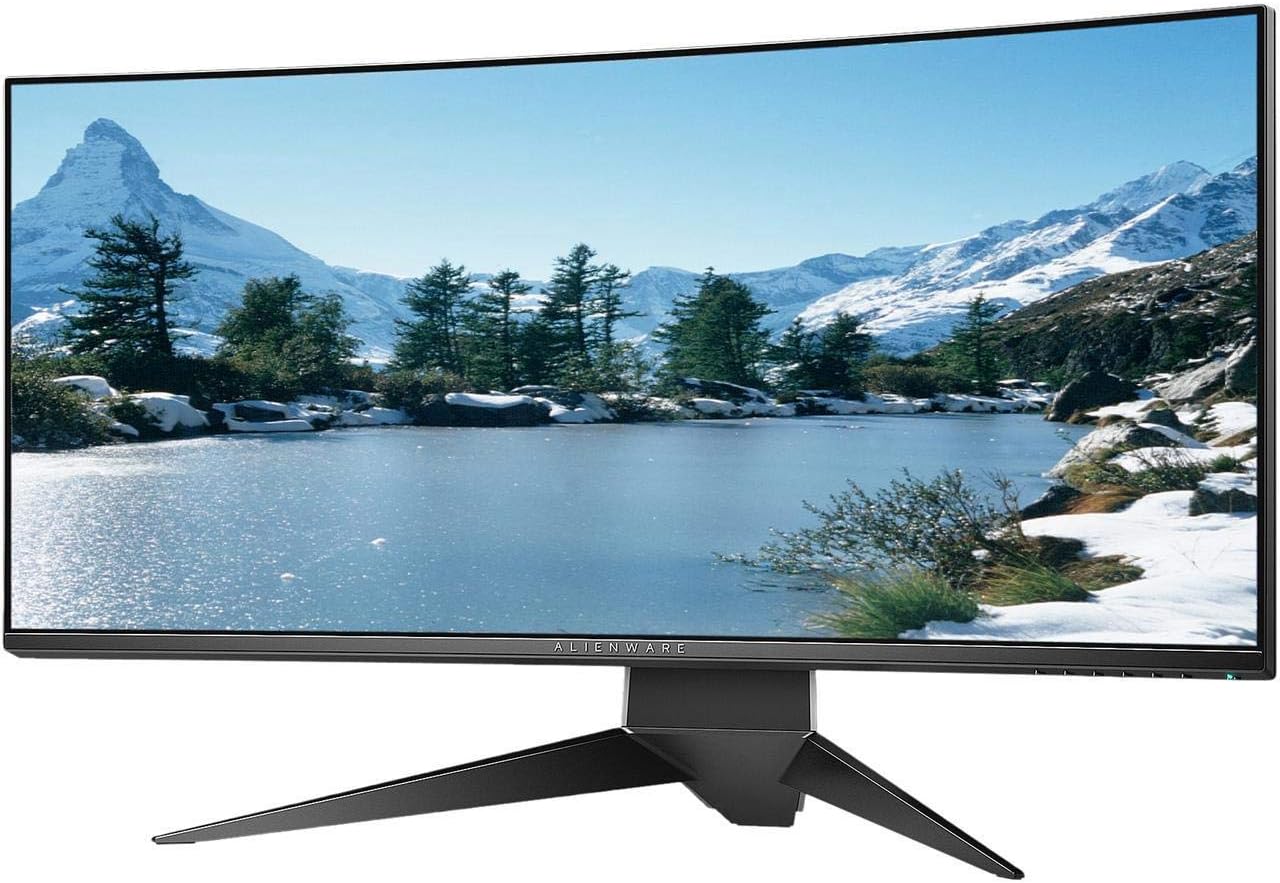
ຮູບ 4.3: ດ້ານຫລັງ view of the Alienware AW3418DW monitor showing the stand and AlienFX lighting.
VESA ຕິດ
The monitor supports VESA mounting (100 x 100 mm). Remove the stand riser by pressing the release button and then attach the VESA-compatible mount to the monitor using appropriate screws. Ensure the mount can support the monitor's weight of 26.1 pounds (without stand).

Figure 4.4: Monitor dimensions for VESA mount compatibility.
4.2 ສາຍເຊື່ອມຕໍ່
ເຊື່ອມຕໍ່ສາຍໄຟທີ່ຈຳເປັນເຂົ້າກັບຈໍພາບ ແລະ ຄອມພິວເຕີຂອງທ່ານ.
- ສາຍໄຟ: ເຊື່ອມຕໍ່ສາຍໄຟກັບພອດໄຟຂອງຈໍພາບ ແລະຈາກນັ້ນໄປຫາປລັກສຽບໄຟ.
- ສາຍວິດີໂອ: Connect either the DisplayPort cable or the HDMI cable from your computer's graphics card to the corresponding port on the monitor. For optimal performance, especially for 120Hz refresh rate and G-SYNC, use the DisplayPort connection.
- ສາຍ USB ຕົ້ນນ້ຳ: Connect the USB 3.0 upstream cable from your computer to the monitor's upstream USB port to enable the monitor's USB hub functionality.
- ຜອດ USB ລົງລຸ່ມ: Connect your USB devices (e.g., keyboard, mouse, webcam) to the four USB 3.0 downstream ports on the monitor.
5. ຄໍາແນະນໍາການດໍາເນີນງານ
5.1 ເປີດ/ປິດ
ກົດປຸ່ມເປີດປິດຢູ່ໃນຈໍສະແດງຜົນເພື່ອເປີດຫຼືປິດມັນ. ໄຟ LED ຈະຊີ້ບອກສະຖານະຂອງຈໍພາບ.
5.2 ການນໍາທາງໃນຈໍສະແດງຜົນ (OSD).
The On-Screen Display (OSD) menu allows you to adjust various monitor settings. Use the control buttons, typically located on the bottom right or rear of the monitor, to navigate the OSD.
- ກົດປຸ່ມຄວບຄຸມເພື່ອເປີດໃຊ້ເມນູ OSD.
- Use the navigation buttons (up/down/left/right) to move through menu options.
- ກົດປຸ່ມເລືອກເພື່ອຢືນຢັນການເລືອກ ຫຼື ເຂົ້າສູ່ເມນູຍ່ອຍ.
- Use the back/exit button to return to the previous menu or exit the OSD.
5.3 ການຕັ້ງຄ່າການສະແດງ
ປັບການຕັ້ງຄ່າການສະແດງຜົນໃຫ້ເໝາະສົມທີ່ສຸດ viewing and gaming performance.
- ຄວາມລະອຽດ: Set your computer's display resolution to 3440x1440 for the native WQHD experience.
- ອັດຕາການໂຫຼດຂໍ້ມູນຄືນໃໝ່: The monitor supports up to 120Hz refresh rate (overclocked). Ensure your graphics card drivers are updated and the refresh rate is set in your operating system's display settings or graphics control panel.
- NVIDIA G-SYNC: For tear-free and smooth gameplay, enable G-SYNC in your NVIDIA Control Panel. This feature synchronizes the monitor's refresh rate with your GPU's frame rate.
- ຄວາມສະຫວ່າງ/ຄວາມຄົມຊັດ: Adjust these settings in the OSD menu to suit your environment and preference.
5.4 AlienFX Lighting
Customize the AlienFX lighting zones on your monitor through the OSD menu or Alienware Command Center software (if installed on your PC). You can select colors, effects, and synchronize lighting with other Alienware devices.
5.5 ການໃຊ້ USB Hub
The monitor acts as a USB 3.0 hub, providing convenient access to four downstream USB ports for connecting peripherals. Ensure the USB upstream cable is connected to your computer for this feature to function.
6. ບໍາລຸງຮັກສາ
6.1 ການທໍາຄວາມສະອາດ Monitor
- ໃຫ້ຖອດປລັກຈໍພາບອອກຈາກປລັກໄຟຟ້າກ່ອນທຳຄວາມສະອາດສະເໝີ.
- ໃຊ້ຜ້າແພອ່ອນໆ ທີ່ບໍ່ມີເສັ້ນດ່າງ ງampຫຸ້ມດ້ວຍນ້ໍາຫຼືເຄື່ອງເຮັດຄວາມສະອາດຫນ້າຈໍທີ່ບໍ່ມີການຂັດ.
- ຢ່າສີດນໍ້າສະອາດໃສ່ໜ້າຈໍໂດຍກົງ.
- ເຊັດໜ້າຈໍຄ່ອຍໆເພື່ອກຳຈັດຂີ້ຝຸ່ນ ແລະຮອຍເປື້ອນ.
- ທຳຄວາມສະອາດພາຍນອກ casing ດ້ວຍຜ້າອ່ອນ, ແຫ້ງ.
6.2 ການເກັບຮັກສາ
If storing the monitor for an extended period, disconnect all cables, carefully disassemble the stand (if applicable), and store it in its original packaging in a cool, dry place.
7. ການແກ້ໄຂບັນຫາ
ຖ້າທ່ານພົບບັນຫາກັບຈໍພາບຂອງທ່ານ, ໃຫ້ອ້າງອີງເຖິງຂັ້ນຕອນການແກ້ໄຂບັນຫາທົ່ວໄປຕໍ່ໄປນີ້:
- ບໍ່ມີການສະແດງຜົນ: Ensure all power and video cables are securely connected. Check if the monitor is powered on and the correct input source is selected in the OSD.
- ກະພິບ/ກະຕຸກ: Verify that your graphics drivers are up to date. Ensure G-SYNC is properly configured in the NVIDIA Control Panel. Check for interference from other electronic devices.
- ຄວາມລະອຽດ/ອັດຕາການໂຫຼດຂໍ້ມູນບໍ່ຖືກຕ້ອງ: Adjust the display settings in your operating system or graphics control panel to the native resolution (3440x1440) and desired refresh rate (up to 120Hz).
- Dead Pixels: The Alienware AW3418DW comes with a Premium Panel Guarantee. Refer to the warranty information for details on pixel policy.
- ພອດ USB ບໍ່ເຮັດວຽກ: ໃຫ້ແນ່ໃຈວ່າສາຍ USB 3.0 upstream ໄດ້ເຊື່ອມຕໍ່ຈາກຈໍພາບໄປຫາຄອມພິວເຕີຂອງທ່ານ.
8. ຂໍ້ມູນຈໍາເພາະ
| ຄຸນສົມບັດ | ຂໍ້ມູນຈໍາເພາະ |
|---|---|
| ຍີ່ຫໍ້ | Alienware |
| ໝາຍເລກຕົວແບບ | AW3418DW |
| ຂະໜາດໜ້າຈໍ | 34.1 ນິ້ວ |
| ຄວາມລະອຽດ | WQHD (3440 x 1440 ພິກເຊວ) |
| ອັດຕາສ່ວນ | 21:9 |
| ອັດຕາການໂຫຼດຂໍ້ມູນຄືນໃໝ່ | 120 Hz (Overclocked) |
| ເວລາຕອບສະຫນອງ | 4 ມິນລິວິນາທີ |
| ເທັກໂນໂລຍີການຊິງຄ໌ແບບປັບຕົວໄດ້ | NVIDIA G-SYNC |
| ປະເພດການສະແດງ | LED IPS |
| ເສັ້ນໂຄ້ງ | 1900R |
| ຄວາມສະຫວ່າງ | 300 cd/m² |
| ອັດຕາສ່ວນກົງກັນຂ້າມ | 1000:1 |
| Viewໃນມຸມ | 178 ອົງສາ |
| ການເຊື່ອມຕໍ່ | 1x DisplayPort (1.2), 1x HDMI (1.4), 4x USB 3.0 Downstream, 1x USB 3.0 Upstream |
| ນ້ໍາຫນັກລາຍການ | 26.1 Pounds (without stand) |
| ປະເພດການຕິດຕັ້ງ | VESA Compatible (100 x 100 mm) |
9. ການຮັບປະກັນແລະການສະຫນັບສະຫນູນ
Your Alienware AW3418DW monitor is covered by a 3 Years Limited Hardware Warranty ແລະ 3 Years Advance Exchange Service, ລວມທັງ ກ Premium Panel Guarantee. The Premium Panel Guarantee ensures a free panel replacement during the limited hardware warranty period even if only one bright pixel is found.
For technical support, warranty claims, or additional information, please visit the official Alienware or Dell support website. You may also find updated drivers and firmware there.
ສະຫນັບສະຫນູນອອນໄລນ໌: www.dell.com/support