
1. ບົດແນະນຳ
This manual provides detailed instructions for the installation, operation, and maintenance of your Tiandy TC-NR4008M7-S2 Network Video Recorder (NVR). This NVR is designed for IP surveillance systems, supporting up to 8 channels at 1080P resolution, and features advanced video analysis and smart recording capabilities. It is ONVIF compatible, ensuring broad compatibility with various IP cameras.
ກະລຸນາອ່ານຄູ່ມືນີ້ຢ່າງລະອຽດກ່ອນທີ່ຈະນໍາໃຊ້ຜະລິດຕະພັນເພື່ອຮັບປະກັນການດໍາເນີນງານທີ່ເຫມາະສົມແລະປອດໄພ.
2. ຂໍ້ມູນຄວາມປອດໄພ
To prevent electrical hazards and ensure safe operation, observe the following precautions:
- Do not disassemble the equipment yourself. Disassembly and maintenance of the equipment must be carried out by qualified professionals.
- Ensure the NVR is connected to a grounded power source to prevent electric shock.
- Avoid exposing the NVR to moisture, rain, or extreme temperatures.
- ຫ້າມປິດຊ່ອງລະບາຍອາກາດ. ຮັບປະກັນການໄຫຼວຽນຂອງອາກາດທີ່ພຽງພໍຢູ່ອ້ອມໜ່ວຍ.
- Use only the power adapter supplied with the NVR.
ຮູບພາບ 2.1: Rear panel of the NVR showing various ports and a caution label. The label warns against self-disassembly due to electrical hazard and states that maintenance should be performed by professionals.
3. ຜະລິດຕະພັນເກີນview
The Tiandy TC-NR4008M7-S2 NVR is a robust solution for managing your IP surveillance cameras. Key features include:
- ການປ້ອນຂໍ້ມູນ 8 ຊ່ອງ: Supports up to 8 IP camera channels.
- ຄວາມລະອຽດ 1080P: Records video at up to 1080P resolution.
- ການເກັບຮັກສາ: Accommodates two 3.5-inch SATA hard drives, each up to 4TB (hard drives not included).
- ຜົນໄດ້ຮັບວິດີໂອ: HDMI and VGA for local display.
- ພອດ USB: Two USB ports for mouse and data backup.
- ຄຸນສົມບັດຂັ້ນສູງ: Video Analysis and Smart Recording capabilities.
- ການເຊື່ອມຕໍ່: ພອດ Ethernet ສຳລັບການເຊື່ອມຕໍ່ເຄືອຂ່າຍ.
- Audio & Alarm: Supports audio input/output and alarm functions.
- ຄວາມເຂົ້າກັນໄດ້ຂອງ ONVIF: Ensures interoperability with ONVIF-compliant IP cameras.
3.1 ກະດານດ້ານ ໜ້າ

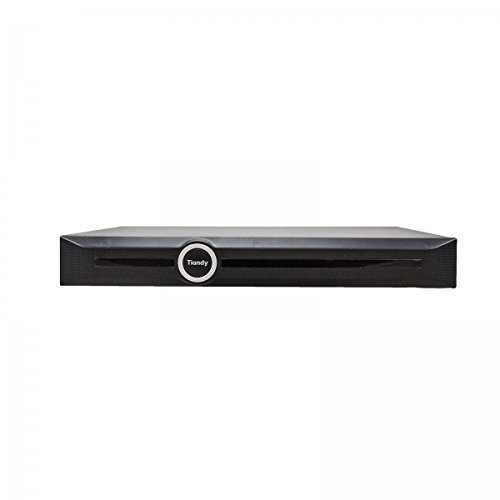
ຮູບພາບ 3.1: ດ້ານໜ້າ view of the Tiandy TC-NR4008M7-S2 NVR. The front panel typically includes status indicators and the brand logo.
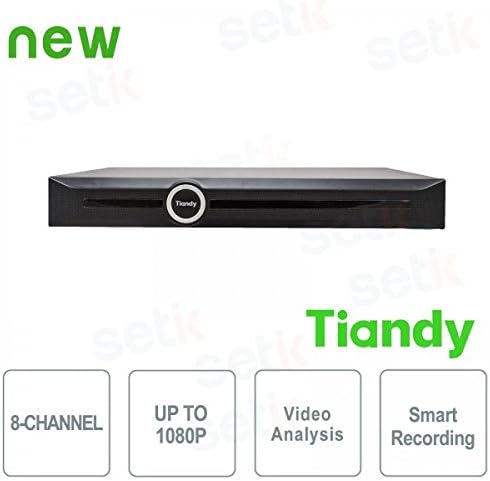
ຮູບພາບ 3.2: ດ້ານໜ້າ view of the Tiandy NVR with graphical indicators for 8-Channel support, Up to 1080P resolution, Video Analysis, and Smart Recording.
3.2 ແຜງດ້ານຫລັງ
The rear panel provides all necessary connection ports for the NVR:
- ການປ້ອນຂໍ້ມູນພະລັງງານ: ສໍາລັບການເຊື່ອມຕໍ່ອະແດບເຕີພະລັງງານ.
- Port Ethernet: RJ45 port for network connection to IP cameras and the internet.
- HDMI Output: For connecting to an HDMI monitor or TV.
- ຜົນຜະລິດ VGA: For connecting to a VGA monitor.
- ພອດ USB: Two USB ports for mouse connection and external storage.
- ສຽງເຂົ້າ/ອອກ: ສໍາລັບການເຊື່ອມຕໍ່ອຸປະກອນສຽງພາຍນອກ.
- ສັນຍານເຕືອນເຂົ້າ/ອອກ: ສໍາລັບການເຊື່ອມຕໍ່ອຸປະກອນປຸກພາຍນອກ.
ຮູບພາບ 3.3: Detailed rear panel of the NVR, illustrating the layout of the power input, Ethernet port, HDMI, VGA, USB ports, audio, and alarm connections.
4. ຕັ້ງຄ່າ
4.1 ການຕິດຕັ້ງຮາດດິດ
The NVR supports two 3.5-inch SATA hard drives (not included). It is recommended to use surveillance-grade hard drives for optimal performance and reliability. To install:
- ປິດ NVR ແລະຖອດສາຍໄຟທັງໝົດອອກ.
- Remove the NVR's cover by unscrewing the retaining screws.
- Mount the hard drives into the designated bays using the provided screws.
- Connect the SATA data and power cables from the NVR motherboard to the hard drives.
- ປ່ຽນຝາປິດແລະຍຶດມັນດ້ວຍສະກູ.
ໝາຍເຫດ: SSDs may not have dedicated mounting slots and might require alternative securing methods if used.
4.2 ການເຊື່ອມຕໍ່ເບື້ອງຕົ້ນ
- ເຊື່ອມຕໍ່ຈໍພາບກັບພອດຜົນຜະລິດ HDMI ຫຼື VGA ຂອງ NVR.
- Connect the included USB mouse to one of the NVR's USB ports.
- ເຊື່ອມຕໍ່ NVR ກັບເຄືອຂ່າຍຂອງທ່ານໂດຍໃຊ້ສາຍອີເທີເນັດ.
- ເຊື່ອມຕໍ່ອະແດບເຕີໄຟກັບ NVR ແລະຈາກນັ້ນໄປຫາປລັກສຽບໄຟ.
- ເປີດ NVR.
4.3 ການຕັ້ງຄ່າຄັ້ງທຳອິດ
ເມື່ອເປີດເຄື່ອງທໍາອິດ, NVR ຈະນໍາພາທ່ານຜ່ານຕົວຊ່ວຍສ້າງການຕັ້ງຄ່າເບື້ອງຕົ້ນ. ໂດຍປົກກະຕິ, ນີ້ປະກອບມີ:
- Setting up administrator password.
- Formatting the installed hard drives.
- Network settings configuration (DHCP or static IP).
- ການຕັ້ງຄ່າເວລາ ແລະວັນທີ.
- Adding IP cameras (the NVR should be able to recognize and connect to ONVIF-compatible cameras).
5. ການເຮັດວຽກ
5.1 ດໍາລົງຊີວິດ View
After successful setup, you can access the live view of your connected cameras through the NVR's local interface. The live view is designed to be fluid and responsive.
5.2 ການຕັ້ງຄ່າການບັນທຶກ
NVR ສະຫນັບສະຫນູນຮູບແບບການບັນທຶກຕ່າງໆ:
- ບັນທຶກຢ່າງຕໍ່ເນື່ອງ: ບັນທຶກ 24/7.
- ການບັນທຶກການຊອກຄົ້ນຫາ Motion: ບັນທຶກເມື່ອກ້ອງຖ່າຍຮູບກວດພົບການເຄື່ອນໄຫວເທົ່ານັ້ນ.
- ກຳ ນົດການບັນທຶກ: ບັນທຶກໃນໄລຍະເວລາສະເພາະ.
- ບັນທຶກໂມງປຸກ: ບັນທຶກເມື່ອເຫດການປຸກຖືກກະຕຸ້ນ.
Access the recording settings through the NVR's menu to configure your preferred recording schedule and modes for each channel.
5.3 Video Analysis and Smart Recording
The NVR includes advanced video analysis features. These can be configured to trigger recordings or alarms based on specific events, such as line crossing, intrusion detection, or object removal. Smart Recording optimizes storage by adjusting recording parameters based on event types.
5.4 Remote Access (Mobile App)
The NVR supports remote viewing and management via a mobile application, such as 'Easy Live Plus'. To use the app:
- Download the 'Easy Live Plus' app from your smartphone's app store.
- ລົງທະບຽນບັນຊີແລະເຂົ້າສູ່ລະບົບ.
- Add your NVR to the app using its serial number or QR code.
ໝາຍເຫດ: While the app provides remote access, some users have reported limitations in its functionality and configuration options compared to the local NVR interface. It is recommended to configure detailed settings directly on the NVR.
6. ບໍາລຸງຮັກສາ
6.1 ການຈັດການຮາດດິດ
Regularly check the status of your hard drives through the NVR's storage management menu. You may need to:
- Format Hard Drives: If you install new drives or encounter recording issues, formatting can resolve problems. This will erase all data on the drive.
- Replace Hard Drives: If a hard drive fails or reaches its end of life, replace it following the installation steps in Section 4.1.
6.2 ການປັບປຸງຊອບແວ
Periodically check the Tiandy official website for firmware updates. Firmware updates can improve performance, add new features, and fix bugs. Follow the instructions provided with the firmware update package carefully.
6.3 ການທໍາຄວາມສະອາດ
Keep the NVR clean and free from dust. Use a soft, dry cloth to wipe the exterior. Ensure ventilation openings are not obstructed by dust buildup. Do not use liquid cleaners directly on the unit.
7. ການແກ້ໄຂບັນຫາ
ພາກສ່ວນນີ້ແກ້ໄຂບັນຫາທົ່ວໄປທີ່ທ່ານອາດຈະພົບກັບ NVR ຂອງທ່ານ.
7.1 ບໍ່ມີຜົນຜະລິດວິດີໂອ
- Check if the monitor is properly connected to the HDMI or VGA port.
- ກວດໃຫ້ແນ່ໃຈວ່າເປີດໜ້າຈໍ ແລະຕັ້ງເປັນແຫຼ່ງປ້ອນຂໍ້ມູນທີ່ຖືກຕ້ອງ.
- Verify that the NVR is powered on and its status indicators are normal.
7.2 ບັນຫາການບັນທຶກ
- ບໍ່ມີການບັນທຶກສຽງ: Check if hard drives are installed, formatted, and healthy. Verify recording schedules and motion detection settings.
- ການຕັ້ງຄ່າບໍ່ໄດ້ບັນທຶກ: If settings revert to default, especially after using the mobile app, try configuring settings directly on the NVR's local interface. Ensure the NVR's firmware is up to date.
- Poor Recording Quality: Check camera resolution settings and NVR recording parameters. Ensure sufficient bandwidth for IP cameras.
7.3 Network and Remote Access Problems
- Ensure the Ethernet cable is securely connected to the NVR and your router/switch.
- Verify network settings (IP address, gateway, DNS) on the NVR.
- For remote access, ensure your NVR has internet access and port forwarding (if required by your network setup) is correctly configured on your router.
- If using the mobile app, ensure the app is updated to the latest version.
7.4 NVR Not Powering On
- Check the power cable connection to the NVR and the power outlet.
- ໃຫ້ແນ່ໃຈວ່າອະແດັບເຕີໄຟເຮັດວຽກຢ່າງຖືກຕ້ອງ.
- ລອງປລັກສຽບໄຟອື່ນ.
8. ຂໍ້ມູນຈໍາເພາະ
| ຄຸນສົມບັດ | ຂໍ້ມູນຈໍາເພາະ |
|---|---|
| ໝາຍເລກຕົວແບບ | TC-NR4008M7-S2 |
| ຍີ່ຫໍ້ | ທຽນດີ |
| ຊ່ອງ | 8 ຊ່ອງທາງ IP |
| ຄວາມລະອຽດສູງສຸດ | 1080P (Full HD) |
| ຮອງຮັບ HDD | 2 x 3.5" SATA HDD, up to 4TB each (8TB total) |
| ຜົນຜະລິດວິດີໂອ | 1 x HDMI, 1 x VGA |
| ພອດ USB | 2 x USB |
| ການເຊື່ອມໂຍງເຄືອຂ່າຍ | 1 x RJ45 ອີເທີເນັດ |
| ສຽງ | Audio In/Out support |
| ປຸກ | Alarm In/Out support |
| ຄຸນສົມບັດ | Video Analysis, Smart Recording, ONVIF Compatible |
| ນ້ໍາຫນັກລາຍການ | 2.8 ກິໂລ |
| ອຸປະກອນທີ່ເຂົ້າກັນໄດ້ | Smartphone (for remote access) |
9. ການຮັບປະກັນແລະການສະຫນັບສະຫນູນ
For warranty information, please refer to the warranty card included with your product or contact your point of purchase. For technical support, please contact Tiandy customer service or your authorized dealer. Ensure you have your product model number (TC-NR4008M7-S2) and purchase details available when seeking support.