
1. ບົດແນະນຳ
This manual provides essential information for setting up, operating, maintaining, and troubleshooting your Dell Latitude 5289 2-in-1 Laptop. The Latitude 5289 is a versatile device featuring a 12.3-inch Full HD touchscreen display, powered by an Intel Core i7-7600U processor, 16GB of RAM, and a 256GB Solid State Drive, running Windows 10 Pro.
ກະລຸນາອ່ານຄູ່ມືນີ້ຢ່າງລະອຽດເພື່ອຮັບປະກັນການນຳໃຊ້ທີ່ຖືກຕ້ອງ ແລະ ເພື່ອເພີ່ມປະສິດທິພາບ ແລະ ອາຍຸການໃຊ້ງານຂອງອຸປະກອນຂອງທ່ານໃຫ້ສູງສຸດ.

Figure 1: Dell Latitude 5289 2-in-1 Laptop in open position, displaying the Windows 10 Pro operating system on its screen and the full keyboard.
2. ການເລີ່ມຕົ້ນ
2.1 ການຫຸ້ມຫໍ່
Carefully remove your Dell Latitude 5289 laptop and its accessories from the packaging. Ensure all components are present:
- ແລັບທັອບ Dell Latitude 5289
- ອະແດບເຕີໄຟຟ້າ AC ແລະສາຍໄຟ
- ເອກະສານ (ລວມທັງຄູ່ມືນີ້)
2.2 ການເຊື່ອມຕໍ່ອະແດບເຕີໄຟຟ້າ
Before initial use, connect the AC power adapter to the laptop and a power outlet to charge the battery. The charging port is located on the left side of the laptop.
2.3 ການ Boot ເລີ່ມຕົ້ນ ແລະການຕິດຕັ້ງ Windows
Press the power button, located on the left side of the laptop, to turn on the device. Follow the on-screen instructions to complete the initial setup of Windows 10 Pro. This process typically involves selecting your region, language, accepting license terms, and setting up user accounts.
3. ຮາດແວຫຼາຍກວ່າview
3.1 Left Side Ports and Features
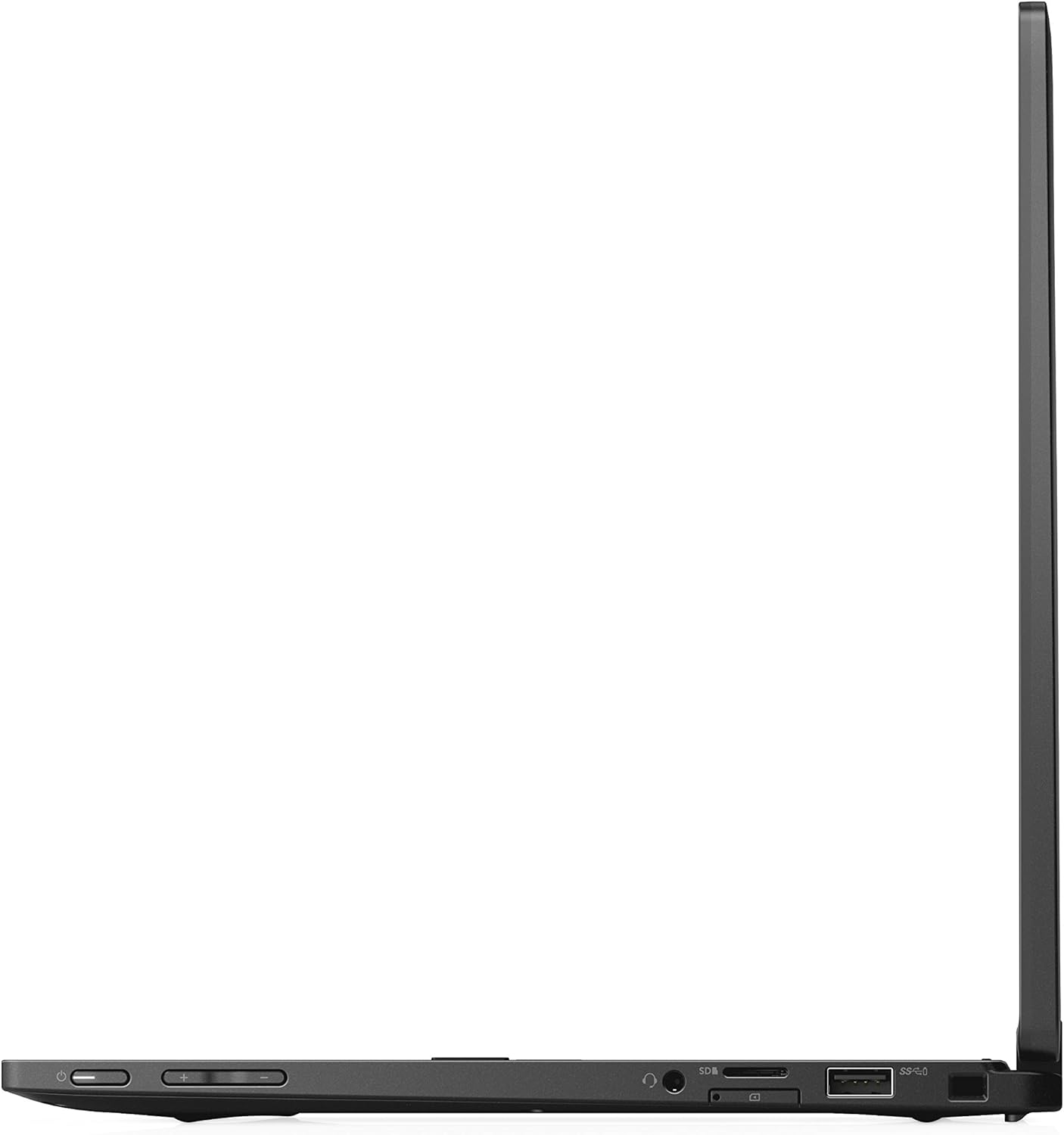
Figure 2: Left side of the Dell Latitude 5289, featuring the power button, volume controls, USB-C port, HDMI port, USB 3.0 port, and Smart Card Reader slot.
- ປຸ່ມເປີດປິດ: Turns the laptop on or off.
- ປະລິມານຂຶ້ນ/ລົງ: ປັບຜົນຜະລິດສຽງ.
- USB-C Port (Thunderbolt 3): For data transfer, video output, and charging.
- HDMI Port: ເຊື່ອມຕໍ່ກັບຈໍສະແດງຜົນພາຍນອກ.
- ພອດ USB 3.0: ເຊື່ອມຕໍ່ກັບອຸປະກອນ USB.
- SD Card Reader: ສໍາລັບການອ່ານແລະຂຽນໃສ່ກາດຫນ່ວຍຄວາມຈໍາ SD.
3.2 Right Side Ports and Features

Figure 3: Right side of the Dell Latitude 5289, featuring a USB 3.0 port, audio jack, and Noble Wedge Lock slot.
- ພອດ USB 3.0: ເຊື່ອມຕໍ່ກັບອຸປະກອນ USB.
- Jack ສຽງ: ເຊື່ອມຕໍ່ຫູຟັງ ຫຼື ລຳໂພງພາຍນອກ.
- Noble Wedge Lock Slot: For security cable locks.
3.3 ກັບຄືນ View

ຮູບ 4: ກັບຄືນໄປບ່ອນ view of the Dell Latitude 5289, showing the Dell logo and ventilation grilles.
The back of the laptop features the Dell logo and ventilation grilles to ensure proper airflow and cooling during operation.
4. ການດໍາເນີນງານພື້ນຖານ
4.1 ເປີດ/ປິດ
- ເພື່ອເປີດເຄື່ອງ: Press the power button located on the left side of the laptop.
- ເພື່ອປິດ: ຄລິກທີ່ປຸ່ມ Windows Start, ຈາກນັ້ນເລືອກ Power > Shut down.
- ເພື່ອເລີ່ມຕົ້ນໃໝ່: ຄລິກທີ່ປຸ່ມ Windows Start, ຈາກນັ້ນເລືອກ Power > Restart.
- ນອນ: ຄລິກທີ່ປຸ່ມ Windows Start, ຈາກນັ້ນເລືອກ Power > Sleep.
4.2 ການນໍາໃຊ້ຫນ້າຈໍສໍາຜັດ
The 12.3-inch Full HD display supports touch input. You can interact with the operating system and applications using gestures similar to a tablet or smartphone. Common gestures include tapping, swiping, pinching to zoom, and rotating.
4.3 ຟັງຊັນຄີບອດ
The laptop features a full-sized keyboard. Many keys have secondary functions accessible by holding down the Fn key and pressing the corresponding function key (F1-F12). These functions often include adjusting brightness, volume, toggling Wi-Fi, and controlling media playback. The keyboard is also backlit for use in low-light conditions.
4.4 ການໃຊ້ Touchpad
The integrated touchpad allows for precise cursor control. It supports multi-touch gestures for scrolling, zooming, and other functions. Refer to Windows settings for customizing touchpad behavior.
4.5 ການເຊື່ອມຕໍ່ໄຮ້ສາຍ
- Wi-Fi: To connect to a wireless network, click the Wi-Fi icon in the system tray, select your desired network, and enter the password if required.
- Bluetooth: To pair Bluetooth devices, go to Windows Settings > Devices > Bluetooth & other devices, and follow the instructions to add a new device.
5. ການຮັກສາລະບົບ
5.1 ການທໍາຄວາມສະອາດອຸປະກອນ
- ໃຊ້ຜ້າແພທີ່ອ່ອນໆ ທີ່ບໍ່ມີເສັ້ນດ່າງ dampສໍາເລັດດ້ວຍນ້ໍາຫຼືເຄື່ອງເຮັດຄວາມສະອາດຫນ້າຈໍເພື່ອເຮັດຄວາມສະອາດຈໍສະແດງຜົນ.
- ສໍາລັບແປ້ນພິມ ແລະຕົວເຄື່ອງ, ໃຫ້ໃຊ້ຜ້າອ່ອນ, ແຫ້ງ. ຫຼີກເວັ້ນການສານເຄມີທີ່ຮຸນແຮງຫຼືວັດສະດຸຂັດ.
- ກວດໃຫ້ແນ່ໃຈວ່າຄອມພິວເຕີປິດ ແລະຖອດປລັກອອກກ່ອນທຳຄວາມສະອາດ.
5.2 ການຄຸ້ມຄອງຫມໍ້ໄຟ
- ເພື່ອຍືດອາຍຸແບັດເຕີລີ, ຫຼີກເວັ້ນການຖອດແບດເຕີລີ່ເຕັມເລື້ອຍໆ.
- ເກັບຮັກສາແລັບທັອບໃນບ່ອນເຢັນ ແລະ ແຫ້ງເມື່ອບໍ່ໄດ້ໃຊ້ເປັນເວລາດົນ.
- Use only the original Dell AC adapter for charging.
5.3 ການປັບປຸງຊອບແວ
Regularly update your Windows operating system and Dell drivers to ensure optimal performance and security. Windows Update can be accessed via Settings > Update & Security > Windows Update. Dell provides driver updates through its official support webເວັບໄຊ.
5.4 ການສໍາຮອງຂໍ້ມູນ
ສຳຮອງຂໍ້ມູນສຳຄັນຂອງທ່ານໃສ່ໄດຣຟ໌ພາຍນອກ ຫຼືບ່ອນເກັບຂໍ້ມູນຄລາວເປັນປະຈຳເພື່ອປ້ອງກັນການສູນເສຍຂໍ້ມູນ.
6. ການແກ້ໄຂບັນຫາ
6.1 ບໍ່ມີພະລັງງານ
- ກວດໃຫ້ແນ່ໃຈວ່າອະແດັບເຕີ AC ເຊື່ອມຕໍ່ຢ່າງປອດໄພກັບທັງແລັບທັອບ ແລະປລັກສຽບໄຟທີ່ເຮັດວຽກໄດ້.
- ກວດເບິ່ງວ່າປລັກສຽບໄຟເຮັດວຽກຫຼືບໍ່ໂດຍການສຽບອຸປະກອນອື່ນ.
- ລອງປລັກສຽບໄຟອື່ນ.
6.2 ບັນຫາການສະແດງ
- If the screen is blank, ensure the laptop is powered on.
- ປັບຄວາມສະຫວ່າງໜ້າຈໍໂດຍໃຊ້ປຸ່ມຟັງຊັນ (Fn + F11/F12).
- If an external monitor is connected, ensure the display output is correctly configured (Fn + F8).
6.3 ບັນຫາການເຊື່ອມຕໍ່
- Wi-Fi: Ensure Wi-Fi is enabled and you are connected to the correct network. Restart your router if necessary.
- Bluetooth: ໃຫ້ແນ່ໃຈວ່າ Bluetooth ຖືກເປີດໃຊ້ງານແລ້ວ ແລະ ອຸປະກອນທີ່ທ່ານກຳລັງພະຍາຍາມເຊື່ອມຕໍ່ນັ້ນຢູ່ໃນໂໝດຈັບຄູ່.
6.4 ລະບົບບໍ່ຕອບສະໜອງ
If the system becomes unresponsive, press and hold the power button for approximately 10-15 seconds to force a shutdown. Then, restart the laptop.
7. ຂໍ້ກໍານົດດ້ານວິຊາການ
| ຄຸນສົມບັດ | ຂໍ້ມູນຈໍາເພາະ |
|---|---|
| ຊື່ຕົວແບບ | ເສັ້ນຂະໜານ 5289 |
| ໝາຍເລກຕົວແບບ | F9HJH |
| ໂຮງງານຜະລິດ | Intel Core i7-7600U (2.8 GHz, Max Turbo 3.9 GHz) |
| RAM | 16 GB LPDDR3 (1866 MHz) |
| ການເກັບຮັກສາ | SSD 256 GB |
| ຈໍສະແດງຜົນ | 12.3 Inches FHD (1920 x 1080) Touchscreen |
| Graphics Coprocessor | Intel HD Graphics 620 |
| ລະບົບປະຕິບັດການ | Windows 10 Pro |
| ປະເພດໄຮ້ສາຍ | 802.11ac, Bluetooth 4.2 |
| ພອດ USB 3.0 | 2 |
| ນ້ໍາຫນັກລາຍການ | 4.59 ປອນ |
| ຂະໜາດສິນຄ້າ | 12.4 x 18.1 x 3.2 ນິ້ວ |
| ໝໍ້ໄຟ | ແບັດເຕີຣີ Lithium Ion 1 ອັນ (ລວມ) |
8. ການຮັບປະກັນແລະການສະຫນັບສະຫນູນ
8.1 ຂໍ້ມູນການຮັບປະກັນ
Your Dell Latitude 5289 laptop comes with a standard limited warranty. For detailed information regarding warranty terms, coverage, and duration, please refer to the warranty documentation included with your product or visit the official Dell support webເວັບໄຊ.
8.2 ສະຫນັບສະຫນູນດ້ານວິຊາການ
ສຳລັບການຊ່ວຍເຫຼືອດ້ານເຕັກນິກ, ການດາວໂຫຼດໄດຣເວີ, ຫຼື ການແກ້ໄຂບັນຫາເພີ່ມເຕີມ, ກະລຸນາເຂົ້າໄປທີ່ຝ່າຍຊ່ວຍເຫຼືອຂອງ Dell website. You will need your product's service tag or express service code, typically found on a label on the bottom of your laptop, to access specific support resources.
ສະຫນັບສະຫນູນ Dell Webເວັບໄຊ: www.dell.com/support