
1. ບົດແນະນຳ
The CHERRY KC 1000 is a reliable wired keyboard designed for professional office use and everyday computing. It features a full-size Italian QWERTY layout, a flat design, and quiet keystrokes for comfortable and efficient typing. This manual provides essential information for setting up, operating, maintaining, and troubleshooting your keyboard.
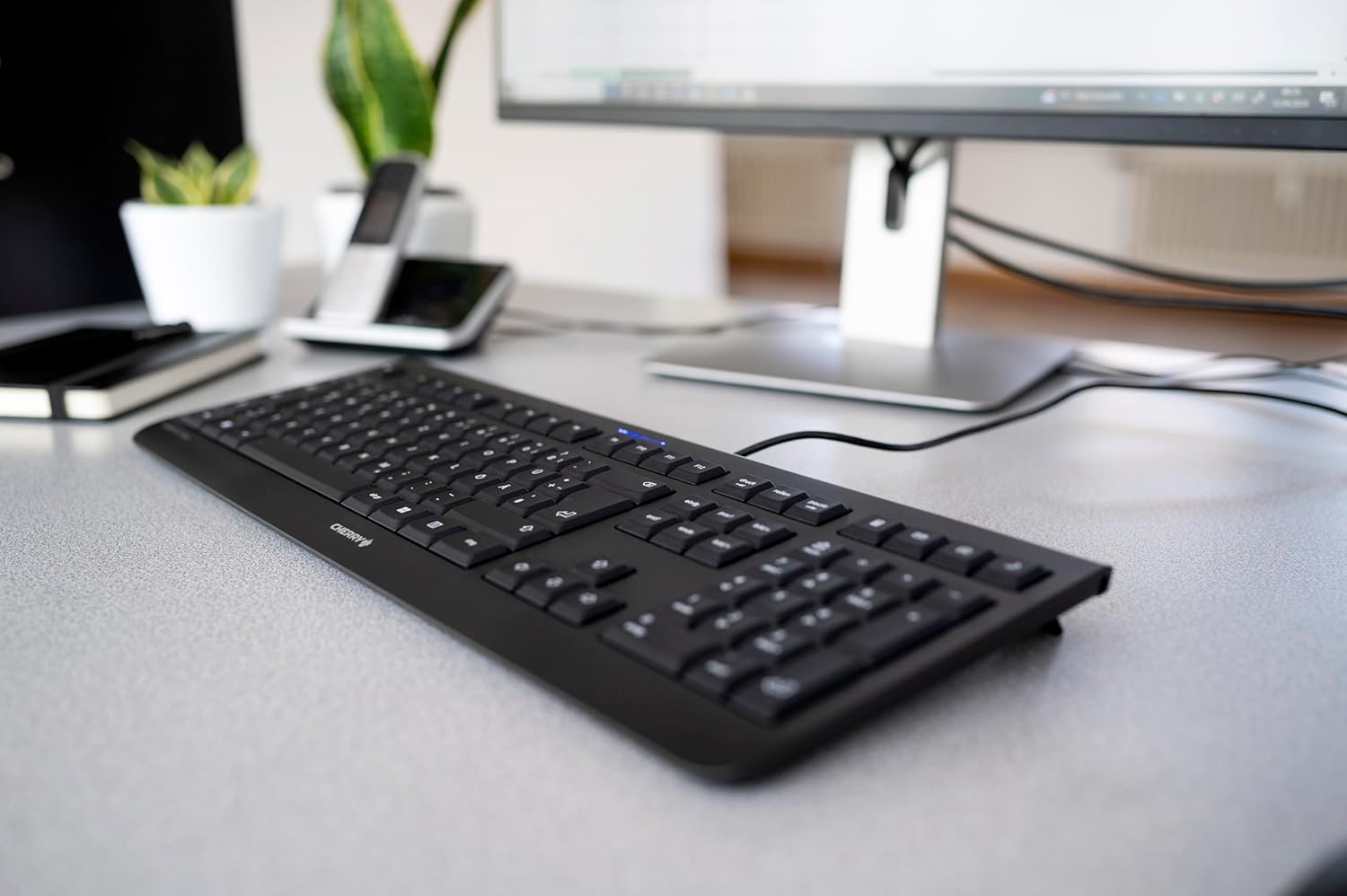
Image 1.1: The CHERRY KC 1000 keyboard in a typical office setup.
2. ຕັ້ງຄ່າ
The CHERRY KC 1000 keyboard is designed for simple Plug & Play installation. No additional drivers are required for most operating systems.
2.1 ການເຊື່ອມຕໍ່ຄີບອດ
- Locate an available USB-A port on your computer (desktop PC, laptop, or compatible device).
- Insert the USB connector of the CHERRY KC 1000 keyboard into the USB-A port.
- ລະບົບປະຕິບັດການຂອງທ່ານຈະກວດພົບແລະຕິດຕັ້ງໄດເວີທີ່ຈໍາເປັນໂດຍອັດຕະໂນມັດ. ຂະບວນການນີ້ປົກກະຕິແລ້ວໃຊ້ເວລາສອງສາມວິນາທີ.
- ຕອນນີ້ແປ້ນພິມພ້ອມນຳໃຊ້ແລ້ວ.
The keyboard features a 180 cm (approximately 5.9 feet) long cable, providing ample flexibility for desk arrangements.

Image 2.1: The USB cable connection of the CHERRY KC 1000 keyboard.
3. ການໃຊ້ງານຄີບອດ
The CHERRY KC 1000 offers a standard Italian QWERTY layout with additional function keys for enhanced productivity.
3.1 ຮູບແບບແປ້ນພິມ ແລະ ຟັງຊັນຕ່າງໆ
The keyboard includes a full-size layout with a dedicated numeric keypad and cursor keys. The Italian QWERTY layout supports specific characters and symbols commonly used in the Italian language.

ຮູບພາບ 3.1: ຫຼາຍກວ່າview of the CHERRY KC 1000 Italian QWERTY key layout.
3.2 ປຸ່ມຟັງຊັນພິເສດ
The keyboard features 4 additional keys located above the numeric keypad for quick access to common functions:
- ເຄື່ອງຄິດໄລ່: Opens the default calculator application.
- ອີເມວ: ເປີດຕົວໂປຣແກຣມອີເມວເລີ່ມຕົ້ນຂອງທ່ານ.
- ຕົວທ່ອງເວັບ: ເປີດຄ່າເລີ່ມຕົ້ນຂອງທ່ານ web ຕົວທ່ອງເວັບ.
- ຮູບແບບການນອນ: Puts your computer into sleep mode.
3.3 ສະຖານະພາບໄຟ LED
Three blue status LEDs are located above the function keys to indicate the status of:
- Caps lock: ຈະສະຫວ່າງຂຶ້ນເມື່ອປຸ່ມ Caps Lock ເປີດໃຊ້ງານ.
- NUM: ຈະສະຫວ່າງຂຶ້ນເມື່ອ Num Lock ເປີດໃຊ້ງານ.
- ເລື່ອນ: Illuminates when Scroll Lock is active.

Image 3.2: User interacting with the CHERRY KC 1000 keyboard.
4. ບໍາລຸງຮັກສາ
Proper care and maintenance will ensure the longevity and optimal performance of your CHERRY KC 1000 keyboard.
4.1 ການທໍາຄວາມສະອາດແປ້ນພິມ
- ຕັດການເຊື່ອມຕໍ່ແປ້ນພິມຈາກຄອມພິວເຕີຂອງທ່ານກ່ອນທີ່ຈະທໍາຄວາມສະອາດ.
- ໃຊ້ຜ້າແພທີ່ອ່ອນໆ ທີ່ບໍ່ມີເສັ້ນດ່າງ dampened with water or a mild cleaning solution (e.g., isopropyl alcohol) to wipe the keycaps and keyboard surface.
- Avoid using abrasive cleaners, solvents, or harsh chemicals, as these can damage the keyboard's finish or key legends.
- ສໍາລັບຂີ້ຝຸ່ນແລະສິ່ງເສດເຫຼືອລະຫວ່າງກະແຈ, ໃຊ້ອາກາດບີບອັດຫຼືແປງຂະຫນາດນ້ອຍ.
- ໃຫ້ແນ່ໃຈວ່າແປ້ນພິມແຫ້ງຫມົດກ່ອນທີ່ຈະເຊື່ອມຕໍ່ມັນກັບຄອມພິວເຕີຂອງທ່ານ.
4.2 ການເບິ່ງແຍງທົ່ວໄປ
- ຫຼີກເວັ້ນການຮົ່ວໄຫລຂອງຂອງແຫຼວໃສ່ແປ້ນພິມ.
- ຢ່າໃຫ້ແປ້ນພິມຖືກອຸນຫະພູມສູງ ຫຼື ແສງແດດໂດຍກົງເປັນເວລາດົນ.
- Do not attempt to disassemble the keyboard, as this may void the warranty.
5. ການແກ້ໄຂບັນຫາ
If you encounter issues with your CHERRY KC 1000 keyboard, refer to the following common troubleshooting steps.
5.1 ແປ້ນພິມບໍ່ຕອບສະໜອງ
- ກວດເບິ່ງການເຊື່ອມຕໍ່ USB: Ensure the USB cable is securely plugged into both the keyboard and the computer's USB port. Try a different USB port.
- ປິດເປີດຄອມພິວເຕີຄືນໃໝ່: ບາງຄັ້ງການຣີສະຕາດຄອມພິວເຕີແບບງ່າຍໆສາມາດແກ້ໄຂບັນຫາການເຊື່ອມຕໍ່ໄດ້.
- ທົດສອບໃນຄອມພິວເຕີອື່ນ: If possible, connect the keyboard to another computer to determine if the issue is with the keyboard or the original computer.
- ການຕິດຕັ້ງໄດເວີໃຫມ່: Although Plug & Play, sometimes reinstalling drivers can help. Disconnect the keyboard, restart the computer, and then reconnect the keyboard.
5.2 ປຸ່ມບໍ່ເຮັດວຽກຢ່າງຖືກຕ້ອງ
- ກະແຈທີ່ສະອາດ: Dust or debris under the keycaps can cause keys to stick or not register. Refer to the cleaning instructions in Section 4.1.
- ຂໍ້ຂັດແຍ່ງຊອບແວ: Ensure no other software or keyboard utilities are interfering with the keyboard's operation.
5.3 Status LEDs Not Working
- Verify that the corresponding lock function (Caps Lock, Num Lock, Scroll Lock) is activated.
- If the keyboard is otherwise functional, a minor software glitch might be preventing the LED from lighting up. A computer restart may resolve this.
6. ຂໍ້ມູນຈໍາເພາະ
Below are the technical specifications for the CHERRY KC 1000 Wired Keyboard.
| ຄຸນສົມບັດ | ລາຍລະອຽດ |
|---|---|
| ຊື່ຕົວແບບ | ChERRY KC 1000 |
| ໝາຍເລກຕົວແບບ | JK-0800IT-2 |
| ການເຊື່ອມຕໍ່ | ມີສາຍ USB-A |
| ຮູບແບບແປ້ນພິມ | Italian QWERTY |
| ຈໍານວນກະແຈ | 109 |
| ເທັກໂນໂລຍີຫຼັກ | Membrane or Rubber Dome |
| ຄຸນນະສົມບັດພິເສດ | Whisper-quiet keystroke, 4 additional function keys (Calculator, Email, Browser, Sleep Mode), 3 blue status LEDs |
| ຄວາມຍາວສາຍ | 1.8 ແມັດ (5.9 ຟຸດ) |
| ວັດສະດຸ | ພາດສະຕິກ |
| ສີ | ດຳ |
| ນ້ຳໜັກ | 530 ກຣາມ |
| ອຸປະກອນທີ່ເຂົ້າກັນໄດ້ | ແລັບທັອບ, PC |
| ການຢັ້ງຢືນ | c-tick, cULus, CE, FCC, BSMI, TÜV/GS, Blue Angel eco-label |
7. ການຮັບປະກັນແລະການສະຫນັບສະຫນູນ
CHERRY products are manufactured to high-quality standards. For information regarding warranty coverage, please refer to the warranty card included with your product or visit the official CHERRY website. For technical support or further assistance, please contact CHERRY customer service through their official channels.
The product package includes: 1 CHERRY KC 1000 keyboard and a printed instruction manual.