
ແນະນຳ
The ASTRO Gaming A40 TR Headset and MixAmp Pro TR are designed to provide a high-fidelity audio experience for gaming on PlayStation 4 and PC. The A40 TR headset offers user customization, allowing transformation from an open-back to a closed-back noise-canceling headset with optional Mod Kits. The MixAmp Pro TR features all-digital components for clear, interference-free audio and voice communication, with customizable settings via the ASTRO Command Center software.

Image: The ASTRO Gaming A40 TR Headset and MixAmp Pro TR, showcasing both components together. The headset is black with gold accents, and the MixAmp is a compact black unit with control dials.
ເນື້ອໃນຊຸດ
ກວດສອບວ່າລາຍການທັງຫມົດທີ່ລະບຸໄວ້ຂ້າງລຸ່ມນີ້ແມ່ນລວມຢູ່ໃນການຫຸ້ມຫໍ່ຜະລິດຕະພັນຂອງທ່ານ:
- ASTRO A40 TR Headset
- ASTRO MixAmp Pro TR
- A40 TR Inline Mute Cable (2.0m)
- TOSlink Optical Cable (3.0m)
- Micro-USB Cable (3.0m)
- Digital Daisy Chain Cable (0.5m)
- Swappable Microphone
ຕັ້ງຄ່າ
ການເຊື່ອມຕໍ່ກັບ PlayStation 4 (PS4)
- ເຊື່ອມຕໍ່ TOSlink Optical Cable from the MixAmp Pro TR's OPTICAL port to the PS4's Optical Out port.
- ເຊື່ອມຕໍ່ ສາຍ Micro-USB from the MixAmp Pro TR's USB port to an available USB port on the PS4.
- ເຊື່ອມຕໍ່ A40 TR Inline Mute Cable from your A40 TR Headset to the headset port on the front of the MixAmp Pro TR.
- ໃນ PS4 ຂອງທ່ານ, ໃຫ້ໄປທີ່ Settings > Sound and Screen > Audio Output Settings.
- ຕັ້ງ ພອດຜົນຜະລິດຕົ້ນຕໍ ກັບ Digital Out (Optical).
- ເລືອກ Dolby Digital (Bitstream) for the audio format.
- ໄປທີ່ ການຕັ້ງຄ່າ> ອຸປະກອນ> ອຸປະກອນສຽງ.
- ຕັ້ງ ອຸປະກອນປ້ອນ ກັບ USB Headset (ASTRO MixAmp Pro TR).
- ຕັ້ງ ອຸປະກອນອອກ ກັບ USB Headset (ASTRO MixAmp Pro TR).
- ປັບ ການຄວບຄຸມລະດັບສຽງ (ຫູຟັງ) ສູງສຸດ.
- ຕັ້ງ ອອກສູ່ຫູຟັງ ກັບ ສຽງສົນທະນາ or ສຽງທັງ ໝົດ as preferred.
ກຳລັງເຊື່ອມຕໍ່ກັບ PC
- ເຊື່ອມຕໍ່ ສາຍ Micro-USB from the MixAmp Pro TR's USB port to an available USB port on your PC.
- ເຊື່ອມຕໍ່ A40 TR Inline Mute Cable from your A40 TR Headset to the headset port on the front of the MixAmp Pro TR.
- On your PC, ensure the MixAmp Pro TR is selected as the default playback and recording device in your sound settings.
- ດາວນ໌ໂຫລດແລະຕິດຕັ້ງ ASTRO Command Center software from the official ASTRO Gaming website to customize settings, update firmware, and manage EQ presets.
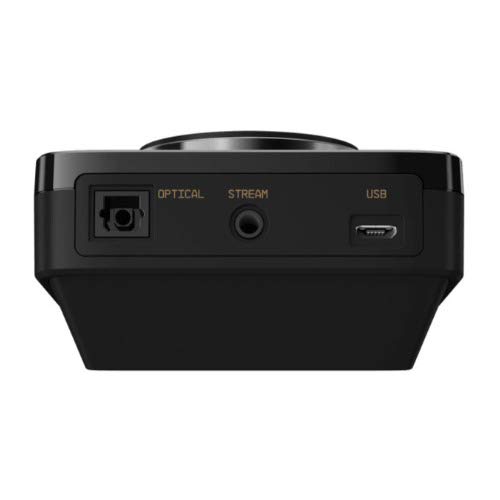
ຮູບພາບ: ດ້ານຫລັງ view of the ASTRO MixAmp Pro TR, highlighting the Optical, USB, AUX, and Stream ports for various connections.
Operating the MixAmp Pro TR
ການປະສົມAmp Pro TR provides intuitive controls for managing your audio experience:
- ປຸ່ມປັບລະດັບສຽງຫຼັກ: The large dial on the left controls the overall volume of your headset. Rotate clockwise to increase volume, counter-clockwise to decrease.
- Game/Voice Balance Dial: The smaller dial on the right allows you to adjust the balance between game audio and voice chat.
- Rotate towards "GAME" to prioritize game audio.
- Rotate towards "VOICE" to prioritize voice chat.
- EQ Presets Button: Located in the center, this button cycles through four customizable equalizer presets. The active preset is indicated by the illuminated icon (star, headphone, etc.). These presets can be configured using the ASTRO Command Center software.
- Dolby Button: Activates or deactivates Dolby Surround Sound. When active, the Dolby logo will illuminate.
- ປຸ່ມປິດສຽງໄມໂຄຣໂຟນ: Located on the A40 TR Inline Mute Cable, this switch mutes or unmutes your microphone. When muted, the MixAmp's volume dials will typically glow red.
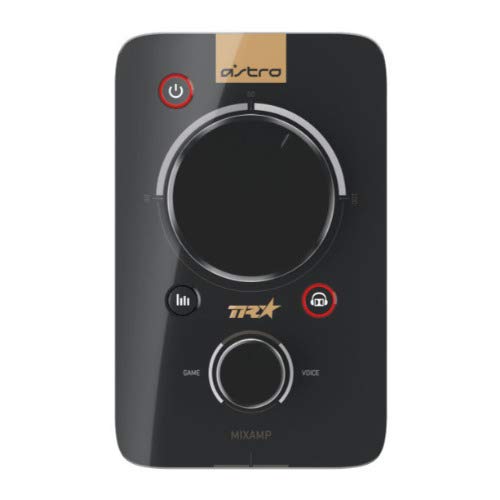
ຮູບພາບ: ເທິງ view of the ASTRO MixAmp Pro TR, showing the large master volume dial, the smaller game/voice balance dial, and the EQ preset buttons.
ບໍາລຸງຮັກສາ
- ທໍາຄວາມສະອາດ: Use a soft, dry cloth to clean the headset and MixAmp. ຫຼີກລ້ຽງການເຮັດຄວາມສະອາດຂັດຫຼືສານລະລາຍ.
- ການເກັບຮັກສາ: Store the headset and MixAmp ຢູ່ໃນບ່ອນທີ່ເຢັນ, ແຫ້ງແລ້ງຫ່າງຈາກແສງແດດໂດຍກົງ ແລະອຸນຫະພູມທີ່ຮ້າຍກາດ.
- ການດູແລສາຍໄຟ: ຈັບສາຍໄຟຢ່າງລະມັດລະວັງເພື່ອປ້ອງກັນຄວາມເສຍຫາຍ. ຫຼີກລ່ຽງການງໍແຫຼມ ຫຼື ການດຶງຫຼາຍເກີນໄປ.
- ເບາະຫູ: Periodically check ear cushions for wear and tear. Replacement cushions are available from ASTRO Gaming.
ການແກ້ໄຂບັນຫາ
If you encounter issues with your ASTRO Gaming A40 TR Headset or MixAmp Pro TR, try the following solutions:
| ບັນຫາ | ການແກ້ໄຂ |
|---|---|
| ບໍ່ມີສຽງຈາກຊຸດຫູຟັງ. |
|
| ໄມໂຄຣໂຟນບໍ່ເຮັດວຽກ. |
|
| ຄຸນນະພາບສຽງບິດເບືອນ ຫຼື ບໍ່ດີ. |
|
For more detailed troubleshooting, please refer to the official ASTRO Gaming support resources.
ຂໍ້ມູນຈໍາເພາະ
- ໝາຍເລກຕົວແບບ: 939-001511
- ການຕອບສະໜອງຄວາມຖີ່: 20 - 20,000 Hz
- impedance ນາມ: 48 ໂອມ
- ຄວາມກົດດັນຫົວ: 2.6 ນ
- ຂະໜາດຜະລິດຕະພັນ: 9.06 x 13.87 x 4.33 ນິ້ວ
- ນ້ໍາຫນັກລາຍການ: 1.06 ປອນ
- ການເຊື່ອມຕໍ່: Optical, USB
- ຄວາມເຂົ້າກັນໄດ້: PlayStation 4, PC
ການຮັບປະກັນແລະການສະຫນັບສະຫນູນ
For detailed warranty information and product support, please visit the official ASTRO Gaming webເວັບໄຊ ຫຼືອ້າງອີງໃສ່ເອກະສານທີ່ສະໜອງໃຫ້:
Ensure you register your product on the ASTRO Gaming website for the latest updates and support.