
1. ຜະລິດຕະພັນເກີນview
The Cisco 4000 series Integrated Services Routers (ISR) are designed to provide advanced network, compute, and WAN services for modern business environments. The ISR4351/K9 model facilitates the extension of cloud services to remote sites and supports a transition to a hybrid WAN architecture. It integrates chassis, modules, and WAN services within a robust management framework, offering a flexible platform adaptable to evolving application landscapes.
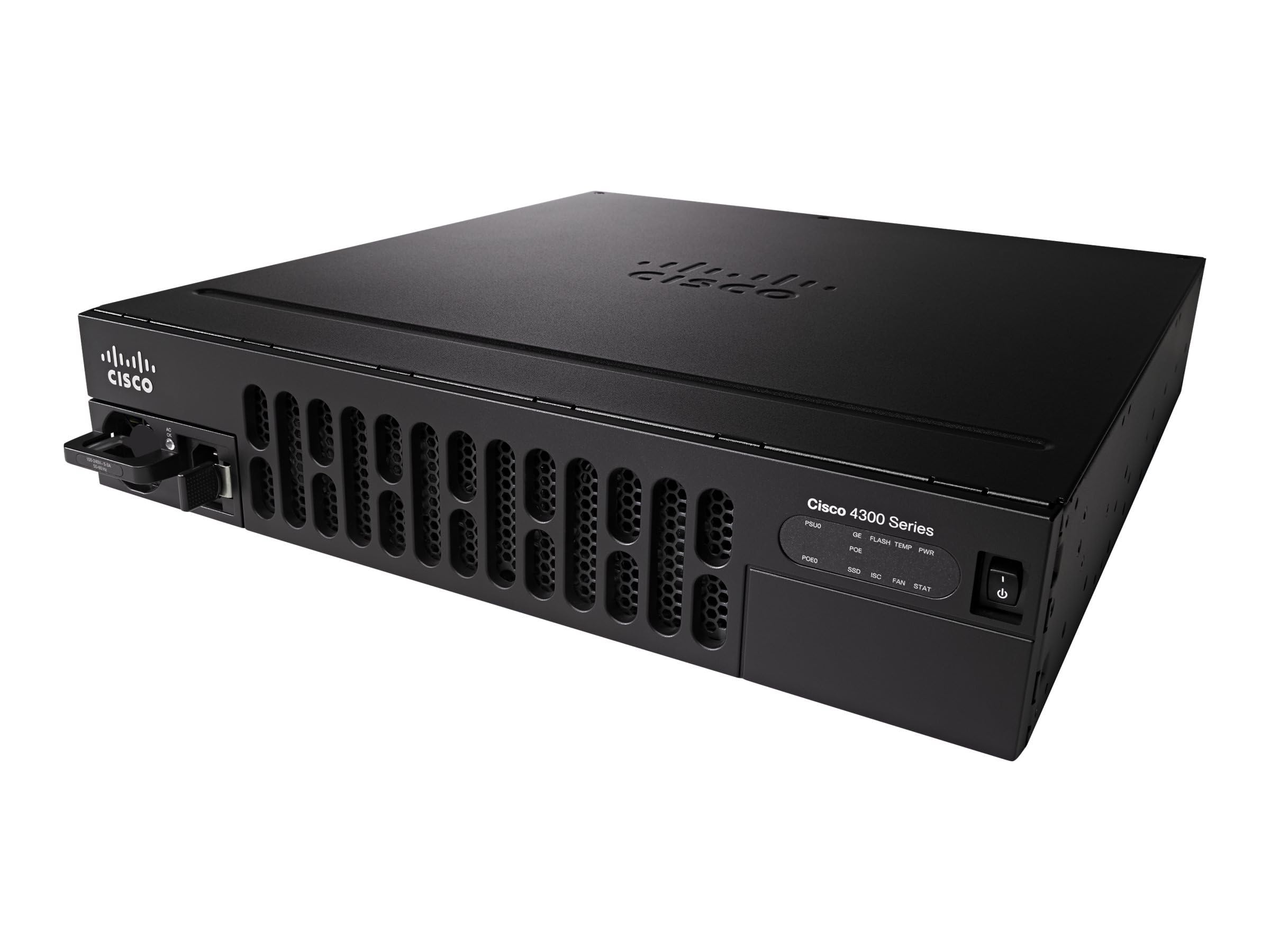
Image showing the front panel of the Cisco ISR4351/K9 Router, highlighting its rack-mountable design and port layout.
2. ເນື້ອໃນຊຸດ
ກວດສອບວ່າທຸກລາຍການມີຢູ່ໃນຊຸດກ່ອນທີ່ຈະດໍາເນີນການຕິດຕັ້ງ.
- Cisco ISR4351/K9 Router
- ຊຸດຕິດຕັ້ງ Rack
3. ຕັ້ງຄ່າ
Follow these steps for initial setup of your Cisco ISR4351/K9 Router:
- ການຫຸ້ມຫໍ່: Carefully remove the router and all components from the packaging. Inspect for any visible damage.
- ການຕິດຕັ້ງ Rack: Use the provided rack mounting kit to securely install the router into a standard equipment rack. Ensure adequate ventilation around the unit.
- ການເຊື່ອມຕໍ່ພະລັງງານ: Connect the power cable to the router's power input and then to a grounded electrical outlet. Do not power on the device yet.
- ການເຊື່ອມຕໍ່ເຄືອຂ່າຍ: Connect your WAN and LAN cables to the appropriate Ethernet ports on the router. Refer to the port labels for correct connections.
- Console Access (Optional): For initial configuration or troubleshooting, connect a console cable from your computer to the router's console port.
- ເປີດ: Once all connections are secure, connect the power cable to the electrical outlet. The router will begin its boot sequence.
4. ຄໍາແນະນໍາການດໍາເນີນງານ
The Cisco ISR4351/K9 Router operates on Cisco IOS, providing a comprehensive command-line interface (CLI) for configuration and management. Basic operation involves configuring network interfaces, routing protocols, and security features.
- ການຕັ້ງຄ່າເບື້ອງຕົ້ນ: Access the router via the console port or a network connection (if pre-configured) using a terminal emulator. Follow Cisco IOS configuration guides for initial setup, including IP addressing, user accounts, and basic security.
- WAN Services: Configure WAN interfaces to connect to your internet service provider or private networks. The router supports various WAN technologies for flexible connectivity.
- Application Visibility: Utilize built-in features for visibility into application traffic, enabling effective capacity planning and prioritization of critical applications.
- ການເລືອກເສັ້ນທາງອັດສະລິຍະ: Implement intelligent path selection to optimize traffic flow, balance loads, and potentially reduce operational costs.
- ຄວາມປອດໄພ: Configure firewalls, VPNs, and other security protocols (such as WPS for wireless if applicable) to protect your network infrastructure.
5. ບໍາລຸງຮັກສາ
Regular maintenance ensures optimal performance and longevity of your Cisco ISR4351/K9 Router.
- ການອັບເດດເຟີມແວ: ກວດສອບການສະໜັບສະໜູນຂອງ Cisco ເປັນໄລຍະໆ website for the latest IOS software updates. Applying updates can improve performance, add features, and address security vulnerabilities.
- ເງື່ອນໄຂສິ່ງແວດລ້ອມ: Ensure the router operates within recommended temperature and humidity ranges. Maintain clear airflow around the device to prevent overheating.
- ການກວດຮ່າງກາຍ: Regularly inspect cables and connections for wear or damage. Keep the router's exterior clean and free of dust.
- ການສໍາຮອງຂໍ້ມູນການຕັ້ງຄ່າ: Regularly back up your router's configuration to an external storage device or network location.
6. ການແກ້ໄຂບັນຫາ
If you encounter issues with your Cisco ISR4351/K9 Router, consider the following troubleshooting steps:
- ບໍ່ມີພະລັງງານ: Verify that the power cable is securely connected to both the router and a working electrical outlet. Check the power indicator lights on the router.
- ບັນຫາການເຊື່ອມຕໍ່ເຄືອຂ່າຍ: Check all Ethernet cable connections. Verify interface status using Cisco IOS commands (e.g.,
show ip interface brief). Ensure correct IP addressing and routing configurations. - ປະສິດທິພາບຊ້າ: Monitor CPU and memory utilization (
show processes cpu,show memory). Check for high traffic loads or potential network bottlenecks. - Access Problems: If you cannot access the router via SSH/Telnet, try using the console port for direct access. Verify user credentials and access control lists (ACLs).
- ປຶກສາເອກະສານ: Refer to the comprehensive Cisco IOS documentation and support resources available on the official Cisco website for detailed troubleshooting guides and command references.
7. ຂໍ້ມູນຈໍາເພາະ
Key technical specifications for the Cisco ISR4351/K9 Router:
| ຄຸນສົມບັດ | ຂໍ້ມູນຈໍາເພາະ |
|---|---|
| ຊື່ຕົວແບບ | ISR4351/K9 |
| ຍີ່ຫໍ້ | ຊິສໂກ |
| ລະບົບປະຕິບັດການ | Cisco IOS |
| ໜ່ວຍຄວາມຈຳ RAM ຕິດຕັ້ງແລ້ວ | 4 GB |
| ຈໍານວນພອດ | 8 |
| ເຕັກໂນໂລຊີການເຊື່ອມຕໍ່ | ອີເທີເນັດ |
| LAN Port Bandwidth | 1000 Mbps |
| ອັດຕາການໂອນຂໍ້ມູນ | 200 Megabits ຕໍ່ວິນາທີ |
| Maximum Upstream Data Transfer Rate | 450 Megabits ຕໍ່ວິນາທີ |
| ມາດຕະຖານການສື່ສານໄຮ້ສາຍ | 802.11 ນ |
| ຫ້ອງຮຽນແຖບຄວາມຖີ່ | Dual-Band |
| ອະນຸສັນຍາດ້ານຄວາມປອດໄພ | WPS |
| ສະບັບtage | 240 ໂວນ |
| ນ້ໍາຫນັກລາຍການ | 28.9 ປອນ |
8. ການຮັບປະກັນແລະການສະຫນັບສະຫນູນ
ການຮັບປະກັນ: This Cisco ISR4351/K9 Router comes with a 30-day warranty from the date of purchase. Please retain your proof of purchase for warranty claims.
ສະຫນັບສະຫນູນດ້ານວິຊາການ: ສຳລັບການຊ່ວຍເຫຼືອດ້ານເຕັກນິກ, ເອກະສານເພີ່ມເຕີມ, ຫຼື ເພື່ອລາຍງານບັນຫາຕ່າງໆ, ກະລຸນາເຂົ້າໄປທີ່ຝ່າຍສະໜັບສະໜູນ Cisco ຢ່າງເປັນທາງການ website. You can find extensive resources, including knowledge bases, downloads, and contact information for support services.
ສະຫນັບສະຫນູນ Cisco Webເວັບໄຊ: https://www.cisco.com/c/en/us/support/index.html